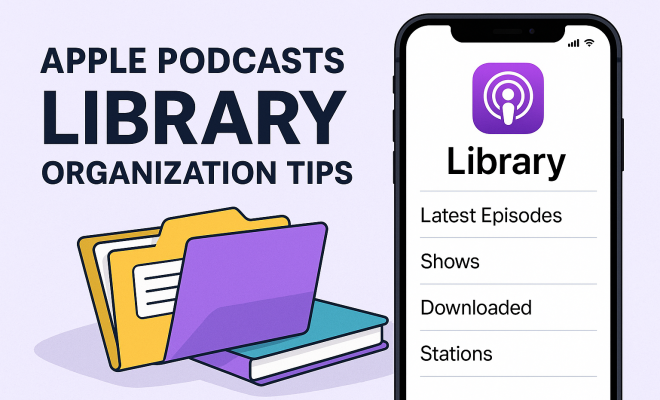
Apple Podcasts library organization tips
“`html
If you’re anything like me, your Apple Podcasts library has likely transformed into a digital equivalent of that overflowing junk drawer we all have in our kitchens. What started as a curated collection of fascinating shows has somehow morphed into a sprawling, chaotic mess of downloaded episodes, half-finished series, and long-forgotten subscriptions. It’s a common predicament, isn’t it? We subscribe with the best intentions, eager to absorb new knowledge or be entertained, only to find ourselves overwhelmed by the sheer volume of content. This isn’t just about tidiness; a disorganized podcast library can actively hinder your listening experience. It makes it harder to find what you want, easier to miss new episodes from your favorite creators, and ultimately, less enjoyable to engage with a medium that should be a source of pleasure and insight.
The good news is that Apple Podcasts, despite its sometimes-criticized interface, offers a robust set of tools designed to bring order to that chaos. You just need to know how to use them. Mastering these apple podcasts organization tips isn’t just about decluttering; it’s about reclaiming your listening experience, ensuring you’re always tuned into the content that matters most to you, and making the most of every precious minute you dedicate to audio.
The Hidden Power of Stations: Your Personalized Audio Feeds
Let’s kick things off with arguably the most powerful yet often underutilized feature in Apple Podcasts: Stations. Think of Stations not just as playlists, but as intelligent, dynamic audio feeds that update automatically. They’re like having a personal radio DJ who knows exactly what you want to hear, when you want to hear it, and in what order.
To create a new Station, you’ll typically find an option like ‘New Station’ or ‘Create Custom Station’ within the Library tab. Once you’ve named it – something descriptive like ‘Morning Commute News’ or ‘Deep Dive Tech’ works wonders – the real magic begins. You can then add specific podcasts to that station. What makes Stations truly shine is the level of control you gain over playback. You can dictate whether episodes play in chronological order, reverse chronological order, or even by specific criteria like oldest unplayed. This means you can have a Station dedicated to catching up on all your favorite weekly news roundups, playing them back-to-back, or another for a narrative true-crime series, ensuring you hear episodes in the correct sequence.
Crucially, Stations allow you to filter content. Want only new, unplayed episodes? You can set that. Want to exclude episodes you’ve already finished? Absolutely. This level of granular control means your Station will only present you with fresh content you haven’t heard, eliminating the clutter of already-listened-to episodes. It’s a fundamental shift from simply subscribing to actively curating your listening flow. I find them particularly useful for themed listening – all my history podcasts in one place, or all my short, daily motivational episodes grouped together for a quick hit.
Curating Your Subscriptions: A Digital Detox for Your Ears
Before you even start thinking about how to arrange your library, you need to ensure that what’s in it truly deserves a spot. We’ve all been there: subscribed to a podcast, listened to a few episodes, and then just… stopped. But the subscription remains, quietly downloading new episodes and contributing to the digital noise. This is where a subscription audit comes in – a crucial step for any effective apple podcasts organization tips strategy.
Go through your entire list of subscribed podcasts. Be honest with yourself. Are you still actively listening to this show? Does it still bring you value, entertainment, or information? If the answer is a resounding ‘no,’ or even a hesitant ‘maybe later,’ it’s time to unsubscribe. Don’t feel guilty about it. Creators want engaged listeners, not passive subscribers. You can always re-subscribe if your interest is rekindled. Think of it like decluttering your physical space; getting rid of things you don’t use frees up mental energy and makes room for what truly matters.
Beyond simply unsubscribing, consider pausing downloads for shows you listen to irregularly. For instance, if you enjoy a seasonal podcast but don’t need every episode immediately, you can adjust its settings to stop automatic downloads. This saves storage space on your device and keeps your ‘Up Next’ queue from becoming an endless scroll. This proactive approach to subscription management is the bedrock of a truly organized library.
The ‘Listen Now’ Tab: Your Dynamic Listening Hub
Apple Podcasts’ ‘Listen Now’ tab is designed to be your personalized dashboard, offering a quick overview of what’s new and what you’ve started. It’s a dynamic space, constantly updating to reflect your listening habits and subscriptions. Understanding how to leverage it is key to efficient navigation.
At the top, you’ll find ‘Up Next,’ which is essentially your queue. Episodes you start listening to, or those added from a Station, will appear here. You can manually add episodes to ‘Up Next’ by tapping the three dots next to an episode and selecting ‘Add to Up Next.’ This is incredibly useful for planning your listening sessions – perhaps you have a long drive and want to line up several episodes, or you’re tackling a specific series and want to ensure they play in order. Drag and drop functionality allows you to reorder items in your queue with ease.
Below ‘Up Next,’ ‘Recently Updated’ shows you new episodes from your subscribed podcasts, making it easy to spot fresh content. ‘Recently Played’ keeps track of what you’ve been listening to, so you can easily jump back into an unfinished episode. The ‘Listen Now’ tab also suggests new shows based on your listening history, which can be a great way to discover new content, but don’t let it distract from your core organizational efforts. Think of ‘Listen Now’ as your immediate command center, reflecting the current state of your podcast world, while your Stations are the strategic long-term planning tools. (See: Understanding the podcasting medium.)
Mastering Individual Podcast Settings: Granular Control Over Your Content
While Stations offer broad organization, diving into the settings for each individual podcast provides a finer level of control. This is where you can truly customize how each show behaves within your library, and it’s a vital component of robust apple podcasts organization tips.
When you navigate to a specific podcast page, you’ll usually see an icon (often three dots or a gear) that leads to its settings. Here, you can toggle automatic downloads on or off. For daily shows you never want to miss, keep it on. For weekly shows you sometimes skip, you might turn it off and manually download only the episodes you intend to listen to. You can also specify how many episodes to keep downloaded – a godsend for saving storage space. Setting it to ‘Keep 5 Latest Episodes’ or ‘Keep All Unplayed Episodes’ can prevent your device from being swamped by old content.
Another crucial setting is the ‘Episode Order.’ While Stations can override this, the default order for a specific podcast can be set here. For narrative shows, ‘Oldest to Newest’ is usually preferred. For news or interview shows, ‘Newest to Oldest’ makes more sense. Taking a few moments to adjust these settings for each of your frequently listened-to podcasts will significantly reduce manual management and streamline your listening experience, ensuring episodes arrive and play exactly as you prefer.
The Download Dilemma: When to Download, When to Stream
Deciding whether to download or stream your podcasts might seem like a minor detail, but it has significant implications for both your device’s storage and your listening flexibility. It’s a key consideration in any effective strategy for apple podcasts organization tips.
Downloading episodes is ideal if you frequently listen offline – on flights, during commutes with spotty internet, or when you want to conserve mobile data. Once an episode is downloaded, it’s there on your device, ready to play without any buffering or reliance on a network connection. However, downloaded episodes take up storage space. If you subscribe to many podcasts, especially those with long episodes or high audio quality, your device’s storage can quickly diminish. This is where those individual podcast settings we just discussed become invaluable, allowing you to limit how many episodes are kept downloaded.
Streaming, on the other hand, requires an active internet connection but uses no permanent storage on your device. It’s perfect for casual listening, trying out new shows, or if you have ample mobile data and don’t mind the occasional buffer. The Apple Podcasts app intelligently handles streaming, often pre-buffering content to provide a smooth experience. My personal rule of thumb: if it’s a show I absolutely need for my morning run, I download it. If it’s something I’m sampling or listening to at home with Wi-Fi, I’ll stream it. (troubleshooting playback issues)
A hybrid approach often works best. Use Stations to automatically download new episodes of your must-listen shows, and then manually stream other content as needed. Regularly review your downloaded episodes list (often found under the Library tab) to delete older content you’ve already heard or no longer need, freeing up precious space.
Managing Storage Space: Keeping Your Device Lean
Podcast episodes, especially those with high fidelity audio or lengthy runtimes, can be surprisingly hungry for storage space. A few dozen unlistened-to episodes can easily gobble up several gigabytes on your iPhone or iPad. Effective storage management is a non-negotiable part of good apple podcasts organization tips.
Beyond the individual podcast settings to limit downloaded episodes, Apple Podcasts offers a global setting to manage downloads. You can usually find this in your device’s main Settings app, under ‘Podcasts.’ Look for options like ‘Download Episodes’ or ‘Remove Played Downloads.’ Enabling ‘Remove Played Downloads’ is a no-brainer – once you finish an episode, the app will automatically delete it, keeping your storage footprint minimal. You can also set a general limit on the number of new episodes to download, preventing an uncontrolled influx of content.
For a more hands-on approach, periodically check the ‘Downloaded’ section in your Apple Podcasts Library. Here, you’ll see a list of all episodes currently stored on your device. You can swipe left on individual episodes to delete them, or use an ‘Edit’ option (if available) to select multiple episodes for deletion. Getting into the habit of reviewing your downloads once a week or so can make a huge difference, especially if you subscribe to a high volume of shows. Remember, a lighter device is a happier device, and a less cluttered library is a less stressful one.
Syncing Across Devices: A Seamless Listening Experience
One of the true conveniences of the Apple ecosystem is the seamless synchronization of data across your devices. This applies beautifully to Apple Podcasts, ensuring your listening progress, subscriptions, and settings are consistent whether you’re on your iPhone, iPad, or Mac. This seamless experience is often taken for granted, but it’s a powerful organizational tool in itself. This builds on listening on Android devices.
To ensure proper syncing, you’ll need to make sure ‘Sync Podcasts’ is enabled in your iCloud settings. On an iOS device, go to Settings > [Your Name] > iCloud, and ensure ‘Podcasts’ is toggled on. On a Mac, open the Podcasts app, go to Podcasts > Settings (or Preferences) > General, and check ‘Sync Podcasts.’ With this enabled, if you start listening to an episode on your iPhone during your commute, you can pick up exactly where you left off on your iPad when you get home, or on your Mac at your desk. Your ‘Up Next’ queue and any changes to your Stations will also reflect across all devices.
This synchronization eliminates the frustration of having to manually track your progress or remember which episode you were on. It frees you to move between devices fluidly, making your listening experience truly ubiquitous. It also means that any organizational efforts you put into your Stations or subscription management on one device will instantly propagate to all your other Apple devices, amplifying the impact of your apple podcasts organization tips. (See: The rise of podcasts in 2021.)
Beyond the Basics: Advanced Apple Podcasts Organization Tips
Once you’ve got the fundamentals down, there are a few more advanced maneuvers that can push your Apple Podcasts organization to the next level. These tips might seem minor, but they contribute significantly to a truly optimized listening environment.
First, consider the ‘Show Only Unplayed’ filter. Within your library, when viewing a specific podcast, you can often filter the episodes to show only those you haven’t listened to yet. This is incredibly helpful for shows with extensive back catalogs. Instead of scrolling through dozens or hundreds of episodes, you immediately see what’s new or what you’ve yet to experience. It streamlines discovery within your existing subscriptions.
Second, leverage the ‘Mark as Played’ or ‘Mark as Unplayed’ options. If you’ve listened to an episode outside of the Apple Podcasts app (perhaps on a different platform or in a browser), you can manually mark it as played to prevent it from cluttering your ‘Up Next’ queue or ‘Recently Updated’ list. Conversely, if you accidentally marked an episode as played, you can easily revert it. This manual intervention gives you ultimate control over your listening status.
Finally, don’t underestimate the power of the search function. While not strictly an organization tool, a well-organized library makes searching even more effective. If you know you’re looking for a specific episode from a particular show, typing the show’s name and a keyword from the episode into the search bar (accessible from the Library or Listen Now tabs) can save you a lot of scrolling. It’s about combining systematic organization with quick search capabilities.
A Routine of Review: Maintaining Your Organized Library
Like any good system, your Apple Podcasts organization strategy isn’t a one-and-done affair. It requires a routine of review and maintenance to stay effective. Think of it as digital gardening – you plant the seeds, you prune regularly, and you enjoy the fruits of your labor. Without this ongoing attention, even the most meticulously organized library will eventually succumb to clutter.
I suggest setting a recurring reminder, perhaps once a month, to conduct a quick audit. During this audit, ask yourself a few questions: Are there any podcasts I’ve stopped listening to that I should unsubscribe from? Are my Stations still serving their purpose, or do I need to create new ones or modify existing ones? Am I downloading too many episodes, or not enough? Is my ‘Up Next’ queue manageable, or has it become an overwhelming list of dozens of shows?
This regular check-in doesn’t need to take long – maybe 10-15 minutes. But these small, consistent efforts will prevent your library from spiraling back into disarray. It’s about being proactive rather than reactive. By dedicating a little time each month, you ensure that your Apple Podcasts experience remains a source of enjoyment and discovery, rather than a frustrating digital chore.
Expert Perspectives: The Psychology of Digital Decluttering
The drive to organize our digital lives, whether it’s our email inbox, photo library, or podcast subscriptions, taps into some pretty fundamental psychological principles. Experts often link digital decluttering to concepts like cognitive load and decision fatigue. When your podcast library is a mess, every time you open the app, your brain is faced with too many choices, too much visual clutter. This isn’t just annoying; it actually drains your mental energy.
Think about it like this: if you have a hundred unplayed episodes from twenty different shows staring at you, that’s a lot of tiny decisions your brain has to make. “Which one first? Do I even want to listen to this show anymore? Where did I leave off?” This constant mental taxation, even if subconscious, contributes to a feeling of being overwhelmed. On the flip side, a well-organized library, with Stations tailored to your moods or activities, reduces that cognitive load. You open the app, select your ‘Morning Commute’ station, and boom – the perfect episodes are there, in order, ready to go. This makes the entire experience more effortless and, consequently, more enjoyable. It’s not just about neatness; it’s about reducing friction in your daily digital interactions.
Comparing Apple Podcasts to Alternatives: A Brief Look
While this guide focuses on apple podcasts organization tips, it’s worth acknowledging that Apple Podcasts isn’t the only player in the game. Apps like Overcast, Pocket Casts, and Spotify all offer their own unique features and approaches to podcast management. For example, Overcast is highly praised for its ‘Smart Speed’ and ‘Voice Boost’ features, which optimize audio playback, and its customizable playlist options are quite robust. Pocket Casts also boasts excellent filtering and queue management. Spotify, while primarily a music streaming service, has integrated podcasts deeply, offering a unified platform for audio content, though its organizational tools are often seen as less powerful for dedicated podcast listeners compared to Apple Podcasts or specialized apps. (See: Impact of digital media on listening habits.)
The key takeaway here isn’t to switch apps, but to understand what Apple Podcasts does well. Its strength lies in its deep integration with the Apple ecosystem and its solid (if sometimes hidden) features like Stations. While other apps might offer slightly different approaches to filtering or queueing, the fundamental principles of subscription curation, intentional downloading, and smart grouping remain universal. If you’re invested in the Apple ecosystem, mastering Apple Podcasts’ native tools usually provides enough power to keep things tidy without needing a third-party solution.
FAQ: Common Apple Podcasts Organization Questions
Let’s address some frequently asked questions that pop up when people try to get their Apple Podcasts library in order.
Q: Can I create folders for my podcasts instead of Stations?
A: Apple Podcasts doesn’t directly support traditional folder structures for podcasts like you might find for apps on your home screen. Stations are designed to serve a similar purpose, allowing you to group shows by theme or listening context. Think of them as dynamic, smart folders that also control playback. While not a visual folder, they achieve the same organizational goal.
Q: How do I easily find new episodes from shows I’m subscribed to but haven’t added to a Station?
A: The ‘Listen Now’ tab is your best friend here. Specifically, look at the ‘Recently Updated’ section. This area is designed to show you all the latest episodes from any podcast you’re subscribed to, regardless of whether it’s in a Station. It’s a quick way to scan for fresh content across your entire library.
Q: I accidentally deleted an episode I wanted to hear. Can I get it back?
A: Yes, usually! If you delete a downloaded episode, you can simply go back to the podcast’s main page in the app, find the episode, and either stream it or download it again. Deleting a download just removes it from your device’s storage; it doesn’t remove it from the podcast’s feed.
Q: Why are some episodes playing out of order in my Station?
A: Double-check the playback settings for that specific Station. When creating or editing a Station, you have options like ‘Play in Order’ (oldest to newest), ‘Newest to Oldest,’ or ‘Manual.’ If it’s set to something other than the chronological order you expect, that’s likely the culprit. Also, ensure the individual podcast’s default episode order isn’t conflicting, though Station settings usually take precedence.
Q: Does unsubscribing delete all downloaded episodes from that podcast?
A: Unsubscribing won’t automatically delete existing downloaded episodes. You’ll need to manually remove them from your ‘Downloaded’ section in the Library, or your device’s storage settings. However, it will stop any future episodes from automatically downloading.
Bringing order to your Apple Podcasts library fundamentally enhances your listening experience. It transforms a potentially overwhelming stream of content into a curated, accessible, and enjoyable resource. By embracing Stations, diligently managing subscriptions and downloads, fine-tuning individual podcast settings, and committing to a routine of review, you’re not just tidying up; you’re actively shaping a more mindful and engaging relationship with the podcasts you love. So, take these apple podcasts organization tips to heart, and reclaim your audio world.
“`
Trending Now
Frequently Asked Questions
How do I organize my Apple Podcasts library?
To organize your Apple Podcasts library, utilize features like 'Stations' to create personalized audio feeds. You can also delete unused subscriptions, mark episodes as played, and categorize podcasts based on themes or interests to streamline your listening experience.
What are Apple Podcasts stations?
Apple Podcasts stations are dynamic audio feeds that automatically update with new episodes based on your preferences. You can create custom stations for specific themes or topics, making it easier to find and enjoy content tailored to your interests.
Can I customize my podcast library in Apple Podcasts?
Yes, you can customize your podcast library in Apple Podcasts by creating folders, managing subscriptions, and using the 'Stations' feature to group your favorite shows. This helps you maintain an organized and efficient listening experience.
How do I find new podcasts on Apple Podcasts?
To discover new podcasts on Apple Podcasts, explore the 'Browse' section, check out curated lists, or use the search function to find specific topics or genres. Recommendations from friends or social media can also lead you to new favorites.
What should I do with old podcast subscriptions?
For old podcast subscriptions that you no longer listen to, consider unsubscribing or deleting them from your library. This decluttering helps improve your overall experience and makes it easier to focus on the content you enjoy most.
What did we miss? Let us know in the comments and join the conversation.