Fix Your Games: How to Repair Origin Games Quickly
“`html
Introduction: If you’re a gamer, you’re likely familiar with Origin, EA’s digital distribution platform. While it offers a wide variety of games, it’s not uncommon to encounter issues that may make your favorite titles unplayable. Whether it’s a glitch, a corrupted file, or a loading problem, knowing how to repair game in Origin can save you from the frustration of losing precious gaming time. In this article, we’ll delve into the essential steps, tools, and tips you need to successfully repair your games on Origin.
1. Understanding Origin’s Repair Feature
Origin includes a built-in repair feature designed to fix corrupt or missing game files. This can be particularly useful when a game fails to launch or crashes unexpectedly. The repair tool checks the installation for any inconsistencies, downloads missing files, and attempts to rectify any errors.
To access this feature, users must first understand where it is located within the Origin client. Unlike other platforms, Origin streamlines this process, making it user-friendly. Familiarity with this tool is essential for any serious gamer who frequently encounters technical issues with their games.
2. How to Access the Repair Tool
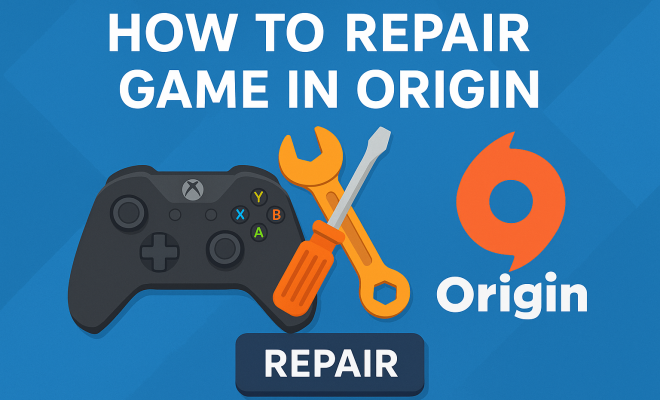
Getting to the repair tool in Origin is straightforward. Start by launching the Origin client on your PC. Navigate to the “My Game Library” section, where all your games are displayed. Locate the game you wish to repair, and right-click on its title. From the dropdown menu, select “Repair.” This action triggers the repair process, and Origin will begin scanning the game files.
This repair process generally takes a few minutes, depending on your game’s size and your internet speed. During this time, it’s essential to avoid interrupting the repair to ensure all files are correctly checked and fixed.
3. Why Repairing is Necessary
Games can become corrupted for various reasons, including improper installation, updates that didn’t install correctly, or even hardware issues. Understanding the necessity of repairs can save you time and heartache. A corrupted file can lead to crashes, bugs, or even complete failure to launch, severely impacting your gaming experience.
Additionally, frequent updates from game developers can sometimes lead to inconsistencies within game files. Repairing ensures that your game is not only playable but also updated to the latest version, thus enhancing your overall experience.
4. Common Issues That Require Repair
Several common issues may prompt you to repair a game in Origin. These include unexpected crashes during gameplay, long loading times, or error messages that appear when trying to launch the game. Users may also experience graphical issues or lag, which can stem from corrupted files.
Recognizing these issues early can save you from a more extensive troubleshooting process down the line. If you frequently encounter these problems, it may be time to make repairing your game a regular part of your gaming maintenance.
5. What to Do Before Repairing
Before you initiate the repair process, there are a few preparatory steps you should take. First, ensure that your Origin client is updated to the latest version. Outdated software can lead to complications during the repair process. Consider restarting your computer as well; this simple step can often resolve minor issues. (See: Digital distribution overview.)
Another crucial step is to check your internet connection. A stable and fast connection is necessary for downloading any missing files during the repair. Furthermore, you should back up any saved game files, particularly if you’re working with a title that doesn’t have cloud saving options.
6. How Long Does Repairing Take?
The time required to repair a game in Origin can vary significantly based on several factors. Large games with extensive graphics and assets may take longer than smaller indie titles. On average, you should expect the repair process to take anywhere from a few minutes to half an hour.
Patience is crucial during this process. Interrupting the repair can lead to further issues and may require you to start over. It’s best to let the process complete without interference.
7. What to Do if Repairing Doesn’t Work
If you’ve tried to repair your game in Origin and it still isn’t functioning correctly, don’t lose hope just yet. There are several alternative troubleshooting methods you can explore. First, try uninstalling and reinstalling the game. This process can often resolve issues that the repair tool may not be able to fix.
Additionally, ensure that your system meets the game’s requirements. Sometimes, hardware issues or outdated drivers can hinder your game’s performance. Updating your graphics drivers or freeing up disk space could provide a solution as well.
8. Keeping Your Games Updated
Regular updates from developers often fix bugs and improve performance. After repairing a game, make sure to check for updates on Origin. You can enable automatic updates in the settings to ensure you’re always playing the latest version of your games.
Staying updated not only enhances your gameplay experience but also reduces the likelihood of encountering bugs or issues that necessitate repairs in the first place. Make it a habit to check your games regularly, especially after major updates.
9. Seeking Help from EA Support
If you’ve exhausted all options and your game still isn’t working, it may be time to seek help from EA Support. Their support team is equipped to handle a wide range of issues, from installation problems to in-game bugs. You can reach them through the EA website, and they offer various support channels, including live chat and community forums.
Be prepared to provide specific details about your issue, including any error codes you’ve encountered and the steps you’ve taken to resolve the problem. This information will help them assist you more effectively.
10. Additional Troubleshooting Techniques
Sometimes repairing the game doesn’t solve all issues, and that’s where some additional troubleshooting techniques come into play. Here are some methods that can often help get the game back up and running:
- Check System Requirements: Ensure your system meets the minimum requirements to run the game. If your hardware has changed, it can affect performance.
- Disable Background Applications: Sometimes, other applications running in the background can interfere with the game. Closing unnecessary programs can help improve performance.
- Adjust Graphics Settings: Lowering the graphics settings within the game can also help resolve performance issues. High settings can sometimes lead to crashes, particularly on lower-end hardware.
- Verify Game Files: Apart from the repair feature, you can manually check if specific files are missing or altered. This requires some knowledge of the game’s directory structure.
11. Frequent Issues with Popular Games on Origin
Certain games are known to experience more issues on Origin than others. For instance, titles like “The Sims” series or “Battlefield” have been reported frequently to have problems due to their large size and online components. It’s worth researching specific issues related to the game you’re playing, as communities often share solutions that are unique to each title.
Knowing the common bugs and fix solutions before you start playing can help you prepare and address potential problems promptly. (See: Computer work and health issues.)
12. Understanding Game File Management
Managing your game files effectively can aid significantly in troubleshooting. Here are a few tips:
- Organize Your Library: Keep your games in separate folders or drives for easy access and management.
- Regular Backups: Backing up your game saves can be beneficial if you encounter a severe issue that requires a complete reinstallation.
- Monitor Disk Space: Check your hard drive regularly and ensure you have sufficient space for updates and installations. Low disk space can lead to performance issues.
13. Benefits of Repairing Games Regularly
Repairing your games regularly can have numerous benefits:
- Improved Performance: Regular repairs can keep your games running smoothly, minimizing lag and crashes.
- Extended Game Life: By maintaining the integrity of your game files, you reduce the chances of needing to replace or reinstall games prematurely.
- Better User Experience: A well-maintained game provides a better experience overall, allowing you to focus on enjoyment rather than technical difficulties.
14. Expert Perspectives on Game Maintenance
Experts often emphasize the importance of regular maintenance in digital gaming environments. For instance, game developers frequently recommend that players keep their software up to date to prevent errors that can arise from conflicting versions of the game and the client.
Additionally, tech experts suggest that gamers familiarize themselves with their hardware specifications to ensure that they are playing games optimally. Understanding the limitations of your system can help you avoid situations where you might face frequent crashes or performance drops.
15. Frequently Asked Questions (FAQ)
What should I do if the repair tool doesn’t find any issues but the game still doesn’t work?
If the repair tool doesn’t detect any problems but you’re still having issues, consider uninstalling and reinstalling the game. This often rectifies any stubborn issues.
Can I repair multiple games at once in Origin?
No, Origin’s repair feature allows you to repair one game at a time. You need to repeat the process for each game you want to troubleshoot.
Will repairing a game delete my saved progress?
Typically, repairing a game does not delete your saved progress, especially if they are stored in the cloud. However, it’s always good practice to back up your saves just in case.
How do I know if my game files are corrupted?
Signs of corrupted game files include frequent crashes, inability to launch the game, or receiving error messages. If you encounter these issues, it may be time to use the repair tool.
Why does repair take so long sometimes?
The repair process can take longer based on the size of the game and your internet speed. If there are many files to check or download, this can extend the time required.
Is there a way to speed up the repair process?
While you cannot directly speed up the repair process, ensuring a strong internet connection and minimizing background processes can help it go more smoothly. (See: Online gaming and technical challenges.)
16. Pro Tips for a Smooth Gaming Experience
To enhance your overall gaming experience and minimize future issues, here are some additional pro tips:
- Regular Maintenance: Make it a habit to check for updates and repair games that you notice are acting strangely.
- Engage with Community Forums: Many gamers share their experiences and solutions that could help you with your issues.
- Read Patch Notes: Staying informed about the latest updates and fixes from developers can give you insight into potential issues or improvements.
17. Advanced Repair Techniques for Persistent Issues
If you’re still encountering problems after the standard repair, you might need to consider some advanced techniques. These can often help you fix persistent issues that the typical repair process couldn’t resolve.
- Clear the Origin Cache: Sometimes, the cache files of the Origin client can interfere with game functionality. You can clear the cache by closing Origin, going to the Origin folder in your AppData, and deleting the cache folder. Restart Origin afterward and try launching the game again.
- Run as Administrator: Right-click the Origin client and select “Run as Administrator.” This can help overcome any permission issues that might be causing problems with game launches.
- Check for Disk Errors: Use Windows’ built-in tools to check for disk errors. Open a command prompt as administrator and run the command ‘chkdsk /f’. This checks the integrity of your hard drive and can fix file system errors.
- Reinstall Origin: In some cases, the issue may not lie within the game files but rather with the Origin client itself. Uninstalling and reinstalling Origin can often resolve underlying issues that affect multiple games.
18. Understanding Game File Management
Managing your game files effectively can aid significantly in troubleshooting. Here are a few tips:
- Organize Your Library: Keep your games in separate folders or drives for easy access and management.
- Regular Backups: Backing up your game saves can be beneficial if you encounter a severe issue that requires a complete reinstallation. Consider using cloud storage or external drives for your backups.
- Monitor Disk Space: Check your hard drive regularly and ensure you have sufficient space for updates and installations. Low disk space can lead to performance issues.
19. Benefits of Repairing Games Regularly
Repairing your games regularly can have numerous benefits:
- Improved Performance: Regular repairs can keep your games running smoothly, minimizing lag and crashes.
- Extended Game Life: By maintaining the integrity of your game files, you reduce the chances of needing to replace or reinstall games prematurely.
- Better User Experience: A well-maintained game provides a better experience overall, allowing you to focus on enjoyment rather than technical difficulties.
20. Preparing for Major Game Updates
Major updates to games can sometimes introduce new features or fix existing bugs, but they can also lead to new issues. Here’s how to prepare for these updates effectively:
- Read Release Notes: Before downloading any major update, read the patch notes provided by the developers. This information can give you insight into what to expect and any known issues.
- Create Restore Points: If you’re on Windows, consider creating a restore point before updating. This way, if anything goes wrong, you can revert to a stable system state.
- Check Online Communities: Visit forums and online communities specific to the game. Other players may report bugs or problems they encounter after an update, giving you a heads up on what to look out for.
21. Conclusion: Stay Proactive
Repairing a game in Origin can seem daunting, but with the right knowledge and tools, you can tackle most issues head-on. By understanding the repair feature and maintaining your games through regular updates and troubleshooting, you can ensure a more enjoyable gaming experience.
Remember, gaming should be fun, and knowing how to keep your games running smoothly will allow you to focus on what truly matters: enjoying the games you love. So the next time you encounter a glitch or issue, don’t panic—just follow these steps and get back to gaming!
“`
Trending Now
Frequently Asked Questions
How do I repair a game on Origin?
To repair a game on Origin, launch the Origin client and go to 'My Game Library'. Right-click on the game you want to repair and select 'Repair' from the dropdown menu. Origin will then scan and fix any corrupted or missing files.
Why is my game not launching on Origin?
A game may not launch on Origin due to corrupted files, improper installation, or issues with updates. Using the built-in repair feature can help resolve these problems by checking and fixing any inconsistencies in the game files.
What does the repair option do in Origin?
The repair option in Origin checks for corrupted or missing game files, downloads any required files, and attempts to fix errors. This ensures your game runs smoothly and resolves issues that may prevent it from launching.
How long does it take to repair a game on Origin?
The time it takes to repair a game on Origin varies depending on the game's size and your internet speed. Generally, the process can take a few minutes, so it's important not to interrupt it for best results.
Can I repair multiple games at once on Origin?
Unfortunately, Origin does not allow you to repair multiple games simultaneously. You need to repair each game individually by following the same process for each title in your library.
Have you experienced this yourself? We’d love to hear your story in the comments.