The Tech Edvocate

Top Menu

  • Advertisement
  • Apps
  • Home Page
  • Home Page Five (No Sidebar)
  • Home Page Four
  • Home Page Three
  • Home Page Two
  • Home Tech2
  • Icons [No Sidebar]
  • Left Sidbear Page
  • Lynch Educational Consulting
  • My Account
  • My Speaking Page
  • Newsletter Sign Up Confirmation
  • Newsletter Unsubscription
  • Our Brands
  • Page Example
  • Privacy Policy
  • Protected Content
  • Register
  • Request a Product Review
  • Shop
  • Shortcodes Examples
  • Signup
  • Start Here
    • Governance
    • Careers
    • Contact Us
  • Terms and Conditions
  • The Edvocate
  • The Tech Edvocate Product Guide
  • Topics
  • Write For Us
  • Advertise

Main Menu

  • Start Here
    • Our Brands
    • Governance
      • Lynch Educational Consulting, LLC.
      • Dr. Lynch’s Personal Website
      • Careers
    • Write For Us
    • The Tech Edvocate Product Guide
    • Contact Us
    • Books
    • Edupedia
    • Post a Job
    • The Edvocate Podcast
    • Terms and Conditions
    • Privacy Policy
  • Topics
    • Assistive Technology
    • Child Development Tech
    • Early Childhood & K-12 EdTech
    • EdTech Futures
    • EdTech News
    • EdTech Policy & Reform
    • EdTech Startups & Businesses
    • Higher Education EdTech
    • Online Learning & eLearning
    • Parent & Family Tech
    • Personalized Learning
    • Product Reviews
  • Advertise
  • Tech Edvocate Awards
  • The Edvocate
  • Pedagogue
  • School Ratings

logo

The Tech Edvocate

  • Start Here
    • Our Brands
    • Governance
      • Lynch Educational Consulting, LLC.
      • Dr. Lynch’s Personal Website
        • My Speaking Page
      • Careers
    • Write For Us
    • The Tech Edvocate Product Guide
    • Contact Us
    • Books
    • Edupedia
    • Post a Job
    • The Edvocate Podcast
    • Terms and Conditions
    • Privacy Policy
  • Topics
    • Assistive Technology
    • Child Development Tech
    • Early Childhood & K-12 EdTech
    • EdTech Futures
    • EdTech News
    • EdTech Policy & Reform
    • EdTech Startups & Businesses
    • Higher Education EdTech
    • Online Learning & eLearning
    • Parent & Family Tech
    • Personalized Learning
    • Product Reviews
  • Advertise
  • Tech Edvocate Awards
  • The Edvocate
  • Pedagogue
  • School Ratings
  • The Silent Revolution: How AI Property Valuation Is Quietly Reshaping Real Estate

  • The Astonishing Truth: Why Your Dream Car Is Now a $52,000 Illusion

  • Toxic Algorithms: Why Your Bank’s AI Could Cost You Everything

  • OpenAI’s GPT-6 Cyber: A Dangerous New AI Threat or Our Ultimate Digital Guardian?

  • This Game-Changing Natural Ozempic Alternative Just Blew Up on Social Media

  • Bónuszösszeg, ingyen pörgetés és befizetési feltétel: üdvözlő és befizetés nélküli kaszinóajánlatok magyar játékosoknak

  • 9 Critical Reasons Why Athexio Might Be The Investment You Need (Or Should Avoid)

  • A Single Breakthrough Could Finally Kill Range Anxiety for Millions of EV Owners

  • Your Money, Their AI: The Secret Agents Invading Bank Accounts

  • US Battery as a Service Market Shifts Toward Fleet-Based Energy

Digital & Mobile Technology
Home›Digital & Mobile Technology›How to Connect Chromebook to a Monitor

How to Connect Chromebook to a Monitor
By Matthew Lynch
June 10, 2023
0
Spread the love

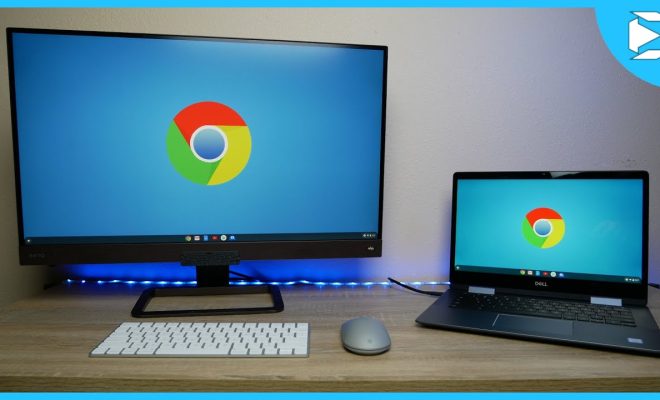
Chromebooks have become increasingly popular in recent years as they provide an affordable and efficient way to stay productive on-the-go. However, sometimes a small screen can be restrictive and it may be more comfortable or necessary to work on a larger display. Luckily, connecting a monitor to your Chromebook is a straightforward process. In this article, we’ll guide you through the steps for how to connect a Chromebook to a monitor.

Step 1 – Check your Ports

Before anything else, make sure you have the necessary ports on both your Chromebook and monitor. Most modern monitors come with HDMI ports, and most Chromebooks feature at least one HDMI port. Alternatively, you may need to use a USB-C or VGA port on your Chromebook, which will require a corresponding port on your monitor or an adapter. If your Chromebook and monitor have the same or compatible ports, you can move on to the next step.

Step 2 – Power Up

To begin, turn on your Chromebook and monitor. If your monitor has multiple input ports, ensure that it is set to the correct input source. Afterward, connect the appropriate cable to both devices. Some cables may have screws to secure them in place. Ensure that the cable is snugly connected and that both devices are close enough to each other to ensure proper connectivity.

Step 3 – Adjust Display Settings

Once you’ve established a physical connection, you’ll need to adjust your display settings. On your Chromebook, click the time and battery icon located in the lower-right corner of your screen. Then click on the gear-shaped Settings icon. In the Settings menu, navigate to the Device section and click on the Displays option. You should now see a list of available displays, including the newly connected monitor.

Step 4 – Configure Settings

You will need to configure the display settings for the new monitor. Firstly, select the display you want to use as your primary screen. Then, choose your preferred screen resolution, orientation, and other relevant preferences. You can also change the display mode between Extended desktop, Mirrored screens, or use the secondary monitor as the primary display.

Step 5 – Test it Out

Once you’ve configured your display settings, make sure to save any changes you’ve made. You can now test out the new set up by opening any application or program. The window will appear on your primary display by default, but you are free to drag it over to the second display. You may also see some applications that support full-screen mode, such as streaming services and games. If that’s the case, you can adjust the display settings by clicking the full-screen mode.

Connecting your Chromebook to a monitor can greatly enhance your productivity by providing you with additional screen space. Follow these simple steps, and you’ll be able to connect your Chromebook to a monitor without any difficulties. In just a few minutes, you’ll have an expanded display that makes work or entertainment more enjoyable


Previous Article

How to Connect a PS4 Controller to ...

Next Article

FileHippo App Manager v2.0

Matthew Lynch

Related articles More from author

  • Digital & Mobile Technology

    How to Find My Address Book for Yahoo Email

    May 28, 2023
    By Matthew Lynch
  • Digital & Mobile Technology

    How to Sync Microsoft Outlook to Android

    May 25, 2023
    By Matthew Lynch
  • Digital & Mobile Technology

    How to Connect a Magic Keyboard to Your iPad or iPad Pro

    June 9, 2023
    By Matthew Lynch
  • Digital & Mobile Technology

    How to Close Applications on Mac

    June 12, 2023
    By Matthew Lynch
  • Digital & Mobile Technology

    Top 7 Free Windows RSS Feed Readers/News Aggregators

    June 11, 2023
    By Matthew Lynch
  • Digital & Mobile Technology

    The Best Mystery Podcasts of 2023

    June 7, 2023
    By Matthew Lynch

Search

Login & Registration

  • Log in
  • Entries feed
  • Comments feed
  • WordPress.org

Newsletter

Signup for The Tech Edvocate Newsletter and have the latest in EdTech news and opinion delivered to your email address!

About Us

Since technology is not going anywhere and does more good than harm, adapting is the best course of action. That is where The Tech Edvocate comes in. We plan to cover the PreK-12 and Higher Education EdTech sectors and provide our readers with the latest news and opinion on the subject. From time to time, I will invite other voices to weigh in on important issues in EdTech. We hope to provide a well-rounded, multi-faceted look at the past, present, the future of EdTech in the US and internationally.

We started this journey back in June 2016, and we plan to continue it for many more years to come. I hope that you will join us in this discussion of the past, present and future of EdTech and lend your own insight to the issues that are discussed.

Newsletter

Signup for The Tech Edvocate Newsletter and have the latest in EdTech news and opinion delivered to your email address!

Contact Us

The Tech Edvocate
910 Goddin Street
Richmond, VA 23231
(601) 630-5238
[email protected]

Copyright © 2026 Matthew Lynch. All rights reserved.