The Tech Edvocate

Top Menu

  • Advertisement
  • Apps
  • Home Page
  • Home Page Five (No Sidebar)
  • Home Page Four
  • Home Page Three
  • Home Page Two
  • Home Tech2
  • Icons [No Sidebar]
  • Left Sidbear Page
  • Lynch Educational Consulting
  • My Account
  • My Speaking Page
  • Newsletter Sign Up Confirmation
  • Newsletter Unsubscription
  • Our Brands
  • Page Example
  • Privacy Policy
  • Protected Content
  • Register
  • Request a Product Review
  • Shop
  • Shortcodes Examples
  • Signup
  • Start Here
    • Governance
    • Careers
    • Contact Us
  • Terms and Conditions
  • The Edvocate
  • The Tech Edvocate Product Guide
  • Topics
  • Write For Us
  • Advertise

Main Menu

  • Start Here
    • Our Brands
    • Governance
      • Lynch Educational Consulting, LLC.
      • Dr. Lynch’s Personal Website
      • Careers
    • Write For Us
    • The Tech Edvocate Product Guide
    • Contact Us
    • Books
    • Edupedia
    • Post a Job
    • The Edvocate Podcast
    • Terms and Conditions
    • Privacy Policy
  • Topics
    • Assistive Technology
    • Child Development Tech
    • Early Childhood & K-12 EdTech
    • EdTech Futures
    • EdTech News
    • EdTech Policy & Reform
    • EdTech Startups & Businesses
    • Higher Education EdTech
    • Online Learning & eLearning
    • Parent & Family Tech
    • Personalized Learning
    • Product Reviews
  • Advertise
  • Tech Edvocate Awards
  • The Edvocate
  • Pedagogue
  • School Ratings

logo

The Tech Edvocate

  • Start Here
    • Our Brands
    • Governance
      • Lynch Educational Consulting, LLC.
      • Dr. Lynch’s Personal Website
        • My Speaking Page
      • Careers
    • Write For Us
    • The Tech Edvocate Product Guide
    • Contact Us
    • Books
    • Edupedia
    • Post a Job
    • The Edvocate Podcast
    • Terms and Conditions
    • Privacy Policy
  • Topics
    • Assistive Technology
    • Child Development Tech
    • Early Childhood & K-12 EdTech
    • EdTech Futures
    • EdTech News
    • EdTech Policy & Reform
    • EdTech Startups & Businesses
    • Higher Education EdTech
    • Online Learning & eLearning
    • Parent & Family Tech
    • Personalized Learning
    • Product Reviews
  • Advertise
  • Tech Edvocate Awards
  • The Edvocate
  • Pedagogue
  • School Ratings
  • 100 Best Apps for Data Entry

  • 100 Best Apps for Business Process Automation

  • 100 Best Apps for Operational Efficiency

  • 100 Best Apps for Improving Processes

  • 100 Best Apps for Scaling Operations

  • 100 Best Apps for Community-Led Growth

  • 100 Best Apps for Product-Led Growth

  • 100 Best Apps for User Activation

  • 100 Best Apps for Acquiring Customers

  • 100 Best Apps for 1-on-1 Meetings

Digital & Mobile Technology
Home›Digital & Mobile Technology›How to Connect and Use a Mouse on Android

How to Connect and Use a Mouse on Android
By Matthew Lynch
June 5, 2023
0
Spread the love

As more and more people use their Android devices for work and productivity, connecting a mouse to your Android device can certainly enhance your efficiency and convenience. In this article, we will guide you through the steps of connecting and using a mouse on your Android device.

Before we get started, it is important to note that not all Android devices support mouse input. Therefore, be sure to check whether your Android device has OTG (On-The-Go) support, which enables you to connect external peripherals such as a mouse to your device. Most newer Android devices should have OTG support, including many devices from popular brands such as Samsung, LG, and Google.

Step 1: Check Your OTG Compatibility

To check whether your Android device supports OTG, you can connect a USB storage device such as a flash drive to your device. If your device can read the files on the USB storage device, it likely supports OTG and you can proceed with connecting a mouse.

Step 2: Get a USB OTG Adapter

Once you have confirmed the OTG support on your device, you will need to obtain a USB OTG adapter. You can purchase an OTG adapter from online retailers like Amazon or from a local electronics store. The adapter can be either USB-C to USB-A or micro USB to USB-A, depending on the port on your device.

Step 3: Connect the Mouse

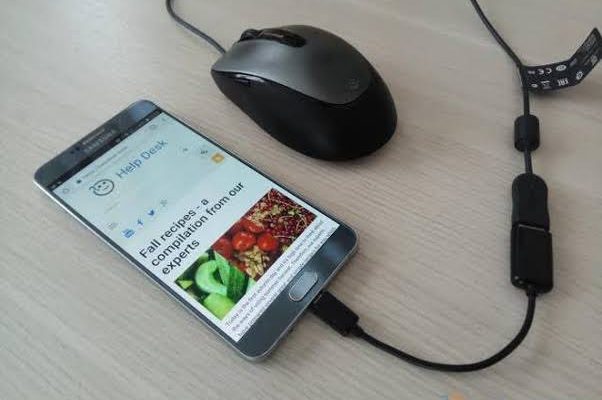
After obtaining the OTG adapter and a mouse, plug the USB end of the OTG adapter into the charging port of your Android device. Then connect the USB receiver of your mouse to the USB-A port on the adapter.

Step 4: Start Using Your Mouse

Once your mouse is connected and detected by your Android device, a cursor should appear on your screen. You can now use your mouse just like how you would use it on a computer. You can navigate through your device’s interface, click links, open apps, and more. If your mouse has special features such as scrolling or back/forward buttons, they should work on your Android device as well.

One thing to note is that not all apps and games may be compatible with the use of a mouse. While most apps and games should be fully compatible, some may not have been designed with mouse input in mind.

To sum up, connecting and using a mouse on Android is a simple process that can greatly improve your productivity and user experience. By following the above steps, you can seamlessly connect a mouse to your Android device and enjoy a more comfortable and efficient way of navigating your device without the need to constantly tap on the screen.


Previous Article

Getting Started With Swap Files on Linux

Next Article

Nvidia RTX 3060 vs. Intel Arc A770: ...

Matthew Lynch

Related articles More from author

  • Digital & Mobile Technology

    Where Is 5G Available in the UK? (Updated for 2023)

    June 14, 2023
    By Matthew Lynch
  • Digital & Mobile Technology

    Use Safe Mode to Diagnose Microsoft Word Startup Issues

    June 26, 2023
    By Matthew Lynch
  • Digital & Mobile Technology

    How to Access Sprint Text Message History

    May 17, 2023
    By Matthew Lynch
  • Digital & Mobile Technology

    How to Use Control Center on Your iPhone or iPad

    May 30, 2023
    By Matthew Lynch
  • Digital & Mobile Technology

    How to Display Windows Desktop on a TV Using Chromecast

    June 2, 2023
    By Matthew Lynch
  • Digital & Mobile Technology

    What Is Accelerated Graphics Port (AGP)?

    June 11, 2023
    By Matthew Lynch

Search

Login & Registration

  • Log in
  • Entries feed
  • Comments feed
  • WordPress.org

Newsletter

Signup for The Tech Edvocate Newsletter and have the latest in EdTech news and opinion delivered to your email address!

About Us

Since technology is not going anywhere and does more good than harm, adapting is the best course of action. That is where The Tech Edvocate comes in. We plan to cover the PreK-12 and Higher Education EdTech sectors and provide our readers with the latest news and opinion on the subject. From time to time, I will invite other voices to weigh in on important issues in EdTech. We hope to provide a well-rounded, multi-faceted look at the past, present, the future of EdTech in the US and internationally.

We started this journey back in June 2016, and we plan to continue it for many more years to come. I hope that you will join us in this discussion of the past, present and future of EdTech and lend your own insight to the issues that are discussed.

Newsletter

Signup for The Tech Edvocate Newsletter and have the latest in EdTech news and opinion delivered to your email address!

Contact Us

The Tech Edvocate
910 Goddin Street
Richmond, VA 23231
(601) 630-5238
[email protected]

Copyright © 2026 Matthew Lynch. All rights reserved.