The Tech Edvocate

Top Menu

  • Advertisement
  • Apps
  • Home Page
  • Home Page Five (No Sidebar)
  • Home Page Four
  • Home Page Three
  • Home Page Two
  • Home Tech2
  • Icons [No Sidebar]
  • Left Sidbear Page
  • Lynch Educational Consulting
  • My Account
  • My Speaking Page
  • Newsletter Sign Up Confirmation
  • Newsletter Unsubscription
  • Our Brands
  • Page Example
  • Privacy Policy
  • Protected Content
  • Register
  • Request a Product Review
  • Shop
  • Shortcodes Examples
  • Signup
  • Start Here
    • Governance
    • Careers
    • Contact Us
  • Terms and Conditions
  • The Edvocate
  • The Tech Edvocate Product Guide
  • Topics
  • Write For Us
  • Advertise

Main Menu

  • Start Here
    • Our Brands
    • Governance
      • Lynch Educational Consulting, LLC.
      • Dr. Lynch’s Personal Website
      • Careers
    • Write For Us
    • The Tech Edvocate Product Guide
    • Contact Us
    • Books
    • Edupedia
    • Post a Job
    • The Edvocate Podcast
    • Terms and Conditions
    • Privacy Policy
  • Topics
    • Assistive Technology
    • Child Development Tech
    • Early Childhood & K-12 EdTech
    • EdTech Futures
    • EdTech News
    • EdTech Policy & Reform
    • EdTech Startups & Businesses
    • Higher Education EdTech
    • Online Learning & eLearning
    • Parent & Family Tech
    • Personalized Learning
    • Product Reviews
  • Advertise
  • Tech Edvocate Awards
  • The Edvocate
  • Pedagogue
  • School Ratings

logo

The Tech Edvocate

  • Start Here
    • Our Brands
    • Governance
      • Lynch Educational Consulting, LLC.
      • Dr. Lynch’s Personal Website
        • My Speaking Page
      • Careers
    • Write For Us
    • The Tech Edvocate Product Guide
    • Contact Us
    • Books
    • Edupedia
    • Post a Job
    • The Edvocate Podcast
    • Terms and Conditions
    • Privacy Policy
  • Topics
    • Assistive Technology
    • Child Development Tech
    • Early Childhood & K-12 EdTech
    • EdTech Futures
    • EdTech News
    • EdTech Policy & Reform
    • EdTech Startups & Businesses
    • Higher Education EdTech
    • Online Learning & eLearning
    • Parent & Family Tech
    • Personalized Learning
    • Product Reviews
  • Advertise
  • Tech Edvocate Awards
  • The Edvocate
  • Pedagogue
  • School Ratings
  • Why Your Mortgage Could Be Denied by Biased AI – And What the Fed Is Doing About It

  • Unprecedented: Lawsuit Demands Total AI Shutdown Amid Rising Global Panic

  • The Astonishing Truth: Microcredentials Now Trump MBAs for Data Science Jobs

  • The Astonishing Twist: AI Cuts Your Job, Then Helps You Sue Your Boss

  • The Staggering Truth About Palo Alto’s $4.5 Billion AI Bet

  • Mind-Blowing: Satellite Metals Now Outweigh Meteoroids, Sparking Urgent Insurance Crisis

  • The Silent Threat From Above: Your Sky Is Changing, And Here’s Why

  • The AI Property Management Revolution: Visitt MCP’s Astonishing Edge

  • Why Your Home Needs These 9 Groundbreaking Battery Storage Solutions by 2027

  • Devastating Data Breach Exposes Millions: What You MUST Know Now

Digital & Mobile Technology
Home›Digital & Mobile Technology›How to Enable Blood Pressure Monitoring on Samsung Galaxy Watch

How to Enable Blood Pressure Monitoring on Samsung Galaxy Watch
By Matthew Lynch
May 28, 2023
0
Spread the love

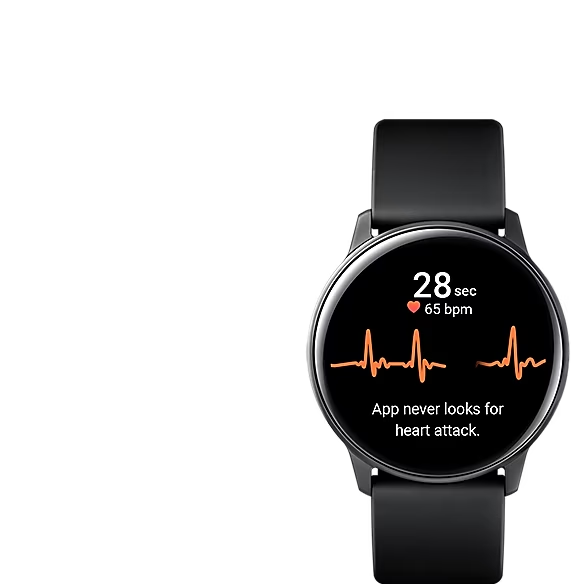
Samsung Galaxy Watch is a popular smartwatch that comes with a variety of features, including fitness tracking. One of these features is blood pressure monitoring. However, the blood pressure monitoring feature is not enabled by default, and users need to follow certain steps to activate it. In this article, we will guide you on how to enable blood pressure monitoring on Samsung Galaxy Watch.

Before we proceed with the tutorials, it is important to note that the blood pressure monitoring feature is not meant to be a substitute for medical advice. If you have a medical condition or any concerns about your blood pressure, you should seek professional medical advice.

Step 1: Update the Samsung Health App

The first step to enable blood pressure monitoring on Samsung Galaxy Watch is to ensure that the Samsung Health app on your watch is updated to the latest version. You can check for updates by launching the Galaxy Wearable app on your phone, tapping on the “Apps” menu, and selecting “Samsung Health.” From there, you can click on the “Update” button if there is an available update.

Step 2: Install the Blood Pressure Monitor App

After updating the Samsung Health app, the next step is to install the blood pressure monitor app on your watch. To do this, open the Samsung Health app on your watch and scroll down to find the “Blood Pressure” card. If you do not see the card, you can go to the “Manage Items” section of the app and add the “Blood Pressure” option to your dashboard.

When you select the “Blood Pressure” card, the watch will notify you that the blood pressure monitor app is not installed and provide you with the option to install it. Tap “Install” and follow the prompts to complete the installation process.

Step 3: Adjust Settings

Once you have installed the blood pressure monitor app on your Samsung Galaxy Watch, you need to adjust some settings before you can use it. You can do this through the Samsung Health app on your watch or your paired smartphone.

To adjust settings on your watch, open the Samsung Health app and select the “Blood Pressure” card. From there, you can customize the measurement units for blood pressure, set reminders for blood pressure readings, and enable or disable the automatic sleep tracking feature.

To adjust settings on your phone, open the Galaxy Wearable app and navigate to the “Samsung Health” section. From there, you can customize the measurement units for blood pressure, set reminders for blood pressure readings, and manage other settings.

Step 4: Take a Blood Pressure Reading

After adjusting the settings, you can now take a blood pressure reading using your Samsung Galaxy Watch. To do this, open the Samsung Health app on your watch, select the “Blood Pressure” card, and follow the prompts to take a reading.

The Samsung Galaxy Watch blood pressure monitoring feature uses the optical heart rate sensor and accelerometer to measure blood pressure. You need to wear the watch snugly on your wrist, and it is recommended that you sit still for a few minutes before taking a reading.

Conclusion

In conclusion, enabling blood pressure monitoring on Samsung Galaxy Watch is a straightforward process. You need to update the Samsung Health app, install the blood pressure monitor app, adjust settings, and take a reading. The blood pressure monitoring feature on Samsung Galaxy Watch can help you track and manage your blood pressure levels, but it is not a substitute for professional medical advice.

Previous Article

How to Enable Dark Mode in YouTube

Next Article

How to Enable Dark Mode in Windows ...

Matthew Lynch

Related articles More from author

  • Digital & Mobile Technology

    Apple tvOS Versions Guide: Everything You Need to Know

    June 15, 2023
    By Matthew Lynch
  • Digital & Mobile Technology

    What Is Hisense’s New ULED X Television Set All About?

    June 23, 2023
    By Matthew Lynch
  • Digital & Mobile Technology

    What is Google Analytics?

    May 22, 2023
    By Matthew Lynch
  • Digital & Mobile Technology

    How to Clear Cookies on Android Mobile Browsers

    June 4, 2023
    By Matthew Lynch
  • Digital & Mobile Technology

    The Tesla Model 2 Is Coming – Here’s What to Expect

    June 9, 2023
    By Matthew Lynch
  • Digital & Mobile Technology

    Cryptology vs. Cryptography: What’s the Difference?

    June 13, 2023
    By Matthew Lynch

Search

Login & Registration

  • Log in
  • Entries feed
  • Comments feed
  • WordPress.org

Newsletter

Signup for The Tech Edvocate Newsletter and have the latest in EdTech news and opinion delivered to your email address!

About Us

Since technology is not going anywhere and does more good than harm, adapting is the best course of action. That is where The Tech Edvocate comes in. We plan to cover the PreK-12 and Higher Education EdTech sectors and provide our readers with the latest news and opinion on the subject. From time to time, I will invite other voices to weigh in on important issues in EdTech. We hope to provide a well-rounded, multi-faceted look at the past, present, the future of EdTech in the US and internationally.

We started this journey back in June 2016, and we plan to continue it for many more years to come. I hope that you will join us in this discussion of the past, present and future of EdTech and lend your own insight to the issues that are discussed.

Newsletter

Signup for The Tech Edvocate Newsletter and have the latest in EdTech news and opinion delivered to your email address!

Contact Us

The Tech Edvocate
910 Goddin Street
Richmond, VA 23231
(601) 630-5238
[email protected]

Copyright © 2026 Matthew Lynch. All rights reserved.