How to use Adobe Acrobat Reader offline
“`html
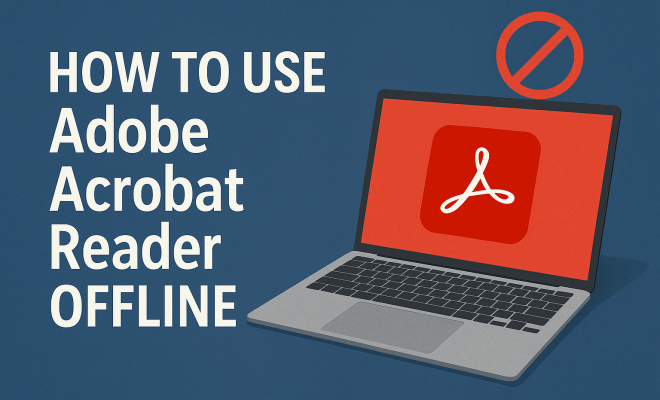
Adobe Acrobat Reader is one of the most popular PDF viewers worldwide, known for its versatile features that allow users to navigate, annotate, and manage PDF documents effectively. However, one feature that often remains underexplored is the ability to use Adobe Acrobat Reader offline. This capability can be particularly useful for those who frequently work in environments with limited or no internet access. In this article, we’ll delve into the various aspects of using Adobe Acrobat Reader offline, including its features, benefits, and practical tips to optimize your PDF management experience.
1. Understanding Adobe Acrobat Reader
Before we dive into how to use Adobe Acrobat Reader offline, it’s important to understand what the software is and what it offers. Adobe Acrobat Reader is primarily a PDF reader, but it also includes several powerful tools for viewing, printing, and annotating PDF documents. Unlike its more advanced counterpart, Adobe Acrobat Pro, which allows for PDF creation and editing, Acrobat Reader focuses on providing a reliable way to interact with existing PDF files.
The software supports various platforms, including Windows, macOS, iOS, and Android, making it highly accessible. One of the standout features of Acrobat Reader is its ability to sync documents across devices when connected to the internet, allowing for seamless transitions between devices. But what about when you lack internet access? That’s where offline capabilities come into play.
2. Installing Adobe Acrobat Reader for Offline Use
The first step in ensuring you can use Adobe Acrobat Reader offline is to install the software on your device. Adobe offers a free version of Acrobat Reader that is sufficient for basic tasks.
- Download the Software: Visit the official Adobe website and download the version that is compatible with your operating system. The installation process is straightforward and prompts you to follow the on-screen instructions.
- System Requirements: Make sure your device meets the minimum system requirements to run Adobe Acrobat Reader efficiently. This includes having sufficient disk space and RAM.
- Keep it Updated: Once installed, ensure you regularly update the software to take advantage of the latest features and security updates.
By following these steps, you can set yourself up for a successful offline experience with Acrobat Reader.
3. Accessing PDFs Offline
Once you have Adobe Acrobat Reader installed, accessing your PDFs offline becomes a matter of preparation. Here’s how you can ensure your documents are ready to go, even without an internet connection:
- Download PDF Files: If you frequently read certain PDFs, it’s a good idea to download them in advance. Simply open the files in your browser and save them directly to your device. This way, you can access them anytime.
- Syncing Files: If you use Adobe Document Cloud, you can save selected documents to your device for offline use. Make sure to sync these files before disconnecting from the internet.
- Organizing Your PDFs: Create organized folders on your device for easy access to your offline PDFs. Label them clearly, so you can find what you need quickly.
By taking these steps, you’ll ensure that you’re never caught without the PDFs you need, even in an offline setting.
4. Features Available Offline
One of the key benefits of using Adobe Acrobat Reader offline is that it allows you to access many essential features without needing an internet connection. Here are some of the features you can utilize while offline:
- Viewing PDFs: The primary function of Acrobat Reader is to open and display PDF documents, which you can do without an internet connection.
- Annotating Documents: You can highlight text, add comments, and draw shapes on your PDFs. These annotations will remain saved in the document.
- Filling Forms: Acrobat Reader allows you to fill out forms embedded in PDFs, making it particularly useful for applications or documents you may need to submit.
These features enable you to work efficiently and effectively with your PDF documents, even without an internet connection.
5. Limitations of Offline Use
While using Adobe Acrobat Reader offline has its perks, there are also limitations you should be aware of. Understanding these can help you plan accordingly: (See: Overview of Adobe Acrobat features.)
- Limited Collaboration: One of the standout features of Acrobat Reader is the ability to collaborate with others in real-time. When offline, you won’t have access to this feature, which can be a drawback in team environments.
- Cloud Services: If you rely on Adobe Document Cloud for storing files and syncing across devices, you’ll miss out on these capabilities when working offline.
- Updates and Support: Without an internet connection, you won’t receive software updates or online support, which could affect your experience if you encounter issues.
By being aware of these limitations, you can mitigate potential challenges when working offline.
6. Tips to Optimize Offline Use
To maximize your productivity while using Adobe Acrobat Reader offline, consider these practical tips:
- Pre-Download Important Documents: Always download the PDFs you anticipate needing before heading to a place without internet access.
- Use Bookmarks: Make use of the bookmarking feature for quick access to important sections in lengthy documents.
- Regular Backups: Regularly back up your PDFs on an external drive to avoid losing access to important files.
By following these tips, you can ensure a smoother experience when working offline with Acrobat Reader.
7. How to Troubleshoot Common Issues Offline
Sometimes, even the best-laid plans can go awry. Here are some common issues you might encounter while using Adobe Acrobat Reader offline and how to troubleshoot them:
- PDFs Not Opening: If you find that a PDF won’t open, ensure that the file isn’t corrupted or incomplete. Try downloading it again if necessary.
- Annotations Not Saving: Sometimes, annotations may not save if you exceed the application’s limitations. Make sure you’re not trying to annotate a document that’s too large or complex.
- Slow Performance: If Acrobat Reader is running slowly, try closing other applications to free up resources on your device.
Having solutions at hand can make a significant difference in your productivity during offline work sessions.
8. Comparing Online vs. Offline Features
Understanding the differences between online and offline capabilities in Adobe Acrobat Reader can help you make informed choices about your workflow. Here’s a breakdown:
- Online Features: When connected to the internet, you can access a wider range of features, including cloud storage, real-time collaboration, and online form submissions.
- Offline Features: As mentioned, offline features are more limited, focusing primarily on viewing, annotating, and filling forms. While you can still perform many tasks, collaboration and cloud services become unavailable.
- Cost Considerations: Adobe Acrobat Reader is free, but some advanced features are accessible through paid subscriptions, which may only be available when online.
Knowing these differences can guide you in optimizing your workflow based on your connectivity situation.
9. Future Developments and Trends
The world of PDF management is evolving, with new trends emerging in how we use software like Adobe Acrobat Reader. Future developments may include:
- Enhanced Offline Capabilities: As technology advances, we can expect more robust offline features, allowing greater functionality without the need for an internet connection.
- AI Integration: Future updates may incorporate artificial intelligence to assist users in organizing and managing their documents more efficiently, both online and offline.
- Increased Cross-Platform Compatibility: As more devices become interconnected, we can foresee improvements in how Adobe Acrobat Reader synchronizes files across different platforms, even when offline.
Staying informed about these trends can help you adapt your PDF management strategies as new features become available.
10. FAQ about Using Adobe Acrobat Reader Offline
To further assist you, here are some frequently asked questions regarding how to use Adobe Acrobat Reader offline:
1. Can I edit PDFs while using Adobe Acrobat Reader offline?
No, Adobe Acrobat Reader is primarily a viewer and allows for basic annotations and form filling while offline. For editing PDFs, you would need Adobe Acrobat Pro, which requires an internet connection for some features. (See: Using PDF documents in health contexts.)
2. How can I ensure that my annotations are saved when offline?
To ensure your annotations are saved, make sure you save the document after making changes. Acrobat Reader will prompt you to save your work before closing the document. Regularly check that your changes have been recorded before exiting.
3. What should I do if I can’t open a PDF while offline?
If you can’t open a PDF, first check if the file is complete and not corrupted. If you have access to another device, try downloading the file again. If you’re still having trouble, ensure that your version of Acrobat Reader is up to date.
4. Are there any specific file types I can’t open offline?
While Adobe Acrobat Reader excels at handling PDF files, it cannot open other file types like Word documents or Excel spreadsheets offline. Always ensure that the files you need are in PDF format.
5. How do I manage storage space for offline PDFs?
To manage storage, regularly review your downloaded PDFs and remove those you no longer need. You can also use external drives or cloud storage solutions to keep your device uncluttered.
6. Is it possible to print PDFs offline using Adobe Acrobat Reader?
Yes, you can print PDFs offline directly from Adobe Acrobat Reader. Just ensure your printer is connected and has power, and select the print option from the menu.
7. What features are only available when connected to the internet?
Features like cloud storage access, real-time collaboration, and online form submissions are only available when connected to the internet. Additionally, certain updates and customer support require an internet connection.
8. Can I sync my documents after working offline?
Yes, once you reconnect to the internet, any changes made to your documents while offline can be synced back to Adobe Document Cloud, provided you saved your work correctly.
11. Real-World Applications of Using Adobe Acrobat Reader Offline
Understanding the practical applications of using Adobe Acrobat Reader offline can provide you with a clearer picture of its benefits. Here are some scenarios where offline use is particularly advantageous:
1. Field Work
For professionals like architects, engineers, or surveyors who often work in remote locations, having access to PDF plans, schematics, and reports offline is crucial. This allows them to annotate and review documents on-site without worrying about internet connectivity.
2. Education
Students and educators can benefit from downloading lecture notes, research papers, and assignments for offline study. This is especially useful in places like libraries or classrooms where internet access may be limited.
3. Travel
For frequent travelers, being able to access boarding passes, itineraries, and travel guides offline can be a lifesaver. You can avoid any connectivity issues at airports or in-flight, ensuring you have all necessary documents at hand.
4. Legal Professionals
Lawyers often need to review and annotate legal documents while in court or during meetings. Having these documents readily accessible offline allows them to work seamlessly without relying on internet access.
5. Small Business Owners
Small business owners can leverage Adobe Acrobat Reader offline for various tasks, such as reviewing contracts, client proposals, and invoices while on the go. This helps maintain productivity without being tethered to Wi-Fi, especially during client meetings or networking events.
6. Remote Workers
For remote workers, using Adobe Acrobat Reader offline can facilitate uninterrupted workflows in locations where internet access is unreliable. This allows for focused work on documents, enhancing productivity without the distraction of potential connection issues.
12. Additional Tips for Using Adobe Acrobat Reader Offline
Maximizing your offline experience can further enhance your productivity. Here are more tips to consider:
- Keyboard Shortcuts: Familiarize yourself with keyboard shortcuts for actions like highlighting, commenting, and navigating through documents. This can speed up your workflow significantly.
- Regularly Clear Cache: If you use Adobe Document Cloud in conjunction with Acrobat Reader, regularly clear the cache to keep it running smoothly and ensure quick access to your offline files.
- Utilize Cloud Integration Wisely: If you do have intermittent internet access, take advantage of the ability to sync your changes to the cloud whenever you can, ensuring you’re always working with the latest version of your documents.
13. Future Developments and Innovations
Looking ahead, the future of Adobe Acrobat Reader may bring exciting innovations that enhance offline capabilities:
- Enhanced User Interface: Updates may streamline navigation and access to offline features, making it easier for users to find the tools they need without an internet connection.
- Cloud-Based AI Features: While primarily offline, some AI-driven suggestions may be cached, allowing for smarter annotations or recommendations based on prior document interactions.
- Offline Collaboration Tools: Potential future updates might include limited offline collaboration features that allow users to share annotated documents with others when they reconnect to the internet.
14. Conclusion: Making the Most of Your Offline Experience
Using Adobe Acrobat Reader offline doesn’t have to be a cumbersome experience. By preparing your documents, understanding the available features, and knowing how to troubleshoot common issues, you can efficiently manage your PDFs without an internet connection. The key is to be proactive — download your documents ahead of time, utilize the available tools to their fullest, and stay organized. With the right strategies, you can ensure that working offline is just as effective as being connected.
“`
Trending Now
Frequently Asked Questions
Can I use Adobe Acrobat Reader without an internet connection?
Yes, Adobe Acrobat Reader can be used offline. Once installed on your device, you can view, annotate, and manage PDF documents without needing an internet connection, making it ideal for users in environments with limited connectivity.
How do I install Adobe Acrobat Reader for offline use?
To install Adobe Acrobat Reader for offline use, visit the official Adobe website, download the version compatible with your operating system, and follow the on-screen installation instructions. This allows you to access PDF files without an internet connection.
What features does Adobe Acrobat Reader offer offline?
Offline, Adobe Acrobat Reader allows users to view, print, and annotate PDF documents. While some advanced features like cloud syncing require internet access, the core functionalities remain accessible offline for effective PDF management.
Is Adobe Acrobat Reader free to use offline?
Yes, Adobe Acrobat Reader offers a free version that provides essential features for viewing and annotating PDFs offline. This makes it a popular choice for users who need reliable PDF management without incurring costs.
What platforms support Adobe Acrobat Reader offline?
Adobe Acrobat Reader is available for various platforms, including Windows, macOS, iOS, and Android. This cross-platform support ensures that users can access and manage their PDF documents offline on multiple devices.
Have you experienced this yourself? We'd love to hear your story in the comments.