How to create shared album in Google Photos
“`html
In the digital age, sharing memories with friends and family has never been easier. With a simple tap, you can transfer photos or videos across the globe, but it’s often overwhelming to manage your collection. This is where Google Photos comes into play. If you’ve ever wondered how to create a shared album in Google Photos, you’re in the right place. This comprehensive guide will walk you through the process, explain its features, and highlight its importance in today’s connected world.
1. Understanding Google Photos
Before diving into how to create a shared album, let’s briefly explore what Google Photos offers. Launched in 2015, Google Photos has become one of the most popular storage solutions for photographs and videos. It allows users to store, organize, and share their media conveniently.
With Google Photos, you can back up your images automatically, access them from any device, and utilize powerful search features that help you find specific photos without scrolling through endless folders. One of the standout features is the ability to create shared albums, making it easy for multiple users to contribute and enjoy a collection of memories.
2. The Benefits of Shared Albums
Creating a shared album offers multiple advantages. For starters, it fosters collaboration among family members or friends who want to compile memories from a trip, event, or celebration. Instead of sending individual files back and forth, a shared album allows everyone to upload their photos in one central location.
Moreover, it strengthens connections. By inviting others to share their perspectives and experiences through photographs, you enhance the narrative of a shared event. It’s not just about storing images; it’s about building a collective memory that everyone can access and cherish. In essence, shared albums transform the way we perceive and interact with our memories.
3. Preparing to Create a Shared Album
Before you can create a shared album in Google Photos, ensure that you have the app downloaded on your smartphone or access it through your desktop. If you don’t have an account, sign up for one, as Google Photos requires a Google account for access.
Next, make sure your photos are backed up. In the Google Photos app, you can set it to back up automatically, ensuring your memories are safe. It’s essential to have your photos organized, so consider sorting them into folders or collections that will make it easier to select which ones to share.
4. How to Create a Shared Album in Google Photos
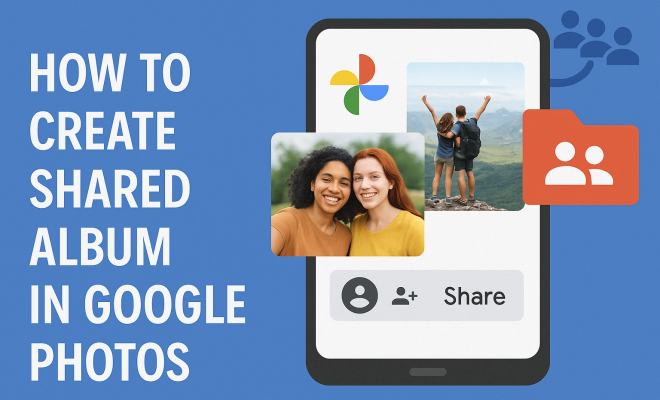
Now, let’s get to the main event: creating that shared album. Follow these steps to create a shared album in Google Photos:
- Open the Google Photos app: Launch the app on your mobile device or go to the website on your computer.
- Select ‘Albums’: Tap on the ‘Albums’ tab at the bottom of the screen.
- Create a New Album: Click on the ‘+’ icon and select ‘Album’.
- Add Photos: Choose the photos you want to include in your shared album from your library.
- Name Your Album: Give your album a meaningful title that reflects its content.
- Set Sharing Settings: Tap on ‘Share’ and select how you want to share the album. You can invite specific people via email or generate a link that anyone can access.
- Send Invitations: If inviting people, enter their email addresses and hit ‘Send’. They’ll receive a notification inviting them to view or contribute to the album.
- Finalize: Tap ‘Done’ to save your shared album and start sharing memories!
These steps ensure that you create a shared album seamlessly, allowing for easy collaboration.
5. Managing Your Shared Album
Once you’ve created your shared album, management becomes crucial. Google Photos allows you to edit the album even after it’s been shared. You can add or remove photos, change the album title, and adjust sharing settings at any time. This flexibility is essential as new memories are created.
If you find that certain members are not contributing photos, you can send them a gentle reminder through the app. Moreover, you can control who has access to your shared album. If at any point you decide to close access, simply go into the sharing settings and revoke access for specific users. (See: Wikipedia page on Google Photos.)
6. Advanced Features of Shared Albums
Google Photos doesn’t just stop at allowing you to create shared albums; it offers a suite of advanced features to enhance your experience. One notable feature is the ability to add comments or captions to individual photos within the album, sparking discussions about specific memories.
Additionally, users can create photo books or collages from the shared album content, allowing you to commemorate events in unique ways. The Stories feature also allows you to group your photos into a narrative format, ideal for sharing with those who may not be part of the album.
7. Common Issues and Troubleshooting
While Google Photos is generally reliable, you may encounter some common hiccups while trying to create a shared album in Google Photos. One frequent issue is syncing problems, where photos don’t appear in the album as expected. To address this, ensure that your app and device are updated to the latest version.
Another concern is invitations not being received. If your collaborators can’t see their invites, double-check their email addresses for typos. If they still can’t find them, encourage them to check their spam folders. Lastly, if someone can’t access the album, confirm that they have the correct link if it was created and that they’ve accepted the invitation.
8. The Future of Shared Albums
As technology continues to evolve, the future of shared albums in Google Photos looks promising. Google is consistently updating its algorithms to improve user experience, offer better search capabilities, and enhance sharing features.
We can expect integration with more social media platforms, allowing for easier sharing across all your favorite networks. Moreover, artificial intelligence might play a bigger role in organizing and suggesting albums based on user interests and activities, potentially revolutionizing how we share and manage our memories.
In short, understanding how to create a shared album in Google Photos not only enhances your memory-sharing experience but also opens the door to richer interactive experiences with friends and family. As you explore these features, you’ll find that capturing moments and sharing them with your loved ones has never been more enjoyable.
9. Real-World Use Cases for Shared Albums
Shared albums can be a game changer for various scenarios. Whether you’re planning a wedding, organizing a family reunion, or documenting a vacation, shared albums create a central hub for all your photographic memories. For example, if you’re traveling with friends, you can create an album dedicated to your trip. Everyone can contribute photos, and at the end of the journey, you’ll have a complete collection that captures different perspectives and moments.
Another popular use case is for events such as birthday parties or holidays. Rather than relying on one person to capture all the moments, everyone can upload their best shots, ensuring that no memory is left behind. Plus, it’s a fun way to see how others experienced the same event and to relive the highlights through different lenses.
10. Comparing Google Photos With Other Sharing Platforms
While Google Photos is a fantastic option for creating shared albums, it’s worth considering how it compares to other platforms. One popular alternative is Apple Photos. Both platforms offer similar functionalities, but Apple Photos tends to be more integrated with the Apple ecosystem, making it a better choice for users heavily invested in that environment.
Dropbox is another option. It offers shared folders for photos, but it lacks the intuitive photo management features that Google Photos provides, such as automatic organization and powerful search capabilities. In contrast, Google Photos excels in its ability to sort photos based on faces, places, and objects, which can save you time when looking to create shared albums.
Ultimately, the choice depends on your specific needs and preferences. If you want an easy-to-use platform with seamless sharing features, Google Photos is hard to beat. (See: CDC on technology and youth.)
11. Expert Perspectives on Memory Sharing
Experts in psychology and communication often emphasize how sharing memories can strengthen relationships. Dr. Linda Henkel, a cognitive psychologist, notes that the act of sharing photos can boost our collective memory. When we share albums, we’re not just sharing images; we’re reinforcing our connections with one another. This collective exercise in memory sharing not only helps us recall shared experiences but also enriches our relationships.
Furthermore, social media expert Dr. Susan Weinschenk points out that shared albums can create a sense of belonging. When family members or friends contribute to a shared project, it fosters a sense of community. It’s a digital scrapbook of sorts, reminding us that we’re part of something larger than ourselves.
12. Tips for Creating Engaging Shared Albums
To make your shared albums even more engaging, consider these tips:
- Theme Your Album: Give your album a specific theme, such as “Summer Vacation 2023” or “Family Reunion 2023.” This helps set the context for the memories being shared.
- Encourage Descriptive Captions: Ask contributors to add captions or stories to their photos. This adds depth and context, making the album more meaningful.
- Use High-Quality Images: Encourage contributors to use high-quality images. If possible, ask them to upload photos taken in the highest resolution.
- Regular Updates: Regularly update the album with new photos and memories, especially for long-term events or ongoing trips.
- Ask for Feedback: After everyone has contributed, ask for feedback on the album. What did they enjoy? What could be improved? This will help enhance future shared albums.
13. Frequently Asked Questions (FAQ)
What is a shared album in Google Photos?
A shared album in Google Photos is a collection of photos and videos that multiple users can access, contribute to, and enjoy together. It’s an excellent way to compile memories with friends and family.
Can I create a shared album with people who don’t have a Google account?
Yes, you can create a shared album and generate a link that allows anyone to view the album, even if they don’t have a Google account. However, they will need a Google account if they wish to contribute photos to the album.
How many people can I invite to a shared album?
Google Photos allows you to invite up to 20,000 people to a shared album. This is more than enough for most family gatherings or events!
What happens to the shared album if I remove a photo?
If you remove a photo from a shared album, it will disappear for all users who have access to the album. If someone else uploaded that photo, it will still remain in their library.
Can I delete a shared album after it’s created?
Yes, you can delete a shared album at any time. This action will remove it from all users’ libraries, so be sure to notify contributors if you plan to do so.
Can I change the album name after creating it?
Absolutely! You can edit the album name at any time by going to the album and selecting the editing option.
14. The Impact of Shared Albums on Family Dynamics
Shared albums can significantly impact family dynamics, especially when it comes to maintaining connections across distances. For families separated by geography, shared albums in Google Photos serve as a virtual gathering place. Families can document milestones, like birthdays, graduations, and anniversaries, allowing everyone to stay in the loop and participate in each other’s lives despite the physical distance. (See: New York Times article on Google Photos.)
Studies show that families who share memories are more likely to report higher levels of satisfaction in their relationships. By regularly contributing to a shared album, family members create a sense of belonging and connection. This can be especially important for children, who may feel more secure when they can see their family history visually represented in an accessible format.
15. Statistics on Photo Sharing and Memory Retention
Research indicates that visual content significantly enhances memory retention. According to a study by the University of California, people remember visual information up to 65% better than text-based information. When it comes to shared albums, this means that users are more likely to remember the events and experiences documented through photographs. In fact, 70% of participants in a survey stated they felt more connected to family members after sharing photos together.
Furthermore, the act of sharing photos can trigger conversations that reinforce memories. The same study found that discussing shared images helped participants recall experiences with greater clarity and detail, further strengthening their emotional connections. This is one of the reasons why shared albums in Google Photos are more than just a storage solution; they foster deeper relational ties.
16. Using Google Photos for Professional Collaboration
While Google Photos is often used for personal photo sharing, it can also be a powerful tool for professionals. Businesses can create shared albums for project documentation, team-building events, or client presentations. For instance, a marketing team might use a shared album to compile images from a product launch. This allows team members to upload their photos and maintain a cohesive narrative around the event.
Additionally, Google Photos can facilitate collaboration among remote teams. By creating shared albums for project milestones, team members can document their progress visually, keeping everyone aligned and motivated. This visual documentation can also serve as a useful resource for future projects, allowing teams to reference past successes and learn from them.
17. Creating Memorable Event Recaps with Shared Albums
One effective way to utilize shared albums is by creating memorable recaps of events. After a significant occasion like a wedding, reunion, or conference, consider compiling the best photos into a shared album. This serves as a digital keepsake for all attendees and allows them to relive the experience.
To make event recaps even more special, consider adding commentary or anecdotes about specific moments in the album. This not only adds a personal touch but also helps others remember the context behind each photo. By engaging contributors in this way, you can create a richer storytelling experience that everyone can enjoy long after the event has ended.
By taking advantage of shared albums in Google Photos, you can enrich your photo-sharing experience. Whether it’s for special occasions or everyday moments, the ability to create, manage, and enjoy shared albums brings people together in a meaningful way. So go ahead, start creating those shared albums, and let the memories flow!
“`
Trending Now
Frequently Asked Questions
How do I create a shared album in Google Photos?
To create a shared album in Google Photos, open the app, tap on 'Albums,' then select 'Create Album.' Add photos and tap 'Share' to invite others via email or link. You can also adjust permissions for collaborators.
What are the benefits of using shared albums in Google Photos?
Shared albums in Google Photos allow multiple users to contribute photos in one place, fostering collaboration and connection. They enable families and friends to compile memories and enhance the narrative of shared events effortlessly.
Can I add videos to a shared album in Google Photos?
Yes, you can add videos to a shared album in Google Photos. Just select the videos along with your photos during the album creation process, and all invited members will be able to view and contribute.
How many people can I invite to a shared album in Google Photos?
You can invite up to 20 people to collaborate on a shared album in Google Photos. Each invited member can add their own photos and videos, making it a great tool for group memories.
Is it possible to edit a shared album in Google Photos?
Yes, you can edit a shared album in Google Photos at any time. You can add or remove photos, change the album title, and adjust sharing settings to control who can view or contribute.
What's your take on this? Share your thoughts in the comments below — we read every one.