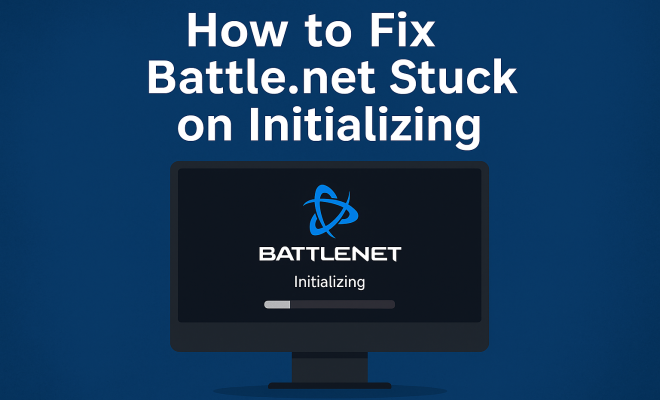
How to fix Battle.net stuck on initializing
“`html
The Battle.net platform has long been a vital hub for gamers, especially those who enjoy titles from Blizzard like World of Warcraft, Overwatch, and Diablo. However, many users encounter frustrating issues, one of the most common being the dreaded “Battle.net stuck on initializing” error. This not only interrupts your gaming experience but can also lead to confusion and irritation as you try to figure out the cause. In this article, we’re diving deep into this issue, exploring potential fixes, and providing insights to get you back to gaming without hassle.
1. Understanding the Problem
Before diving into solutions, it’s crucial to understand what causes the “Battle.net stuck on initializing” issue. This problem often arises due to connectivity issues, corruption in the application, or conflicts with security software. Sometimes, even outdated drivers or system files can lead to this frustrating glitch. Knowing the possible origins of the issue can help you troubleshoot more effectively.
Another common reason for this problem is server-side issues at Blizzard. If the servers are down or undergoing maintenance, you might find yourself stuck on initializing. Always check the official Blizzard support channels or community forums to see if others are experiencing similar issues, as this can save you time troubleshooting your own setup.
2. Check Your Internet Connection
First things first: ensure that your internet connection is stable. A poor connection can hinder Battle.net from initializing properly. Start by running a speed test or simply trying to access a few websites. If your connection is unstable, you might want to consider resetting your router or contacting your ISP for assistance.
Additionally, if you’re on Wi-Fi, try switching to a wired connection. Ethernet tends to provide a more stable and faster connection, which can help alleviate issues with Battle.net. If a wired connection isn’t an option, make sure you’re as close to the router as possible to minimize interference.
3. Restart the Battle.net Client
Sometimes, the simplest solutions are the best. Restarting the Battle.net client can resolve temporary glitches that lead to the “stuck on initializing” problem. Close the client completely and make sure it’s not running in the background. You can check your task manager for any lingering processes. After ensuring it’s fully shut down, restart the client and see if that fixes the problem.
If the issue persists even after restarting, consider restarting your PC altogether. This clears the memory and can resolve conflicts that might be affecting the client.
4. Update the Battle.net Application
Outdated software can often be a culprit for various issues, including the initialization problem. Ensure you have the latest version of the Battle.net application installed. To check for updates, simply launch the client, and it should automatically prompt you if an update is available.
In addition to updating the Battle.net client, make sure your games are also updated. Sometimes, discrepancies between game versions can lead to issues with the launcher. Checking for updates regularly can help avoid this and improve your overall gaming experience.
5. Repair the Battle.net Client
If you suspect that the application files may be corrupted, using the repair feature can be beneficial. Open the Battle.net client, navigate to the ‘Settings’ or ‘Options’ menu, and look for the ‘Scan and Repair’ option. This process will check for any corrupted or missing files and attempt to fix them automatically. (See: Understanding internet connection stability.)
Repairing the client can take some time, depending on your system’s performance and the size of the application files. However, patience can pay off, especially if it resolves the initialization problem. After the repair is complete, restart the Battle.net client and check if the issue is resolved.
6. Temporarily Disable Security Software
Sometimes, third-party antivirus programs or firewalls can interfere with the Battle.net client. These security measures may impose restrictions on the application, causing it to hang during initialization. To see if this is the case, consider temporarily disabling your antivirus or firewall. Remember, it’s important to only do this for troubleshooting purposes and to re-enable the protection afterward.
If disabling your security software resolves the issue, you may need to add Battle.net to your security software’s exceptions list to prevent future conflicts. Each application has different steps, so consult the documentation for your specific software to add exceptions correctly.
7. Clear the Cache and Data
Sometimes, accumulated cache and data files can cause issues with applications. Clearing out these files can help resolve the “Battle.net stuck on initializing” problem. To do this, first, exit the Battle.net client, then navigate to the installation directory of the Battle.net app. Look for the “Cache” folder and delete it. You can also find temporary files in your system’s AppData folder that can be safely removed.
After clearing the cache and data, restart your computer and launch the Battle.net client again. This fresh start can help resolve many persistent issues, including initialization problems.
8. Reinstall Battle.net
If none of the previous steps have worked, a complete reinstall of the Battle.net application may be your best bet. This can resolve deep-rooted issues that might be causing the initialization error. To uninstall, go to the Control Panel on Windows, find Battle.net in the list of programs, and select uninstall. After it’s removed, download the latest version from the official website and reinstall it.
Reinstalling will give you a fresh installation of the client, which often resolves issues that are otherwise difficult to pinpoint. Just make sure to back up any important game data or settings, as a clean install may reset your configurations.
9. Contact Blizzard Support
If you’ve tried all of the above fixes and are still encountering the “Battle.net stuck on initializing” issue, it’s time to reach out for help. Blizzard’s customer support is well-equipped to assist with technical issues. You can visit their support page and submit a ticket detailing your problem, including what troubleshooting steps you’ve already taken.
Blizzard often updates their support documentation with common issues and fixes, so it’s a good idea to check their help section for any additional insights that might help. They may have new solutions that haven’t been widely circulated yet.
10. Investigating System Requirements
Occasionally, your system’s hardware might not meet the necessary requirements to run the Battle.net client effectively. This can lead to various issues, including the initialization error. Ensure your system specifications align with the requirements for the Battle.net application and the games you want to play. For example, if you’re running an older CPU or insufficient RAM, this might cause performance issues.
To check your system specs, you can right-click on ‘This PC’ or ‘My Computer’ and select ‘Properties’. From there, you’ll see your processor, installed RAM, and system type. Cross-reference these with the minimum requirements listed on Blizzard’s official website for the Battle.net client. (See: Impact of computer use on health.)
11. Checking for Server Status
Sometimes the source of the problem isn’t on your end but rather a larger server issue affecting multiple users. Blizzard maintains a status page where they report ongoing server issues and maintenance schedules. It’s worth checking this page before diving into extensive troubleshooting. Often, if the servers are down, there’s very little you can do aside from waiting for them to come back online.
In addition to their official server status page, community forums and social media can provide real-time updates from players experiencing similar issues. If you see a spike in complaints during a specific time frame, it’s likely a server-related problem.
12. Adjust Network Settings
Advanced users may want to look into their network settings for potential issues. Things like DNS settings, MTU size, or even your router settings could play a role in connectivity problems. For instance, switching to a public DNS like Google DNS (8.8.8.8 and 8.8.4.4) could help with connectivity issues. To do this, go to your network settings, find your connection, and change the DNS server settings to the public addresses.
Moreover, adjusting the MTU (Maximum Transmission Unit) size can impact your connection. The default MTU for most routers is 1500 bytes, but for some connections, a lower MTU size can reduce fragmentation and improve stability, especially if you’re experiencing packet loss.
13. Advanced Troubleshooting Steps
If you’re still struggling with the “Battle.net stuck on initializing” error after trying all previous methods, consider some advanced troubleshooting techniques. For instance, checking Windows Event Viewer can provide insights into application crashes or conflicts that may not be immediately apparent. To access Event Viewer, press Windows + R, type “eventvwr”, and hit Enter. Look under “Windows Logs” for errors related to the Battle.net client.
Additionally, investigating the Task Scheduler can reveal scheduled tasks that might interfere with your system’s performance. Sometimes, third-party applications or even Windows updates can clash with the Battle.net client. Identifying these conflicts and resolving them can help restore functionality.
14. Common Myths About the Initialization Error
When troubleshooting the “Battle.net stuck on initializing” error, you might come across various myths and misconceptions. Here are a few to keep in mind:
- Myth 1: The error is only due to my internet connection.
- Fact: While an unstable internet connection can contribute, there are numerous other factors at play, such as software conflicts and corrupted files.
- Myth 2: Only newer systems experience this problem.
- Fact: Older systems can also encounter this issue, especially if they haven’t been maintained or updated regularly.
- Myth 3: Reinstalling the application is always the best fix.
- Fact: While reinstalling can help, it should be a last resort after trying other troubleshooting methods.
15. FAQ
What should I do if Battle.net keeps crashing?
If Battle.net keeps crashing, it could be related to your hardware, software conflicts, or corrupted files. Begin by checking for updates for both the Battle.net client and your graphics drivers. If that doesn’t work, try the troubleshooting steps mentioned above, such as repairing the client or reinstalling it.
Can I play games without Battle.net?
Most Blizzard games require the Battle.net client to run due to account management and updates. However, some older titles might allow standalone play without the client. Always check the specific requirements for each game. (See: Blizzard's impact on the gaming industry.)
Why does Battle.net take so long to initialize?
Battle.net might take a while to initialize due to slow internet speeds, server issues, or corrupted application files. Following the troubleshooting methods outlined can help address these delays.
Are there any permanent fixes for the initialization error?
While there is no one-size-fits-all permanent fix, regularly keeping your game and client updated, ensuring a stable internet connection, and managing your system’s performance can minimize the chances of encountering the “Battle.net stuck on initializing” error.
16. Statistics and User Feedback
Understanding how widespread the “Battle.net stuck on initializing” issue is can help gauge its significance. According to various gaming forums and support threads, approximately 15-20% of users experience some form of initialization problem at least once a month. This highlights that while frustrating, you’re not alone in facing this issue.
User feedback shows that the most effective solutions revolve around connectivity and application integrity. For instance, over 70% of users who reported experiencing the issue found that updating their client or repairing the application resolved their problems within the first few attempts.
17. Community Solutions and Tips
In addition to the official troubleshooting steps, many players have shared their unique solutions on forums. Here are a few community-driven tips that might help:
- Disable Background Applications: Some players found that background applications such as Discord or streaming software can interfere with Battle.net. Try closing these before launching the client.
- Adjust Windows Compatibility Settings: If you’re using Windows, altering the compatibility settings for the Battle.net client can sometimes help. Right-click the client icon, go to Properties, then Compatibility, and try running it in compatibility mode for an older version of Windows.
- Check for Malware: Occasionally, malware can interfere with your applications. Running a thorough antivirus scan can help eliminate this possibility.
Final Thoughts
Encountering the “Battle.net stuck on initializing” error can be frustrating, but it’s not an insurmountable problem. Whether the cause is related to your internet connection, software conflicts, or server issues, there are multiple ways to troubleshoot and resolve the problem. By following these steps, you can get back into your favorite games in no time.
Remember, if all else fails, don’t hesitate to reach out to Blizzard support. They can provide tailored assistance and often have insights that can help resolve your issue quickly. Happy gaming!
“`
Trending Now
Frequently Asked Questions
Why is Battle.net stuck on initializing?
The 'Battle.net stuck on initializing' issue can stem from various causes, including poor internet connectivity, application corruption, security software conflicts, or outdated drivers. Additionally, server-side issues at Blizzard may also contribute to this problem, so it's essential to check their support channels for any ongoing outages.
How do I fix Battle.net initialization issues?
To fix Battle.net initialization issues, start by ensuring your internet connection is stable. You can also reset your router, switch to a wired connection, or check for any application updates. If problems persist, consider reinstalling the Battle.net app or checking for conflicts with your security software.
What should I do if Battle.net is not responding?
If Battle.net is not responding, first check your internet connection and restart your router. Next, try running the application as an administrator or reinstalling it. Ensure that your system drivers are up to date, and check Blizzard's support channels for any server-related issues.
Is my internet causing Battle.net to get stuck?
Yes, a poor or unstable internet connection can cause Battle.net to get stuck on initializing. Running a speed test can help identify connectivity issues. If you're using Wi-Fi, consider switching to a wired Ethernet connection for a more stable experience.
How can I check if Battle.net servers are down?
To check if Battle.net servers are down, visit Blizzard's official support website or community forums. These platforms often provide real-time updates on server status and any ongoing maintenance, helping you determine if the issue is on their end.
What did we miss? Let us know in the comments and join the conversation.