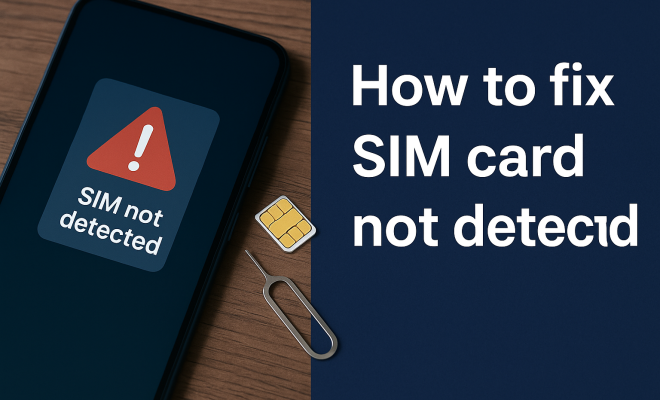
How to fix SIM card not detected
“`html
Experiencing that frustrating moment when your device displays “SIM card not detected”? You’re not alone; this is a common problem for smartphone users across the globe. Whether it’s a temporary glitch or a sign of impending hardware failure, knowing how to diagnose and fix SIM card issues can save you time and frustration. In this article, we’ll cover practical steps to help you fix SIM card not detected messages, ensuring you’re back to making calls and using mobile data in no time.
1. Understand the Basics of SIM Cards
Before diving into solutions, it’s beneficial to grasp what a SIM card is and its role in your mobile device. A Subscriber Identity Module (SIM) card is a small chip that connects your phone to your mobile network. It contains essential information such as your phone number, contacts, and network settings. A malfunctioning SIM card can lead to issues ranging from limited connectivity to complete service disruption.
There are generally two types of SIM cards: standard SIMs and micro/nano SIMs, with the latter being more common in modern smartphones. Understanding the type of SIM card your device requires can help you rule out some basic problems when you’re troubleshooting.
2. Restart Your Device
Sometimes, the simplest solution is the most effective. Restarting your device can often resolve minor software glitches that might be causing the SIM card not detected error. This quick fix allows the system to refresh its settings and could lead to the automatic recognition of your SIM card.
To restart your device, hold down the power button until you see the option to restart. After the device powers back on, check if the problem persists. If your SIM is still not detected, move on to the next steps.
3. Check the SIM Card Slot
Your next step is to inspect the SIM card slot. Dust, debris, or physical damage can prevent your device from reading the SIM card properly. Carefully remove the SIM card and examine both the card and the slot.
If you notice dirt or lint in the slot, gently clean it with a soft, dry cloth or a can of compressed air. Be cautious and avoid using any sharp objects that might damage the internal components. After cleaning, reinsert the SIM card to see if the device recognizes it again.
4. Inspect the SIM Card for Damage
In some cases, the issue could stem from a damaged SIM card. Physical signs of wear, such as scratches or bends, can interfere with the card’s connectivity. If you suspect damage, try inserting the SIM card into another device to see if it works there.
If the SIM card fails to register in another phone, it may need to be replaced. Contact your mobile provider to get a new SIM. Many companies offer replacement SIM cards at little to no cost, especially if the issue stems from a hardware failure.
5. Adjust Network Settings
Sometimes, the problem may lie in misconfigured network settings. Accessing your device’s network settings can help you reset your connection and potentially fix the error. Start by navigating to your device settings, then go to ‘Network & Internet’ or ‘Connections’ depending on your device. (See: Understanding SIM card functionality.)
From there, you can toggle airplane mode on and off, which forces your phone to reconnect to your mobile network. If the problem persists, look for an option to reset network settings, which will restore your mobile and Wi-Fi settings back to default. Remember that this will erase any saved Wi-Fi passwords, so be prepared to re-enter them.
6. Update the Device Software
Outdated software can lead to compatibility issues between your device and your SIM card. Keeping your operating system updated is crucial for ensuring a smooth user experience. Check for available updates by going to your device settings and selecting ‘Software Update’ or ‘System Update.’
If you find an update, download and install it. After your device restarts, check if it now recognizes the SIM card. Regular updates not only fix bugs but can also enhance your device’s performance and security.
7. Check for Carrier Issues
If you’ve tried all the above solutions and your SIM card is still not detected, it might be worth investigating whether there are issues with your mobile carrier. Sometimes, network outages or SIM card deactivations can lead to connectivity problems.
Reach out to your carrier’s customer service to inquire about any known issues in your area or potential problems with your account. They may also be able to assist you with troubleshooting steps unique to their services.
8. Consider a Factory Reset
If you’ve exhausted all other options, a factory reset may be your last resort. A factory reset restores your device to its original settings, erasing all of your data, apps, and personal configurations. This option can potentially resolve deep-rooted software issues but should only be considered when all else fails.
Before proceeding, back up your data to ensure you don’t lose any important files. To perform a factory reset, navigate to your device settings, select ‘Backup & Reset,’ and then choose ‘Factory Data Reset.’ After completing the reset, check if the SIM card is detected.
9. Seek Professional Help
If none of the above solutions work, your device may have a more serious hardware issue at play. A malfunctioning SIM card reader or other internal components could be the root of the problem. In this case, it’s best to seek professional help.
Take your device to an authorized repair center or your mobile provider’s service department. They have the necessary tools and expertise to diagnose the issue accurately. Remember, attempting to fix hardware issues yourself can lead to voiding warranties or causing more damage.
10. Common Causes of SIM Card Not Detected
Understanding the root causes of the “SIM card not detected” error can be essential in preventing the issue from recurring. Here are some of the most common causes:
- Improperly inserted SIM card: If the SIM card isn’t seated properly in its slot, it can lead to detection issues.
- Software glitches: Temporary software bugs or conflicts can prevent the SIM card from being recognized.
- Hardware issues: Problems with the SIM card reader or internal components can lead to detection failures.
- Carrier-related issues: Your carrier might have disabled your account or there could be a network outage affecting service.
- SIM card damage: Physical damage to the SIM card can prevent it from being read by your device.
11. Statistics on SIM Card Issues
To give you a better perspective on how common SIM card issues are, consider these statistics: (See: Common issues with mobile devices.)
- According to a recent survey, around 40% of smartphone users have faced the “SIM card not detected” error at least once in their device’s lifetime.
- Roughly 25% of users reported that they needed to replace their SIM card due to physical damage or other issues.
- Mobile carriers report that approximately 15% of customer service calls are related to SIM card issues.
12. Expert Perspectives
Experts in mobile technology recommend several best practices that can help you avoid SIM card detection issues in the future:
- Regular Backups: Always back up your data to prevent loss during troubleshooting.
- Routine Software Updates: Keeping your device software up to date minimizes the risk of software incompatibility with your SIM card.
- Careful Handling: Treat your SIM card with care to prevent bending or scratching.
- Check for Notifications: Always pay attention to notifications from your carrier regarding SIM card status or service disruptions.
13. Frequently Asked Questions (FAQ)
What should I do if my SIM card is not detected after a software update?
If your SIM card is not detected after a software update, try restarting your device first. If that doesn’t work, check the SIM card slot for dust or debris. You may also need to reset your network settings.
Can I use my phone without a SIM card?
Yes, you can use many features of your smartphone without a SIM card, such as browsing the internet over Wi-Fi, using apps, and accessing settings. However, you won’t be able to make calls or use mobile data.
How can I tell if my SIM card is faulty?
To check if your SIM card is faulty, try inserting it into another phone. If it works in the other device, the original phone may have a problem. If it doesn’t work anywhere, the SIM card is likely faulty and should be replaced.
What types of SIM cards are there?
There are several types of SIM cards, including standard, micro, and nano SIMs. The type you need depends on your device model. Always check your device specifications to ensure compatibility.
Is there a way to fix a bent SIM card?
You can try gently straightening a bent SIM card using your fingers or a flat, smooth surface. However, this is risky and may lead to further damage. If you notice significant bends or cracks, it’s safer to replace the card.
How often should I replace my SIM card?
Generally, you should replace your SIM card if it’s damaged, not detected in any device, or if you switch carriers. Otherwise, SIM cards can last many years without needing replacement.
14. Further Troubleshooting Steps
If you’ve tried all the basic troubleshooting steps and still face the “SIM card not detected” issue, here are some additional avenues to consider:
Check for Software Conflicts
Sometimes, specific apps or third-party software can interfere with the normal operation of your SIM card. If you’ve recently installed new applications, especially those that modify system settings or manage connectivity, try uninstalling them. Restart your device afterward and check if your SIM card is detected.
Test with Different Networks
If you have a dual-SIM phone or a device that supports multiple carriers, try swapping SIM cards between slots. This can help identify whether the issue lies with the SIM card itself or the SIM card slot. Additionally, if you have access to another SIM card from a different carrier, insert it to see if your phone detects it. If the new SIM card works, you may need to contact your original carrier for assistance. (See: Recent smartphone SIM card issues.)
SIM Card Adapter Issues
If you’re using a SIM card adapter to fit a nano SIM into a micro SIM slot, verify that the adapter is functioning correctly. Sometimes, adapters can shift or become misaligned, leading to detection issues. Try removing the adapter and reinserting the SIM card directly into the slot, if possible.
15. Potential Hardware Solutions
In more severe cases, hardware issues may be the root cause of your SIM card detection problems. Here are some solutions to explore:
Inspect for Internal Damage
If your device has been dropped or exposed to moisture, internal damage could affect the SIM card reader. Opening the device yourself can void warranties, so consulting a professional technician is advisable. They can conduct a thorough internal examination and repair or replace damaged components.
Replace the SIM Card Reader
In some instances, a malfunctioning SIM card reader could be to blame. This typically requires professional assistance for replacement. Depending on the device’s make and model, this can range from a straightforward process to a complex repair involving the device’s internal circuitry. If your device is still under warranty, check with the manufacturer for repair options.
16. Recent Advances in SIM Technology
As technology evolves, so do SIM cards. Newer alternatives like eSIMs (embedded SIMs) are becoming more popular. These digital SIMs store information directly on your device rather than on a physical card, potentially eliminating many of the issues associated with traditional SIM cards. If you continue to face problems, it might be worth considering transitioning to a device that supports eSIM technology. This option not only provides convenience but may also enhance security and connectivity options.
17. Additional Resources
If you’re still struggling with SIM card issues, consider the following resources:
- Manufacturer Support: Visit the official website of your device manufacturer for specific troubleshooting guides and resources.
- Carrier Support: Check your mobile carrier’s official site for information regarding network outages, SIM card policies, and detailed troubleshooting steps.
- Online Communities: Engage with online forums or communities related to your specific device. Other users may have encountered similar issues and can offer advice or solutions.
In summary, encountering a “SIM card not detected” error can be frustrating, but there are multiple avenues to explore for a fix. By following these steps, you can diagnose the problem effectively and take action. Whether it’s a simple restart, a clean SIM slot, or more involved solutions like a factory reset or professional repair, you can tackle this issue and regain full functionality of your device.
“`
Trending Now
Frequently Asked Questions
Why is my SIM card not detected?
A SIM card may not be detected due to various reasons, including a faulty SIM card, issues with the SIM card slot, or software glitches in your device. Restarting your phone or checking for dust and damage in the SIM slot can often resolve these issues.
How do I fix a SIM card not detected error?
To fix a SIM card not detected error, start by restarting your device. Next, check the SIM card slot for debris or damage. If the problem persists, try reseating the SIM card or testing it in another device to rule out hardware issues.
What should I do if my SIM card is not recognized?
If your SIM card is not recognized, first remove and reinsert it to ensure a proper connection. If that doesn’t work, check for any visible damage on the SIM card and consider testing it in another phone to see if the issue lies with the card or your device.
Can a SIM card go bad?
Yes, a SIM card can go bad due to physical damage, exposure to moisture, or wear and tear over time. If your SIM card is consistently not detected after troubleshooting, it may be time to replace it.
How do I know if my SIM card is faulty?
To determine if your SIM card is faulty, try inserting it into another compatible device. If it still isn't detected, the SIM card may be the issue. Alternatively, if it works in another phone, the problem likely lies with your original device.
What’s your take on this? Share your thoughts in the comments below — we read every one.