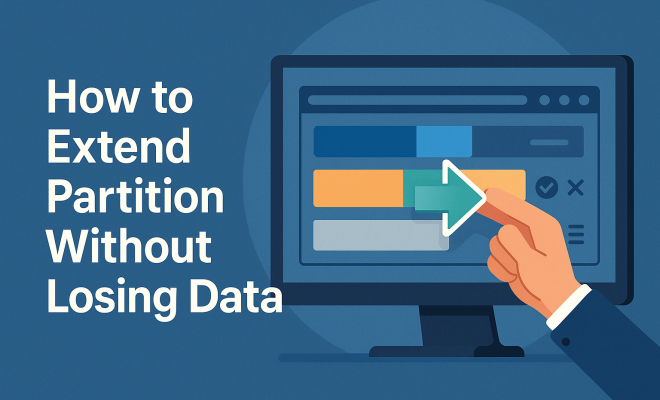
How to extend partition without losing data
“`html
In the digital age, managing your storage efficiently is crucial. Whether you’re working on a personal computer or managing a server, running out of disk space can be a significant hurdle. One effective way to solve this issue is to extend partition without losing data. This article will explore the methods and tools available to help you enlarge your partitions safely while keeping your data intact.
1. Understanding Disk Partitions
Before diving into how to extend partitions, it’s essential to understand what disk partitions are and why they matter. A disk partition is essentially a logical division of a hard disk drive (HDD) or solid-state drive (SSD) that allows the system to manage data more efficiently.
Each partition can be formatted with different file systems, such as NTFS, FAT32, or ext4, which define how data is stored. Users typically create multiple partitions to separate system files from personal data, install different operating systems, or manage data backups. Understanding this structure is vital, as any modification can potentially lead to data loss if not handled correctly.
2. Why You Might Need to Extend a Partition
There are several reasons to extend a partition. The most common issue is running low on disk space, which can slow down your computer’s performance and cause applications to malfunction or crash. For instance, if your operating system is running on a partition that is nearing its capacity, it may not function optimally.
Additionally, new applications and updates often require more space. If you’re using resource-intensive software for tasks like video editing or gaming, you’ll quickly find that your existing partitions are insufficient. Extending partitions allows you to allocate more space as needed, ensuring that your programs function smoothly.
3. Risks of Modifying Disk Partitions
While extending a partition can seem straightforward, it’s not without its risks. The primary concern is data loss. Partition modification often involves moving data around on the disk, which can lead to corruption or accidental deletion if not done correctly. Moreover, unexpected power failures or system crashes during the process can also jeopardize your files.
To mitigate these risks, it’s crucial to back up your data before proceeding with any partition changes. Tools exist to help with this, and creating a system image or a copy of your vital files ensures that you can recover them in case something goes wrong.
4. Tools for Extending Partitions
Several tools and software can help you extend a partition without losing data. Some of the most popular include: (See: Understanding disk partitions.)
- Windows Disk Management: A built-in utility in Windows that allows for basic partition management.
- EaseUS Partition Master: A user-friendly software that provides various partition management features, including resizing partitions.
- AOMEI Partition Assistant: Another robust tool that offers both free and paid versions for managing disk space efficiently.
- MiniTool Partition Wizard: A comprehensive tool that helps with partition recovery, resizing, and various other management tasks.
Choosing the right tool depends on your specific needs and comfort level with technology. While built-in tools are convenient, third-party applications often provide more robust features and better user interfaces.
5. Using Windows Disk Management to Extend a Partition
Windows Disk Management is a straightforward way to extend partitions without any additional software. Here’s how you can do it:
- Right-click on the Start button and select Disk Management.
- Locate the partition you’d like to extend. Ensure there is unallocated space adjacent to it.
- Right-click on the partition and select Extend Volume.
- Follow the on-screen instructions to allocate the desired amount of unallocated space.
This method is efficient, but it has a significant limitation: you can only extend a partition into unallocated space that is directly next to it on the disk. If you don’t have adjacent unallocated space, you will need a more complex method, such as using third-party software.
6. Using EaseUS Partition Master
For those looking for a more flexible option, EaseUS Partition Master provides a user-friendly interface and powerful features. Here’s a step-by-step guide:
- Download and install EaseUS Partition Master.
- Launch the software, and you will see your partitions displayed.
- Right-click on the partition you wish to extend and select Resize/Move.
- Drag the border of the partition to extend it into the unallocated space. Click OK.
- Finally, click Apply to execute the changes.
One of the benefits of using EaseUS is that it allows you to move partitions around, thus enabling you to create unallocated space beside the partition you want to extend, regardless of its current position.
7. Backing Up Your Data: A Crucial Step
Before attempting to extend a partition, backing up your data is a non-negotiable step. Even the best tools can malfunction or encounter issues that lead to data loss. Here are some reliable backup methods:
- File History: Windows includes a feature called File History that automatically backs up your files to an external drive.
- Cloud Storage: Services like Google Drive or Dropbox allow for offsite backups that can be accessed from anywhere.
- Disk Imaging Software: Tools like Macrium Reflect can create a complete image of your hard drive, allowing for full recovery if needed.
Regular backups can safeguard against unexpected issues, ensuring your data is not only backed up before a partition change but also protected moving forward.
8. Post-Extension Checks
After successfully extending your partition, it’s wise to perform a few checks to ensure everything is functioning correctly. Here’s what you should do:
- Verify Available Space: Check that the extended space is accessible and correctly displayed in your system.
- Run a Disk Check: Use the Windows built-in check disk utility to scan for errors that may have occurred during the modification.
- Test Application Performance: Launch applications that were previously running low on space to see if they perform better.
These steps not only confirm that the partition extension was successful, but they also help in maintaining the overall health of your system.
9. Alternative Solutions: Using Command Line
For those comfortable with command line interfaces, Windows offers a command-line tool called Diskpart that can help you manage partitions. Here’s a brief overview: (See: Managing data safely.)
- Open Command Prompt as an administrator.
- Type diskpart and press Enter.
- Use the list volume command to find the volume you want to extend.
- Select the volume using select volume [number].
- Finally, type extend to extend the volume into adjacent unallocated space.
This method is powerful and precise, but it requires a bit of caution as incorrect commands can lead to unintended consequences.
10. Common FAQs about Extending Partitions
1. Can I extend a partition if it’s the system partition?
Yes, you can extend the system partition. However, you need to ensure that you have unallocated space adjacent to the system partition. If not, using third-party software like EaseUS or AOMEI is recommended as it can manage the partitions more flexibly.
2. What happens if I don’t have unallocated space next to my partition?
If you don’t have unallocated space next to the partition you want to extend, you can either shrink another partition to create unallocated space or use third-party software that allows non-adjacent partitions to be merged or resized. Tools like EaseUS Partition Master let you move partitions around, which can free up space without risking data loss.
3. Is it safe to extend a partition without backing up data?
It’s highly discouraged to extend a partition without backing up your data first. Although most tools are designed to minimize risks, issues can arise that may lead to data loss, such as power failures or software glitches. Always ensure a backup is in place before proceeding.
4. How can I check if my partition has been extended successfully?
You can verify the extension by opening the Disk Management tool in Windows and checking the size of the partition. Alternatively, you can also check under “This PC” to see the available space on the drive to confirm that the changes have taken effect.
5. Will extending a partition affect the performance of my computer?
Extending a partition generally does not negatively affect performance. In fact, it can improve the performance of applications that were previously constrained by low disk space, allowing them to run more smoothly. Ensure you properly manage your disk space to maintain optimal performance.
11. Preventative Measures for Future Disk Space Issues
Now that you know how to extend a partition without losing data, it’s a good idea to consider how you can prevent running out of disk space in the future. Here are some tips: (See: Disk partitioning techniques.)
- Regularly Clean Up Unused Files: Use tools like Disk Cleanup or CCleaner to remove unwanted files and free up space.
- Uninstall Unused Applications: Regularly review and uninstall applications or programs that you no longer use or need.
- Monitor Disk Usage: Keep an eye on your disk space and use built-in tools or third-party applications to monitor usage patterns and predict when you might need to extend partitions again.
- Upgrade Your Hardware: If you’re consistently running low on space, consider upgrading your hard drive or SSD to a larger capacity version. This can provide long-term relief and improve performance.
12. When to Consider Professional Help
While many users may feel comfortable manipulating partitions, there are scenarios where seeking professional assistance is wise. Here are a few situations:
- Complex Partition Layouts: If you have multiple partitions with critical data or complex configurations that require expert handling.
- Frequent Errors or Crashes: If your system frequently encounters errors during partition modifications, it may indicate underlying hardware issues or a need for professional diagnostics.
- Large Data Sets: When dealing with large amounts of sensitive data, it might be safer to consult with a data recovery or IT professional to ensure that everything is handled securely and reliably.
In these cases, it can be worth the investment to ensure that your data remains safe and your system functions effectively.
13. Advanced Partition Management Techniques
For those looking to deepen their understanding of disk partition management, there are several advanced techniques and strategies you can explore:
- Dynamic Disks: Windows allows you to convert basic disks to dynamic disks, which can offer more flexibility in managing partitions. Dynamic disks can span multiple drives and support features like software RAID, providing better performance and redundancy.
- Partition Recovery: If you accidentally delete a partition or lose data, partition recovery tools can help restore lost partitions and files. Software like TestDisk can be invaluable in these situations, allowing users to recover partitions and files that have been lost due to accidental deletion or corruption.
- File System Conversions: Sometimes, you may want to convert a partition from one file system to another without losing data. Tools like Paragon Partition Manager can facilitate these conversions, allowing you to switch from FAT32 to NTFS or other file systems as needed, enhancing compatibility and performance.
- Virtual Disk Management: With the rise of virtual machines, managing virtual disks (VHDs) has become essential. Windows includes tools for managing these virtual disks, enabling you to extend, shrink, or create new virtual hard drives easily.
14. Monitoring Storage Health
Keeping an eye on your storage health is crucial for avoiding data loss and ensuring optimal performance. Here are some tips on how to monitor your storage effectively:
- S.M.A.R.T. Monitoring: Most modern hard drives and SSDs support S.M.A.R.T. (Self-Monitoring, Analysis, and Reporting Technology), which can provide useful insights into the health of your storage device. Tools like CrystalDiskInfo can help you monitor these parameters to predict potential failures.
- Regular Disk Checks: Incorporating regular disk checks into your maintenance routine can help catch issues early. Use the built-in Windows check disk utility or third-party tools to perform these checks periodically.
- Capacity Planning: Predicting future storage needs will save you from last-minute rushes to extend partitions. Analyze your usage trends and project future storage requirements, allowing you to plan upgrades or extensions in advance.
15. Conclusion: Empowering Your Digital Experience
In summary, knowing how to extend partition without losing data is an essential skill for anyone looking to optimize their digital storage. With the right tools and precautions, you can easily reclaim precious space on your drives, enhance performance, and ensure your files remain safe.
Whether you opt for built-in tools like Windows Disk Management or third-party software like EaseUS Partition Master, the key is to always back up your data before making any changes. Armed with this knowledge, you can confidently manage your partitions and keep your system running smoothly.
“`
Trending Now
Frequently Asked Questions
How can I extend a partition without losing data?
To extend a partition without losing data, you can use partition management tools like Windows Disk Management, GParted, or third-party software. Always back up your data before proceeding, and ensure there is unallocated space available adjacent to the partition you wish to extend.
What is a disk partition and why is it important?
A disk partition is a logical division of a hard drive or SSD that helps manage data efficiently. It allows users to separate system files from personal data, install multiple operating systems, or create backups, making it crucial for effective storage management.
What are the risks of modifying disk partitions?
Modifying disk partitions carries risks such as data loss, corruption, or system instability. If not done correctly, changes can lead to inaccessible data. It's essential to back up your data and follow proper procedures when extending or resizing partitions.
Why would I need to extend a partition?
You might need to extend a partition if you're running low on disk space, which can affect your computer's performance and application functionality. New software installations and updates often require more space, making it necessary to allocate additional capacity to existing partitions.
What tools can I use to extend a partition?
You can use built-in tools like Windows Disk Management for basic partition adjustments, or third-party software like EaseUS Partition Master, AOMEI Partition Assistant, or GParted for more advanced features. These tools help you safely extend partitions without losing data.
What’s your take on this? Share your thoughts in the comments below — we read every one.