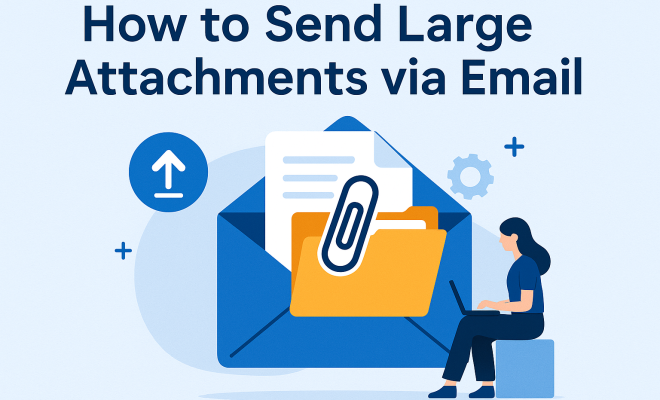
How to send large attachments via email
“`html
In the digital age, sharing files has become an integral part of both our personal and professional lives. Whether you’re sending a presentation for work, sharing family photos, or collaborating on creative projects, you may find yourself grappling with the challenge of how to send large attachments via email. Email providers often impose strict limits on attachment sizes, leaving many people frustrated. This article will explore ten clever ways to overcome these limitations, ensuring that you can send your files without a hitch.
1. Understanding Email Attachment Limits
Before diving into solutions, it’s crucial to understand the maximum size limits for email attachments across various platforms. For instance, Gmail allows attachments up to 25 MB, while Outlook has a limit of 34 MB. Yahoo Mail restricts users to 25 MB as well. These seemingly arbitrary limits can be a hurdle when trying to send larger files, prompting users to seek alternatives.
Understanding these limits not only helps in determining how to send large attachments via email but also offers insight into which platforms might be more suitable for your needs. If you frequently deal with larger files, it may be worth considering a service that accommodates those demands.
2. Compressing Files
One of the simplest and most effective ways to send large attachments via email is to compress the files before attaching them. Compression software, such as WinRAR or 7-Zip, allows you to reduce the size of files significantly. By compressing your files, you can often shrink them below the maximum email attachment size.
However, keep in mind that compression isn’t always effective, especially if the files are already in a compressed format, like JPEG images or MP3 audio files. If you find that compression isn’t enough, consider combining it with other strategies to ensure your files can be sent.
Moreover, you can set different compression levels depending on your needs. For instance, higher compression will result in smaller files but may reduce the quality of images or sound. Always strike a balance between size and quality, especially when sharing files that rely on clarity, like presentations or design work.
3. Cloud Storage Solutions
Cloud storage has revolutionized the way we share large files. Services like Google Drive, Dropbox, and OneDrive allow users to upload their files and then share a link via email. This method enables you to bypass attachment limits altogether while also providing recipients with a seamless way to access the files.
To utilize this method, simply upload your file to your cloud storage account, generate a shareable link, and paste it into your email. Most services also allow you to set permissions, such as whether the recipient can edit or view the files, adding an extra layer of control over your documents.
Consider the security features of each cloud service. For example, Google Drive has robust sharing settings, allowing you to restrict access to specific users, while Dropbox also offers password-protected links. The choice of service can impact not just storage but also the level of security you require for sensitive files.
4. Using File Transfer Services
If you’re frequently needing to send large attachments via email, file transfer services can be a lifesaver. Websites like WeTransfer, Send Anywhere, and Hightail are designed specifically for this purpose, allowing you to send files up to several gigabytes in size. (See: Email attachment limits and guidelines.)
With these services, you upload your file and provide the recipient’s email address. The recipient will receive a link to download the file, usually with an expiration date for security. These services are not only user-friendly but also eliminate the hassle of attachment limitations.
It’s important to note that while using these services, they may have restrictions on the number of files you can send at once or the duration for which your files are stored. Always check the terms and conditions to ensure the service meets your needs, especially for time-sensitive files.
5. Splitting Files into Smaller Parts
For those who prefer to stay within their email client’s bounds, splitting large files into smaller parts can be an effective strategy. This method involves dividing a file into smaller segments that each meet the attachment size limitations set by your email provider.
While this technique can be useful, it does require a bit of coordination. You’ll need to inform your recipient that the file is split and provide instructions on how to reassemble it. Tools like 7-Zip and WinRAR offer file-splitting features that can make this process easier.
When you split files, be sure to number them clearly so that the recipient knows the order in which to reassemble them. A simple naming scheme like “Project_Part1.zip”, “Project_Part2.zip”, and so forth can save time and confusion on both ends.
6. Using a Different Email Client
Sometimes the solution to how to send large attachments via email lies in using a different email client. Some lesser-known email services offer larger attachment limits than their more popular counterparts. For example, ProtonMail allows file attachments up to 25 MB, but with a premium account, you can send larger sizes. Similarly, services like Mail.com provide up to 65 MB per email.
Switching email clients might require some transitions, such as migrating contacts or familiarizing yourself with new features, but it can be worth it for the flexibility in sending large files without the usual setbacks.
Additionally, some email clients have specific features that enhance file sharing. For instance, Thunderbird allows for easy integration with cloud services. Researching different email platforms can be beneficial, especially if you often need to send large files.
7. Email Yourself First
If you’re unsure about the best way to send a large attachment, consider emailing it to yourself first. This not only allows you to test whether the file can be sent but also helps you verify whether the recipient can access it properly.
Once you’ve sent the file to yourself, you can check the attachment size and the email’s delivery. If everything works smoothly, you can then forward the email to your intended recipient or provide them with a link if you used a cloud storage service.
Sending a test email can also help you catch any issues with file compatibility or size limits. If the email services bounce back due to file size, then you immediately know to try an alternative method before bothering your recipient with a problem.
8. Consider Email Alternatives
In some cases, email might not be the best method for sharing large files. Consider using messaging apps like Slack, Microsoft Teams, or even WhatsApp, which can support larger file sizes. These platforms often allow users to share files more effortlessly than traditional email. (See: CDC email communication guidelines.)
Using an alternative platform also encourages a more collaborative approach, especially for team projects. The integration of comments and discussions alongside file sharing can streamline communication and facilitate project management.
While these platforms might be more suited for immediate or ongoing collaboration, they also have their limits. For instance, while WhatsApp allows files up to 100 MB, it’s crucial to ensure that your team or recipients are comfortable with the platform you choose.
9. Tips for Managing Large Files
Managing large files effectively can save you time and headaches when you need to send large attachments via email. Here are a few tips to keep in mind:
- Organize Your Files: Keep your files structured in folders with clear naming conventions. This helps you quickly locate the files you need to send.
- Use Standard Formats: When possible, save documents in universally accepted formats, like PDF, which is less likely to encounter compatibility issues.
- Regularly Clean Up: Periodically review and delete unnecessary files from your storage to avoid clutter.
- Utilize Version Control: If you’re working with documents that undergo frequent changes, consider using version control software or services. This prevents confusion and ensures that every team member is working on the latest version.
- Back Up Important Files: Always have a backup of critical files in another location. This can prevent loss due to corrupted files or failed transfers.
By adopting these practices, you can streamline your workflow, making it easier to send large files when the need arises.
10. The Future of File Sharing
As technology continues to evolve, the challenges surrounding how to send large attachments via email may diminish. With the rise of 5G networks promising faster upload speeds and cloud services becoming increasingly robust, sharing large files could soon become a seamless part of our electronic communications.
Moreover, advancements in artificial intelligence could lead to smarter file management systems, automatically compressing and organizing files before sending them. As these innovations unfold, staying informed and adaptable will be essential for optimizing your file-sharing strategies.
In addition to technological advancements, businesses are increasingly adopting hybrid work environments, which means the need for efficient file sharing will only grow. Companies may invest in more advanced collaborative tools that facilitate file sharing while ensuring security and accessibility for remote teams.
FAQ: Common Questions About Sending Large Attachments via Email
What are the maximum attachment limits for popular email services?
Gmail allows attachments up to 25 MB, Outlook has a limit of 34 MB, Yahoo Mail also restricts attachments to 25 MB, and Apple Mail allows up to 20 MB. These limits may vary slightly based on the specific configurations of the email service.
Can I send files larger than the limit using email?
Yes, you can use cloud storage services or file transfer services as alternatives. These platforms can help you bypass the size limits imposed by email providers.
What happens if my attachment exceeds the size limit?
If your attachment exceeds the size limit, your email may bounce back, and the recipient will not receive it. It’s advisable to either compress the file, split it into smaller parts, or use cloud storage as a solution. (See: New York Times on email attachments.)
Are there risks to using file transfer services?
While file transfer services are generally secure, it’s crucial to ensure that you’re using a reputable service. Always check the privacy policies and security measures in place to protect your data.
How can I manage file versions when sharing large attachments?
Using version control software or services, such as Google Docs or Git, can help you manage file versions. They keep track of changes and ensure that everyone has access to the latest document.
11. Exploring Advanced File Sharing Tools
As the need for effective file sharing grows, advanced tools designed specifically for collaborative work are becoming more popular. Tools like Box, ShareFile, and Citrix not only allow users to send large attachments via email but also provide features tailored for business needs. These services often include file syncing, advanced security features, and activity tracking, which can be invaluable for teams working on sensitive or crucial projects.
For instance, Box offers a secure cloud storage solution with robust collaboration tools, allowing multiple users to edit the same document and track changes in real-time. Similarly, ShareFile provides a secure way to share large files and manage permissions effectively, which is essential in industries like finance and healthcare where data security is paramount.
Moreover, these tools often integrate seamlessly with existing software such as Microsoft Office or Google Workspace, making them easy to adopt for teams already using these platforms. This means that you can send large files without disrupting your workflow or requiring team members to learn entirely new systems.
12. The Importance of Email Etiquette When Sending Large Files
When you decide to send large attachments via email, it’s important to maintain good email etiquette. Here are some best practices to consider:
- Notify Recipients: Always give your recipients a heads-up when you’re sending large files. This not only prepares them for the incoming email but also allows them to make arrangements for downloading or accessing the files.
- Keep Your Message Clear: When sending large attachments, ensure your email includes a concise explanation of what the files are and why you’re sending them. This context helps the recipient understand the importance of the files.
- Consider File Formats: Make sure to send files in formats that are easy for your recipients to access. For example, PDFs are universally recognized and can be opened on almost any device.
- Be Mindful of Time Zones: If you’re working with recipients in different time zones, consider sending files at times that are convenient for them to access and download.
13. Conclusion: Streamlining Your File Sharing Process
While the challenge of sending large attachments via email can be daunting, various solutions exist to simplify the process. From leveraging cloud storage and file transfer services to employing clever techniques like file compression and splitting, you can easily navigate this common digital hurdle. Explore these options to find the best fit for your needs, ensuring that your files reach their destination without unnecessary delays or frustrations.
“`
Trending Now
Frequently Asked Questions
What is the maximum attachment size for Gmail?
Gmail allows users to send attachments up to 25 MB. If your file exceeds this limit, you'll need to consider alternative methods to share your content, such as using cloud storage services or compressing the file.
How can I send files larger than 25 MB?
To send files larger than 25 MB, consider using cloud storage services like Google Drive or Dropbox, where you can upload the file and share a link via email. Alternatively, you can compress the file or use file transfer services.
What are some tools for compressing files?
Popular tools for compressing files include WinRAR, 7-Zip, and WinZip. These programs can significantly reduce file sizes, making it easier to send large attachments via email.
Can I send multiple files in one email?
Yes, you can send multiple files in one email as long as the total size does not exceed the attachment limit of your email provider. If the combined size is too large, consider compressing the files or using a cloud storage link.
What should I do if my file is already compressed?
If your file is already compressed and still too large to send via email, consider using cloud storage services to share the file. Alternatively, you could split the file into smaller parts or use a file transfer service designed for larger files.
What’s your take on this? Share your thoughts in the comments below — we read every one.