How to import emails to Gmail
“`html
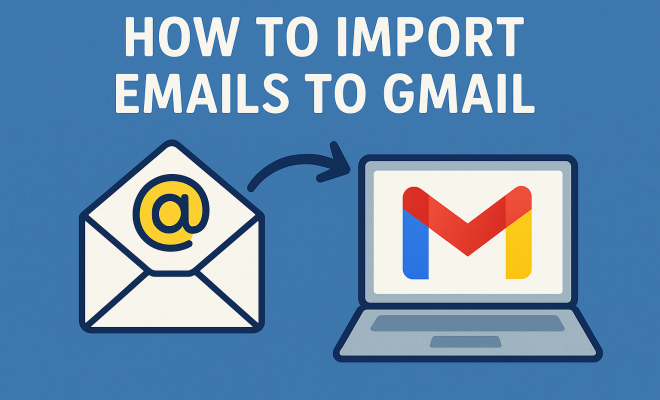
In an increasingly digital world, managing your emails efficiently can make or break your productivity. Whether you’re migrating from another email provider or just consolidating your communication, learning how to import emails to Gmail is essential for anyone who wants to streamline their email management. This article will guide you through the process, exploring everything from preparation to troubleshooting common issues, so you can confidently make the switch to Gmail.
1. Understanding the Importance of Email Migration
Before diving into the specifics of how to import emails to Gmail, it’s crucial to understand why you might want to migrate your emails in the first place. With over 1.5 billion users, Gmail is one of the most popular email services worldwide. It offers a streamlined interface, robust security features, and seamless integration with other Google services.
Many users switch to Gmail to take advantage of its advanced spam filtering, generous storage options, and impressive organizational tools like labels and filters. However, moving your emails from one provider to another can seem daunting. Understanding the importance of this transition can help you appreciate the benefits of investing time in this process.
2. Preparing for the Migration
Preparation is vital when planning to import emails to Gmail. The first step involves gathering the necessary information from your old email account. This typically includes the following:
- Your email address and password for the old email account
- Access to IMAP or POP settings if you’re importing from a less common provider
- A backup of your emails, just in case something goes wrong during the migration
Additionally, decide whether you want to import all your emails or only specific folders. Some users may prefer to start fresh by only bringing over recent emails, while others might want their entire email history. Having a clear plan will simplify the process immensely.
3. Enabling IMAP in Your Old Email Account
If you’re transitioning from another email provider, the next step is to enable IMAP (Internet Message Access Protocol) in your old email account. IMAP allows Gmail to access your emails on your old provider’s server, making the import process smoother.
To enable IMAP, log in to your old email account and locate the settings option. Depending on your provider, you may need to navigate through different menus. Look for options labeled ‘Forwarding and POP/IMAP’ or similar. Once you find the IMAP settings, enable IMAP and save your changes.
4. Setting Up Gmail for Email Import
Once you’ve enabled IMAP, head over to your Gmail account. To initiate the import process, follow these steps:
- Click on the gear icon in the upper right corner and select ‘See all settings.’
- Go to the ‘Accounts and Import’ tab.
- Under the ‘Check mail from other accounts’ section, click on ‘Add a mail account.’
A new window will pop up, prompting you to enter your old email address. After entering the email, click ‘Next.’ Gmail will then guide you through adding your email account. Make sure to enter the correct username and password, and select ‘Import emails from my other account (POP3)’ if prompted.
5. Configuring Settings for Successful Import
During the import setup, you’ll come across several configuration options. Here’s what you need to focus on:
- Username: Your full email address.
- Password: The password for your old email account.
- POP Server: This will typically be provided by your old email provider. Common providers include:
- For Yahoo Mail: pop.mail.yahoo.com
- For Outlook.com: pop-mail.outlook.com
- For Hotmail: pop-mail.hotmail.com
Make sure to select the appropriate ports and encryption methods according to your old provider’s specifications. This step is crucial for a successful transition. (See: Gmail overview on Wikipedia.)
6. Monitoring the Import Process
After configuring the settings and initiating the import, you might wonder how long it will take to complete. The duration varies based on the volume of emails you’re importing. For a few hundred emails, it may take a couple of minutes, but for thousands, it can take several hours or even days.
To check the progress, periodically visit your Gmail inbox and look for newly imported emails. They may appear in a separate folder or labeled as imported, depending on the settings you chose during the configuration process. Patience is essential during this stage!
7. Organizing Your Imported Emails
Once the emails have been successfully imported, the next step is organization. Gmail’s label system allows you to categorize emails effectively. You can create custom labels for different categories, such as ‘Work,’ ‘Personal,’ or ‘Projects,’ and apply them to your imported emails for better accessibility.
Additionally, familiarize yourself with Gmail’s filtering options. You can set rules to automatically sort incoming emails based on criteria like sender, subject, or keywords. These features can help you maintain an organized inbox and minimize clutter, making your email experience more enjoyable.
8. Troubleshooting Common Issues
As with any technological process, issues may arise during the import process. Here are some common problems and their solutions:
- Emails Not Appearing: If your emails aren’t showing up, double-check your old email account settings to ensure IMAP is enabled. Also, confirm that you’ve entered the correct server settings in Gmail.
- Import Slow or Stopped: If the import process seems unusually slow or has stopped, try restarting the process. Sometimes a simple glitch can impede the flow.
- Missing Emails: If you notice emails missing after the import, check if you’ve selected the correct folders during the setup. It’s possible that not all folders were included in the import.
By being aware of potential hurdles and knowing how to address them, you’ll feel more confident throughout the migration.
9. Keeping Your Gmail Account Secure
After you’ve successfully imported your emails to Gmail, it’s essential to secure your account. Strong security measures not only protect your information but also ensure that you can confidently use your new email setup. Start by enabling two-factor authentication (2FA) for an extra layer of security.
Additionally, regularly update your password and review your account activity. If you notice any suspicious activity, take immediate action by changing your password and checking your account settings. Keeping your Gmail account secure is a crucial step in enjoying the benefits of the platform without the stress of potential breaches.
10. Advanced Features of Gmail After Importing
Once you’ve settled into Gmail and organized your imported emails, it’s a good idea to explore the advanced features the platform offers. These tools can significantly enhance your email experience and improve your productivity.
10.1. Gmail Search Operators
Gmail’s powerful search functionality is one of its standout features. You can use search operators to find emails quickly. For example, typing from:[email protected] will filter emails from a specific sender, while has:attachment will show only emails with attachments. Familiarizing yourself with these operators can save you time and effort when managing your inbox.
10.2. Integration with Google Workspace
If you use other Google services like Calendar, Drive, or Docs, Gmail’s integration with Google Workspace can be incredibly beneficial. You can easily share files from Google Drive directly in your emails, schedule events in Calendar without leaving your inbox, and collaborate on documents in real-time. This interconnectedness enhances productivity and makes workflow management more seamless.
10.3. Keyboard Shortcuts
For those who are heavy email users, mastering Gmail’s keyboard shortcuts can dramatically speed up your email management. Whether you’re composing a message, navigating through your inbox, or applying labels, these shortcuts can streamline your workflow significantly. For example, pressing C creates a new message, while Ctrl + Enter sends the email. You can find a full list of shortcuts in Gmail’s help section.
11. Importing Emails from Specific Providers
While the general steps to import emails to Gmail are applicable across the board, there can be nuances when dealing with specific email providers. Here’s a quick guide on importing emails from some of the most common platforms. (See: CDC email communication guidelines.)
11.1. Yahoo Mail
To import emails from Yahoo Mail, ensure that you have enabled the ‘Allow apps that use less secure sign in’ option in your Yahoo account settings. This will allow Gmail to access your Yahoo emails without issues. Follow the standard process as you would for any other email account, and you should have your Yahoo emails in Gmail shortly.
11.2. Microsoft Outlook
Outlook users should ensure they have IMAP enabled in their account settings. Similar to Yahoo, you’ll need to enter the correct POP server details during the import process. Using Microsoft’s Outlook app can also facilitate the transfer, especially for those who have large volumes of emails. Once you set it up, Outlook can sync with Gmail, easing the transition.
11.3. Apple Mail
For Apple Mail users, exporting emails directly can be a bit tricky. You may need to export your emails as .mbox files and then use a third-party tool to convert them before importing into Gmail. Alternatively, using IMAP settings as you would with other providers is also an option, but be sure to follow their specific instructions carefully.
12. FAQs on Importing Emails to Gmail
12.1. How long does it take to import emails to Gmail?
The time it takes to import emails to Gmail varies greatly depending on the volume of emails being transferred. It can take anywhere from a few minutes to several days if you are migrating a large number of emails.
12.2. Can I import emails from multiple accounts at the same time?
Gmail allows you to add multiple mail accounts, but importing emails happens one at a time. You can set up each account sequentially and import them into Gmail, but each import will need to be completed before starting the next.
12.3. Will my emails retain their original folder structure?
During the import process, Gmail will typically not retain the folder structure from your old email provider. However, it will import emails into your Gmail inbox, and you can use labels to organize them post-import.
12.4. What happens to my emails after the import?
Once the import is complete, your emails will reside in your Gmail account. They will not be deleted from the original account unless you choose to do so. It’s a good idea to keep the original account active until you are satisfied with the import.
12.5. What if I encounter issues during the import?
If you run into problems, first check your settings to ensure everything is entered correctly. Also, consult Gmail’s help resources or your previous email provider’s support for specific troubleshooting steps.
13. Best Practices for Email Management After Importing
Once you’ve imported your emails to Gmail, it’s important to adopt effective email management practices that can enhance your productivity and ensure you make the most out of your Gmail experience. Here are some best practices to consider:
13.1. Regularly Clean Your Inbox
After migration, your inbox might be filled with old emails. Take some time to go through them and delete any that are no longer relevant. Use Gmail’s search features to find and remove bulk unwanted emails, which can help you maintain a cleaner, more organized inbox.
13.2. Utilize Stars and Importance Markers
Gmail allows you to star important emails or mark them as important. This feature can help you prioritize your responses and keep track of messages that require your attention. Consider establishing a system for what types of emails deserve these markers, so you can easily sort through your priorities. (See: New York Times Gmail tips.)
13.3. Set Up a Consistent Labeling System
As you continue to use Gmail, make it a habit to label emails consistently. Labels work like folders but provide more flexibility since an email can have multiple labels. Develop a labeling system that makes sense to you, such as categorizing by project, client, or urgency.
13.4. Take Advantage of Filters
Filters are a powerful tool in Gmail that can automatically sort incoming emails based on your defined criteria. For instance, you can set a filter to send newsletters to a specific label, so they don’t clutter your main inbox. Spend some time creating filters for common emails you receive; this can save you a great deal of time managing your inbox.
14. Case Studies: Successful Email Migration Stories
Hearing success stories can be motivating and help you understand how others have effectively managed their email migration. Here are a few examples:
14.1. Small Business Migration
A small marketing agency decided to switch to Gmail for its integrated features. Before migrating, they organized their emails into folders based on client projects. After the import, they set up labels reflecting these projects, which made it easy to track communications and deadlines. The agency reported improved collaboration among team members, thanks to the integration with Google Drive for sharing documents.
14.2. Educational Institution Transition
A local school district transitioned from a lesser-known email provider to Gmail to enhance communication among staff and students. They conducted training sessions to help educators adapt to the new system, emphasizing Gmail’s organizational tools. Post-migration surveys indicated a 40% increase in satisfaction regarding email organization and communication efficiency.
14.3. Individual User Experience
A freelance graphic designer migrated from Yahoo Mail to Gmail after facing issues with storage limits. She found the transition straightforward and appreciated the label system for organizing client communications. By utilizing Gmail’s search operators, she could find design references in seconds. This efficiency allowed her to focus more on her projects rather than hunting down emails.
15. Future of Email Management
As technology evolves, so does the way we manage our emails. AI and machine learning are becoming increasingly integrated into email services, enhancing features such as spam detection and smart replies. Gmail is continuously evolving, with features like confidential mode and improved phishing detection. Staying updated with these advancements can empower you to leverage Gmail to its fullest potential.
Knowing how to import emails to Gmail not only aids in effective email management but also enhances your overall digital experience. By following the steps outlined in this guide, you can seamlessly transition to Gmail, enjoy its robust features, and keep your email organized and secure.
“`
Trending Now
Frequently Asked Questions
How do I import my old emails into Gmail?
To import your old emails into Gmail, first gather your old email account information, including your address and password. Then, access Gmail's settings, navigate to the Accounts and Import tab, and select 'Import mail and contacts.' Follow the prompts to connect your old account and choose whether to import all emails or specific folders.
What do I need to prepare before importing emails to Gmail?
Before importing emails to Gmail, ensure you have the necessary credentials for your old email account, including access to IMAP or POP settings. It's also wise to create a backup of your emails and decide whether you want to import everything or just selected folders to streamline the process.
Can I import emails from other email providers to Gmail?
Yes, you can import emails from other email providers to Gmail. Most services support IMAP or POP protocols, allowing you to connect your old email account to Gmail. This process enables you to bring over your emails, contacts, and even calendar events, depending on the provider.
What are the benefits of switching to Gmail?
Switching to Gmail offers numerous benefits, including advanced spam filtering, generous storage options, and a user-friendly interface. Additionally, Gmail seamlessly integrates with other Google services, providing enhanced organizational tools like labels and filters that can significantly improve your email management.
What should I do if there are issues during the email import process?
If you encounter issues during the email import process, check your internet connection and ensure that you've correctly entered your old email account credentials. Additionally, verify that IMAP or POP settings are properly configured. If problems persist, consult Gmail's help center for troubleshooting tips or contact your old email provider for assistance.
What did we miss? Let us know in the comments and join the conversation.