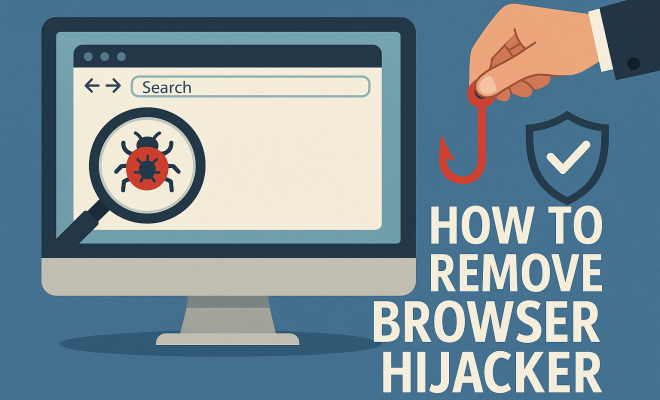
How to remove browser hijacker
“`html
1. Understanding Browser Hijacking
Browser hijacking might sound like something out of a science fiction novel, but it’s a real and frustrating issue that affects countless users every day. Essentially, a browser hijacker is a type of malicious software that alters your browser settings without your consent. This can lead to unwanted redirects, changed home pages, and the appearance of unsolicited advertisements. In severe cases, hijackers can even compromise your personal data, making it crucial to understand how to remove a browser hijacker as soon as you suspect one.
While some hijackers are relatively benign, merely altering your search engine or homepage, others can pose serious security risks. They often come bundled with free software or can be inadvertently downloaded through phishing sites. Therefore, being informed about this issue is the first step in safeguarding your online experience.
2. Signs Your Browser Has Been Hijacked
How can you be sure if your browser has fallen victim to a hijacker? There are several telltale signs to watch for. Firstly, if your homepage or default search engine has changed unexpectedly, that’s a red flag. You might also notice an increase in pop-up ads that seem irrelevant or out of context with your browsing habits.
Another common symptom is slower browser performance. If your browser is taking an unusually long time to load pages or if you find it crashing frequently, a hijacker might be the culprit. Lastly, some users report unexpected toolbars appearing in their browser, which can be a direct result of a hijacker. If you notice any of these symptoms, it’s time to take action and remove the browser hijacker.
3. Initial Steps to Remove Browser Hijacker
Before diving into more complex solutions, there are some basic steps you can take to start removing a browser hijacker. First, try resetting your browser settings to their default. This can often undo any changes made by the hijacker. Most browsers allow you to do this easily through their settings menu.
Additionally, it’s a good idea to clear your browser’s cache and cookies. This can help eliminate any lingering traces of the hijacker. After doing this, check your extensions and remove any that look suspicious or that you don’t remember installing. This can often be the source of the hijacker.
4. Using Anti-Malware Software
One of the most effective ways to remove a browser hijacker is to use dedicated anti-malware software. Programs like Malwarebytes, HitmanPro, and CCleaner are designed to detect and eliminate various forms of malware, including browser hijackers. These tools are user-friendly and often come with step-by-step instructions for scanning and removing threats.
To get started, download a trusted anti-malware program and perform a full system scan. If the program detects any threats, follow its recommendations to quarantine or remove them. This step can often lead to a significant improvement in your browser’s performance and security.
5. Manual Removal of Browser Hijacker
If you prefer a hands-on approach, you can manually remove a browser hijacker from your system. Start by checking your installed programs in the Control Panel (for Windows users) or the Applications folder (for Mac users). Look for any unfamiliar or suspicious software that you don’t remember installing. Uninstall these programs to see if that resolves the issue.
Next, you’ll want to go through your browser settings individually. For Chrome, navigate to Settings, then Extensions, and disable or remove any suspicious items. For Firefox, go to Add-ons and do the same. Each browser has its own method for managing extensions and settings, so do a little research if you’re unsure how to navigate this.
6. Checking System Settings and DNS Configurations
Some browser hijackers manipulate your system settings, including your DNS configurations. To ensure you’re fully removing the hijacker, check your DNS settings. On Windows, go to Network and Sharing Center > Change Adapter Settings > right-click your connection > Properties > Internet Protocol Version 4 (TCP/IPv4) > Properties. Here, ensure that your DNS is set to obtain an IP address automatically. If you see anything suspicious, note it down and change it back to default. (See: Signs of browser hijacking.)
For Mac users, go to System Preferences > Network > Advanced > DNS. Look for any entries that seem out of place. If you find any, remove them and set your DNS servers to reliable options like Google DNS (8.8.8.8 and 8.8.4.4).
7. Staying Safe to Prevent Future Hijacks
After successfully removing a browser hijacker, it’s essential to adopt preventive measures. Always be cautious when downloading software, especially free programs that may come bundled with unwanted applications. Stick to reputable websites when downloading and always opt for custom installation options to ensure you can uncheck any additional components.
Keeping your browser and operating system updated is another vital step. Developers regularly patch security vulnerabilities, so ensuring you’re on the latest version can help protect against future hijacks. Finally, consider using a browser with built-in security features, such as Google Chrome or Mozilla Firefox, which offer enhanced protection against malware and hijackers.
8. When to Seek Professional Help
Though many browser hijackers can be effectively removed using the methods described, there may be circumstances that warrant professional assistance. If you’ve tried all the above steps without success or you’re dealing with sensitive information and fear for your security, reaching out to a professional might be the best course of action.
IT professionals can provide specialized tools and expertise that may be more effective in thoroughly eliminating the hijacker. They can also assess whether any personal data has been compromised. When in doubt, it’s better to err on the side of caution and get expert help.
9. Final Thoughts on Browser Hijackers
Browser hijackers can be a nuisance, but with the right knowledge and tools, you can regain control of your browsing experience. Understanding the signs of a hijack, utilizing anti-malware solutions, and adopting preventive measures are key in protecting yourself online. If you find yourself struggling, don’t hesitate to seek professional assistance. Ultimately, staying informed and cautious will help you maintain a safer and more enjoyable online browsing experience.
10. Types of Browser Hijackers
Understanding the different types of browser hijackers can help you recognize and deal with them more effectively. There are primarily three categories:
- Redirectors: These hijackers divert your web traffic to specific websites, often for marketing purposes. They can change your default search engine or homepage, redirecting you to sites you didn’t intend to visit.
- Toolbars: Some hijackers install additional toolbars on your browser, which can take up valuable screen real estate and often contain links to irrelevant or malicious sites.
- Adware: This type of hijacker bombards you with unwanted ads, often appearing as pop-ups or banners. While they may not redirect your browser, they can significantly hinder your browsing experience.
11. Statistics on Browser Hijacking
Research indicates that browser hijacking is a widespread issue impacting millions of users. According to a recent study, approximately 30% of internet users have experienced some form of browser hijacking in their lifetime. Among these, 12% reported being unable to resolve the issue without professional help. These statistics highlight the importance of being vigilant and proactive in securing your device.
12. Expert Perspectives on Browser Hijacking
Experts in cybersecurity emphasize the importance of user education in combating browser hijacking. According to cybersecurity consultant James P. Smith, “The best defense against browser hijackers is awareness. Users must learn to recognize the signs of hijacking and be cautious about the software they download.”
Furthermore, Dr. Lisa Tan, a digital privacy advocate, points out, “Preventing browser hijacking starts with understanding the risks associated with free software and the importance of using trusted sources.” Incorporating advice from these experts can better equip users to handle potential hijacking threats.
13. Common Myths About Browser Hijackers
There are several myths surrounding browser hijackers that can lead to misunderstandings and poor decision-making when faced with such issues:
- Myth 1: Only tech-savvy individuals are targeted by hijackers.
In reality, anyone can fall victim, regardless of their technical knowledge. - Myth 2: Browser hijackers can only come from downloads.
This is false; they can also be introduced through malicious ads and phishing attempts. - Myth 3: Once removed, a hijacker can’t come back.
Without proper preventive measures, it’s entirely possible for hijackers to return.
14. Comparing Browsers: Which is Safer?
When considering safety against browser hijackers, the choice of browser can make a significant difference. Here’s a quick comparison:
- Google Chrome: Offers robust security features, including built-in phishing and malware protection. Regular updates help to patch vulnerabilities.
- Mozilla Firefox: Known for its privacy-oriented features and regular updates. It also provides users with the ability to control permissions for extensions.
- Microsoft Edge: Leveraging the same engine as Chrome, Edge has made significant strides in security and privacy controls, making it a formidable choice.
- Safari: While Safari offers good integration with Apple’s ecosystem, it may lack some advanced features found in other browsers. Users should remain vigilant.
15. Frequently Asked Questions (FAQ)
What is a browser hijacker?
A browser hijacker is a type of malicious software that modifies your web browser’s settings without your consent, redirecting you to unwanted websites or displaying intrusive ads. (See: How to remove browser hijackers.)
How can I tell if a browser hijacker is present?
Common signs include unexpected changes to your homepage or search engine, an increase in pop-up ads, browser slowdowns, and the addition of unfamiliar toolbars.
Can a browser hijacker steal my personal information?
Yes, some sophisticated hijackers are designed to collect personal information, including login credentials and credit card details. It’s crucial to act quickly if you suspect a hijacker is present.
What should I do if I can’t remove the hijacker myself?
If manual removal methods and anti-malware tools fail, consider seeking professional help from an IT expert who can provide specialized assistance in removing the hijacker.
How can I prevent future browser hijacks?
Be cautious when downloading software, keep your operating system and browsers updated, and use security software that includes real-time protection against malware and hijackers.
Is it safe to use free software?
While many free software programs are safe, be cautious as some may package additional software, including browser hijackers. Always opt for custom installations and read user reviews before downloading.
16. Advanced Techniques to Remove Browser Hijacker
If you’ve attempted the basic steps and are still encountering issues, there are advanced techniques you can use to remove a browser hijacker. These methods require a bit more technical knowledge but can be effective in dealing with stubborn hijackers.
First, consider using the command prompt (for Windows users). Open the command prompt as an administrator and type ipconfig /flushdns. This command clears the DNS cache, which can help in case the hijacker has altered your DNS settings. For Mac users, you can do this by opening the terminal and entering sudo killall -HUP mDNSResponder. This essentially resets your DNS resolver cache.
Another approach is to examine your browser’s shortcuts. Right-click on the browser icon on your desktop, select Properties, and look in the Target field. If you see any unusual URL or additional commands following the browser path, remove them. This is a common tactic used by hijackers to ensure they persist even after you attempt to remove them.
Advanced users can also consider reviewing the Windows Registry (by typing regedit in the search box). Navigate to HKEY_CURRENT_USER\Software\Microsoft\Windows\CurrentVersion\Run and check for any suspicious entries that might be associated with the hijacker. Be extremely cautious when modifying the registry, as incorrect changes can cause system issues.
17. Long-term Browser Security Practices
After you’ve successfully removed a browser hijacker, you’ll want to adopt long-term practices to keep your browser safe. One of the best ways to do this is by setting up a secure browsing environment. Use a reliable VPN while browsing, which helps encrypt your internet traffic and hide your IP address from potential attackers.
Consider installing browser extensions designed to enhance security, such as ad blockers and script blockers. These tools help minimize your exposure to malicious advertisements that can lead to hijacking attempts. Additionally, regularly review your browser extensions and only keep those that you truly need, removing any that seem unnecessary.
Engaging in regular system checks is also beneficial. Set up alerts for unusual behavior or performance issues. If you notice anything out of the ordinary, investigate immediately rather than allowing potential threats to linger.
18. Statistics on Cyber Security Threats
Understanding the broader context of cybersecurity threats can emphasize the importance of protecting yourself against browser hijackers. According to the Cybersecurity and Infrastructure Security Agency (CISA), malware attacks have increased by over 50% in recent years, with browser hijacking being one of the most common forms of attack. The FBI’s Internet Crime Complaint Center reported losses exceeding $4.2 billion from internet crimes in 2020 alone, highlighting how lucrative these attacks can be for cybercriminals.
Further statistics indicate that more than 60% of small to medium-sized businesses faced a data breach in the past year, often linked to inadequate cybersecurity measures. These numbers underline the importance of taking browser security seriously, not just for individuals but also for organizations that may be vulnerable to hijacking attempts.
19. Resources for Ongoing Education
Staying informed about the latest cybersecurity threats is crucial in today’s digital age. Numerous resources provide ongoing education about browser security and malware threats. Websites like the Electronic Frontier Foundation (EFF) offer valuable insights into protecting your privacy online. The Federal Trade Commission (FTC) also provides information on recognizing and avoiding phishing scams.
Additionally, consider subscribing to cybersecurity newsletters or following industry experts on social media platforms. Many cybersecurity firms publish blogs and articles that cover recent trends in malware and offer tips for safe browsing. Engaging with these resources can keep you ahead of potential threats and help you maintain a secure browsing experience.
20. Involving Your Network in Security
Security is often a collective effort. Engaging your friends and family in conversations about browser hijacking and other cybersecurity threats can create a more informed community. Share your experiences and knowledge, and encourage them to take the necessary precautions to secure their own devices.
Consider organizing informal workshops or discussions where everyone can share tips and best practices. The more individuals know about potential threats, the less likely they are to fall victim to browser hijackers and other forms of malware. Empowering your network can create a sense of shared responsibility, making everyone more vigilant and proactive in their online safety.
“`
Trending Now
Frequently Asked Questions
What is a browser hijacker?
A browser hijacker is a type of malicious software that alters your browser settings without permission. It can change your homepage, default search engine, and display unwanted advertisements, potentially compromising your personal data.
How can I tell if my browser has been hijacked?
Signs of a browser hijacker include unexpected changes to your homepage or search engine, increased pop-up ads, slower browser performance, and the appearance of unfamiliar toolbars. If you notice these symptoms, it's time to take action.
What should I do if my browser is hijacked?
Start by resetting your browser settings to their default. This can often reverse changes made by the hijacker. If issues persist, consider using anti-malware software to thoroughly remove the hijacker.
Can browser hijackers steal my personal information?
Yes, some browser hijackers can compromise your personal data. They may track your online activities or collect sensitive information, making it important to remove them as soon as you suspect a hijack.
How do browser hijackers get installed on my computer?
Browser hijackers often come bundled with free software or can be inadvertently downloaded from phishing sites. Always be cautious when installing new programs and ensure you download software from reputable sources.
Have you experienced this yourself? We’d love to hear your story in the comments.