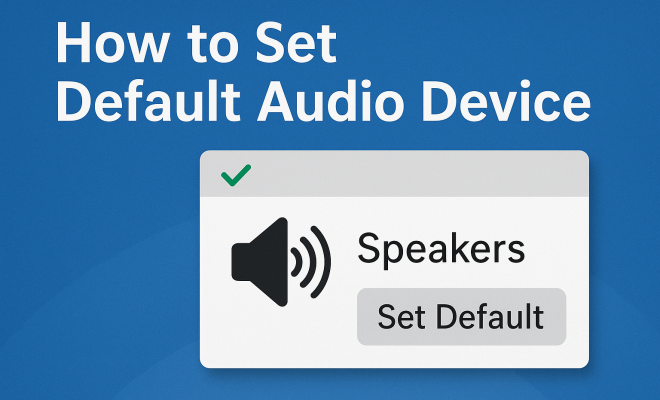
How to set default audio device
“`html
In a world dominated by digital communication and entertainment, managing audio devices has never been more crucial. Whether you’re gaming, working from home, or simply enjoying your favorite tunes, knowing how to set default audio device can make a significant difference in your experience. In this article, we’ll explore the ins and outs of setting default audio devices across various platforms, the importance of audio settings, and practical tips to enhance your auditory experience.
1. Understanding Default Audio Devices
Before diving into how to set default audio device, it’s essential to understand what this term means. Default audio devices are the primary output channels for audio on your computer. When you play sound, your system automatically routes it through the designated default device. This could be your speakers, headphones, or any other audio output you have connected.
Why does the default audio device matter? Imagine watching a movie and realizing that the sound is playing through your computer’s speakers instead of your high-quality headphones. This can lead to a frustrating experience, especially when you’re trying to immerse yourself in a cinematic world. Properly managing your audio devices ensures that your sound is clear and directed through the desired channels.
2. Why You Might Need to Change Your Default Audio Device
There are several scenarios where you might find yourself needing to change your default audio device. For instance, if you’ve recently connected a new set of headphones or external speakers, you may want to ensure that your audio plays through them. Additionally, if you frequently switch between different audio sources, being able to quickly set default audio device can streamline your experience.
Another common situation occurs during online meetings or gaming sessions. If you’re using a headset for voice chat but want to hear system sounds through your speakers, you’ll need to adjust your default audio settings accordingly. This flexibility is vital for maintaining an optimal audio experience, tailored to your current activity.
3. Setting Default Audio Devices on Windows
For Windows users, setting a default audio device is straightforward. Follow these steps:
- Right-click the speaker icon in the system tray on the lower right corner of your screen.
- Select Sounds from the context menu.
- In the Sound window, navigate to the Playback tab.
- Here, you’ll see a list of available audio devices. Right-click on your desired device and select Set as Default Device.
- If you also want to set it as the default communication device, right-click again and choose Set as Default Communication Device.
After these steps, your audio should now play through the selected device. If you run into issues, restarting your computer may help, as it allows Windows to recognize the changes.
4. Configuring Default Audio Devices on macOS
Mac users also have a simple process for setting their audio devices. Here’s how:
- Click the Apple menu in the top left corner and select System Preferences.
- Choose Sound.
- Under the Output tab, you’ll see a list of available audio devices.
- Select your preferred device, and it will automatically become the default.
For more advanced users, the Audio MIDI Setup application allows for further customization, including audio formats and configurations, which can be particularly useful for professional audio work.
5. Setting Default Audio Devices on Android and iOS
Mobile devices have become integral to how we consume audio. On Android, the default audio output is usually determined by the device you’re using at the moment. When you connect headphones, the phone switches automatically. To change the default audio device:
- Go to Settings.
- Select Connected devices or Bluetooth, depending on your connection type.
- From here, you can manage connected devices and choose any new audio outputs.
For iOS users, the process is similar. Once you connect a device like AirPods or Bluetooth speakers, you can quickly switch audio output by using the Control Center. Simply swipe down from the upper right corner of the screen (or swipe up on older models) and tap the audio output options to select your desired device. (See: Understanding audio devices and settings.)
6. Using Third-Party Software for Enhanced Control
If you find the built-in settings lacking, numerous third-party applications can help you manage your audio devices more effectively. Software like Voicemeeter for Windows or Soundflower for macOS provides advanced routing options that allow you to control multiple audio streams simultaneously.
These tools can be particularly beneficial for streamers and podcasters who need to manage complex audio setups. With Voicemeeter, for instance, you can mix multiple audio sources, route them to different outputs, and control the sound levels for each source separately. This way, you can ensure that your game audio, music, and microphone levels are perfectly balanced for your audience.
7. Troubleshooting Common Issues
Despite following the necessary steps, you may encounter issues when trying to set default audio device. Here are common problems and how to resolve them:
- No Sound: Ensure that the device is not muted and that the volume is turned up. Check the physical connections as well.
- Device Not Recognized: Restart your computer or device, as this can refresh the connection. For Bluetooth devices, ensure they are properly paired.
- Default Device Keeps Changing: This can occur if you have software that automatically adjusts audio settings. Check for any installed audio management software that might be conflicting with your settings.
By systematically addressing these issues, you can often restore your audio experience quickly, allowing you to focus on what really matters — enjoying your content.
8. Future Trends in Audio Management
As technology continues to progress, so does the way we manage audio devices. With the rise of smart home technology, audio setups are becoming increasingly integrated. Voice-activated devices such as Amazon Echo or Google Nest can change your default audio device simply by command. Imagine controlling your entire auditory environment with just your voice. This convenience is on the horizon, making the management of audio devices easier and more intuitive.
Additionally, spatial audio technologies are developing, which allow for immersive sound experiences. Artists and tech companies are experimenting with 3D audio formats that could change how we enjoy music and movies. As these trends emerge, the ability to set default audio device might evolve to accommodate new audio formats and devices seamlessly.
9. Personalizing Your Audio Experience
Setting the default audio device is a small yet crucial aspect of customizing your electronic experience. By understanding how to do it across various platforms and devices, you’re better equipped to enjoy your media in the way it was meant to be heard. Whether it’s ensuring the perfect sound for a movie night or making sure your conference calls are crystal clear, mastering your audio settings puts you in control.
As technology evolves, staying informed about audio management will only enhance your experience. So, don’t shy away from experimenting with different settings and devices. Your ears will thank you for it!
10. Expanding Your Audio Setup
As you get more comfortable with setting default audio devices, you might want to consider expanding your audio setup. This can enhance your overall experience, particularly if you enjoy music, gaming, or streaming. Here are a few ideas:
10.1. Invest in Quality Speakers and Headphones
One of the easiest ways to improve your audio experience is by upgrading your speakers or headphones. High-quality audio equipment can provide a significant boost to sound clarity and detail. Look for products that offer good soundstage, frequency response, and comfort for long periods of use. Brands like Bose, Sony, and Sennheiser are popular choices among audiophiles.
10.2. Consider a Dedicated Audio Interface
If you’re serious about audio, especially for recording or producing, a dedicated audio interface can greatly enhance the quality of your sound. Devices like the Focusrite Scarlett or PreSonus AudioBox can provide better sound conversion and lower latency than the built-in sound cards on many computers.
10.3. Implement Surround Sound
For gaming and movie watching, implementing a surround sound system can completely change your experience. Systems like Dolby Atmos allow for sound to come from all directions, making you feel like you’re in the middle of the action. Setting up a surround sound system may involve more complexity, but it’s worth it for immersive experiences.
11. Audio Settings Across Different Platforms
Knowing how to set default audio device is just the beginning. Each platform offers unique audio settings that can enhance your listening experience even further. Let’s take a look at some important settings across different platforms: (See: Importance of sound quality in health.)
11.1. Windows Audio Enhancements
Windows offers several audio enhancements that you can access through the sound settings. For example, if you right-click on your default device in the Playback tab and select Properties, you’ll find several enhancement options like bass boost, virtual surround, and equalization. These can help tailor the audio output to your tastes.
11.2. macOS Audio Customization
macOS also features options for audio customization. The Sound Effects tab allows you to manage audio feedback along with alert sounds. You can adjust the balance of left and right channels, which can be particularly useful for users who have hearing differences or prefer a specific audio output balance.
11.3. Mobile Device Audio Settings
On mobile devices, both Android and iOS come with built-in equalizers that can adjust audio output to suit your preferences. For instance, Android offers various sound profiles that can change the audio output depending on whether you are using headphones, a Bluetooth speaker, or the phone’s internal speakers. iOS features a similar equalizer found in the Music settings that allows you to enhance audio playback.
12. Frequently Asked Questions (FAQs)
12.1. Why can’t I set my audio device as default?
Sometimes, your audio device might not be recognized due to driver issues or hardware malfunctions. Ensure your device is properly connected and try updating your audio drivers through the manufacturer’s website or the Windows Device Manager.
12.2. How do I set default audio device for specific applications?
Many applications allow you to choose which audio device to use in their settings. Look for audio settings within the application. For instance, in Zoom or Skype, you can specify which microphone and speaker to use without changing the system-wide default.
12.3. Can I have multiple audio devices set at the same time?
While you can only set one default audio device at a time for general audio output, applications like Voicemeeter or Audio Hijack can enable you to manage multiple audio streams and output them to different devices simultaneously.
12.4. What if my default audio device keeps switching back?
This usually happens due to conflicting software or automatic audio switching features enabled in your system settings. Check your sound settings and disable any audio enhancements or third-party applications that could interfere with your settings.
12.5. How do I check if my audio drivers are up to date?
On Windows, you can check by going to the Device Manager, expanding the “Sound, video and game controllers” section, right-clicking your audio device, and selecting “Update driver”. On macOS, the system typically updates drivers automatically, but ensuring your operating system is up to date through the Software Update option in System Preferences can help.
13. Audio Formats and Their Impact on Your Experience
Understanding different audio formats can also enhance your listening experience. Here’s a brief overview of some common audio formats and their characteristics:
13.1. MP3
MP3 is one of the most popular audio formats due to its balance between quality and file size. It uses lossy compression, which means some audio quality is sacrificed for smaller file sizes. It’s perfect for casual listening on the go but may not satisfy audiophiles looking for the highest quality sound. (See: How to manage audio devices effectively.)
13.2. FLAC
FLAC (Free Lossless Audio Codec) provides lossless compression, meaning no audio data is lost in the compression process. This format maintains high fidelity and is favored by audiophiles who want the best sound quality. However, files are larger compared to MP3s, making storage a consideration.
13.3. WAV
WAV (Waveform Audio File Format) is an uncompressed audio format, meaning it retains all of the audio data. This results in very high audio quality, making it suitable for professional audio work. The trade-off is that WAV files are significantly larger than their MP3 counterparts.
14. Choosing the Right Audio Device for Your Needs
When it comes to selecting audio devices, consider your primary use case. For instance:
14.1. Gaming
Gamers often prefer headsets that offer not only excellent sound quality but also a good microphone for communication. Brands like HyperX and Razer provide headsets designed specifically for gaming, with features like surround sound and noise cancellation.
14.2. Music Production
Musicians and producers should invest in studio monitors or high-fidelity headphones. Monitoring headphones from manufacturers like Audio-Technica and Beyerdynamic can give you a true representation of your sound without coloration.
14.3. Casual Listening
If you’re simply enjoying music or podcasts, a good pair of wireless earbuds or Bluetooth speakers may suffice. Look for options with good battery life and comfort for extended listening sessions.
15. Final Thoughts on Audio Management
Managing your audio devices extends beyond just setting a default audio device; it encompasses understanding your equipment, knowing how to troubleshoot issues, and personalizing your sound experience. As you explore your audio setup, remember that the goal is to create an immersive environment that enhances your enjoyment of music, movies, and gaming. With the right tools and knowledge, you can ensure that your audio experience is exactly how you want it to be.
With this comprehensive guide, you’re well-equipped to navigate audio management across devices, ensuring you can always enjoy your media exactly the way you want. Remember, sound quality significantly impacts your experience, so don’t hesitate to invest in enhancements that suit your lifestyle!
“`
Trending Now
Frequently Asked Questions
How do I set my default audio device in Windows 10?
To set your default audio device in Windows 10, right-click the sound icon in the taskbar, select 'Sounds', then go to the 'Playback' tab. Here, choose your desired audio device, click 'Set Default', and then click 'OK' to confirm the changes.
Why is my audio not playing through my default device?
If your audio is not playing through your default device, check the audio settings to ensure the correct device is set as default. Additionally, verify that the device is properly connected and not muted. Restarting your computer can also help resolve temporary issues.
Can I switch default audio devices quickly?
Yes, you can quickly switch default audio devices by right-clicking the sound icon in the taskbar, selecting 'Playback devices', and then choosing your preferred device. You can also use keyboard shortcuts or third-party software for faster switching.
What is the difference between default and playback audio devices?
The default audio device is the primary output channel used by your system for sound playback, while playback devices refer to all audio output options available. You can have multiple playback devices, but only one can be set as default at a time.
How do I change the default audio device on a Mac?
To change the default audio device on a Mac, go to 'System Preferences', then 'Sound'. Under the 'Output' tab, select your desired audio device from the list to set it as the default for audio playback.
Agree or disagree? Drop a comment and tell us what you think.