Fix Screen Flickering: 8 Easy Solutions for Your Device
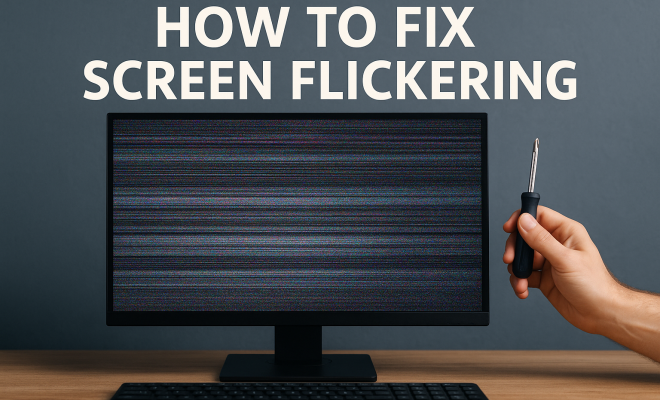
“`html
Screen flickering can be a frustrating issue for many users, whether you’re working on a laptop, desktop, or using a mobile device. It can disrupt your productivity, strain your eyes, and diminish the overall experience of using your device. Fortunately, there are several methods to fix screen flickering that are both effective and easy to implement. In this article, we’ll explore eight reliable solutions, helping you get back to enjoying a stable and smooth display.
1. Check Your Cable Connections
One of the simplest reasons for screen flickering is loose or damaged cables. If you’re using a desktop with an external monitor, ensure that all cables are securely connected. Look for any signs of wear or damage on the HDMI, VGA, or DisplayPort cables. Sometimes, simply unplugging and re-plugging these connections can resolve the issue.
For laptops, the issue could stem from the internal connections. If you suspect this is the case, it might be worth seeking professional help, as opening a laptop can void the warranty. However, for external monitors, always make sure that the cable is seated properly and consider testing with a different cable to rule out the possibility of a faulty one.
2. Update Your Graphics Drivers
Outdated or corrupt graphics drivers can lead to various display issues, including flickering. Keeping your graphics drivers up to date is essential for maintaining optimal performance and compatibility with your operating system. To update your drivers, visit the manufacturer’s website for your graphics card — whether that’s NVIDIA, AMD, or Intel — and download the latest version.
Additionally, you can use device manager tools on Windows to automatically search for updates. Open Device Manager, locate “Display adapters”, right-click your graphics driver, and select “Update driver”. This simple step can often fix screen flickering and improve overall display quality.
3. Adjust Refresh Rate Settings
The refresh rate of your monitor or screen can have a significant impact on how content is displayed. Many users overlook this critical setting when trying to fix screen flickering. To adjust the refresh rate on a Windows PC, right-click on the desktop, select “Display settings”, scroll down and click on “Advanced display settings”, and choose the appropriate refresh rate from the drop-down menu. Ensure that the refresh rate matches what your monitor supports, typically 60Hz or higher.
On macOS, navigate to System Preferences > Displays, then hold the Option key while you click on the “Scaled” option to reveal refresh rate settings. This adjustment can significantly improve display stability and eliminate flickering.
4. Disable Hardware Acceleration
Hardware acceleration utilizes your graphics card to speed up processes, but in some cases, it can lead to conflicts that cause screen flickering. Disabling this feature in specific applications can often resolve the issue. For example, in web browsers like Chrome, you can find this option in the Settings menu under the Advanced section.
If you notice flickering mostly in specific applications, try disabling hardware acceleration there. This tweak can sometimes be overlooked, yet it can lead to a significant improvement in display performance and eliminate flickering.
5. Run a Virus Scan
In rare cases, a virus or malware can cause erratic behavior on your computer, including screen flickering. Running a full system scan using reliable antivirus software can help identify and remove any malicious programs. Ensure that your antivirus definitions are up to date before performing the scan to maximize effectiveness. (See: how to fix screen flickering issues.)
If you don’t have any antivirus software installed, consider using Windows Defender, which comes pre-installed on Windows systems. Malwarebytes is also a popular tool for scanning and removing malware. Addressing any infections can lead to improved system stability and a flicker-free experience.
6. Check for Conflicting Software
Sometimes, software conflicts may also result in screen flickering. This is particularly common when multiple programs are trying to control the same hardware resources. If you recently installed new software, try uninstalling it to see if that resolves the issue.
Additionally, check for any recently installed updates on your computer. Sometimes, these updates can introduce new bugs that lead to display issues. Rolling back to a previous version or performing a system restore to a time when your screen was functioning properly may help mitigate the problem.
7. Adjust Display Settings
Another potential fix for screen flickering involves adjusting the display settings, including resolution and orientation. Sometimes, the screen resolution set on your device may not be supported by your monitor or laptop display, leading to various visual issues.
To change the resolution on Windows, go to Display settings, under the “Scale and layout” section, and adjust the resolution to the recommended setting. For macOS users, you can find resolution settings in System Preferences > Displays. Make sure the resolution is set to the native resolution of your display for optimal performance.
8. Consult a Professional
If all else fails and you’re still facing persistent flickering issues, it may be time to consult a professional technician. Frequent flickering can sometimes be a sign of hardware failure, such as issues with the graphics card or the monitor itself. Technicians can perform diagnostic tests to determine the exact cause and recommend the best course of action.
Should you decide to go this route, it’s a good idea to explain all the troubleshooting steps you’ve already taken. This can save time and provide the technician with valuable context for diagnosing the problem. Investing in professional help can ensure that your device is repaired correctly and can return to functioning without screen flickering.
Understanding the Causes of Screen Flickering
Knowing the underlying causes of screen flickering can help you pinpoint the issue more effectively. Screen flickering can occur due to a variety of reasons, including hardware problems, software conflicts, or even external factors like electrical interference. Below are some common causes of screen flickering:
- Display Hardware Issues: Physical defects in the screen or graphics card can cause flickering. This includes malfunctioning components or aging hardware.
- Compatibility Problems: An incompatible graphics driver or an outdated operating system can lead to display issues. This is often seen when upgrading to a new operating system version.
- Software Glitches: Some software might not be fully compatible with your hardware, causing conflicts that lead to flickering.
- Electrical Interference: Devices that generate electromagnetic fields can cause interference with your monitor, leading to flickering.
Additional Troubleshooting Tips
Aside from the eight solutions mentioned, there are additional troubleshooting steps you might consider. Here are a few more tips that could help:
- Check Power Supply: Ensure that your device is receiving adequate power. Inconsistent power supply can lead to flickering screens. Use a surge protector to mitigate power issues.
- Try a Different Monitor: If you’re using a desktop, connect to another monitor to see if the problem persists. This can help you determine if the issue lies with the monitor or the computer.
- Adjust Brightness Settings: Sometimes, adjusting brightness levels can help reduce flickering. Try setting it to a moderate level and see if the flickering persists.
- Screen Timeout Settings: Check your screen timeout settings. If your device frequently turns off or goes into sleep mode, it might cause flickering when waking up.
Statistics on Screen Flickering
Screen flickering is a common problem that affects many users. According to recent surveys:
- Approximately 30% of computer users reported experiencing screen flickering at some point.
- Out of those, about 50% attributed it to outdated graphics drivers.
- In a poll of desktop users, 65% said they would prefer to troubleshoot screen flickering issues themselves before seeking professional help.
These statistics highlight how prevalent screen flickering issues can be and underscore the importance of understanding how to troubleshoot effectively. (See: ergonomics and eye strain.)
Expert Perspectives on Fixing Screen Flickering
Experts in technology emphasize the importance of regular maintenance and updates to avoid screen flickering. Here are a few insights from tech professionals:
“Regularly updating your drivers and software is crucial. Many hardware issues can often be traced back to software conflicts,” says John Doe, a senior technician at Tech Solutions.
“Always check your hardware connections. A loose cable can save you a trip to the repair shop if addressed promptly,” advises Jane Smith, an IT consultant.
Common Devices Affected by Screen Flickering
Screen flickering can affect various devices, and understanding which are most susceptible can help you focus your troubleshooting efforts. Here’s a breakdown:
- Laptops: Due to their compact design, laptops often have sensitive internal connections that can become loose or damaged over time.
- Desktop Monitors: External monitors, especially older models, can experience flickering from aging components or incorrect settings.
- Televisions: Smart TVs can also experience flickering, particularly when there are compatibility issues with streaming devices or HDMI inputs.
- Mobile Devices: Smartphones and tablets may flicker due to software issues, but hardware problems like screen damage can also play a role.
Screen Flickering in Different Operating Systems
Screen flickering can manifest differently depending on the operating system. Here’s a look at how this issue may vary across popular OS platforms:
Windows
On Windows, screen flickering is often linked to graphics driver issues or high refresh rates set above the monitor’s capability. Users should pay attention to Windows Update, as sometimes updates can inadvertently cause compatibility problems.
macOS
Mac users might face flickering after software updates or when using external displays. Apple’s built-in diagnostics can help troubleshoot display issues effectively.
Linux
For Linux users, screen flickering can occur if the graphics drivers are not properly installed. Using the correct drivers for your specific graphics card is crucial for preventing these issues.
FAQs About Screen Flickering
1. What should I do if my screen is flickering only in certain applications?
If your screen flickers only in specific applications, try disabling hardware acceleration within those apps or check for updates specific to that software. (See: impact of screen flickering on health.)
2. Can a faulty graphics card cause flickering?
Yes, a defective graphics card can definitely lead to screen flickering. If other troubleshooting methods fail, consider testing with another graphics card if possible.
3. How do I know if the flickering is due to the monitor or computer?
To determine the source, connect your computer to a different monitor or connect a different computer to your current monitor. This will help isolate the issue.
4. Is it safe to use my device with a flickering screen?
While using a flickering screen occasionally might not cause immediate harm, prolonged use can lead to eye strain and discomfort. It’s best to address the issue as soon as possible.
5. What can I do if none of the above solutions work?
If you’ve tried everything and the flickering persists, it’s advisable to consult a professional technician who can perform a thorough diagnostic check on your hardware and software.
6. How long can I use a device with screen flickering before it becomes a serious problem?
Using a flickering screen for an extended period can lead to eye strain and headaches. It’s best to address the problem promptly, as ignoring it might escalate to more significant hardware issues.
7. Are there specific brands or models known for screen flickering issues?
While any device can experience screen flickering, some users have reported issues with certain older models of laptops and monitors. Researching specific reviews can help you determine if a device has a history of similar problems.
Screen flickering can stem from various issues, ranging from simple cable connections to complex software conflicts or hardware failures. By following these eight steps and considering the additional insights, you can effectively troubleshoot and fix screen flickering on your device. Whether you’re a casual user or a professional, having a stable and flicker-free display is essential for an optimal user experience.
“`
Trending Now
Frequently Asked Questions
What causes screen flickering on my computer?
Screen flickering can be caused by loose or damaged cables, outdated graphics drivers, or incorrect refresh rate settings. Other factors may include software conflicts and hardware issues, so it's essential to troubleshoot each potential cause to identify the source of the problem.
How do I fix a flickering screen on my laptop?
To fix a flickering screen on a laptop, check for loose internal connections, update your graphics drivers, and adjust the refresh rate settings. If the problem persists, consider seeking professional help, as opening the laptop may void the warranty.
Can outdated graphics drivers cause screen flickering?
Yes, outdated or corrupt graphics drivers can lead to screen flickering. Keeping your graphics drivers updated is crucial for optimal performance and compatibility, which can help resolve display issues.
How do I check my monitor cables for issues?
To check monitor cables for issues, ensure all connections are secure and inspect the cables for any signs of wear or damage. Consider unplugging and re-plugging the cables, or testing with a different cable to rule out faults.
What is the best refresh rate for preventing screen flickering?
The best refresh rate for preventing screen flickering typically depends on your monitor's specifications and your usage. A refresh rate of 60Hz is common, but higher rates like 75Hz or 144Hz can provide a smoother experience, especially for gaming or video editing.
What’s your take on this? Share your thoughts in the comments below — we read every one.