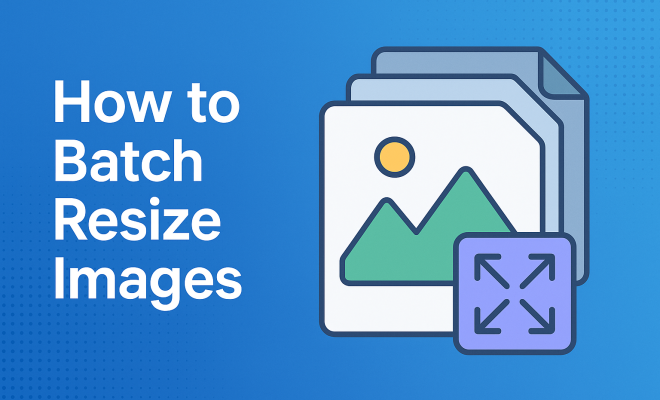
How to batch resize images
“`html
In a world where visuals reign supreme, the ability to batch resize images efficiently is crucial for photographers, marketers, and anyone who regularly works with images. Whether you’re preparing photos for a website, social media, or simply storing them for personal use, resizing images in bulk can save you time and frustration. Let’s explore the ins and outs of batch resizing images, including methods, tools, and best practices.
1. Understanding the Need for Batch Resizing
The demand for images in various formats and sizes is ever-increasing. Websites often require specific dimensions for optimal loading speed and user experience. Social media platforms have their own image size guidelines, which can differ based on the type of post. For instance, a Facebook cover photo is typically 820 x 312 pixels, while an Instagram post should be 1080 x 1080 pixels for optimal quality.
Moreover, high-resolution images can take up considerable storage space, which can lead to slow upload times or increased hosting costs. Batch resizing images helps mitigate these issues, allowing for quicker processing and reduced file sizes without losing quality. By resizing images in bulk, you can streamline your workflow and focus on more creative aspects of your project.
2. How Image Size Affects Quality
Image size isn’t merely about dimensions; it also involves resolution and file size. The resolution is measured in pixels per inch (PPI), and a higher resolution means better quality, especially for prints. However, higher resolution images lead to larger file sizes, which can hinder performance online.
When you batch resize images, you must find a balance between size and quality. For web use, a resolution of 72 PPI is often sufficient, while print images should be at least 300 PPI. Understanding these specifications enables you to make informed decisions when resizing images for different mediums.
3. Choosing the Right Tools for Batch Resizing
There are numerous tools available today that facilitate the batch resizing of images. Some popular options include:
- Adobe Photoshop: A powerful image editing software that includes batch processing capabilities through Actions. Users can create an Action to resize images and then apply it to multiple files.
- GIMP: A free, open-source alternative to Photoshop. It also allows for batch resizing using plugins like BIMP (Batch Image Manipulation Plugin).
- IrfanView: A lightweight, free image viewer that features batch processing options, including resizing and format conversion.
- Online Tools: Websites like TinyPNG and BulkResizePhotos offer simple interfaces for batch resizing without the need for software installations.
When selecting a tool, consider factors such as ease of use, batch processing capabilities, and the specific features you need based on your projects.
4. Step-by-Step Guide to Batch Resizing Images
Let’s break down the process of batch resizing images using Adobe Photoshop as an example:
- Open Photoshop and create an Action: Go to the Actions panel, click the New Action button, and name your action. Start recording your actions.
- Resize an image: Open a sample image, go to Image > Image Size, input your desired dimensions and resolution, then click OK.
- Stop recording: Once you’ve resized the image, stop the action recording.
- Batch process: Go to File > Automate > Batch. Select your newly created action, choose the folder with your images, and set the destination folder for the resized images.
- Run the batch process: Click OK to start resizing all selected images.
This method illustrates how effective and efficient batch resizing can be with the right software. (See: Understanding image resolution and quality.)
5. Best Practices for Batch Resizing
While batch resizing is a powerful tool, it’s essential to follow best practices to maintain image quality and ensure a smooth workflow:
- Keep Originals: Always maintain a backup of your original images in case you need to revert back to them.
- Use Consistent Dimensions: When resizing for the web, stick to standard sizes that suit your most common needs.
- Check for Quality: After batch resizing, always review a sample of the resized images to ensure they meet your quality standards.
- Organize Files: Keep your resized images organized in folders for easy access, especially if working on multiple projects.
Implementing these best practices will help you avoid potential pitfalls and enhance your overall image management process.
6. Common Challenges and Solutions
Batch resizing, while convenient, can come with its own set of challenges. Here are some common issues and how to address them:
- Loss of Quality: This can occur if images are resized too drastically. Always aim for proportional resizing—maintaining the aspect ratio helps preserve quality.
- File Format Issues: Different applications use different file formats. Ensure you’re exporting images in the correct format (JPEG, PNG, etc.) for your intended use.
- Batch Process Failures: Sometimes, batch processes can fail due to corrupted files. It’s wise to test the process on a small batch before scaling.
By anticipating these challenges, you can be better prepared to tackle them proactively.
7. Tips for Optimizing Resized Images
Beyond resizing, optimizing your images for the web is crucial to ensure fast loading times and a good user experience. Here are a few tips:
- Choose the Right Format: For photographs, JPEG is typically preferred, while PNG is better for graphics with transparency.
- Compress Images: Use tools like TinyPNG or ImageOptim to compress images further without sacrificing quality.
- Rename Files: Implement a consistent naming convention for your resized images. This practice improves SEO and makes file management easier.
By optimizing your images, you not only enhance their appearance but also improve website performance.
8. Current Trends in Image Resizing
As technology evolves, so do the techniques and tools for resizing images. One of the most notable trends is the rise of AI-powered tools that can resize and enhance images intelligently. Tools like Let’s Enhance use machine learning algorithms to not only resize but also upscale images while preserving detail.
Moreover, with the increasing importance of mobile responsiveness, many image editing tools now include features that optimize images for various screen sizes. This capability allows web designers and marketers to ensure that their images look great on any device, from desktops to smartphones.
9. The Future of Batch Resizing
The future of batch resizing images may involve even more advanced technology, including fully automated workflows that integrate with content management systems (CMS). As businesses continue to rely on visual content, automated resizing and optimization will become essential for maintaining efficiency.
Additionally, as the demand for high-quality images increases, the ability to resize without losing quality will remain a priority. Innovations in AI and machine learning will likely play a significant role in this arena, making batch resizing not just a task but an intelligent process that enhances overall image quality. (See: Best practices for image handling.)
10. Real-World Applications of Batch Resizing
Batch resizing images finds application across numerous fields. For instance, e-commerce businesses often need to present product images in uniform sizes across their platforms to maintain a consistent aesthetic. Large-scale photographers working on events or weddings often have hundreds of images that need resizing before they can be shared with clients or uploaded to their websites. In digital marketing, social media managers routinely resize images to fit specific platform requirements, maximizing engagement and visibility.
Businesses that are mindful of their branding also benefit from batch resizing. Consistent image sizes across marketing materials, websites, and social media help create a cohesive brand identity, making it easier for consumers to recognize and remember the brand.
11. Comparing Popular Tools for Batch Resizing
When it comes to selecting the right tool for batch resizing images, various options cater to different needs. Let’s take a closer look at some of the popular choices and their unique features:
| Tool | Key Features | Pricing |
|---|---|---|
| Adobe Photoshop | Powerful editing features, customizable actions, batch processing, extensive file format support | Subscription-based, part of Adobe Creative Cloud |
| GIMP | Free, open-source, supports batch processing via plugins, powerful editing tools | Free |
| IrfanView | Fast performance, batch processing, supports numerous formats, lightweight | Free for personal use, paid for commercial use |
| Bulk Resize Photos | Online-based, user-friendly interface, fast processing, no software installation | Free |
Choosing the right tool often depends on your specific needs and budget. For comprehensive editing, Photoshop is a go-to option, while GIMP offers a no-cost alternative for those who require flexibility without monetary investment.
12. Frequently Asked Questions about Batch Resizing Images
What is batch resizing?
Batch resizing refers to the process of changing the size of multiple images simultaneously, which saves time compared to resizing them one by one.
Can batch resizing affect image quality?
Yes, if not done correctly, batch resizing can lead to loss of quality. It’s essential to maintain the aspect ratio and select appropriate dimensions for your intended use.
What tools can I use for batch resizing?
Various tools are available, including Adobe Photoshop, GIMP, IrfanView, and numerous online options like Bulk Resize Photos.
Is it possible to batch resize images online?
Absolutely! Online platforms like TinyPNG and Bulk Resize Photos allow users to upload images and resize them in bulk without needing to install software.
How do I ensure my resized images are optimized for web use?
To optimize images, choose the right format (JPEG or PNG), use compression tools, and ensure dimensions meet the specific requirements of your website or platform. (See: Photography tips for resizing images.)
What are the best dimensions for social media images?
Dimensions vary by platform. For example, Instagram posts typically look best at 1080 x 1080 pixels, while Facebook cover photos should be sized at 820 x 312 pixels. Always check the latest guidelines for each platform.
13. Advanced Techniques for Batch Resizing
If you’re already familiar with the basics of batch resizing images, consider these advanced techniques to enhance your workflow further:
- Using Scripts and Automation: Many image editing tools, like Photoshop, allow for scripting. With a little programming knowledge, you can write scripts to automate complex resizing tasks, integrating additional features like watermarking or format changes.
- Integrating Image Resizing into Your Workflow: If you’re a web developer or a content creator, integrating batch resizing into your CMS can streamline your process. Automated workflows can resize images as they are uploaded, ensuring your media library remains optimized without manual intervention.
- Utilizing Batch Resize in Cloud Services: Services like Google Drive and Dropbox allow for batch processing through connected tools. Utilize third-party applications that can automatically resize images stored in these services based on your specifications.
14. The Role of Metadata in Image Resizing
When batch resizing images, don’t overlook the importance of metadata. Metadata includes information about the image such as title, description, keywords, and copyright. Here’s how to manage it while resizing:
- Preserving Metadata: Ensure that the tool you use preserves or allows you to edit metadata during the batch resizing process. This is crucial for maintaining SEO value and ensuring proper attribution.
- Adding Watermarks: If you’re distributing images publicly, consider adding watermarks during the batch resizing phase to protect your work from unauthorized use.
- Automating Metadata Entry: Use batch processing tools that allow you to automatically input metadata, which saves time and keeps your files organized.
15. Case Studies: Successful Batch Resizing in Action
Examining real-world examples can provide valuable insights into effective batch resizing practices. Here are a few notable case studies:
- Case Study 1 – E-Commerce Brand: An online clothing retailer faced slow load times due to large product images. By implementing a batch resizing strategy that reduced image dimensions and optimized file sizes, they improved page load speed by 40%, leading to a 25% increase in sales.
- Case Study 2 – Event Photographer: A photographer handling wedding shoots needed to quickly deliver resized images to clients. By utilizing batch resizing in Photoshop, they reduced time spent on image preparation from hours to minutes, allowing them to focus on editing and client communication.
- Case Study 3 – Digital Marketing Agency: A digital marketing agency working with multiple clients regularly resized images for social media campaigns. Through a standardized batch resizing process, they ensured uniformity in visual content across platforms, enhancing brand recognition for their clients.
16. Future-Proofing Your Image Resizing Process
As technology evolves, so should your approach to batch resizing images. Here are some strategies to future-proof your resizing process:
- Stay Updated on Trends: Keep an eye on new tools and techniques that emerge in the image editing space. Regularly update your skills to leverage advancements like AI-enhanced resizing.
- Invest in Training: Take workshops or online courses that focus on advanced image editing techniques, including effective batch processing strategies.
- Gather Feedback: Regularly seek feedback from peers or clients regarding image presentation. This can inform future resizing practices and help you adapt to changing preferences.
Mastering the ability to batch resize images is an invaluable skill in today’s image-centric world. By understanding the tools, best practices, and future trends, you can streamline your workflow, enhance your creative projects, and keep pace with the demands of modern digital content creation.
“`
Trending Now
Frequently Asked Questions
What is batch resizing images?
Batch resizing images refers to the process of changing the dimensions and file size of multiple images simultaneously. This is particularly useful for photographers and marketers who need to prepare images for websites and social media, helping to save time and ensure consistency across visual content.
Why is batch resizing important?
Batch resizing is important because it allows for efficient management of image files, reducing their size for faster loading times and better user experience on websites and social media. It also helps in saving storage space and streamlining workflows for those who work with large quantities of images.
How does image size affect quality?
Image size affects quality through its dimensions and resolution. Higher resolution images offer better quality but result in larger file sizes. For web use, a resolution of 72 PPI is often adequate, while print images require at least 300 PPI for optimal clarity.
What tools can I use for batch resizing images?
There are various tools available for batch resizing images, including software like Adobe Photoshop, GIMP, and online platforms such as Bulk Resize Photos and ResizeImage.net. These tools allow users to easily adjust multiple images' sizes and formats in one go.
What are the best practices for batch resizing images?
Best practices for batch resizing images include maintaining a balance between quality and file size, using the correct resolution for the intended medium, and keeping a backup of original images. Additionally, familiarizing oneself with the specific size requirements of different platforms can enhance the efficiency of the resizing process.
Have you experienced this yourself? We’d love to hear your story in the comments.