How to use IF function in Excel
“`html
The IF function in Excel is a cornerstone for data analysis and decision-making within spreadsheets. Whether you’re a beginner just getting started or a seasoned pro looking to enhance your formulas, understanding how to utilize the IF function effectively can elevate your Excel skills. This article will walk you through everything you need to know about the IF function, offering practical insights and examples along the way.
1. What is the IF Function?
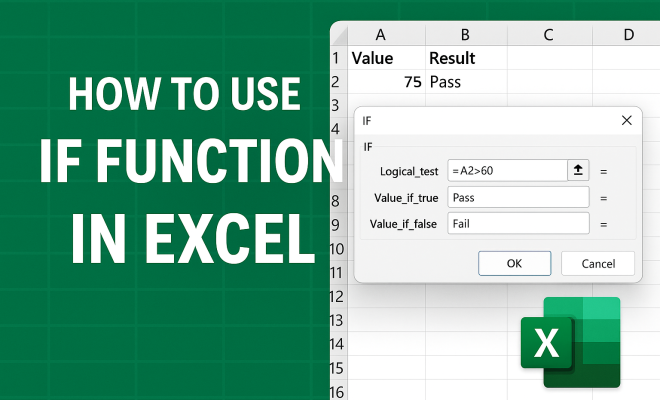
The IF function is a logical function that enables you to perform comparisons between values. It allows you to return different results based on whether a specified condition is true or false. The syntax is straightforward: IF(logical_test, value_if_true, value_if_false). For example, if you want to determine whether a sales figure exceeds a target, you might input: IF(A1>1000, "Target Met", "Target Not Met"). This simple formula checks if the value in cell A1 is greater than 1000 and returns a corresponding message.
Notably, the flexibility of the IF function means you can nest multiple IF statements within each other. This allows for more complex decision-making processes. For instance, if you’re determining grades, you could use something like: IF(A1 >= 90, "A", IF(A1 >= 80, "B", IF(A1 >= 70, "C", "F"))). Such nesting can accommodate a variety of scenarios, making the IF function highly versatile.
2. Why Use the IF Function?
The power of the IF function lies in its ability to automate decision-making processes within your data. By using this function, you can save time and reduce errors in data analysis. Instead of manually reviewing each entry, you can set up a formula that evaluates conditions and presents results instantly.
Consider a sales report where you need to label each sale as either “high” or “low” based on a threshold. Instead of skimming through each entry, a simple IF function can be applied to an entire column, allowing you to categorize the data effortlessly. This not only speeds up your workflow but also enhances your data’s readability.
3. Basic Syntax and Parameters
Understanding the syntax is essential for effectively using the IF function in Excel. As mentioned earlier, the basic syntax is: IF(logical_test, value_if_true, value_if_false). This breaks down as follows:
- logical_test: The condition you want to evaluate (e.g., A1 > 1000).
- value_if_true: The result you want to return if the condition is met (e.g., “Target Met”).
- value_if_false: The result to return if the condition is not met (e.g., “Target Not Met”).
Let’s look at a straightforward example: IF(B2 = "Yes", "Approved", "Denied"). This formula checks if cell B2 equals “Yes”. If it does, it returns “Approved”; if not, it returns “Denied”. Mastering this syntax is crucial for crafting effective formulas in your spreadsheets.
4. Examples of Using the IF Function
To give you a clearer picture of how to implement the IF function, let’s explore a few detailed examples:
- Example 1: Sales Commission – Suppose you want to calculate a commission based on sales performance. You can use:
IF(C2 > 5000, C2 * 0.1, C2 * 0.05). This formula awards a 10% commission for sales over 5000 and a 5% commission otherwise. - Example 2: Employee Performance Ratings – Imagine you’re rating employee performance with a simple grading system. You might use:
IF(D2 >= 90, "Excellent", IF(D2 >= 75, "Good", "Needs Improvement")). This formula assigns a rating based on performance scores. - Example 3: Inventory Checks – For managing inventory, you can use:
IF(E2 < 20, "Reorder", "Stock Sufficient"). This alerts you to reorder supplies if stock drops below a set threshold.
These examples illustrate just a few possibilities; the IF function can be tailored to meet myriad business needs.
5. Nesting IF Functions for Complex Scenarios
While the basic IF function serves its purpose, sometimes you need to make more complex decisions. This is where nesting comes into play. Nesting IF functions allows you to evaluate multiple conditions within a single formula.
Take, for instance, a grading system that uses letter grades. You could create a formula like: IF(A1 >= 90, "A", IF(A1 >= 80, "B", IF(A1 >= 70, "C", IF(A1 >= 60, "D", "F")))). This formula checks the score in A1 and assigns a letter grade based on the score range. However, nesting too many IF statements can make your formulas unwieldy and hard to manage.
One way to simplify your nested IF logic is by using the IFS function in newer versions of Excel, which allows you to evaluate multiple conditions without excessive nesting. For example, IFS(A1 >= 90, "A", A1 >= 80, "B", A1 >= 70, "C", A1 >= 60, "D", TRUE, "F") performs the same task but is easier to read and manage. (See: Overview of Microsoft Excel.)
6. Common Errors and Troubleshooting Tips
When working with the IF function in Excel, it’s not uncommon to encounter errors. Here are some common issues and how to resolve them:
- #VALUE! - This error may occur if you use non-numeric data in a comparison. Ensure your logical_test uses appropriate data types.
- #N/A - This can appear if your formula references cells that contain no data. Check that all referenced cells have the necessary values.
- Incorrect Results - If your formula doesn’t yield expected outcomes, double-check your logical conditions and ensure the syntax is correct.
Additionally, remember that Excel evaluates conditions in the order they’re presented. If you have nested IF statements, Excel will stop evaluating as soon as it finds the first true condition. This is crucial to keep in mind when structuring your formulas.
7. Combining IF with Other Functions
The real power of the IF function shines when combined with other functions in Excel. Pairing IF with functions like AND, OR, and NOT can create even more dynamic formulas. For example, say you want to check multiple conditions within your IF function:
Using AND: IF(AND(A1 > 1000, B1 < 500), "Proceed", "Stop") evaluates whether both conditions are met before returning a result. This could be useful in scenarios where multiple criteria must be satisfied, such as processing orders based on inventory levels and customer credit.
Similarly, the OR function can be integrated: IF(OR(A1 < 50, B1 < 100), "Review", "Okay"). Here, if either condition is met, the formula will prompt a review action, allowing for flexible outcomes based on various inputs.
8. Practical Applications in Business
Understanding the IF function in Excel is particularly beneficial in the business landscape. There are numerous practical applications that can streamline operations and enhance decision-making.
- Financial Analysis: Use IF functions to categorize expenses into fixed and variable costs, enabling better budget management.
- Sales Tracking: Automatically flag high-performing salespersons or underperformers based on targets set.
- Project Management: Monitor task completion and resource allocation, providing real-time feedback on project status.
These applications demonstrate how the IF function can be an essential tool for interpreting complex datasets and driving informed decisions within your organization.
9. Current Relevance and Future Trends
As businesses continue to rely on data-driven decision-making, the importance of mastering the IF function in Excel remains profound. In a rapidly evolving technological landscape, data analysis skills are increasingly sought after, making proficiency in Excel a valuable asset.
With the integration of AI and machine learning, we may see even more sophisticated uses for logical functions in Excel. Tools such as Power Query and Power Pivot are starting to incorporate more dynamic decision-making capabilities, further enhancing the analytical possibilities that the IF function presents.
Staying updated with Excel’s developments will allow you to leverage these tools effectively, making you not just a user, but a proficient analyst capable of tackling complex challenges.
10. Final Thoughts on Mastering the IF Function
The IF function in Excel is more than just a simple logical test; it’s a powerful tool that can transform how you interact with your data. From basic comparisons to complex nested conditions, mastering this function is crucial for anyone working with spreadsheets.
By understanding its syntax, common pitfalls, and practical applications, you’ll be well on your way to becoming an Excel expert. As you practice and experiment with different scenarios, you’ll uncover new ways to apply the IF function that can enhance your analysis and reporting. So, roll up your sleeves, dive into your spreadsheets, and start wielding the power of the IF function!
11. Advanced Techniques with the IF Function
Once you've mastered the basics of the IF function, you may want to explore advanced techniques that can further enhance your data analysis capabilities. (See: Data analysis in health behavior studies.)
11.1 Using IF with Array Formulas
Array formulas can perform multiple calculations on one or more items in an array. When combined with the IF function, they can handle large datasets efficiently. For example, if you want to sum values based on a condition across a range, you could use:
SUM(IF(A1:A10 > 100, B1:B10, 0))
This formula will sum all values in B1:B10 where the corresponding value in A1:A10 is greater than 100. Remember, to enter an array formula, you need to press Ctrl + Shift + Enter instead of just Enter.
11.2 Leveraging IF for Dynamic Charts
Another advanced application of the IF function is in creating dynamic charts. You can use IF statements to categorize data, which in turn can be represented visually. For instance, if you have a range of sales data, you could categorize sales as "Above Average" or "Below Average" using the IF function, and then create a chart that reflects these categories. This visual representation can provide immediate insights into performance trends.
12. Real-World Case Studies
To truly understand the applicability of the IF function, let’s look at some real-world case studies where businesses effectively utilized this function.
12.1 Retail Inventory Management
A retail company faced challenges managing its inventory levels across various locations. By using the IF function, the manager implemented a system to monitor stock levels. The formula IF(CurrentStock < ReorderLevel, "Reorder", "Stock Sufficient") was applied to automate reorder alerts, ensuring that popular items were always available for customers. This not only improved customer satisfaction but also boosted sales, as items were less likely to be out of stock.
12.2 Academic Grading System
An educational institution wanted to streamline its grading process. By employing nested IF functions, they automated the assignment of letter grades based on numerical scores. This not only saved time for teachers but also minimized errors in grading, ensuring that students received accurate feedback. For example, the formula IF(Score >= 90, "A", IF(Score >= 80, "B", IF(Score >= 70, "C", IF(Score >= 60, "D", "F")))) was used for this purpose.
13. Frequently Asked Questions
13.1 What is the maximum number of nested IF functions I can use?
Excel allows up to 64 nested IF functions in a single formula. However, while nesting can be powerful, it's important to find balance to keep your formulas manageable and readable.
13.2 Can the IF function handle text comparisons?
Yes! The IF function can evaluate text conditions as well. For example, IF(A1 = "Completed", "Yes", "No") is a valid use case where it checks if the status in cell A1 matches the word "Completed".
13.3 Are there alternatives to the IF function?
Yes, alternatives include the IFS function for multiple conditions, SWITCH for evaluating a single expression against multiple values, and using logical functions like AND and OR in conjunction with IF for more complex logic.
13.4 How can I troubleshoot my IF function?
If your IF function isn't working as expected, check for common errors: ensure that your logical tests are valid, verify the syntax, and ensure that you're not mixing data types. Using the Formula Auditing tools in Excel can also help identify issues.
13.5 Can I use the IF function with other data types, like dates?
Absolutely! The IF function can work with dates as well. For example, you can check if a date in cell A1 is today with IF(A1 = TODAY(), "Today", "Not Today"). This is particularly useful for tracking deadlines and important dates.
14. Comparative Analysis of IF Function vs. Other Functions
While the IF function is powerful, it’s important to understand how it compares to other functions available in Excel. Here’s a look at how the IF function stacks up against a few alternatives. (See: Harvard University's resources on data analysis.)
14.1 IF vs. IFS Function
The IFS function is designed to handle multiple conditions more efficiently than nested IF statements. While the IF function can become unwieldy with too many nested conditions, the IFS function allows for clearer and more readable formulas. For example, instead of:
IF(A1 = "Red", "Color Red", IF(A1 = "Blue", "Color Blue", IF(A1 = "Green", "Color Green", "Other Color")))
With IFS, you could simply write:
IFS(A1 = "Red", "Color Red", A1 = "Blue", "Color Blue", A1 = "Green", "Color Green", TRUE, "Other Color")
This not only makes the formula easier to understand but also reduces the chances of errors.
14.2 IF vs. SWITCH Function
SWITCH provides another alternative, particularly when you are comparing a single expression against multiple values. This function is especially useful for categorizing data based on specific criteria. For instance:
SWITCH(A1, "Red", "Color Red", "Blue", "Color Blue", "Green", "Color Green", "Other Color")
In this case, SWITCH can offer a clearer and more efficient solution than multiple nested IF statements.
14.3 Logical Functions: AND, OR, NOT
Using logical functions such as AND, OR, and NOT can significantly enhance the capabilities of the IF function. For example, if you want to check if a student’s score is above 70 and they attended at least 80% of classes, you can combine them like this:
IF(AND(A1 > 70, B1 >= 80), "Pass", "Fail")
This allows for more nuanced decision-making based on multiple criteria, making your data analysis even more robust.
15. Conclusion
Mastering the IF function in Excel empowers you to make informed decisions based on complex data. From basic applications to advanced techniques, the versatility of this function can significantly enhance your analytical capabilities. By continuously practicing and applying what you've learned, you'll develop a deeper understanding of data management and analysis, opening up new opportunities for productivity and efficiency in your work.
```
Trending Now
Frequently Asked Questions
What is the IF function in Excel used for?
The IF function in Excel is a logical function that allows you to perform comparisons and return different results based on whether a specified condition is true or false. It is commonly used for decision-making processes in data analysis.
How do you write an IF statement in Excel?
An IF statement in Excel follows the syntax: IF(logical_test, value_if_true, value_if_false). For example, IF(A1>1000, 'Target Met', 'Target Not Met') checks if the value in cell A1 exceeds 1000 and returns a corresponding message.
Can you nest IF functions in Excel?
Yes, you can nest multiple IF functions within one another in Excel. This allows for more complex decision-making. For example, you might use nested IFs to assign letter grades based on numeric scores.
Why is the IF function important in Excel?
The IF function is important because it automates decision-making in data analysis, saving time and reducing errors. It allows users to categorize or evaluate data efficiently without manual review.
What are some examples of using the IF function in Excel?
Examples of using the IF function include labeling sales as 'high' or 'low' based on a threshold, determining grades from scores, or assessing whether specific conditions are met in datasets.
What did we miss? Let us know in the comments and join the conversation.