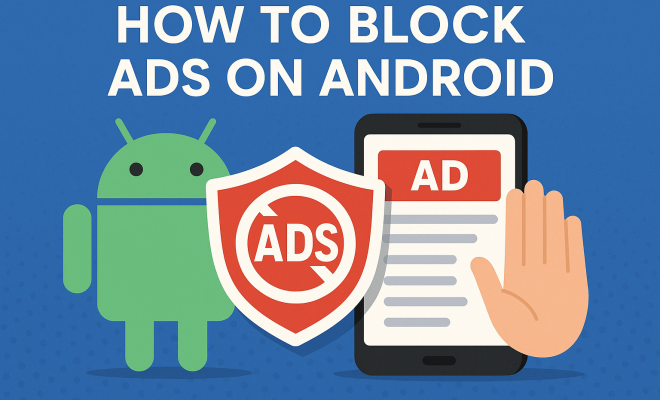
How to block ads on Android
“`html
Ads can be incredibly intrusive and frustrating, especially when you’re trying to enjoy your favorite apps or websites on your Android device. Not only do they disrupt your experience, but they can also slow down your device and consume unnecessary data. If you’re looking for effective ways to block ads on Android, you’ve come to the right place. This comprehensive guide will walk you through various methods, from built-in settings to third-party apps, ensuring a smoother and more enjoyable experience on your smartphone or tablet.
1. Utilize Built-in Features
Most modern Android devices come with built-in ad-blocking features that can help you minimize unwanted ads. For instance, many browsers offer a ‘Lite’ or ‘Data Saver’ mode that automatically blocks ads while browsing. Google’s Chrome browser, for example, has a feature called ‘Ad Blocker’ which allows you to block intrusive ads on sites that violate the Better Ads Standards set by the Coalition for Better Ads.
To enable Chrome’s ad-blocking feature, simply open the browser, tap the three-dot menu in the top right corner, and select ‘Settings.’ From there, go to ‘Site settings’ and toggle on ‘Ads.’ This simple step can significantly reduce the number of ads you encounter while surfing the internet.
2. Switch to an Ad-Blocking Browser
If you’re serious about blocking ads on Android, consider switching to a dedicated ad-blocking browser. Browsers like Brave and Firefox Focus are designed specifically to prevent ads from being displayed. The Brave browser blocks ads and trackers by default, providing a faster browsing experience while also enhancing your privacy.
To install Brave, head to the Google Play Store, search for Brave Browser, and install it like any other app. Once you start browsing with Brave, you’ll notice a dramatic reduction in ads, which leads to faster loading times and a cleaner interface. Firefox Focus, on the other hand, offers a more straightforward browsing experience with robust ad-blocking capabilities, making it another excellent choice.
3. Use a VPN with Ad-Blocking Features
Using a Virtual Private Network (VPN) not only secures your internet connection but can also help you block ads on Android. Some VPN services feature integrated ad-blocking technology that prevents ads from loading in the first place. Services like NordVPN and AdGuard VPN offer these functionalities.
To take advantage of this feature, simply subscribe to a VPN service that includes ad-blocking, install the app on your device, and enable the feature. Keep in mind that while a VPN can reduce ads, it also encrypts your data, enhancing your online security and privacy.
4. Install Ad Blocker Apps
There are numerous ad blocker apps available for Android that specialize in filtering out ads across all applications and browsers. Apps like AdGuard and Blockada are popular choices. They work by creating a local VPN that filters traffic and blocks ads at the network level, making them effective across all apps and browsers.
To install an ad blocker app, go to the Google Play Store, search for either AdGuard or Blockada, and install it. After setting it up, you’ll notice a significant reduction in ads across your device, from games to social media apps. Just be cautious with app permissions, as some ad blockers may require access to your device’s data.
5. Modify Hosts File (Advanced Users)
If you’re tech-savvy and comfortable with rooting your device, you can modify the hosts file to block ads directly at the operating system level. This method involves redirecting ad servers to a non-existent address, effectively preventing ads from loading.
To do this, you’ll need a rooted device and a file manager that lets you edit system files. Once you have the necessary tools, navigate to the ‘/etc/hosts’ file and add entries for known ad servers. While this method is effective, it requires caution; any mistakes in editing system files can lead to problems with your device. (See: Learn more about ad blocking.)
6. Disable Personalization of Ads
Although disabling ad personalization won’t block ads completely, it can make them less intrusive and more relevant. By adjusting your ad settings, you can limit the types of ads you see on Android devices. To do this, go to ‘Settings,’ then ‘Google,’ and select ‘Ads.’ From there, toggle off the ‘Personalized ads’ option.
This change means that while ads may still appear, they will be based on generic interests rather than your browsing habits. It’s an effective way to reduce the annoyance that comes from overly targeted advertising.
7. Clear Cache and Data
Sometimes, accumulated cache and data can contribute to unwanted ads. Regularly clearing your app cache and data can help improve overall performance and may also reduce the volume of ads you see. To do this, go to ‘Settings,’ then ‘Apps,’ select the app you want to clear, and tap on ‘Storage.’ From there, you can clear both the cache and data.
Consider doing this for browsers and social media apps, as they often store a lot of data that can lead to ad overloading. This simple maintenance act can refresh your apps and enhance your user experience.
8. Stay Informed About App Permissions
Many apps request permissions that allow them to show ads. By being selective about the permissions you grant, you can limit the types of ads you see. Always review the permissions an app requests during installation. If an app asks for access to your location or contacts, consider whether those requests are necessary for the app’s core functions.
Regularly visit the app settings to manage permissions after installation. You can remove permissions that seem unnecessary, which can help reduce tracking and subsequently the number of ads you encounter.
9. Explore Custom ROMs
If you’re comfortable with advanced modifications, consider installing a custom ROM that has built-in ad-blocking capabilities. Custom ROMs like LineageOS can allow users not only to block ads but also to customize their Android experience significantly. These ROMs often come with various features that can improve performance and security.
Installing a custom ROM requires unlocking the bootloader and possibly rooting your device, which can void warranties and potentially lead to a bricked device if not done correctly. However, if you’re tech-savvy and willing to take the risk, the rewards can be well worth it.
10. Utilize Family Link for Kids
If you’re a parent looking to control ads on your children’s devices, Google’s Family Link app can be a great option. It allows you to manage app permissions and set restrictions, ensuring that your children are not exposed to inappropriate advertisements or content.
Through Family Link, you can review the apps your child wants to download, monitor their activity, and even set screen time limits. While it won’t block all ads, it can ensure a safer experience by controlling the apps that get installed and used.
11. Educate Yourself on Ad Networks
Knowing which ad networks are notoriously intrusive can help you make informed choices about the apps you download. Familiarize yourself with networks like AdMob, Facebook Audience Network, and others that tend to deliver excessive ads. Opt for apps that utilize less intrusive ad networks or offer ad-free versions for a small fee.
Additionally, reviewing app ratings and user comments can often reveal how users feel about the ad experience in specific applications. This knowledge empowers you to choose apps that prioritize user experience over ad revenue. (See: Understanding data consumption.)
12. FAQ: Common Questions About Blocking Ads on Android
Q1: Will blocking ads improve my battery life?
A1: Yes, blocking ads can improve battery life. Ads can consume processing power and network resources, which can drain your battery faster. By reducing the number of ads your device has to process, you’re likely to see better battery performance.
Q2: Can I block ads on all apps using these methods?
A2: Not all methods will block ads on every app. For example, browsers with built-in ad-blockers may only work while browsing the web, whereas dedicated ad-blocker apps can filter ads across all apps and browsers. It’s often best to combine several methods for optimal results.
Q3: Are there any risks associated with using ad-blocking apps?
A3: While using ad-blocking apps is generally safe, some may require extensive permissions that could expose your data. Additionally, certain apps may not function correctly without access to ad services. Always download apps from reputable sources and read user reviews.
Q4: Is it legal to block ads on my Android device?
A4: Yes, it is legal to block ads on your device. Users have the right to control their online experience. However, some websites may restrict access for users with ad blockers enabled, as ads are a primary source of revenue for many sites.
Q5: After blocking ads, will I still see promotional content?
A5: Yes, blocking ads will not prevent all promotional content. You may still see sponsored posts or other forms of marketing that do not rely on traditional ad networks. However, these will often be less intrusive than typical display ads.
Q6: Can blocking ads enhance my privacy?
A6: Absolutely! Many ads come from tracking networks that monitor your online behavior. By blocking ads, you also reduce the amount of data collected about your browsing habits, thus enhancing your privacy.
13. Explore Ad-Free Alternatives for Popular Apps
Many popular apps offer ad-free versions either through a subscription model or a one-time purchase. For instance, you might consider premium versions of applications like YouTube, Spotify, or mobile games that typically feature ads. These versions not only block ads but often come with additional features that enhance your overall experience.
For example, subscribing to YouTube Premium allows you to watch videos without interruptions from ads, plus you gain access to exclusive content and the ability to download videos for offline viewing. Similarly, Spotify Premium users enjoy ad-free music streaming, along with the ability to download music for offline listening. Paying for these services can often save you time and frustration in the long run.
14. Utilize Device Settings for Data Saver Mode
Another effective way to block ads on Android is by enabling data saver modes available in your device’s settings. While primarily designed to help manage data usage, these modes can also help limit the bandwidth that apps use to download ads.
To enable data saver mode, go to ‘Settings,’ select ‘Network & Internet,’ then choose ‘Data usage,’ and turn on ‘Data Saver.’ This setting restricts background data usage for apps that aren’t in use, which can significantly limit the number of ads served when you’re using other applications. (See: The impact of ad blockers.)
15. Understand the Impact of Browser Extensions
If you frequently use browsers like Chrome or Firefox on your Android device, consider using browser extensions that enhance ad-blocking capabilities. While mobile browsers have limitations compared to their desktop counterparts, some extensions can still provide additional layers of ad-blocking protection.
For instance, if you use Firefox, you can install extensions like uBlock Origin or Adblock Plus, which can further help filter unwanted ads. Remember that the effectiveness of these extensions can vary, so experiment with a few to see which works best for your browsing habits.
16. Monitor Your Data Usage
Keeping an eye on your data usage can help you identify which apps are the most ad-heavy. Android devices offer built-in tools to monitor data usage, which can also help determine which applications are using the most bandwidth. If you notice that a particular app frequently consumes a large amount of data, it may be worthwhile to investigate ad-blocking solutions specifically for that app.
To check your data usage, go to ‘Settings,’ select ‘Network & Internet,’ and tap on ‘Data usage.’ This will show you a breakdown of data consumption by app, allowing you to pinpoint which ones require further ad-blocking measures.
17. Feedback and Report Ads
Many apps and social media platforms allow users to report inappropriate or intrusive ads. If you encounter ads that are particularly annoying or irrelevant, use the feedback options provided. Reporting such ads can sometimes lead to changes in ad delivery, not just for you, but for all users. It contributes to a broader movement for better ad practices and helps platforms improve their ad algorithms.
Social media platforms like Facebook and Instagram have options to hide or report ads. Taking a few moments to provide this feedback can enhance your experience and promote a less intrusive advertising environment.
In the age of digital ads, implementing these strategies to block ads on Android can significantly enhance your browsing experience. Whether you choose to utilize built-in features, switch browsers, install dedicated ad-blocking apps, or explore ad-free alternatives, the key is to find what works best for you and your device. Enjoy a cleaner, faster, and more private Android experience by taking control over the ads you see.
“`
Trending Now
Frequently Asked Questions
How can I block ads on my Android phone?
You can block ads on your Android phone by utilizing built-in features in browsers like Chrome, which has an ad-blocker for intrusive ads. Additionally, consider switching to ad-blocking browsers like Brave or Firefox Focus for a more effective ad-free experience.
Is there a way to block ads on Android without an app?
Yes, many modern Android browsers offer built-in ad-blocking features. For example, in Google Chrome, you can enable the ad-blocker by going to 'Settings', then 'Site settings', and toggling on 'Ads'. This helps reduce unwanted ads without needing a separate app.
What are the best ad-blocking browsers for Android?
Some of the best ad-blocking browsers for Android include Brave and Firefox Focus. Brave blocks ads and trackers by default, enhancing speed and privacy, while Firefox Focus provides a straightforward browsing experience without ads.
Do ad-blockers slow down Android devices?
Actually, ad-blockers can improve the speed of your Android device by preventing intrusive ads from loading. This results in faster page loading times and a smoother browsing experience, reducing the strain on your device's resources.
Can I block ads in all apps on my Android device?
While you can block ads in web browsers using built-in features or dedicated browsers, blocking ads in all apps typically requires third-party ad-blocking apps. These apps can help filter ads across various applications, providing a more comprehensive solution.
What’s your take on this? Share your thoughts in the comments below — we read every one.