How to change default browser on Mac
“`html
Changing your default browser on a Mac shouldn’t be a daunting task, yet many users find themselves unsure about how to make this simple switch. Whether you’re switching to a new browser for better speed, privacy, or functionality, this guide covers everything you need to know to easily change the default browser on Mac. We’ll explore the steps, benefits, and practical insights to ensure you have the best browsing experience possible.
1. Understanding Default Browsers: What Does It Mean?
Before diving into how to change your default browser on Mac, it’s essential to understand what a default browser is. The default browser is the application that opens whenever you click on a link or a web page. For instance, if you click a link in an email or a document, your default browser will launch to display that page.
Most Mac users might be accustomed to Safari, Apple’s built-in browser. However, many alternatives like Chrome, Firefox, and Edge offer unique features that could cater better to your browsing needs. Adjusting your default browser means you’re informing your Mac of your preferred way to surf the internet, enhancing your overall user experience.
2. Why Change Your Default Browser?: The Benefits of Switching
There are numerous reasons you might consider changing your default browser on your Mac. Here are a few benefits to switching:
- Enhanced Privacy: Browsers like Firefox and Brave focus on user privacy, blocking trackers and providing better control over your data.
- Speed and Performance: Some browsers, such as Chrome, are optimized for speed and efficiency, which can lead to faster page load times.
- Customization: Browsers like Chrome offer a vast library of extensions and themes that can customize your browsing experience.
- Compatibility: Certain websites and applications function better on specific browsers. For instance, web developers may prefer Chrome for its developer tools.
By changing your default browser, you can tailor your online experience to your specific needs and preferences.
3. Preparing to Change Your Default Browser: A Quick Checklist
Before you change your default browser on Mac, make sure you have the browser you want to switch to already installed. Here’s a quick checklist:
- Download and install the browser you wish to use. Popular options include Google Chrome, Mozilla Firefox, or Microsoft Edge.
- Ensure that your Mac’s operating system is up to date for the best compatibility and performance.
- Consider any bookmarks or saved passwords you may want to import from your current browser.
Once you’ve checked everything off this list, you’re ready to change your default browser on Mac.
4. Step-by-Step Guide to Change Default Browser on Mac
Now that you’re prepared, here’s how to change your default browser on Mac in just a few simple steps:
- Open System Preferences: Click on the Apple logo in the upper-left corner of your screen and select “System Preferences” from the dropdown menu.
- Access the General Settings: In the System Preferences window, find and click on “General.”
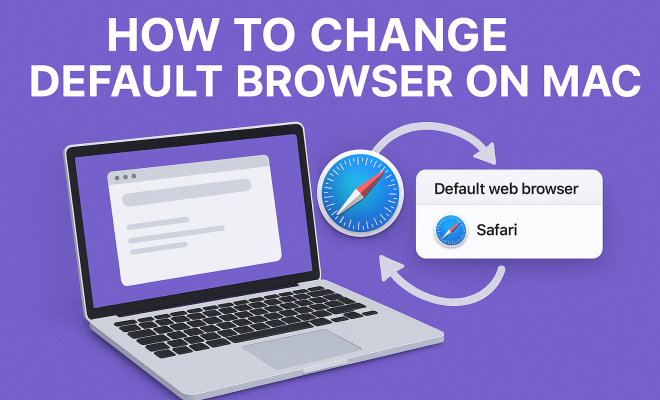
- Locate Default Web Browser: In the General settings, you’ll see an option labeled “Default web browser.” Click on the dropdown menu next to it.
- Select Your Preferred Browser: From the dropdown list, choose the browser you want to set as your default. If it’s not listed, it means it might not be installed correctly.
- Close System Preferences: After selecting your preferred browser, simply close the System Preferences window. Your changes will be saved automatically.
And that’s it! You’ve successfully changed your default browser on Mac.
5. Importing Bookmarks and Passwords: Making the Transition Smooth
After changing your default browser on Mac, you might want to import your bookmarks and passwords from your old browser. Most modern browsers offer easy solutions for this. For instance: (See: Understanding web browsers.)
- Google Chrome: Go to the Chrome menu, select “Bookmarks”, then “Import bookmarks and settings”. You can then choose the browser you’re importing from.
- Mozilla Firefox: Click on the Library button, choose “Bookmarks”, and then “Show All Bookmarks”. From there, you can import from another browser.
- Microsoft Edge: Click on the three dots in the upper-right corner, go to “Settings”, choose “Import browser data”, and follow the prompts.
By importing your essential data, you ensure a seamless transition to your new default browser.
6. Troubleshooting Common Issues: What to Do When Things Go Wrong
Sometimes, you might encounter issues when trying to change your default browser on Mac. Here are some common problems and their solutions:
- Browser Not Appearing in the List: If your new browser doesn’t show up in the default options, ensure it’s properly installed. You might need to restart your Mac or reinstall the browser.
- Changes Not Saving: If your changes don’t stick, try restarting your Mac again. If the issue persists, check for any macOS updates.
- Links Still Opening in Safari: This can happen if specific applications are still set to open links with Safari. Go into those applications’ preferences to change this behavior.
Addressing these issues promptly can help you get back to enjoying your preferred browsing experience without unnecessary hiccups.
7. Keeping Your Browser Up to Date: Why Regular Updates Matter
Once you’ve changed your default browser on Mac, keeping it updated is crucial. Regular updates not only introduce new features but also patch security vulnerabilities. Here’s how to check for updates in popular browsers:
- Google Chrome: Click on the three dots in the upper-right corner, go to “Help,” and then select “About Google Chrome.” This will automatically check for updates.
- Mozilla Firefox: Click on the menu button, select “Help,” and then “About Firefox.” The browser will check for updates and install them automatically.
- Microsoft Edge: Click on the three dots, go to “Help and feedback,” and then “About Microsoft Edge” to check for updates.
Ensuring your browser is up to date can significantly enhance your security and browsing performance.
8. Exploring Browser Features: Making the Most of Your New Default
Once you have successfully changed your default browser on Mac, take some time to explore its features. Each browser has unique tools that can enhance your online experience:
- Extensions: Browsers like Chrome and Firefox offer a plethora of extensions for ad-blocking, password management, and productivity.
- Privacy Settings: Familiarize yourself with privacy settings to control what information is collected and how it’s used.
- Syncing Across Devices: Many browsers allow you to sync bookmarks, history, and passwords across multiple devices, ensuring a seamless experience regardless of where you are.
Diving into these features can unlock new ways of browsing, making your online activities more efficient and enjoyable.
9. The Future of Browsers: Trends to Watch
The landscape of web browsers continues to evolve, with trends indicating a stronger focus on privacy, performance, and customization. Here are a few trends to keep an eye on:
- Privacy-Centric Browsers: With growing concerns about data privacy, more users are gravitating toward browsers that prioritize user data protection.
- AI Integration: Some browsers are starting to integrate AI tools for better search results and personalization.
- Continued Rise of Extensions: The importance of extensions is only expected to grow, allowing users to tailor their browsing experience even further.
Staying informed about these trends can help you make better choices and even enhance your browsing experience in the long run.
10. Browser Comparisons: Which One is Right for You?
Choosing a default browser isn’t just about making a switch; it’s about finding the right fit for your needs. Here’s a brief comparison of some popular browsers to help you decide:
| Browser | Speed | Privacy Features | Customization | Best For |
|---|---|---|---|---|
| Google Chrome | Fast | Moderate | Extensive | General users and developers |
| Mozilla Firefox | Fast | High | Good | Privacy-conscious users |
| Safari | Fast | Moderate | Limited | Apple ecosystem users |
| Microsoft Edge | Fast | Moderate | Good | Windows users |
| Brave | Fast | Very High | Moderate | Privacy-focused users |
With each browser offering distinct advantages, consider your primary needs—whether speed, privacy, or customization—before making your choice.
11. Frequently Asked Questions: Your Questions Answered
If you still have questions about changing your default browser on Mac, you’re not alone. Here are some common queries and their answers: (See: Importance of user ergonomics.)
Q1: Can I have multiple browsers installed on my Mac?
A1: Yes, you can have multiple browsers installed simultaneously. Each one can be set as the default browser as needed.
Q2: Will changing my default browser affect my bookmarks?
A2: Changing your default browser will not delete your bookmarks. However, you may need to import them into your new browser if you want access to them.
Q3: How do I check which browser is currently set as my default?
A3: Go to “System Preferences,” then “General.” You will see your currently set default web browser there.
Q4: Are there any risks involved in changing my default browser?
A4: There are no significant risks. You can always switch back to a previous default browser if you don’t like the new one.
Q5: Can I set different browsers for different applications?
A5: While you cannot directly set different default browsers for different applications in macOS, some applications allow you to choose the browser you want to open links with in their preferences. (See: Changing default browsers explained.)
12. Browser Security Features: What to Look For
When choosing a default browser, security should be a top priority. Different browsers implement varying security features. Here are essential aspects to consider:
- HTTPS Everywhere: This feature encrypts your connection to websites, making it harder for third parties to intercept your data. Browsers like Chrome and Firefox have integrated this feature or have easy-to-install extensions.
- Sandboxing: This isolates browser processes, preventing malicious code from affecting your entire system. Chrome is known for its strong sandboxing techniques.
- Phishing Protection: Most modern browsers include built-in protection against phishing attacks, alerting users when they try to visit harmful sites.
- Regular Security Updates: Make sure that the browser you choose has a strong track record for timely security updates to patch vulnerabilities.
By understanding these security features, you can better protect your sensitive information while browsing online.
13. Understanding Browser Cookies: Their Role and Management
Browser cookies are small files stored on your computer that help websites remember your preferences, login details, and other information. While they can enhance your browsing experience, they can also pose privacy risks. Here’s what you need to know:
- Types of Cookies: There are session cookies (temporary) and persistent cookies (stored for a longer period). Knowing the difference can help you manage your privacy settings more effectively.
- Managing Cookies: Most browsers allow you to control cookie settings, including blocking or deleting cookies. Familiarizing yourself with these settings can help you maintain your privacy.
- Third-Party Cookies: These are used by advertisers and can track your browsing across different sites. Consider blocking them if you’re concerned about privacy.
Understanding cookies can empower you to take control over your browsing data and enhance your web experience.
14. Performance Optimization Tips for Browsers
To get the most out of your new default browser, consider these performance optimization tips:
- Limit Extensions: While extensions can enhance functionality, having too many can slow down your browser. Regularly review and disable unneeded extensions.
- Clear Cache and Cookies: Over time, stored data can cause performance issues. Regularly clearing your cache and cookies can help speed things up.
- Update Regularly: Ensuring your browser is updated not only adds new features but also improves performance and security.
- Close Unused Tabs: Having multiple tabs open can consume memory. Close tabs you’re not using to enhance browser speed.
These tips can help you maintain a fluid and efficient browsing experience.
15. Conclusion: Embrace Your New Browsing Experience
Changing your default browser on Mac is a straightforward process that opens up a world of possibilities. With improved speed, privacy features, and customization options, you can tailor your browsing experience to suit your specific needs. As you explore your new browser’s features and stay informed about the latest trends, you’ll improve not only your productivity but also your overall enjoyment of the web. So take the plunge and enjoy a browsing experience that truly reflects your preferences!
“`
Trending Now
Frequently Asked Questions
How do I change my default browser on a Mac?
To change your default browser on a Mac, go to 'System Preferences', then select 'General'. Find the 'Default web browser' option and choose your preferred browser from the dropdown menu. This will set your selected browser as the default for opening links and web pages.
What is the default browser on a Mac?
The default browser on a Mac is typically Safari, which is Apple's built-in web browser. However, users can change this setting to use other browsers like Chrome, Firefox, or Edge, depending on their preferences for speed, privacy, and features.
Why would I want to change my default browser?
Changing your default browser can enhance your online experience by offering better speed, privacy, and customization options. Different browsers have unique features, such as enhanced privacy controls or faster performance, which may better suit your browsing needs.
Can I set multiple default browsers on my Mac?
No, you cannot set multiple default browsers on a Mac. You must choose one browser as the default, which will open whenever you click on a link. However, you can still install and use multiple browsers simultaneously.
How do I know which browser is the best for my Mac?
The best browser for your Mac depends on your needs. For enhanced privacy, consider Firefox or Brave. If speed is your priority, Chrome may be the best choice. Research each browser's features and user reviews to determine which one aligns with your browsing habits.
What did we miss? Let us know in the comments and join the conversation.