How to screen record on Mac
“`html
Screen recording has become an essential skill in today’s digital age. Whether you’re creating tutorial videos, capturing gameplay, or documenting software bugs, knowing how to screen record on Mac can significantly elevate your productivity and presentation capabilities. In this guide, we’ll explore the ins and outs of screen recording on your Mac, including built-in tools, third-party applications, and tips for optimizing your recordings.
1. The Basics of Screen Recording
Before diving into the how-to’s, let’s clarify what screen recording entails. Essentially, screen recording allows you to capture what’s happening on your computer screen, along with audio, if desired. This can include everything from creating instructional videos to sharing entertaining moments from video games.
For Mac users, Apple has incorporated robust screen recording features into macOS, making the process straightforward and accessible. Familiarizing yourself with these options will help you determine which method best suits your needs.
2. Using the Built-in Screenshot Toolbar
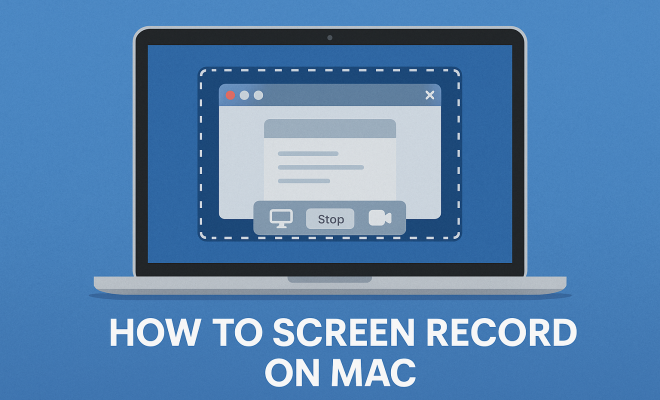
One of the simplest ways to screen record on Mac is by utilizing the built-in Screenshot Toolbar, which was introduced in macOS Mojave (10.14). To access it, press Command (⌘) + Shift + 5. This will open up a toolbar at the bottom of your screen with various options.
From this toolbar, you can choose to capture the entire screen, a selected portion, or a specific window. Additionally, you can select whether or not to include audio in your recording by clicking on the Options button. This flexibility makes it perfect for both casual users and professionals alike.
3. Recording Your Screen with QuickTime Player
If you prefer a more traditional approach, you can also screen record on Mac using QuickTime Player. This application is pre-installed on all Macs and offers more advanced features compared to the Screenshot Toolbar. To start, open QuickTime Player and navigate to File > New Screen Recording.
Once you’ve selected this option, a recording window will appear, allowing you to customize your settings. You can choose to include audio, show mouse clicks, and even specify which part of the screen you want to record. This method is especially useful for those who want to produce a polished video without the need for additional software.
4. Third-Party Software Options
While the built-in methods are efficient, some users may seek additional features or greater flexibility offered by third-party applications. Popular options such as Camtasia, OBS Studio, and Snagit provide enhanced capabilities, including advanced editing tools, customizable settings, and support for multiple video formats.
For instance, OBS Studio is a free and open-source software that provides powerful recording and live streaming options. It allows for extensive customization and is great for users who want to create high-quality videos or stream their gameplay live. However, it does come with a steeper learning curve compared to QuickTime Player or the Screenshot Toolbar.
5. Essential Settings for Optimal Recording
Regardless of the method you choose to screen record on Mac, adjusting your settings can make a big difference in the quality of your recordings. Start with resolution settings: the higher the resolution, the clearer your video will be. Aim for at least 1080p for a professional look.
Audio quality is equally important. If you’re narrating your recording, using an external microphone can enhance sound quality significantly. Additionally, consider using a pop filter to minimize unwanted noise and ensure your voice is clear. Remember, the clearer your audio and video, the more engaging your content will be. (See: Overview of screen capture technology.)
6. Editing Your Screen Recording
Once you’ve recorded your screen, you may find that some editing is necessary to refine your video. Basic editing tools can be found in QuickTime Player, allowing you to trim segments and adjust the length of your clip. For more complex edits, consider software like iMovie or professional editing suites like Final Cut Pro.
Editing is not just about cutting; it’s about enhancing your video. Adding annotations, transitions, and background music can significantly increase viewer engagement. For instance, using callouts to highlight important areas of the screen or adding text to clarify points can help your audience follow along more easily.
7. Sharing Your Screen Recordings
After creating your screen recording, the next step is sharing it with your audience. Depending on your needs, there are various platforms to consider. If you’re creating a tutorial or educational content, platforms like YouTube or Vimeo are ideal due to their vast reach and user-friendly interfaces.
For more professional shares, you might consider hosting your videos on a website or using platforms like Google Drive, Dropbox, or even private servers. Each platform has its pros and cons, so consider your audience and the intended purpose when deciding where to share your recordings.
8. Best Practices for Screen Recording
To ensure your screen recordings are effective and engaging, keep a few best practices in mind. First, always plan your content ahead of time. Outline what you want to say or demonstrate and keep your recordings concise. Nobody enjoys a long-winded explanation.
Additionally, be mindful of your environment. Background noise can distract viewers, so find a quiet place to record. If you’re showing software, make sure your desktop is tidy and free from any distractions that can detract from your message.
9. Current Trends and Future Outlook
As remote work and online communication continue to expand, the demand for effective screen recording tools will only grow. New advancements in AI and video technology are likely to enhance the capabilities of screen recording software, making it easier for users to create high-quality content.
Additionally, as more educators and professionals turn to online methods of instruction and information sharing, learning how to screen record on Mac will remain a valuable skill. Embrace these tools and techniques not just as a way to enhance productivity but as a means to communicate ideas and connect with others in a digital landscape.
10. Advanced Features of Screen Recording Software
When exploring how to screen record on Mac, it’s worth considering some advanced features that may be available in various applications. For instance, many third-party options include features like picture-in-picture, where you can overlay a webcam feed onto the screen recording. This is particularly useful for tutorial videos where you want to maintain a personal connection with your audience while demonstrating on-screen activities.
Additionally, some applications offer annotations during recording, allowing you to highlight or draw on your screen in real-time. This can greatly enhance the clarity of your instructions or explanations, guiding your viewers’ focus to specific areas of the screen as you speak.
Another advanced feature to look out for is the ability to record in different formats and resolutions. Some software allows you to export your recordings in various formats such as MP4, MOV, or AVI, which can be helpful depending on your intended use for the video.
11. Real-World Applications for Screen Recording
Understanding how to screen record on Mac can open up a wide array of real-world applications across various fields. For educators, screen recording can be used to create engaging online lectures or tutorials that can be shared with students. With tools like iMovie or Final Cut Pro, educators can add visuals and other media to enhance learning. (See: Tips for effective screen recording.)
In the corporate world, screen recordings can serve as valuable tools for training and onboarding new employees. By recording software demonstrations or walkthroughs of company protocols, businesses can save time and resources while ensuring that new hires have access to essential information.
Content creators leverage screen recording for everything from producing gameplay videos on platforms like Twitch to creating how-to guides on YouTube. The versatility of screen recording makes it a go-to resource for anyone looking to share knowledge or entertain an audience.
12. Common Challenges and Solutions
While learning how to screen record on Mac can be straightforward, users may encounter several common challenges. One of the most frequent issues is performance lag during recording, particularly when capturing high-resolution video. To address this, consider closing unnecessary applications and processes running in the background that may consume your Mac’s resources.
Another challenge is audio synchronization. Sometimes, the audio may lag behind the video, making for a disjointed viewing experience. To combat this, ensure that you’re using a reliable microphone and check your audio settings prior to recording. You can also sync audio and video during the editing phase to ensure a smoother final product.
Lastly, users may be concerned about file sizes. High-quality recordings can create large files that are challenging to manage. One solution is to use video compression software to reduce the size without sacrificing too much quality, making it easier to store and share recordings.
13. Screen Recording FAQs
What is the best format for screen recordings on a Mac?
The best format typically depends on your intended use. For widespread sharing and compatibility, MP4 is a reliable choice. It offers a good balance between quality and file size.
Can I edit my screen recordings on my Mac?
Yes, you can edit your screen recordings using software like QuickTime Player, iMovie, or more advanced applications like Final Cut Pro. These tools allow you to trim clips, adjust audio levels, and add effects.
How can I reduce the file size of my screen recordings?
You can reduce file size by using video compression tools or adjusting the recording settings—reducing the resolution or frame rate can lead to smaller file sizes while still maintaining a decent quality.
Is it possible to record only part of the screen on Mac?
Absolutely! Using the built-in Screenshot Toolbar, you can select a specific portion of your screen to record. This is useful for highlighting particular areas or applications without recording your entire desktop.
Are there any privacy concerns with screen recording?
Yes, privacy is crucial. Always be mindful of what’s visible on your screen and ensure you’re not capturing sensitive information. If you’re sharing recordings publicly, consider blurring out or editing out personal information.
Can I record video from applications on my Mac?
Yes, screen recording can capture activity from most applications on your Mac. Just make sure the application is open and visible during the recording process.
How can I add voiceover to my screen recording?
You can add voiceover while recording by selecting the audio input options in the recording settings. Alternatively, you can record your audio separately and sync it during editing.
Do I need special software to record video calls on my Mac?
While you can use built-in tools like QuickTime, you might find third-party applications like Zoom or OBS Studio more feature-rich for recording video calls, allowing you greater control over your recording settings.
14. Practical Tips for Effective Screen Recording
While knowing how to screen record on Mac can set you on the right path, employing some practical tips during your recordings can enhance quality and viewer experience. Here are a few suggestions:
- Prepare Your Script: Before hitting record, jot down key points or even a full script. This helps keep you on track and ensures you cover all necessary information without unnecessary rambling.
- Test Your Setup: Always conduct a test run before the actual recording. This allows you to check audio levels, video clarity, and overall flow. It’s much easier to correct issues in a practice session than during the live recording.
- Use Good Lighting: If you’re incorporating a webcam feed, ensure your recording environment is well-lit. Poor lighting can detract from the quality of your video, making it harder for viewers to engage.
- Engage Your Audience: Even though you’re recording without a live audience, try to maintain an engaging tone. Speak clearly and use conversational language to keep viewers interested.
- Follow Up: After sharing your recording, consider engaging with your audience through comments or feedback. This can provide valuable insights for future recordings and help build a community around your content.
15. Screen Recording for Different Professions
Different professions can leverage screen recording in unique ways. Here’s how various fields utilize this tool:
- Education: Teachers can create video lessons or record lectures for students who need to review material at their own pace. Screen recordings can provide a visual aid that enhances understanding.
- Software Development: Developers often use screen recordings to demonstrate bugs or new features in applications. This visual documentation helps streamline communication among teams.
- Marketing: Marketers may create video content for social media, showcasing product demos or tutorials. Engaging visuals can significantly increase audience engagement and conversion rates.
- Technical Support: Support teams can record step-by-step solutions for common issues, providing customers with clear visual guidance that can reduce the number of support calls.
16. Future Trends in Screen Recording Technology
The landscape of screen recording technology is rapidly evolving. Here are a few trends to watch for:
- AI Integration: Artificial intelligence is likely to play a bigger role in enhancing user experience. Features like automatic subtitles, real-time editing suggestions, and even AI-generated summaries may become commonplace.
- Cloud-Based Solutions: As cloud storage becomes increasingly prevalent, expect more screen recording applications to offer seamless integration with cloud services. This allows for easier storage, sharing, and collaboration.
- Interactive Features: Future screen recordings may include interactive elements, such as quizzes or clickable links embedded within the video, allowing for a more engaging viewer experience.
- Enhanced Collaboration Tools: With remote work becoming the norm, screen recording applications will likely incorporate features that allow for real-time collaboration, enabling teams to work together more effectively across distances.
17. Conclusion
Knowing how to screen record on Mac not only enhances your ability to create engaging content but also serves as a valuable skill in various professional and educational contexts. With built-in options, powerful third-party software, and a few best practices, you can produce quality recordings that effectively communicate your ideas. Whether you’re sharing knowledge, entertaining an audience, or documenting processes, the ability to capture your screen can significantly impact your productivity and creativity. So, dive in, experiment with different tools, and enjoy the process of sharing your expertise with the world!
“`
Trending Now
Frequently Asked Questions
How do I screen record on a Mac?
To screen record on a Mac, you can use the built-in Screenshot Toolbar by pressing Command (⌘) + Shift + 5. This opens a toolbar that lets you capture the entire screen, a selected portion, or a specific window. You can also use QuickTime Player for more advanced recording options.
What is the best screen recording software for Mac?
While macOS includes built-in tools like the Screenshot Toolbar and QuickTime Player for screen recording, third-party applications like OBS Studio and ScreenFlow offer advanced features. The best choice depends on your specific recording needs, such as editing capabilities or live streaming.
Can I record my screen with audio on a Mac?
Yes, when using the Screenshot Toolbar, you can choose to include audio in your screen recording by selecting the 'Options' button. If you're using QuickTime Player, you can also select an audio source before starting your recording.
Is there a time limit for screen recording on Mac?
There is no official time limit for screen recordings using the built-in tools on Mac. However, the length of your recording may be constrained by available storage space on your device, so ensure you have enough disk space before recording lengthy sessions.
How do I edit my screen recordings on Mac?
You can edit your screen recordings using iMovie or QuickTime Player. QuickTime allows for basic trimming and splitting, while iMovie offers more advanced editing features, including transitions, effects, and audio adjustments.
What did we miss? Let us know in the comments and join the conversation.