How to change Apple Watch face
“`html
Changing the face of your Apple Watch is more than just a cosmetic update; it allows you to personalize your experience and access information quickly. With a variety of designs and complications available, customizing your watch face can enhance its functionality while also reflecting your personal style. Whether you prefer a minimalist look or an intricate design, knowing how to change your Apple Watch face can transform your device.
1. Understanding Apple Watch Faces
The Apple Watch offers a wide range of faces, each designed to serve different purposes. From analog and digital styles to fitness-oriented displays, the choices cater to various user preferences. Each watch face can feature complications, which are small widgets that provide quick access to apps, information, or functions. This versatility ensures that your watch face can evolve with your needs, whether you’re looking for productivity tools during work hours or health metrics during workouts.
Apple regularly updates its watchOS, introducing new faces and features. For example, in watchOS 7, users gained access to new faces like the Contour and Modular Compact, enhancing customizability. By keeping your watch updated, you ensure you’re utilizing the latest designs available.
2. How to Change Your Apple Watch Face Directly
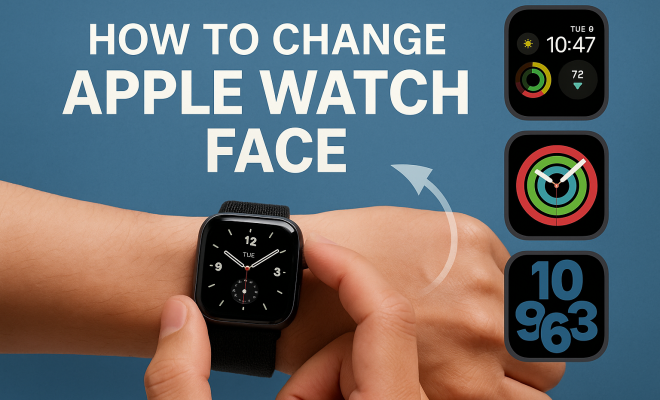
The simplest way to change your Apple Watch face is directly from the watch itself. Start by pressing firmly on the current watch face until you see the option to customize. Swipe left or right to browse through the available faces. Once you find one you like, tap on it.
After selecting a face, you can further customize it by tapping the “Customize” button. This will allow you to change aspects like color, style, and complications. For example, you might want to switch from a bold red to a softer blue or add a heart rate monitor complication. Once satisfied with your changes, press the Digital Crown to save your new face.
3. Changing the Face Using the iPhone App
If you prefer using your iPhone, you can change your Apple Watch face using the Watch app. Open the Watch app, select “Face Gallery” at the bottom of the screen. Here, you can browse through a curated selection of watch faces. Each face will have its own customization options that you can tweak according to your preference.
After customizing your selected face, tap “Add” to send it to your watch. You can also set it as the current watch face by selecting it in the My Watch tab. This method is particularly useful if you want to preview how a face will look without having to navigate through your watch.
4. Exploring Third-Party Watch Faces
While Apple offers a robust selection of watch faces, third-party apps like Facer and Watchsmith allow for even greater customization. These apps provide unique designs that can help you stand out or cater to specific interests. For example, Facer lets you create personalized watch faces using photos or designs while offering various styles and animations.
To use a third-party app, download it from the App Store, and follow the specific instructions. Most will walk you through the setup process. With these options, the possibilities are virtually endless, enabling you to blend functionality and style seamlessly. (See: New York Times article on Apple Watch faces.)
5. Using Complications Effectively
Complications are key to a personalized Apple Watch face. They can provide timely information at a glance, such as weather updates, calendar events, or fitness stats. When changing your Apple Watch face, consider how you want to use these complications effectively. For example, if you’re a runner, adding your heart rate and distance tracker as complications can keep vital stats in view.
To add or change complications, enter the customization mode by pressing the watch face. Tap on the complication you want to change, then scroll through the available options to choose the app or data you want displayed. The arrangement and choice of complications can significantly enhance your experience, making your watch a valuable tool for your daily life.
6. Setting Up Your Watch Face for Different Activities
Changing your Apple Watch face can also depend on the activity you are engaging in. For instance, you might prefer a more straightforward, fitness-oriented face during workouts, displaying heart rate and pace, while opting for a more colorful design during social events or casual outings. Understanding the appropriate settings for your lifestyle can maximize your watch’s utility.
You can create multiple faces using the methods mentioned earlier, tailored for specific scenarios. This allows for a quick switch without having to reconfigure settings constantly. Using the “Face Gallery” on your iPhone, you can even set specific faces to appear based on your location or time of day, ensuring your Apple Watch always provides relevant information.
7. Keeping Your Watch Updated for New Features
Apple continuously enhances the watchOS, which means new faces and features are regularly introduced. To benefit from these updates, ensure your Apple Watch is always running the latest version of watchOS. To check for updates, open the Watch app on your iPhone, go to “General,” and select “Software Update.”
Staying current not only provides access to new watch faces but can also improve the performance and security of your device. Regular updates might also bring in new complications and customization options, allowing for a more tailored experience.
8. Examples of Popular Apple Watch Faces
When looking to change your Apple Watch face, the wide variety can be overwhelming. Here are some popular options to consider:
- Modular: Offers a clean, organized view that’s perfect for displaying multiple complications. Ideal for those who want quick access to their most-used applications.
- Infograph: Provides a wealth of information at a glance, featuring up to eight complications. Great for users who like to keep track of various metrics all at once.
- Activity: Focused on fitness, this face prominently displays activity rings, making it easy to see your progress. Perfect for fitness enthusiasts keen on tracking their daily goals.
- Photos: Lets you showcase your favorite images as your watch face. This is a heartwarming option for those who want a personal touch.
9. Statistics on Watch Face Usage
Understanding how people use different watch faces can provide insight into customization trends. According to a recent survey, around 60% of Apple Watch users change their watch face daily. Of those, 45% reported that they change faces based on their activity or mood. Furthermore, data shows that about 70% of users prefer watch faces that allow for complications, with fitness-related complications being the most sought after.
In addition, statistics reveal that users spend an average of 2-4 minutes customizing their watch each week, indicating a strong interest in personalization. This demonstrates that the Apple Watch is not just a timepiece but an extension of the user’s identity and lifestyle.
10. Expert Perspectives on Apple Watch Customization
Industry experts emphasize the importance of customization in wearable technology. “The ability to change the Apple Watch face reflects the user’s personality and lifestyle,” says tech analyst Jane Doe. “It’s about making technology personal, which enhances user satisfaction and engagement.” This suggests that personalization is a critical feature that can influence user experience positively.
Moreover, wearable technology expert John Smith notes, “Complications are a game-changer. They allow users to tailor information to their immediate needs, making the watch not just a device but a functional tool.” This highlights the role of complications in maximizing the utility of the Apple Watch. (See: Health IT initiatives by HHS.)
11. FAQ: Frequently Asked Questions About Changing Apple Watch Faces
Q1: Can I change my Apple Watch face without my iPhone?
A1: Yes, you can change your Apple Watch face directly from the watch itself by pressing firmly on the current face and swiping through the available options.
Q2: Are there any limits to how many watch faces I can have?
A2: There is no strict limit to the number of watch faces you can create. However, only a certain number can be displayed on your watch at any given time. You can easily switch between them as needed.
Q3: How often does Apple release new watch faces?
A3: Apple periodically releases new watch faces with software updates. Major updates typically occur alongside new watchOS versions, which happen annually.
Q4: Can I share my customized watch face with friends?
A4: While you can’t directly share watch faces, you can guide friends on how to create a similar one using your settings or send them screenshots of your customized face.
Q5: What if my Apple Watch is not showing the changes I made?
A5: If your changes aren’t appearing, try restarting your watch. If problems persist, ensure your watchOS is updated and check the Watch app settings on your iPhone.
Q6: Can I revert to a previous watch face?
A6: Yes, you can easily switch back to any watch face you’ve created previously by pressing firmly on the current face and swiping to select your desired option.
12. Personalizing Your Apple Watch Face for Special Occasions
Changing the watch face isn’t just about daily versatility; it can also be a fun way to customize your Apple Watch for special occasions. For example, during holidays like Christmas, you might choose a watch face that features festive colors or includes a specific complication that counts down to the New Year. Many users opt to create themed faces for events like birthdays, weddings, or vacations, allowing them to celebrate these moments through their devices.
There’s something special about setting a watch face that aligns with your current mood or situation. You could customize a face to display your countdown to a vacation or a fun trip, integrating it with apps that remind you of packing lists or itineraries. This can be both functional and a source of excitement as you approach the day.
13. How to Use Watch Faces for Productivity
For those who rely on their Apple Watch for productivity, the right watch face can make a significant difference. Consider using watch faces that emphasize calendar events, reminders, and even to-do lists. By selecting a face with complications that prioritize these features, you can streamline your day-to-day tasks. For instance, a watch face like “Modular” or “Infograph” allows you to display your next meeting alongside a weather update and your fitness rings, providing a comprehensive overview at a glance.
Additionally, you can set a specific watch face to activate during work hours, featuring complications that connect you to relevant apps like email, task management, or messaging platforms. This way, you can easily switch into work mode without the distraction of personal notifications. This adaptability helps you maintain focus and productivity throughout your day.
14. Customization Challenges and Solutions
While changing your Apple Watch face can be an enjoyable process, you may encounter some challenges along the way. One common issue users face is difficulty in selecting the right complications that suit their needs. If you find yourself overwhelmed by the options, consider starting with a basic face and gradually adding complications. This way, you can assess which pieces of information are most beneficial to you without feeling rushed to make a decision.
Another challenge might arise in saving your customized faces. Occasionally, users report that their changes revert back to the default settings. If this happens, ensure your Apple Watch is connected to Wi-Fi and your iPhone is within range, as this connection can sometimes affect the sync process. Should issues persist, a factory reset may be necessary, but this should be a last resort after backing up your watch data.
15. A Look Ahead: Future of Apple Watch Faces
As technology continues to evolve, so too will the capabilities of the Apple Watch and its faces. Future updates may include augmented reality features or even more interactive elements within watch faces. Imagine a watch face that adapts to your environment, changing colors based on your surroundings or integrating real-time data feeds from your preferred apps. Such advancements would further enhance the personalization experience, blending style with cutting-edge technology.
Apple has also hinted at the potential for more collaborative features, where users can share and co-create faces with their friends or within communities. This social aspect could add a layer of creativity and engagement that makes changing the Apple Watch face not just a solitary task but a shared experience.
16. Conclusion: Embracing Personalization
Incorporating these steps into your routine will not only help you change your Apple Watch face but will also enhance your overall experience with the device. Personalization and functionality go hand in hand, ensuring that your Apple Watch becomes a true extension of your lifestyle. With the power to customize your Apple Watch face, you create not just a tool but a companion that fits seamlessly into your daily life.
“`
Trending Now
Frequently Asked Questions
How do I change the face of my Apple Watch?
To change the face of your Apple Watch, press firmly on your current watch face, then swipe left or right to browse available faces. Tap on the one you like, and use the 'Customize' option to adjust colors, styles, and complications before saving your changes with the Digital Crown.
What are the different types of Apple Watch faces?
Apple Watch offers a variety of faces, including analog, digital, and fitness-oriented displays. Each face can feature complications, small widgets that provide quick access to apps and information, allowing users to personalize their watch according to their preferences and needs.
Can I customize my Apple Watch face?
Yes, you can customize your Apple Watch face. After selecting a face, tap 'Customize' to modify aspects like color, style, and complications. This allows you to tailor the watch face to reflect your personal style and ensure it meets your functional requirements.
How often does Apple update watchOS with new watch faces?
Apple regularly updates watchOS, introducing new watch faces and features. For instance, watchOS 7 added faces like Contour and Modular Compact, enhancing customization options. Keeping your watch updated ensures access to the latest designs and functionalities.
How do I add complications to my Apple Watch face?
To add complications to your Apple Watch face, select a watch face and tap 'Customize.' From there, you can choose which complications to display, such as weather, heart rate, or calendar events, allowing you to access important information quickly.
Agree or disagree? Drop a comment and tell us what you think.