How to add branching in Google Forms
“`html
Creating effective surveys and quizzes has never been easier, thanks to tools like Google Forms. One of the most powerful features available is branching in Google Forms, which allows you to customize the user experience based on responses. This functionality can help you gather more relevant data and lead to better insights. In this comprehensive guide, we’ll explore how to implement branching, its benefits, and tips to maximize your forms.
1. Understanding Branching in Google Forms
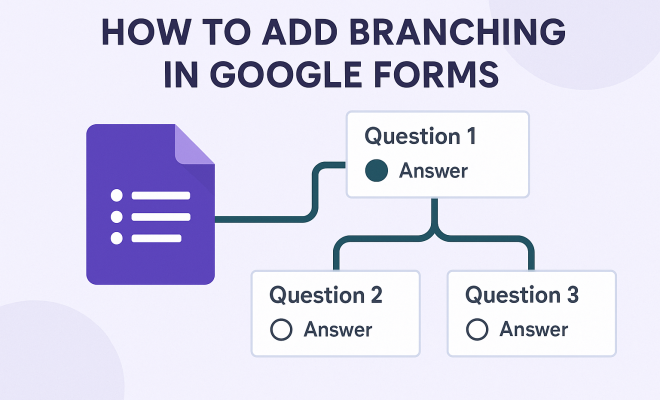
Branching in Google Forms refers to the ability to direct respondents to different sections or questions based on their previous answers. This creates a personalized experience and makes it easier for users to provide meaningful feedback. For instance, if a respondent answers ‘Yes’ to a question about owning a pet, they could be directed to a follow-up question specifically about their pet. Conversely, a ‘No’ response might lead them to skip those questions entirely.
This feature is particularly beneficial for surveys that target diverse audiences, as it allows for a more tailored approach. By incorporating branching, you can gather specific data suited to different respondent categories, improving the overall quality of your data collection.
2. Why Use Branching?
Implementing branching in your Google Forms offers several advantages:
- Enhanced User Experience: By guiding respondents through relevant questions, you reduce confusion and frustration.
- Improved Data Quality: Tailored questions yield more precise and relevant responses, helping you achieve your research goals.
- Shorter Surveys: Eliminating unnecessary questions for certain respondents can lead to shorter, more efficient surveys.
Moreover, using branching smartly can help you avoid survey fatigue, keeping respondents engaged throughout the process. When people feel that their time is respected, they’re more likely to complete the survey.
3. Setting Up Branching in Google Forms: A Step-by-Step Guide
Now that you understand the importance of branching, it’s time to set it up in your Google Form. Follow these steps:
- Create a New Form: Start by opening Google Forms and creating a new form.
- Add Questions: Enter your initial questions. Make sure to include questions that will dictate the branching.
- Choose Question Types: The type of question matters. Multiple-choice questions work best for branching since they provide clear options for routing.
- Enable Branching: After you’ve added your question, click on the three dots in the bottom right corner of the question box. Select ‘Go to section based on answer.’
- Create Sections: If you haven’t already, create different sections for the questions that will appear based on various responses.
- Set Up Routing: In the branching options, specify which sections respondents should go to based on their answers.
To visualize how this process works, imagine a survey about travel preferences. If a respondent answers ‘Beach’ to a question about their ideal vacation type, you can route them to a section about beach destinations, while those who prefer ‘Mountains’ would be directed to questions about mountain retreats.
4. Example Scenarios for Branching
To further illustrate the application of branching in Google Forms, consider a few example scenarios:
- Customer Feedback Forms: If a customer selects ‘poor’ service quality, you could branch them to a section asking for specific details about their experience.
- Educational Surveys: In a survey aimed at students, if a respondent indicates they struggle with a subject, you can redirect them to additional questions about their learning challenges.
- Event Registration: For event sign-ups, if someone selects ‘yes’ to attending a workshop, they can be taken to a list of available sessions, while those who don’t can skip to providing dietary preferences.
These examples showcase how branching can enhance the relevance and quality of responses, making your data collection efforts more effective.
5. Best Practices for Effective Branching
While setting up branching in Google Forms can be intuitive, keeping a few best practices in mind will ensure you maximize its potential: (See: Understanding survey design principles.)
- Keep It Simple: Avoid complex branching logic that can confuse respondents. The simpler the flow, the better.
- Test Your Form: Always preview your form and test the branching paths to ensure everything works as intended.
- Limit Branches: Too many branches can overwhelm respondents. Stick to essential questions and group similar topics.
- Analyze Results: After collecting responses, analyze the data to see if the branching worked as intended. Adjust questions if necessary for future surveys.
Following these best practices will help you create a more efficient and user-friendly survey, leading to better engagement and insightful data collection.
6. Troubleshooting Common Issues
Setting up branching can come with its challenges. Here are some common issues and how to troubleshoot them:
- Branching Not Working: Double-check that you’ve properly set up sections and that the routing options are correctly assigned to each answer.
- Respondent Confusion: If respondents seem confused by the branching paths, consider simplifying your questions or restructuring your sections.
- Limited Response Variety: If respondents aren’t answering as expected, review your questions for bias or leading language that might steer answers.
By staying vigilant and responsive to the issues that arise, you can continuously improve your forms and the data they produce.
7. Analyzing Data from Branching Forms
Once you’ve collected responses from your branching Google Form, the next step is analyzing the data. Google Forms provides summary insights and individual responses, making it easy to review the results:
- Summary Charts: Use the summary view to see visually how many respondents selected each option, allowing you to spot trends and patterns.
- Individual Responses: Review individual responses to better understand the context behind the data, especially for open-ended questions.
- Export Data: For more advanced analysis, export your data to Google Sheets where you can leverage additional data analysis features.
Taking the time to analyze your data will help you draw actionable insights, ultimately enhancing the effectiveness of your surveys and supporting better decision-making.
8. Real-World Applications of Branching Forms
Many organizations are incorporating branching in Google Forms to enhance their data collection efforts. Here are a few real-world applications:
- Market Research: Companies use branching forms to gather specific feedback on products, allowing them to understand customer preferences and improve offerings.
- Human Resources: HR departments leverage branching forms for employee surveys, tailoring questions based on department or role to ensure relevant feedback.
- Education: Educators utilize branching forms for assessments that adjust difficulty based on student performance, providing a personalized testing experience.
These applications demonstrate the versatility of branching forms and how they can effectively address unique data needs across various fields.
9. Future Trends in Form Design
As technology continues to evolve, the tools and methods for creating forms will also change. Here are a few trends to watch in the realm of form design:
- Increased AI Integration: Future tools may integrate AI to help design forms that adapt in real-time based on user behavior.
- Enhanced User Interfaces: Expect more intuitive interfaces that simplify the process of setting up complex branching logic.
- Data Privacy Features: As data privacy concerns continue to grow, future forms are likely to incorporate more robust features to protect respondent information.
By staying abreast of these trends, you can ensure your data collection practices remain effective and compliant with emerging standards.
10. Conclusion: Making the Most of Branching in Google Forms
Branching in Google Forms presents an opportunity to create highly tailored surveys that yield better insights. By following the steps outlined in this guide and adhering to best practices, you can enhance your data collection efforts significantly.
Whether for market research, educational assessments, or feedback forms, understanding how to implement and analyze branching is an indispensable skill in today’s data-driven world. So, get started on your next Google Form, and see how branching can transform your approach to gathering information! (See: Branching in survey evaluation.)
11. Frequently Asked Questions about Branching in Google Forms
If you’re still curious about branching in Google Forms, here are some common questions and answers that can help clarify any doubts you might have:
What types of questions can I use for branching?
While multiple-choice questions are the most straightforward for branching, you can also use checkboxes and dropdowns. However, using clear, definitive options is crucial for effective routing.
Can I branch from a question in one section to a question in another section?
Yes, you can branch from one section to another based on responses. This is often used to guide respondents through different paths in the survey, depending on their answers.
How can I ensure that my branching logic is easy to follow?
To keep branching logic clear, limit the number of branches to avoid overwhelming respondents. Use straightforward questions and logical paths that naturally lead from one question to the next.
What happens if a respondent skips a question?
If a respondent skips a question that has branching logic attached, they will be taken to the next section based on the default settings of the survey. It’s good practice to avoid making critical questions optional if they determine the path.
Can I change the branching logic after I’ve started collecting responses?
Yes, you can modify the branching logic at any time, but be mindful that changing it mid-collection may affect the consistency of the data. It’s best to have a clear plan before launching your survey.
Are there any limitations to branching in Google Forms?
While Google Forms is quite flexible, there are some limitations. For instance, you cannot branch based on the answers to open-ended questions. Additionally, keeping an eye on the number of sections and branches is important to avoid overwhelming respondents.
12. Advanced Techniques for Branching Forms
For those looking to take their Google Forms to the next level, consider employing some advanced techniques:
Combining Branching with Conditional Logic
While Google Forms primarily focuses on basic branching, you can enhance your forms with conditional logic by asking questions that only appear when specific criteria are met. For example, if someone selects ‘Other’ in a multiple-choice question, you can present a text field that allows them to specify their answer.
Using Images and Videos
Consider incorporating images or videos in your branching forms. For instance, if you’re surveying customers about their favorite product, you could show images of different options based on their previous choices. This adds an engaging visual element that can lead to better responses. (See: Benefits of personalized surveys.)
Feedback Loops with Branching
Utilize feedback loops by asking for opinions on previous answers. You can branch to a follow-up question that asks respondents to elaborate on why they chose a specific option, enabling richer data collection without making the survey too lengthy.
13. Case Studies: Success Stories Using Branching in Google Forms
To illustrate the practical impact of branching in Google Forms, let’s take a look at a few case studies where organizations successfully implemented this feature:
Case Study 1: A Non-Profit Organization’s Feedback Survey
A non-profit organization needed to gather feedback from event participants to improve future events. By using branching, they directed respondents based on their attendance type—general admission or VIP. This allowed them to ask targeted questions relevant to each group, enhancing the quality of feedback and ensuring that they could make data-driven improvements.
Case Study 2: A University Course Evaluation
A university implemented branching for course evaluations. Students who rated a course below a certain threshold were routed to additional questions to provide more context about their dissatisfaction. This resulted in actionable insights that faculty could use to enhance course delivery and design.
Case Study 3: Product Development in Tech Companies
Tech companies often use branching forms for user research. One company created a survey to gather feedback on a new app feature. Respondents who used the feature were taken to questions that inquired about their experience, while those who hadn’t were directed to questions about their usage patterns. This approach allowed for more targeted insights, ultimately leading to product improvements that aligned better with user needs.
14. Tips for Engaging Your Audience with Branching Forms
Engaging your audience is crucial for maintaining high response rates and ensuring quality data. Here are some tips to help you do just that:
- Start with an Effective Intro: Begin your survey with a brief introduction explaining the purpose and importance of the survey. This sets the tone and encourages respondents to engage.
- Use Clear and Concise Language: Avoid jargon and complex phrases. The clearer your questions, the more likely respondents will understand and answer them accurately.
- Incorporate Progress Indicators: When using branching, consider adding a progress bar to show respondents how far they’ve come. This can motivate them to complete the survey.
- Add Personal Touches: Customize the form with the respondent’s name or other identifiers where appropriate. Personalization can make respondents feel valued and increase their willingness to provide thoughtful responses.
15. Conclusion on Branching in Google Forms
Branching in Google Forms is more than just a feature; it’s a powerful tool for creating engaging, relevant surveys that provide valuable insights. By understanding how to implement and analyze branching, you can effectively tailor your surveys to your audience’s needs, ensuring higher response rates and better-quality data. Whether you’re conducting market research, managing employee feedback, or gathering educational assessments, mastering branching can significantly enhance your data collection strategy.
“`
Trending Now
Frequently Asked Questions
What is branching in Google Forms?
Branching in Google Forms refers to the feature that allows you to direct respondents to different sections or questions based on their previous answers. This creates a more personalized experience and helps gather relevant data by tailoring questions according to individual responses.
How do I set up branching in Google Forms?
To set up branching in Google Forms, start by creating your form and adding questions. Then, click on the three dots in the question settings to select 'Go to section based on answer,' allowing you to direct respondents to specific sections based on their responses.
What are the benefits of using branching in surveys?
Using branching in surveys enhances user experience by guiding respondents through relevant questions, improves data quality by yielding precise responses, and shortens surveys by eliminating unnecessary questions for certain respondents, thus reducing survey fatigue.
Can branching help with survey fatigue?
Yes, branching can help with survey fatigue by ensuring that respondents only see questions relevant to them. This respect for their time keeps them engaged and more likely to complete the survey, leading to better response rates.
Is it easy to add branching to Google Forms?
Yes, adding branching to Google Forms is straightforward. You can easily set it up by using the question settings to direct respondents to different sections based on their answers, making it a user-friendly feature for creating effective surveys.
What’s your take on this? Share your thoughts in the comments below — we read every one.