How to remove object from photo Photoshop
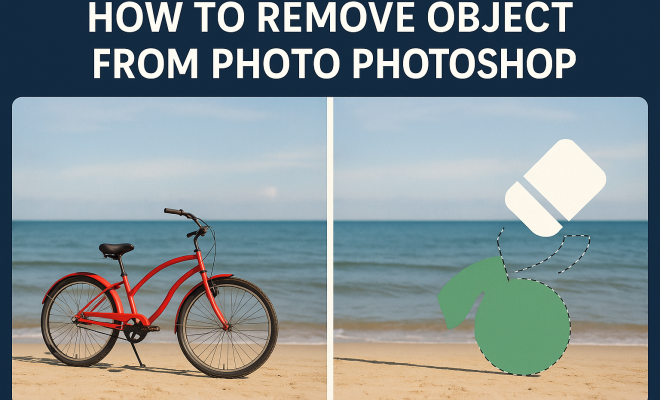
“`html
In a world where visual storytelling reigns supreme, the ability to manipulate images is not just an artistic skill; it’s a necessity. If you’ve ever found yourself frustrated by an unwanted object in a photograph, you’re not alone. Many photographers and graphic designers regularly encounter the challenge of needing to remove objects from photos in Photoshop. Whether it’s a distracting element in a stunning landscape or an accidental passerby in a portrait, this skill can dramatically enhance your images.
1. The Basics of Object Removal in Photoshop
Photoshop is a powerful tool that offers several methods for removing unwanted elements from photos. Before diving into techniques, it’s crucial to understand the basics of the interface and tools you’ll be working with. The most essential tools for object removal include the Clone Stamp Tool, Healing Brush Tool, and the Content-Aware Fill.
The Clone Stamp Tool allows you to select a part of the image and “paint” over the unwanted object with the selected area. It’s a straightforward method that works effectively when the area surrounding the object is uniform. On the other hand, the Healing Brush Tool blends the selected area with the surrounding pixels, which is particularly useful for textures or patterns.
2. Essential Tools for Removing Objects
Understanding the tools at your disposal is fundamental to successfully remove objects from photos in Photoshop. The Content-Aware Fill is perhaps the most revolutionary tool introduced in recent versions of Photoshop. It intelligently analyzes the surrounding content and fills in the selected area with pixels that match the background.
To use Content-Aware Fill, select the area you want to remove with the Lasso Tool or the Marquee Tool. Then, navigate to Edit > Fill and select Content-Aware from the dropdown menu. This tool can save you time and significantly improve the quality of your edits, especially in complex backgrounds.
3. Step-by-Step Guide to Using the Clone Stamp Tool
The Clone Stamp Tool is a classic method for object removal and is often the go-to for many users. Here’s a step-by-step guide on how to use it effectively:
- Select the Clone Stamp Tool: You can find it in the toolbar or access it by pressing the ‘S’ key.
- Choose a Source Point: Hold down the Alt key (Option on Mac) and click on the area you want to clone from. This will be your source point.
- Paint Over the Object: Carefully brush over the unwanted object. Adjust the brush size and hardness for more control.
- Check Your Work: Zoom in and out to ensure the area looks natural and blends well with the background.
Using the Clone Stamp Tool can be time-consuming, but it’s highly effective for precise edits.
4. Using the Healing Brush Tool for Smooth Results
The Healing Brush Tool is another valuable resource when seeking to remove objects from photos in Photoshop. This tool is especially effective for skin retouching and repairing small details. Here’s how to use it:
- Select the Healing Brush Tool: Located in the same toolbar area as the Clone Stamp Tool.
- Define Your Sample Point: Similar to the Clone Stamp, hold Alt (Option on Mac) and click to select a source point.
- Brush Over the Object: Carefully paint over the unwanted area. The tool will automatically blend the surrounding pixels to create a seamless transition.
This tool is particularly useful for removing blemishes or distractions in portraits, making it a must-know for photographers focusing on human subjects.
5. Exploring Content-Aware Fill: A Game Changer
As previously mentioned, the Content-Aware Fill feature is a remarkable addition to Photoshop. Its ability to analyze and replicate surrounding pixels can save you significant time and effort. Using this tool can be as simple as selecting the area and letting Photoshop do the heavy lifting. (See: Adobe Photoshop overview on Wikipedia.)
To access this feature, first make a selection around the object you want to remove. Then go to Edit > Content-Aware Fill. You’ll be presented with a preview screen where you can see how the fill will look. You can adjust settings like Sampling Area and Fill Settings to refine the result further. This method is particularly useful for landscapes or images with intricate backgrounds, where manual cloning might become challenging.
6. Retouching Complex Backgrounds
When working with complex backgrounds, removing objects can become increasingly complicated. Sometimes, traditional methods might not yield satisfactory results. In such cases, combining techniques can provide better outcomes. For instance, you might start with Content-Aware Fill for a rough removal, followed by the Healing Brush or Clone Stamp for touch-ups.
Additionally, using layers can give you more control. Duplicate your image layer before making edits, so you have a backup. This allows you to experiment with different techniques without losing the original image. Layer masks can also be beneficial for non-destructive editing, enabling you to paint back areas if you make a mistake.
7. Common Mistakes to Avoid
Even seasoned users can make missteps when trying to remove objects from photos in Photoshop. Here are a few common mistakes to steer clear of:
- Using Too Large a Brush Size: This can lead to hard edges and noticeable artifacts. Always adjust your brush size according to the area you’re working on.
- Not Sampling Properly: When using the Clone Stamp or Healing Brush, ensure your sampling points are chosen wisely. If the source point is too far from the area you’re editing, the result will look unnatural.
- Neglecting to Zoom In: Working at a normal zoom level can result in overlooking details. Zoom in closely to ensure your edits are seamless.
- Forgetting to Save Progress: Photoshop can occasionally crash, so save your work frequently or enable auto-save features.
Being aware of these pitfalls can make your editing process much smoother and more efficient.
8. Advanced Techniques for Object Removal
For those looking to enhance their skills further, advanced techniques can provide even better results. One such technique involves using the Patch Tool. This tool allows you to select an area and drag it to another part of the image to replace the unwanted object. It’s effective in scenarios where backgrounds are complex and require a more nuanced approach.
Another option is to leverage Photoshop’s Layers and Masks for more intricate edits. By isolating the object in a separate layer, you can apply various effects and adjustments without affecting the original image. This can be particularly useful for detailed backgrounds where you want to preserve texture and depth.
9. Examples of Object Removal in Different Scenarios
Different scenarios demand different strategies when it comes to removing objects from photos. Here are a few examples to illustrate various approaches:
- Landscape Photography: Imagine a beautiful sunset over a mountain range, but a power line is ruining the view. Using the Content-Aware Fill can quickly and effectively remove the power line while maintaining the integrity of the background.
- Sports Photography: In a crowded stadium, you may want to eliminate some unwanted fans in the background. Here, the Healing Brush Tool becomes handy, as it allows for seamless blending of the crowd, helping to keep the focus on the athlete.
- Portrait Photography: If there’s a stray hair or an unwanted object in a portrait, the Clone Stamp Tool can help to create a clean and polished final output. This tool is also useful for correcting minor distractions in the subject’s attire.
Each of these scenarios showcases how different tools and techniques can be applied to achieve the desired outcome in object removal.
10. Statistics and Trends in Photo Editing
The demand for proficient photo editing skills is increasingly evident in various industries. According to a recent survey, over 70% of photographers reported using Photoshop regularly for their editing needs. Additionally, statistics show that high-quality images lead to a 94% increase in user engagement on social media platforms. This highlights the importance of mastering techniques to remove objects from photos in Photoshop, as clean, distraction-free images can significantly enhance visual storytelling.
Furthermore, the rise of e-commerce has created an even greater need for polished product images. Studies reveal that 67% of consumers consider image quality crucial to their decision-making process when shopping online. This makes the ability to remove unwanted elements from product photos an essential skill for anyone working in retail or online marketing. (See: New York Times article on Photoshop techniques.)
11. Expert Perspectives on Object Removal Techniques
Many experts in the field have shared their insights regarding object removal techniques in Photoshop. Renowned photographer and digital retoucher Jane Smith emphasizes the importance of a steady hand and attention to detail. “When you’re editing, patience is your best friend. Take your time with each stroke, and don’t hesitate to zoom in,” she advises.
Similarly, graphic designer John Doe points out the value of understanding the context of the image. “You have to ask yourself what the focus of the image is. Is it the person? The landscape? Removing an object affects the entire composition, so make sure you’re enhancing, not detracting from, the main subject,” he recommends.
Such expert perspectives can provide invaluable guidance, helping you refine your approach to photo editing and object removal.
12. FAQs About Removing Objects from Photos in Photoshop
What is the best tool for removing objects in Photoshop?
The best tool often depends on the specific scenario. Content-Aware Fill is excellent for quick removals, while the Clone Stamp Tool offers more precision. The Healing Brush Tool is ideal for blending textures seamlessly.
Can I use Photoshop on my mobile device to remove objects?
Yes! Adobe offers a mobile version of Photoshop, which includes some basic object removal tools, though the desktop version is generally more powerful and feature-rich.
How do I prevent mistakes when using the Clone Stamp Tool?
To avoid mistakes, regularly change your source point and adjust the brush size to match the area you are working on. Zooming in can also help maintain a clean edge during editing.
Is it possible to restore an edited photo to its original state?
If you’ve used layers and masks, you can simply hide or delete the layer with the edits. If you’ve edited the background directly, consider saving a copy of the original image before making changes.
How can I learn more about Photoshop editing techniques?
There are plenty of resources available, including online tutorials, courses, and forums. Websites like YouTube, Udemy, and Adobe’s official site offer a wealth of information to help you master Photoshop.
13. Practice Makes Perfect
Removing objects from photos in Photoshop is a valuable skill that requires practice and patience. Whether you’re a beginner or a seasoned pro, mastering these techniques can greatly enhance your editing repertoire. Remember that each photo presents its unique challenges, so be prepared to adapt your methods accordingly.
Don’t shy away from experimenting with different tools and techniques. With time, you’ll find a workflow that suits your style, allowing you to create stunning images free of distractions. So grab your favorite photo, fire up Photoshop, and start practicing! You might be surprised at how quickly you can improve your editing skills. (See: Research on image editing techniques.)
14. Understanding the Psychology of Image Perception
When you remove objects from photos in Photoshop, it’s not just about technical skill; it’s also about understanding how viewers perceive images. Research in visual psychology shows that our brains are wired to focus on certain elements within a frame. Distractions, such as unwanted objects, can draw attention away from the primary subject.
This means that successfully removing distractions can significantly enhance viewer engagement. For instance, a study published in the Journal of Experimental Psychology reports that viewers are more likely to remember images with a clear focal point. This underscores the importance of maintaining a clean composition when editing your photos.
15. Case Studies: Successful Object Removal in High-Profile Projects
Many successful campaigns and projects highlight the effectiveness of object removal techniques. For example, in commercial photography, brands like Apple and Nike often use Photoshop to create stunning visuals that capture attention. A high-profile case involved Nike’s advertisement where a shoe was photographed on an outdoor track. The original image had distracting elements like trash bins and other athletes in the background. Through careful editing, these unwanted elements were removed to create a more impactful advertisement that focused solely on the product.
In another instance, National Geographic photographers frequently employ object removal to enhance the storytelling aspect of their images. In one famous wildlife shot, a photographer removed a photographer’s shadow from the foreground, allowing viewers to immerse themselves fully in the serene environment without distractions.
These examples illustrate how effective object removal can elevate the quality of images, making them more memorable and engaging for viewers.
16. Final Thoughts on Mastering Object Removal Techniques
Now that you’ve explored various techniques, tools, and insights into removing objects from photos, it’s essential to remember that mastery comes with time and practice. Don’t hesitate to explore new methods and adapt your approach based on the specific needs of each project. As you gain experience, you’ll find that your ability to remove distractions will improve, leading to images that tell a clear, compelling story.
Embrace the learning process, and don’t shy away from experimenting with different styles and tools. The world of photo editing is vast and constantly evolving, and each edit you make is an opportunity to refine your skills. So get started, and let your creativity shine through the power of Photoshop!
“`
Trending Now
Frequently Asked Questions
What is the easiest way to remove an object from a photo in Photoshop?
The easiest way to remove an object in Photoshop is by using the Content-Aware Fill feature. Select the unwanted object with the Lasso Tool or Marquee Tool, then go to Edit > Fill and choose Content-Aware. Photoshop will automatically fill in the selected area with pixels that match the surrounding background.
How do I use the Clone Stamp Tool in Photoshop?
To use the Clone Stamp Tool in Photoshop, select it from the toolbar, then hold the Alt key and click on an area of the image to sample. After that, click and drag over the unwanted object to paint it out, effectively covering it with the sampled area.
What is the Healing Brush Tool used for in Photoshop?
The Healing Brush Tool in Photoshop is used to blend the selected area with surrounding pixels, making it ideal for removing objects while maintaining texture and detail. Simply select the tool, sample an area, and paint over the unwanted object to seamlessly integrate it with the background.
Can I remove objects from photos without leaving a trace in Photoshop?
Yes, you can remove objects from photos in Photoshop without leaving a trace by using the Content-Aware Fill or the Healing Brush Tool. These tools intelligently blend the surrounding pixels, making it difficult to notice that an object was removed.
What tools are essential for object removal in Photoshop?
Essential tools for object removal in Photoshop include the Clone Stamp Tool, Healing Brush Tool, and Content-Aware Fill. Each of these tools offers different methods for effectively eliminating unwanted objects while maintaining the integrity of the image.
What did we miss? Let us know in the comments and join the conversation.