How to screen mirror to TV
“`html
In today’s digital age, sharing content from your devices to a larger screen can enhance your viewing experience significantly. Whether you want to stream a movie, display photos, or present a document, knowing how to screen mirror to TV is a skill that can elevate your entertainment and productivity. This article will dive into the various methods of screen mirroring, exploring the technology behind it, the devices you can use, and practical tips to ensure a seamless experience.
1. Understanding Screen Mirroring
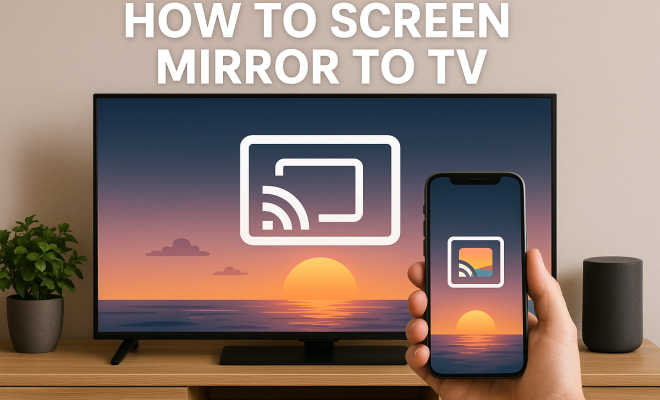
Before we dive into the methods, it’s essential to grasp what screen mirroring entails. Screen mirroring is the process of projecting your device’s display onto a TV or larger screen. This technique allows you to share content directly from your smartphone, tablet, or computer without being tethered by cables. The technology typically employs Wi-Fi Direct or similar protocols to create a connection, enabling seamless streaming.
Screen mirroring differs from casting. While screen mirroring displays everything on your device’s screen, casting usually allows you to stream specific content, such as videos or music, without displaying the entire device interface. Understanding this distinction will help you choose the best method for your needs.
2. Smart TVs: The Built-In Solution
If you own a modern Smart TV, you’re in luck! Most Smart TVs come equipped with built-in screen mirroring features, such as Miracast, AirPlay, or Chromecast support. To utilize this functionality, you first need to ensure your TV and the device you want to mirror are connected to the same Wi-Fi network.
For instance, if you’re using an Android smartphone, you can typically access the screen mirroring option in the settings menu. Look for options like “Smart View,” “Cast,” or “Screen Mirroring.” After selecting your TV from the list of available devices, your phone’s display should appear on the screen. For Apple users, simply swipe down to access the Control Center, select “Screen Mirroring,” and choose your Apple TV or compatible Smart TV.
Many Smart TVs also feature voice control integration, allowing you to initiate screen mirroring with simple voice commands. For example, using Google Assistant on your TV can enable you to cast media without navigating through menus. This feature is especially helpful during gatherings when multiple guests may want to share content.
3. Using HDMI Cables for a Direct Connection
If Wi-Fi connections aren’t your thing, or if you want to ensure the best video quality without lag, using an HDMI cable is a reliable alternative. Most TVs come with multiple HDMI ports, making this method straightforward. To screen mirror to TV using an HDMI cable, simply connect one end to your device (using an appropriate adapter if necessary) and the other end to the TV.
This method is especially useful for PCs and laptops, as it allows you to display your entire desktop. Once connected, you may need to adjust the input settings on your TV to the corresponding HDMI port. While this method lacks the convenience of wireless options, it guarantees a stable connection with excellent picture quality.
If you’re connecting a laptop, consider using a USB-C to HDMI adapter if your device doesn’t have a traditional HDMI output. This is increasingly common in newer laptops, which may prioritize thinner designs over the number of ports available. Using this method also eliminates concerns about lag that can occur with wireless connections.
4. Leveraging Chromecast for Seamless Streaming
Google’s Chromecast is a fantastic tool for those who want to screen mirror to TV wirelessly. After plugging the Chromecast into your TV’s HDMI port and connecting it to your Wi-Fi network, you can easily cast content from your smartphone, tablet, or computer. The Google Home app lets you set up your Chromecast and manage your devices. (See: Wikipedia article on screen mirroring.)
To cast from an Android device, open the Google Home app, tap on “Cast Screen/Audio,” and select your Chromecast device. For iOS users, you can cast videos from supported apps like YouTube or Netflix directly. Chromecast not only supports full-screen mirroring but also allows you to cast specific apps without requiring you to mirror your entire screen.
Another cool feature of Chromecast is its ability to function as a digital photo frame when not in use. You can cast your photo albums directly to the TV, making it a great way to showcase memories during parties or family gatherings. All you need to do is select the backdrop through the Google Home app settings.
5. Apple AirPlay: A Convenient Option for Apple Users
For those who are fully immersed in the Apple ecosystem, AirPlay is an excellent choice for screen mirroring. With AirPlay, you can easily share content from your iPhone, iPad, or Mac to an Apple TV or AirPlay 2-compatible Smart TV. Ensure that both devices are on the same Wi-Fi network for a smooth connection.
To use AirPlay, simply swipe down from the top right corner of your iPhone (or up from the bottom on older models) to access the Control Center. Tap on “Screen Mirroring” and select your Apple TV or compatible device. You can also choose to mirror specific apps, like Photos or Videos, making AirPlay a flexible option for sharing content.
Additionally, AirPlay supports a high level of quality and can stream in 4K resolution when paired with compatible devices. This feature is particularly advantageous for those who value high-definition video and audio quality, making it ideal for watching movies or showcasing detailed images during presentations.
6. Wireless HDMI Transmitters: A Versatile Solution
If your TV lacks built-in wireless capabilities, investing in a wireless HDMI transmitter is a viable option. These devices create a wireless connection between your source device and the TV, allowing for high-definition streaming without the clutter of cables. Most wireless HDMI transmitters come with a transmitter and a receiver, enabling you to send a video signal up to 30 feet or more.
Setting up a wireless HDMI transmitter typically involves connecting the transmitter to your device’s HDMI output and the receiver to your TV. Once both are powered on and connected, you should be able to stream content easily. This solution is particularly advantageous for gaming consoles or PCs where high-quality video and low latency are crucial.
When considering a wireless HDMI transmitter, check the specifications for supported resolutions and latency. Some advanced models can transmit 4K video with minimal lag, making them perfect for gamers and movie enthusiasts alike. Also, ensure compatibility with both your source device and your television for the best experience.
7. Using Third-Party Apps for Enhanced Features
Various third-party apps can help enhance your screen mirroring experience, providing features that native solutions may not offer. For Android devices, apps like AllCast or Mirroring360 allow users to cast content to various Smart TVs and streaming devices. Similarly, iOS users can explore apps like AirServer or Reflector, which offer advanced mirroring options and support for multiple devices.
When using third-party apps, be sure to follow the installation instructions and check for compatibility with your TV. These apps often enable additional features like recording your screen or streaming to multiple devices simultaneously, giving you more control and flexibility in how you share your content.
In addition to casting media, some apps also allow for remote control capabilities, making it easier to manage what you’re viewing on your TV from a distance. This can be particularly useful during presentations or while hosting a movie night with friends.
8. Troubleshooting Common Issues
Even with technology at our fingertips, screen mirroring can sometimes present challenges. Common issues include lag, connection drops, and audio/video sync problems. If you’re experiencing lag, try reducing the distance between your device and the TV or ensuring that your Wi-Fi network is stable. Restarting both devices can also resolve temporary connection issues. (See: CDC guidelines on screen time and ergonomics.)
If you encounter audio and video sync issues, adjusting the settings in your device’s playback options or TV settings might help. Make sure that your software and firmware are updated, as manufacturers frequently release updates that can improve performance and fix bugs.
Another common issue involves screen resolution mismatches. If the mirrored image appears distorted or not fully visible, check the resolution settings on both your device and TV. Adjusting these settings to match can often solve the problem and provide a clearer picture.
9. Security Considerations When Screen Mirroring
While screen mirroring is convenient, it also comes with potential security risks, especially when using public or shared Wi-Fi networks. It’s crucial to ensure that your connection is secure to prevent unauthorized access. Always use password-protected Wi-Fi networks and consider utilizing a VPN when screen mirroring in public spaces.
Be aware of what content you’re sharing. For instance, displaying sensitive personal information or financial data could be risky if the connection is compromised. Regularly updating your devices and software will help protect against vulnerabilities that could be exploited by malicious actors.
Using device-specific security features, such as two-factor authentication or app-specific permissions, can also help maintain your security while mirroring. This is particularly important when mirroring content from personal devices.
10. Screen Mirroring Across Different Operating Systems
Screen mirroring can differ significantly between various operating systems. For example, Android devices may use Miracast or Google Cast, while Windows PCs might rely on Miracast or a proprietary solution like Windows Connect. On the other hand, Mac users will primarily use AirPlay. Familiarizing yourself with the specific methods and protocols for your operating system can streamline the mirroring process.
To illustrate, let’s take a look at how screen mirroring is achieved across devices:
- Android: Most Android devices support the “Cast” feature, allowing users to mirror their screens to compatible TVs.
- iOS: Apple devices primarily utilize AirPlay for content sharing, making it straightforward for users within the Apple ecosystem.
- Windows: Windows 10 and later versions include built-in support for Miracast, which is essential for screen mirroring to TVs.
- macOS: Users can effortlessly use AirPlay to connect to Apple TVs or compatible devices.
11. Common Use Cases for Screen Mirroring
The versatility of screen mirroring lends itself to a myriad of use cases. Whether you’re a casual user or a professional, you might find screen mirroring beneficial in several scenarios:
- Entertainment: Stream movies, TV shows, and videos directly from your device to a larger screen for an enhanced viewing experience.
- Gaming: Gamers can mirror gameplay from their consoles or PCs to TVs, providing a larger display and more immersive experience.
- Presentations: Professionals can easily project presentations from laptops or tablets to larger screens during meetings or conferences.
- Photo Sharing: Display photos during family gatherings or events by mirroring your smartphone or tablet to a TV.
- Online Learning: Students can share educational materials from laptops or tablets in a classroom setting, making lessons more interactive.
- Cooking Shows: Follow along with cooking tutorials by mirroring your device, allowing for easier viewing while preparing meals.
12. FAQ: Screen Mirroring to TV
What devices can I use to screen mirror to my TV?
You can use a variety of devices, including smartphones, tablets, laptops, and even certain gaming consoles. Most modern Smart TVs support screen mirroring from these devices.
Do I need an app to screen mirror?
Not necessarily. Most modern devices come with built-in screen mirroring features, such as AirPlay for Apple devices or Cast for Android devices. However, third-party apps can enhance the experience with additional features. (See: New York Times article on screen mirroring.)
Can I screen mirror without Wi-Fi?
Yes, many devices support screen mirroring via direct connections using technologies like Wi-Fi Direct. Additionally, using an HDMI cable allows you to mirror without any wireless network.
What should I do if screen mirroring is not working?
Check that both devices are connected to the same network, restart both devices, ensure your software is updated, and verify that your TV is set to the correct input.
Is screen mirroring safe?
While generally safe, it can pose security risks on public networks. Always ensure you’re using a secure network and be cautious about what content you share.
What type of HDMI cable do I need for screen mirroring?
If you’re using an HDMI cable to connect your device directly to the TV, ensure that it’s an HDMI 2.0 cable or higher for optimal performance, especially if you’re planning to stream in 4K resolution.
Can I mirror multiple devices to the same TV?
Yes, many Smart TVs and devices support connecting multiple devices at once. However, only one device can typically share its screen at any given time. You may need to manually switch between devices as needed.
How do I improve the quality of my screen mirroring?
To enhance the quality of your screen mirroring, ensure that both your device and TV are updated with the latest software. Using a strong and stable Wi-Fi connection, or opting for a wired connection via HDMI, can also significantly improve performance.
Knowing how to screen mirror to TV can significantly enhance your media consumption and sharing experience. With various methods at your disposal—from built-in Smart TV features to third-party apps—there’s a solution for everyone, regardless of their device preferences. Embrace this technology to make the most of your viewing experience, and don’t hesitate to troubleshoot common issues to enjoy seamless streaming!
“`
Trending Now
Frequently Asked Questions
What is screen mirroring?
Screen mirroring is the process of projecting your device's display onto a TV or larger screen. It allows you to share content directly from your smartphone, tablet, or computer without cables, typically using Wi-Fi Direct or similar protocols for a seamless streaming experience.
How do I screen mirror to my TV?
To screen mirror to your TV, ensure both your TV and the device you want to mirror are connected to the same Wi-Fi network. Access the screen mirroring option on your device's settings, select your TV from the list, and your display should appear on the screen.
What devices support screen mirroring?
Most modern devices support screen mirroring, including smartphones, tablets, and computers. Android devices often have options like 'Smart View' or 'Cast', while Apple devices use AirPlay. Additionally, many Smart TVs come with built-in screen mirroring capabilities.
Is screen mirroring the same as casting?
No, screen mirroring and casting are different. Screen mirroring displays everything on your device's screen, while casting allows you to stream specific content, such as videos or music, without showing the entire device interface.
Do I need special software to screen mirror?
Typically, you don't need special software to screen mirror if you have a Smart TV, as they often come with built-in features like Miracast, AirPlay, or Chromecast support. However, some older devices may require third-party apps to enable screen mirroring.
What’s your take on this? Share your thoughts in the comments below — we read every one.