The Tech Edvocate

Top Menu

  • Advertisement
  • Apps
  • Home Page
  • Home Page Five (No Sidebar)
  • Home Page Four
  • Home Page Three
  • Home Page Two
  • Home Tech2
  • Icons [No Sidebar]
  • Left Sidbear Page
  • Lynch Educational Consulting
  • My Account
  • My Speaking Page
  • Newsletter Sign Up Confirmation
  • Newsletter Unsubscription
  • Our Brands
  • Page Example
  • Privacy Policy
  • Protected Content
  • Register
  • Request a Product Review
  • Shop
  • Shortcodes Examples
  • Signup
  • Start Here
    • Governance
    • Careers
    • Contact Us
  • Terms and Conditions
  • The Edvocate
  • The Tech Edvocate Product Guide
  • Topics
  • Write For Us
  • Advertise

Main Menu

  • Start Here
    • Our Brands
    • Governance
      • Lynch Educational Consulting, LLC.
      • Dr. Lynch’s Personal Website
      • Careers
    • Write For Us
    • The Tech Edvocate Product Guide
    • Contact Us
    • Books
    • Edupedia
    • Post a Job
    • The Edvocate Podcast
    • Terms and Conditions
    • Privacy Policy
  • Topics
    • Assistive Technology
    • Child Development Tech
    • Early Childhood & K-12 EdTech
    • EdTech Futures
    • EdTech News
    • EdTech Policy & Reform
    • EdTech Startups & Businesses
    • Higher Education EdTech
    • Online Learning & eLearning
    • Parent & Family Tech
    • Personalized Learning
    • Product Reviews
  • Advertise
  • Tech Edvocate Awards
  • The Edvocate
  • Pedagogue
  • School Ratings

logo

The Tech Edvocate

  • Start Here
    • Our Brands
    • Governance
      • Lynch Educational Consulting, LLC.
      • Dr. Lynch’s Personal Website
        • My Speaking Page
      • Careers
    • Write For Us
    • The Tech Edvocate Product Guide
    • Contact Us
    • Books
    • Edupedia
    • Post a Job
    • The Edvocate Podcast
    • Terms and Conditions
    • Privacy Policy
  • Topics
    • Assistive Technology
    • Child Development Tech
    • Early Childhood & K-12 EdTech
    • EdTech Futures
    • EdTech News
    • EdTech Policy & Reform
    • EdTech Startups & Businesses
    • Higher Education EdTech
    • Online Learning & eLearning
    • Parent & Family Tech
    • Personalized Learning
    • Product Reviews
  • Advertise
  • Tech Edvocate Awards
  • The Edvocate
  • Pedagogue
  • School Ratings
  • Best GetYourGuide tours in Paris

  • Does Viator offer group discounts?

  • Hotels.com vs Airbnb features

  • What is Regus Business Lounge?

  • What is Couchsurfing verification?

  • How to use Viator gift cards?

  • Klook payment methods accepted

  • Best Notion templates for teams

  • WeWork vs traditional office cost

  • Klook vs GetYourGuide vs Viator

Digital & Mobile Technology
Home›Digital & Mobile Technology›How to Quickly Reset a Forgotten Password on Ubuntu

How to Quickly Reset a Forgotten Password on Ubuntu
By Matthew Lynch
June 23, 2023
0
Spread the love

Forgetting passwords is common for Ubuntu users. It can cause a lot of trouble as you might have important files and data stored in your system. However, there’s nothing to worry about as there are simple steps to reset the password quickly without any hassle. Here are the steps to follow:

Step 1: Restart your Ubuntu System

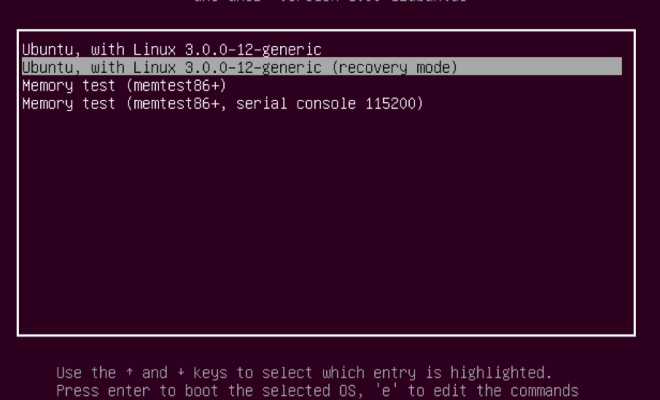
Firstly, you need to shut down your system properly and start it back. When you see the Ubuntu logo appears on your screen, press and hold the SHIFT key. This action will open up the GNU GRUB boot menu.

Step 2: Choose ‘Advance Options’

You’ll see the list of options on your screen. Select ‘Advanced Options,’ then select the kernel version you want to boot and press ENTER.

Step 3: Select ‘recovery mode’

The next step is to select ‘recovery mode.’ A list of options will appear on your screen. Choose ‘root’ option to move forward.

Step 4: Remount Filesystem

In this step, you need to enter the command ‘mount -rw -o remount /’ and hit ENTER. This command will remount your filesystem in read and write mode, so you can reset the password easily.

Step 5: Reset the Password

Next, enter the command ‘passwd username’ and replace ‘username’ with the user account name for which you want to reset the password. You would notice that the terminal request for a new password. You’d have to type a new strong password two times, Note: The password will not be displayed as you type it.

Step 6: Restart the System

Finally, type ‘reboot’ command and hit ENTER to restart your system. Once your system reboots, you’ll be able to log in to your user account using the new password you just created.

Previous Article

How to Cancel YouTube Premium

Next Article

Ways to Fix Keyboard Input Lag on ...

Matthew Lynch

Related articles More from author

  • Digital & Mobile Technology

    How to Fix Folders Reverting to Read-Only Mode in Windows 10 and 11

    June 23, 2023
    By Matthew Lynch
  • Digital & Mobile Technology

    Complete Guide to Running Android in VirtualBox

    April 12, 2023
    By Matthew Lynch
  • Digital & Mobile Technology

    What are Native Files in Graphic Design

    July 28, 2023
    By Matthew Lynch
  • Digital & Mobile Technology

    How to Disable Update Notifications on Windows

    June 14, 2023
    By Matthew Lynch
  • Digital & Mobile Technology

    What You Need to Know About Using C++ Vectors With Examples

    June 12, 2023
    By Matthew Lynch
  • Digital & Mobile Technology

    Defraggler v2.22.995

    June 13, 2023
    By Matthew Lynch

Search

Login & Registration

  • Log in
  • Entries feed
  • Comments feed
  • WordPress.org

Newsletter

Signup for The Tech Edvocate Newsletter and have the latest in EdTech news and opinion delivered to your email address!

About Us

Since technology is not going anywhere and does more good than harm, adapting is the best course of action. That is where The Tech Edvocate comes in. We plan to cover the PreK-12 and Higher Education EdTech sectors and provide our readers with the latest news and opinion on the subject. From time to time, I will invite other voices to weigh in on important issues in EdTech. We hope to provide a well-rounded, multi-faceted look at the past, present, the future of EdTech in the US and internationally.

We started this journey back in June 2016, and we plan to continue it for many more years to come. I hope that you will join us in this discussion of the past, present and future of EdTech and lend your own insight to the issues that are discussed.

Newsletter

Signup for The Tech Edvocate Newsletter and have the latest in EdTech news and opinion delivered to your email address!

Contact Us

The Tech Edvocate
910 Goddin Street
Richmond, VA 23231
(601) 630-5238
[email protected]

Copyright © 2026 Matthew Lynch. All rights reserved.