The Tech Edvocate

Top Menu

  • Advertisement
  • Apps
  • Home Page
  • Home Page Five (No Sidebar)
  • Home Page Four
  • Home Page Three
  • Home Page Two
  • Home Tech2
  • Icons [No Sidebar]
  • Left Sidbear Page
  • Lynch Educational Consulting
  • My Account
  • My Speaking Page
  • Newsletter Sign Up Confirmation
  • Newsletter Unsubscription
  • Our Brands
  • Page Example
  • Privacy Policy
  • Protected Content
  • Register
  • Request a Product Review
  • Shop
  • Shortcodes Examples
  • Signup
  • Start Here
    • Governance
    • Careers
    • Contact Us
  • Terms and Conditions
  • The Edvocate
  • The Tech Edvocate Product Guide
  • Topics
  • Write For Us
  • Advertise

Main Menu

  • Start Here
    • Our Brands
    • Governance
      • Lynch Educational Consulting, LLC.
      • Dr. Lynch’s Personal Website
      • Careers
    • Write For Us
    • The Tech Edvocate Product Guide
    • Contact Us
    • Books
    • Edupedia
    • Post a Job
    • The Edvocate Podcast
    • Terms and Conditions
    • Privacy Policy
  • Topics
    • Assistive Technology
    • Child Development Tech
    • Early Childhood & K-12 EdTech
    • EdTech Futures
    • EdTech News
    • EdTech Policy & Reform
    • EdTech Startups & Businesses
    • Higher Education EdTech
    • Online Learning & eLearning
    • Parent & Family Tech
    • Personalized Learning
    • Product Reviews
  • Advertise
  • Tech Edvocate Awards
  • The Edvocate
  • Pedagogue
  • School Ratings

logo

The Tech Edvocate

  • Start Here
    • Our Brands
    • Governance
      • Lynch Educational Consulting, LLC.
      • Dr. Lynch’s Personal Website
        • My Speaking Page
      • Careers
    • Write For Us
    • The Tech Edvocate Product Guide
    • Contact Us
    • Books
    • Edupedia
    • Post a Job
    • The Edvocate Podcast
    • Terms and Conditions
    • Privacy Policy
  • Topics
    • Assistive Technology
    • Child Development Tech
    • Early Childhood & K-12 EdTech
    • EdTech Futures
    • EdTech News
    • EdTech Policy & Reform
    • EdTech Startups & Businesses
    • Higher Education EdTech
    • Online Learning & eLearning
    • Parent & Family Tech
    • Personalized Learning
    • Product Reviews
  • Advertise
  • Tech Edvocate Awards
  • The Edvocate
  • Pedagogue
  • School Ratings
  • A Visitors Guide to Corpus Christi (TX), United States

  • Best GetYourGuide tours in Paris

  • Does Viator offer group discounts?

  • Hotels.com vs Airbnb features

  • What is Regus Business Lounge?

  • What is Couchsurfing verification?

  • How to use Viator gift cards?

  • Klook payment methods accepted

  • Best Notion templates for teams

  • WeWork vs traditional office cost

Digital & Mobile Technology
Home›Digital & Mobile Technology›Windows Defender Security Center: What It Is and How to Use It

Windows Defender Security Center: What It Is and How to Use It
By Matthew Lynch
June 11, 2023
0
Spread the love

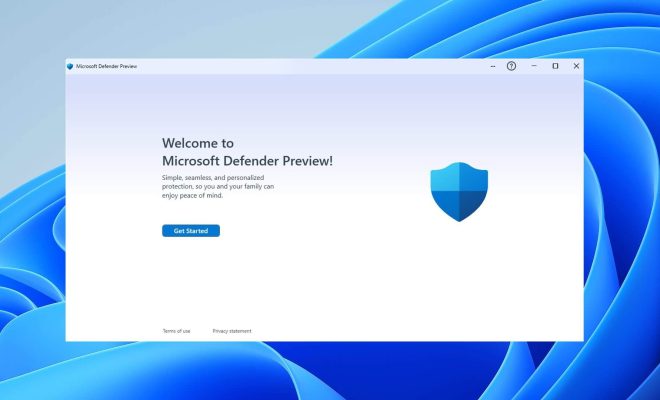
As a Windows user, you may have heard of Windows Defender, the built-in antivirus and antispyware program for Windows 10. But do you know about Windows Defender Security Center? It’s a central hub where you can monitor and control your device’s security and health. In this article, we’ll explain what this tool is and how it can help protect your computer.

What is Windows Defender Security Center?

Windows Defender Security Center is a dashboard that gives you access to a range of security features on your device. It’s built into Windows 10 and automatically turns on when you install the operating system. The Security Center is divided into several sections that allow you to manage a variety of tasks related to security, privacy, and performance.

The main sections of the Security Center include:

1. Virus & threat protection: This section lets you scan for viruses and other malicious software, update virus definitions, and customize your scan options.

2. Device performance & health: Here, you can view the status of your device’s battery, storage, and memory. You can also perform maintenance tasks like disk cleanup and defragmentation to keep your device running smoothly.

3. Firewall & network protection: This section lets you configure your device’s built-in firewall, which blocks unauthorized access to your device from networked computers and the internet.

4. App & browser control: Here, you can configure settings related to how apps and browsers interact with your device, including whether they can run in the background, access your microphone or camera, or download files.

5. Family options: If you have children using your device, this section lets you manage parental controls, screen time limits, and content filters.

How to use Windows Defender Security Center

Using Windows Defender Security Center is easy. To access it, click the Windows Start button and type “Security Center” into the search bar. Click the app that appears to open the dashboard.

Once you’re in the Security Center, you’ll see the main sections we discussed above. You can click on each one to dive deeper into the settings and options. For example, if you click on “Virus & threat protection,” you’ll be able to start a scan, see the results of your last scan, and customize your scanning preferences.

Similarly, clicking on “Device performance & health” will show you information about your device’s battery life, storage, and memory usage. You can perform maintenance tasks like freeing up space or defragmenting your device’s storage drive.

Some of the features in Windows Defender Security Center are designed for more advanced users. For example, if you click on “Firewall & network protection,” you can configure your device’s firewall settings. This is something you should only do if you know what you’re doing; otherwise, you could accidentally disable firewall protections.

Conclusion

Windows Defender Security Center is an essential tool for managing your device’s security and health. From scanning for viruses to monitoring your device’s storage and performance, the Security Center puts a range of important tools at your fingertips. By familiarizing yourself with this dashboard, you can take control of your device’s security and keep it running smoothly for years to come.  

Previous Article

How to Make a Screenshot in Windows ...

Next Article

What Is Google Chat?

Matthew Lynch

Related articles More from author

  • Digital & Mobile Technology

    How to Use VLC to Watch Almost Any Video on Apple TV

    July 14, 2023
    By Matthew Lynch
  • Digital & Mobile Technology

    What is an Optical Drive?

    May 5, 2023
    By Matthew Lynch
  • Digital & Mobile Technology

    What Is an IP68 Rating? Do You Actually Need It on Your Phone?

    June 23, 2023
    By Matthew Lynch
  • Digital & Mobile Technology

    How to Find Your Email Settings in Windows Registry

    July 24, 2023
    By Matthew Lynch
  • Digital & Mobile Technology

    Websites to Find People on the Internet

    June 22, 2023
    By Matthew Lynch
  • Digital & Mobile Technology

    Is It Still Worth Buying an Xbox One in 2023?

    June 8, 2023
    By Matthew Lynch

Search

Login & Registration

  • Log in
  • Entries feed
  • Comments feed
  • WordPress.org

Newsletter

Signup for The Tech Edvocate Newsletter and have the latest in EdTech news and opinion delivered to your email address!

About Us

Since technology is not going anywhere and does more good than harm, adapting is the best course of action. That is where The Tech Edvocate comes in. We plan to cover the PreK-12 and Higher Education EdTech sectors and provide our readers with the latest news and opinion on the subject. From time to time, I will invite other voices to weigh in on important issues in EdTech. We hope to provide a well-rounded, multi-faceted look at the past, present, the future of EdTech in the US and internationally.

We started this journey back in June 2016, and we plan to continue it for many more years to come. I hope that you will join us in this discussion of the past, present and future of EdTech and lend your own insight to the issues that are discussed.

Newsletter

Signup for The Tech Edvocate Newsletter and have the latest in EdTech news and opinion delivered to your email address!

Contact Us

The Tech Edvocate
910 Goddin Street
Richmond, VA 23231
(601) 630-5238
[email protected]

Copyright © 2026 Matthew Lynch. All rights reserved.