The Tech Edvocate

Top Menu

  • Advertisement
  • Apps
  • Home Page
  • Home Page Five (No Sidebar)
  • Home Page Four
  • Home Page Three
  • Home Page Two
  • Home Tech2
  • Icons [No Sidebar]
  • Left Sidbear Page
  • Lynch Educational Consulting
  • My Account
  • My Speaking Page
  • Newsletter Sign Up Confirmation
  • Newsletter Unsubscription
  • Our Brands
  • Page Example
  • Privacy Policy
  • Protected Content
  • Register
  • Request a Product Review
  • Shop
  • Shortcodes Examples
  • Signup
  • Start Here
    • Governance
    • Careers
    • Contact Us
  • Terms and Conditions
  • The Edvocate
  • The Tech Edvocate Product Guide
  • Topics
  • Write For Us
  • Advertise

Main Menu

  • Start Here
    • Our Brands
    • Governance
      • Lynch Educational Consulting, LLC.
      • Dr. Lynch’s Personal Website
      • Careers
    • Write For Us
    • The Tech Edvocate Product Guide
    • Contact Us
    • Books
    • Edupedia
    • Post a Job
    • The Edvocate Podcast
    • Terms and Conditions
    • Privacy Policy
  • Topics
    • Assistive Technology
    • Child Development Tech
    • Early Childhood & K-12 EdTech
    • EdTech Futures
    • EdTech News
    • EdTech Policy & Reform
    • EdTech Startups & Businesses
    • Higher Education EdTech
    • Online Learning & eLearning
    • Parent & Family Tech
    • Personalized Learning
    • Product Reviews
  • Advertise
  • Tech Edvocate Awards
  • The Edvocate
  • Pedagogue
  • School Ratings

logo

The Tech Edvocate

  • Start Here
    • Our Brands
    • Governance
      • Lynch Educational Consulting, LLC.
      • Dr. Lynch’s Personal Website
        • My Speaking Page
      • Careers
    • Write For Us
    • The Tech Edvocate Product Guide
    • Contact Us
    • Books
    • Edupedia
    • Post a Job
    • The Edvocate Podcast
    • Terms and Conditions
    • Privacy Policy
  • Topics
    • Assistive Technology
    • Child Development Tech
    • Early Childhood & K-12 EdTech
    • EdTech Futures
    • EdTech News
    • EdTech Policy & Reform
    • EdTech Startups & Businesses
    • Higher Education EdTech
    • Online Learning & eLearning
    • Parent & Family Tech
    • Personalized Learning
    • Product Reviews
  • Advertise
  • Tech Edvocate Awards
  • The Edvocate
  • Pedagogue
  • School Ratings
  • A Visitor’s Guide to Fresno (CA), United States

  • A Visitors Guide to New Orleans (LA), United States

  • A Visitors Guide to Sacramento (CA), United States

  • A Visitors Guide to Lyon, France

  • JisuLife Ultra2 Portable Fan: A Powerful Multi-Function Cooling Solution

  • A Visitors Guide to Viña del Mar, Chile

  • A Visitors Guide to Århus, Denmark

  • A Visitors Guide to Bakersfield (CA), United States

  • A Visitors Guide to Aurora (CO), United States

  • A Visitor’s Guide to Toledo (OH), United States

Tech Advice
Home›Tech Advice›Where to Find Downloaded Files on Your Android Phone

Where to Find Downloaded Files on Your Android Phone
By Matthew Lynch
July 24, 2023
0
Spread the love

Downloading files on your Android phone is a common task, whether it’s downloading images, documents, or media files. However, once the download is complete, finding those files can sometimes be a bit tricky. In this article, we will guide you through the various locations where downloaded files are typically stored on an Android device.

1. Downloads Folder

The most common location for downloaded files on an Android phone is the “Downloads” folder. This folder serves as the default storage location for any file you download using apps like web browsers or messaging platforms.

To access the Downloads folder:

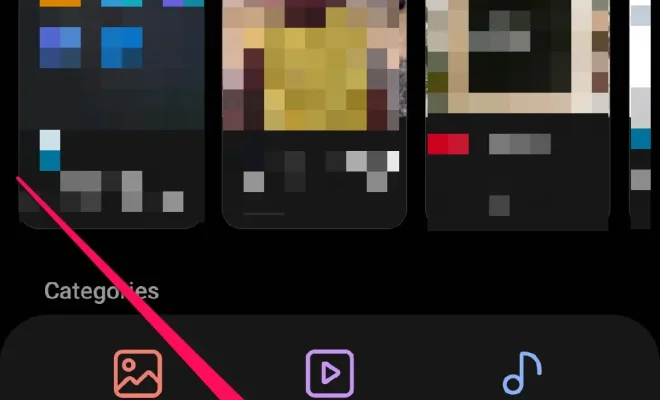
1. Open your preferred file manager app (e.g., Google Files, Solid Explorer).

2. Look for a section named “Internal Storage” or “Phone Storage.”

3. Locate and tap on the “Downloads” folder.

4. Here you will find all your downloaded files organized by date or name.

2. App-Specific Folders

Some apps have their own designated folders where they store downloaded content rather than placing them in the general Downloads folder. For example:

• WhatsApp:

Received media such as photos, videos, and audio recordings are stored in the WhatsApp/Media/WhatsApp Images/ and WhatsApp/Media/WhatsApp Video/ folders respectively.

• Chrome Browser:

By default, Chrome stores downloads in its dedicated Download directory within Internal Storage > Download.

• Email Apps: Attachments received through email applications often have specific folders within their respective data directories.

If you frequently use specific apps to download content, check if they have their own designated storage locations within their settings or preferences sections.

3. SD Card (if applicable)

If your Android device has external storage in the form of an SD card inserted into it, some downloads may be saved directly to that card instead of internal storage.

To locate downloaded files on an SD card:

1. Open your file manager app.

2. Look for an option like “SD Card” or “External Storage.”

3. Tap on it to access the SD card’s contents.

4. Navigate through the folders to find the downloaded files.

Please note that not all Android devices have expandable storage, so this option may not be applicable to everyone.

4. File Manager Search

If you are having trouble locating a specific downloaded file and cannot remember where you saved it, most file manager apps include a search function that can help you locate files by name or extension.

To use the search feature:

1. Open your file manager app.

2. Look for a magnifying glass icon or a search bar at the top of the screen.

3. Enter keywords related to the file name or type in question.

4. The app will display matching results based on your search query.

Using this method can save time and effort when searching for specific files across various locations on your device.

Conclusion

Knowing where to find downloaded files on your Android phone is essential for easy access and organization of your digital content. By default, most downloads are stored in the Downloads folder or within dedicated folders of specific apps like WhatsApp or Chrome Browser.

Remember to check both internal storage and external SD cards (if available) if you’re unable to locate a particular download using conventional methods. Additionally, utilizing features such as search functionality within file manager apps can further simplify finding specific files quickly and efficiently.

With these tips in mind, managing and accessing your downloaded files on an Android phone should become much more straightforward!

Previous Article

Virginia: The State with Blazing-Fast Internet Speeds

Next Article

Why ‘Spider-Man: No Way Home’ Isn’t Streaming ...

Matthew Lynch

Related articles More from author

  • Tech Advice

    Forget FaceTime: The Best Android Video Chat Apps

    July 22, 2023
    By Matthew Lynch
  • Tech Advice

    Disney Swan vs. Dolphin: Which is Best

    October 20, 2023
    By Matthew Lynch
  • Tech Advice

    What Is E85 Gas? Everything You Need to Know

    August 22, 2023
    By Matthew Lynch
  • Tech Advice

    Best USB-C Monitor Deals: Save $100 on a Samsung 32-Inch 4K Display

    July 5, 2023
    By Matthew Lynch
  • Tech Advice

    The Best Home Security Systems

    October 19, 2023
    By Matthew Lynch
  • Tech Advice

    Best Homeowners Insurance in Wyoming

    October 20, 2023
    By Matthew Lynch

Search

Login & Registration

  • Register
  • Log in
  • Entries feed
  • Comments feed
  • WordPress.org

Newsletter

Signup for The Tech Edvocate Newsletter and have the latest in EdTech news and opinion delivered to your email address!

About Us

Since technology is not going anywhere and does more good than harm, adapting is the best course of action. That is where The Tech Edvocate comes in. We plan to cover the PreK-12 and Higher Education EdTech sectors and provide our readers with the latest news and opinion on the subject. From time to time, I will invite other voices to weigh in on important issues in EdTech. We hope to provide a well-rounded, multi-faceted look at the past, present, the future of EdTech in the US and internationally.

We started this journey back in June 2016, and we plan to continue it for many more years to come. I hope that you will join us in this discussion of the past, present and future of EdTech and lend your own insight to the issues that are discussed.

Newsletter

Signup for The Tech Edvocate Newsletter and have the latest in EdTech news and opinion delivered to your email address!

Contact Us

The Tech Edvocate
910 Goddin Street
Richmond, VA 23231
(601) 630-5238
[email protected]

Copyright © 2025 Matthew Lynch. All rights reserved.