The Tech Edvocate

Top Menu

  • Advertisement
  • Apps
  • Home Page
  • Home Page Five (No Sidebar)
  • Home Page Four
  • Home Page Three
  • Home Page Two
  • Home Tech2
  • Icons [No Sidebar]
  • Left Sidbear Page
  • Lynch Educational Consulting
  • My Account
  • My Speaking Page
  • Newsletter Sign Up Confirmation
  • Newsletter Unsubscription
  • Our Brands
  • Page Example
  • Privacy Policy
  • Protected Content
  • Register
  • Request a Product Review
  • Shop
  • Shortcodes Examples
  • Signup
  • Start Here
    • Governance
    • Careers
    • Contact Us
  • Terms and Conditions
  • The Edvocate
  • The Tech Edvocate Product Guide
  • Topics
  • Write For Us
  • Advertise

Main Menu

  • Start Here
    • Our Brands
    • Governance
      • Lynch Educational Consulting, LLC.
      • Dr. Lynch’s Personal Website
      • Careers
    • Write For Us
    • The Tech Edvocate Product Guide
    • Contact Us
    • Books
    • Edupedia
    • Post a Job
    • The Edvocate Podcast
    • Terms and Conditions
    • Privacy Policy
  • Topics
    • Assistive Technology
    • Child Development Tech
    • Early Childhood & K-12 EdTech
    • EdTech Futures
    • EdTech News
    • EdTech Policy & Reform
    • EdTech Startups & Businesses
    • Higher Education EdTech
    • Online Learning & eLearning
    • Parent & Family Tech
    • Personalized Learning
    • Product Reviews
  • Advertise
  • Tech Edvocate Awards
  • The Edvocate
  • Pedagogue
  • School Ratings

logo

The Tech Edvocate

  • Start Here
    • Our Brands
    • Governance
      • Lynch Educational Consulting, LLC.
      • Dr. Lynch’s Personal Website
        • My Speaking Page
      • Careers
    • Write For Us
    • The Tech Edvocate Product Guide
    • Contact Us
    • Books
    • Edupedia
    • Post a Job
    • The Edvocate Podcast
    • Terms and Conditions
    • Privacy Policy
  • Topics
    • Assistive Technology
    • Child Development Tech
    • Early Childhood & K-12 EdTech
    • EdTech Futures
    • EdTech News
    • EdTech Policy & Reform
    • EdTech Startups & Businesses
    • Higher Education EdTech
    • Online Learning & eLearning
    • Parent & Family Tech
    • Personalized Learning
    • Product Reviews
  • Advertise
  • Tech Edvocate Awards
  • The Edvocate
  • Pedagogue
  • School Ratings
  • A Visitors Guide to Long Beach (CA), United States

  • A Visitor’s Guide to Fresno (CA), United States

  • A Visitors Guide to New Orleans (LA), United States

  • A Visitors Guide to Sacramento (CA), United States

  • A Visitors Guide to Lyon, France

  • JisuLife Ultra2 Portable Fan: A Powerful Multi-Function Cooling Solution

  • A Visitors Guide to Viña del Mar, Chile

  • A Visitors Guide to Århus, Denmark

  • A Visitors Guide to Bakersfield (CA), United States

  • A Visitors Guide to Aurora (CO), United States

Digital & Mobile Technology
Home›Digital & Mobile Technology›Useful Tips to Hide and Customize the Taskbar in Windows 11

Useful Tips to Hide and Customize the Taskbar in Windows 11
By Matthew Lynch
March 20, 2023
0
Spread the love

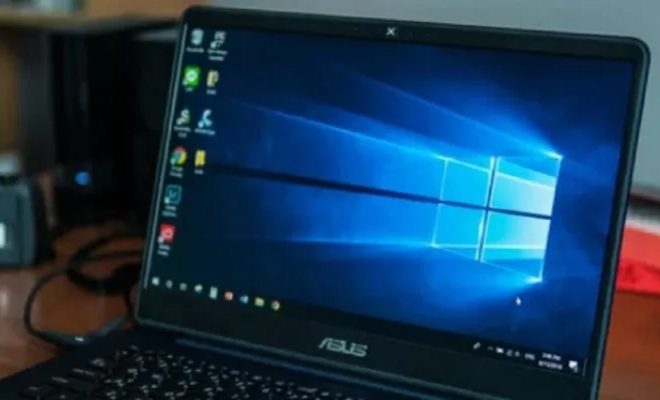
The taskbar is a crucial component of the Windows OS, providing quick access to frequently used applications, system settings, and notifications. With the new Windows 11, Microsoft has redesigned the taskbar, making it more streamlined and modern. However, some users may prefer to customize or hide the taskbar to suit their preferences.

In this article, we will explore some useful tips to hide and customize the taskbar in Windows 11.

1. Hide the Taskbar

There are several ways to hide the taskbar in Windows 11. One of the easiest methods is to right-click on the taskbar and select “Taskbar settings.” Here, you can toggle the “Auto-hide taskbar” option on. This will automatically hide the taskbar when you are not using it, and it will appear when you move your mouse over the area where it is located.

Alternatively, you can also use the Windows key + T keyboard shortcut to toggle the taskbar’s visibility quickly.

2. Enable the Transparent Taskbar

If you want to give your Windows 11 desktop a sleek and modern look, you can enable the transparent taskbar. To do this, go to “Taskbar settings” and toggle the “Transparency effects” option on. This will make the taskbar semi-transparent, giving it a more subtle and subdued appearance.

3. Resize the Taskbar

Another way to customize the taskbar in Windows 11 is to resize it. You can do this by hovering your mouse over the taskbar’s edge until it turns into a double-headed arrow. Click and drag the taskbar to make it taller, wider, or thinner, depending on your preference.

4. Move the Taskbar

In addition to resizing the taskbar, you can also move it to a different side of the screen. To do this, right-click on the taskbar and select “Taskbar settings.” Scroll down to the “Taskbar behaviors” section and click on “Taskbar alignment.” Here, you can choose to move the taskbar to the left, right, top, or bottom of the screen.

5. Customize the Taskbar Icons

If you want to customize the icons on your taskbar, you can do this by right-clicking on the icon and selecting “Pin to taskbar.” This will add the application to your taskbar for quick access.

You can also drag and drop icons to rearrange their order and remove them by right-clicking and selecting “Unpin from taskbar.” Furthermore, in the “Taskbar settings” menu, you can toggle the “Show badges on taskbar buttons” option to show notification badges on the icons.

In conclusion, the taskbar is a critical part of the Windows 11 user interface, and customizing it can significantly improve your desktop experience. By following these tips, you can hide, resize, move, and customize your taskbar to fit your preferences and workflow.


Previous Article

Ways to fix your PC before you ...

Next Article

Use Time Warner Cable? You Should Buy ...

Matthew Lynch

Related articles More from author

  • Digital & Mobile Technology

    How to Delete PS4 User Accounts

    June 30, 2023
    By Matthew Lynch
  • Digital & Mobile Technology

    Importance of physical fitness and ways to maintain it

    June 11, 2023
    By Matthew Lynch
  • Digital & Mobile Technology

    16 Best Free Kindle Book Sites for Kids

    June 23, 2023
    By Matthew Lynch
  • Digital & Mobile Technology

    Useful Tools to Stress Test Your CPU

    April 10, 2023
    By Matthew Lynch
  • Digital & Mobile Technology

    The Best Documentaries on HBO Right Now (April 2023)

    June 6, 2023
    By Matthew Lynch
  • Digital & Mobile Technology

    How to Fix the Status_Access_Violation Error in Microsoft Edge

    August 3, 2023
    By Matthew Lynch

Search

Login & Registration

  • Register
  • Log in
  • Entries feed
  • Comments feed
  • WordPress.org

Newsletter

Signup for The Tech Edvocate Newsletter and have the latest in EdTech news and opinion delivered to your email address!

About Us

Since technology is not going anywhere and does more good than harm, adapting is the best course of action. That is where The Tech Edvocate comes in. We plan to cover the PreK-12 and Higher Education EdTech sectors and provide our readers with the latest news and opinion on the subject. From time to time, I will invite other voices to weigh in on important issues in EdTech. We hope to provide a well-rounded, multi-faceted look at the past, present, the future of EdTech in the US and internationally.

We started this journey back in June 2016, and we plan to continue it for many more years to come. I hope that you will join us in this discussion of the past, present and future of EdTech and lend your own insight to the issues that are discussed.

Newsletter

Signup for The Tech Edvocate Newsletter and have the latest in EdTech news and opinion delivered to your email address!

Contact Us

The Tech Edvocate
910 Goddin Street
Richmond, VA 23231
(601) 630-5238
[email protected]

Copyright © 2025 Matthew Lynch. All rights reserved.