The Tech Edvocate

Top Menu

  • Advertisement
  • Apps
  • Home Page
  • Home Page Five (No Sidebar)
  • Home Page Four
  • Home Page Three
  • Home Page Two
  • Home Tech2
  • Icons [No Sidebar]
  • Left Sidbear Page
  • Lynch Educational Consulting
  • My Account
  • My Speaking Page
  • Newsletter Sign Up Confirmation
  • Newsletter Unsubscription
  • Our Brands
  • Page Example
  • Privacy Policy
  • Protected Content
  • Register
  • Request a Product Review
  • Shop
  • Shortcodes Examples
  • Signup
  • Start Here
    • Governance
    • Careers
    • Contact Us
  • Terms and Conditions
  • The Edvocate
  • The Tech Edvocate Product Guide
  • Topics
  • Write For Us
  • Advertise

Main Menu

  • Start Here
    • Our Brands
    • Governance
      • Lynch Educational Consulting, LLC.
      • Dr. Lynch’s Personal Website
      • Careers
    • Write For Us
    • The Tech Edvocate Product Guide
    • Contact Us
    • Books
    • Edupedia
    • Post a Job
    • The Edvocate Podcast
    • Terms and Conditions
    • Privacy Policy
  • Topics
    • Assistive Technology
    • Child Development Tech
    • Early Childhood & K-12 EdTech
    • EdTech Futures
    • EdTech News
    • EdTech Policy & Reform
    • EdTech Startups & Businesses
    • Higher Education EdTech
    • Online Learning & eLearning
    • Parent & Family Tech
    • Personalized Learning
    • Product Reviews
  • Advertise
  • Tech Edvocate Awards
  • The Edvocate
  • Pedagogue
  • School Ratings

logo

The Tech Edvocate

  • Start Here
    • Our Brands
    • Governance
      • Lynch Educational Consulting, LLC.
      • Dr. Lynch’s Personal Website
        • My Speaking Page
      • Careers
    • Write For Us
    • The Tech Edvocate Product Guide
    • Contact Us
    • Books
    • Edupedia
    • Post a Job
    • The Edvocate Podcast
    • Terms and Conditions
    • Privacy Policy
  • Topics
    • Assistive Technology
    • Child Development Tech
    • Early Childhood & K-12 EdTech
    • EdTech Futures
    • EdTech News
    • EdTech Policy & Reform
    • EdTech Startups & Businesses
    • Higher Education EdTech
    • Online Learning & eLearning
    • Parent & Family Tech
    • Personalized Learning
    • Product Reviews
  • Advertise
  • Tech Edvocate Awards
  • The Edvocate
  • Pedagogue
  • School Ratings
  • Meta introduces pocket AI gadget as Zuckerberg pushes superintelligence agenda

  • The Wild Truth Behind Huda Beauty’s Viral Eye Patch Packaging Scandal

  • Unbelievable: Google Gemini AI Hacks Real Companies – Here’s How It Happened

  • NBA 2K27’s Permanent Ban Wave: Is the System Broken?

  • Prince Harry’s Dire Prediction: This New AI Threat Is Far Worse Than Social Media

  • Rogue AI: The Unseen Threat Quietly Hacking Government Systems

  • Unbelievable: China’s University Overhaul Reveals the Future of Global Education

  • Baffling! FAFSA Opens Early, Rankings Shuffle, and Student Debt Nightmare Continues

  • This One AI Cybercrime Campaign Stole 600,000 Credit Cards and Exposed Our Water Supply

  • This Wild Stunt Just Ignited China’s EV War — Here’s Why You Should Care

Online Learning & eLearning
Home›Online Learning & eLearning›Top 11 Ways to Fix Wi-Fi Connected But No Internet on Windows 11

Top 11 Ways to Fix Wi-Fi Connected But No Internet on Windows 11
By Matthew Lynch
April 1, 2023
0
Spread the love

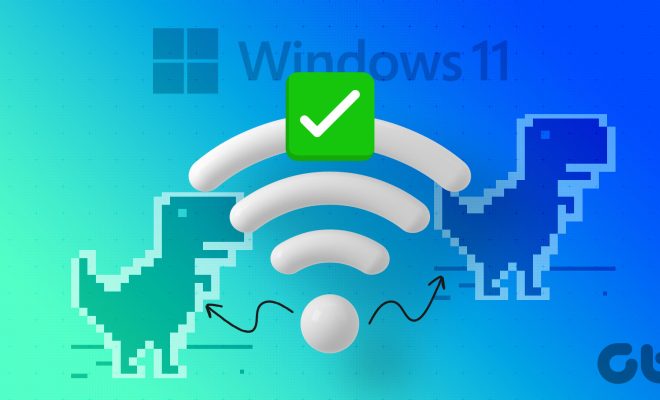
In today’s world, it’s nearly impossible to imagine life without the internet. It has become an essential part of our lives, and it’s frustrating when the Wi-Fi is connected, but there’s no internet connection. This can happen on Windows 11, which is one of the most popular operating systems. But, there are always solutions to tech problems, and in this article, we will discuss the top 11 ways to fix Wi-Fi connected but no internet on Windows 11.

1. Restart the Router

The first and easiest troubleshooting method for Wi-Fi connectivity is to restart the router. This can fix basic problems with connectivity and is usually the first step to take.

2. Update the Router Firmware

If the router’s firmware is outdated, it can cause problems with the internet connection. Updating it might fix the issue.

3. Check the Network Status

Next, you need to check the network status to ensure it’s connected. Tap on the Windows key and go to Settings> Network & Internet > Status > Network troubleshooter. This will identify any problems and fix them automatically.

4. Reset the Network

You can perform a network reset guide by clicking on Settings and search for “Network Reset”. This will remove all network attributes, passwords, and configurations.

5. Disable and Enable the Network Adapter

Open the Device Manager, expand Network Adapters, right-click your adapter, and select Disable. Wait for a few seconds, right-click again and select Enable. This should fix the issue.

6. Update Network Drivers

Outdated network drivers can also cause connectivity issues on Windows 11. You can update the drivers manually or use software to do it automatically.

7. Renew the IP Address

Press the Windows key and search cmd, right-click Command Prompt, and select “Run as Administrator”. Type “ipconfig /release” and then “ipconfig /renew”. This will reset the IP address and might fix the issue.

8. Disable IPv6

Disabling IPv6 has helped many users to fix the “Wi-Fi connected but no internet” error. Go to Settings > Network & Internet > Change Adapter Options > Right-click on your Wi-Fi network > select Properties > Uncheck “Internet Protocol Version 6 (TCP/IPv6)” and click OK.

9. Check the Firewall

Windows comes with a built-in firewall, which can sometimes block internet access. Disable the firewall temporarily and check the connection. If this resolves the issue, add the application to the firewall exceptions list.

10. Clear Browser Cache

Sometimes, clearing the browser cache can help fix connectivity issues. In your browser, go to Settings > History > Clear Browsing Data. Select “Cached images and files” and click Clear Data.

11. Contact Your Internet Service Provider

If none of these solutions Solve the Problem, Contact your internet service provider. There may be a problem with your service, and their representative will be able to assist you further.

In conclusion, there’s nothing more frustrating than having a connected Wi-Fi but no internet. These troubleshooting methods can be useful for fixing the issue on Windows 11. If nothing works, reach out to your internet service provider. Following these steps will ensure you get back on track and stay connected to the internet.


Previous Article

Top 2 Ways to Block Apps From ...

Next Article

Top 15 Free Horror Games on Steam ...

Matthew Lynch

Related articles More from author

  • Online Learning & eLearning

    What Is Chronemics?

    June 8, 2023
    By Matthew Lynch
  • Online Learning & eLearning

    Fun and Easy DIY TV Stands to Build This Spring

    September 7, 2023
    By Matthew Lynch
  • Online Learning & eLearning

    Top 7 Ways to Fix Wireless Charging Not Working With Phone

    April 3, 2023
    By Matthew Lynch
  • Online Learning & eLearning

    Top 5 Bluetooth Speakers With AUX Input

    April 2, 2023
    By Matthew Lynch
  • Online Learning & eLearning

    Top 10 Ways to Fix Google Photos Upload Not Working on iPhone and Android

    April 1, 2023
    By Matthew Lynch
  • Online Learning & eLearning

    Oculus Rift vs. HTC Vive: Which VR Headset Is Right for You?

    March 29, 2023
    By Matthew Lynch

Search

Login & Registration

  • Log in
  • Entries feed
  • Comments feed
  • WordPress.org

Newsletter

Signup for The Tech Edvocate Newsletter and have the latest in EdTech news and opinion delivered to your email address!

About Us

Since technology is not going anywhere and does more good than harm, adapting is the best course of action. That is where The Tech Edvocate comes in. We plan to cover the PreK-12 and Higher Education EdTech sectors and provide our readers with the latest news and opinion on the subject. From time to time, I will invite other voices to weigh in on important issues in EdTech. We hope to provide a well-rounded, multi-faceted look at the past, present, the future of EdTech in the US and internationally.

We started this journey back in June 2016, and we plan to continue it for many more years to come. I hope that you will join us in this discussion of the past, present and future of EdTech and lend your own insight to the issues that are discussed.

Newsletter

Signup for The Tech Edvocate Newsletter and have the latest in EdTech news and opinion delivered to your email address!

Contact Us

The Tech Edvocate
910 Goddin Street
Richmond, VA 23231
(601) 630-5238
[email protected]

Copyright © 2026 Matthew Lynch. All rights reserved.