
The Tech Edvocate

Top Menu

  • Advertisement
  • Apps
  • Home Page
  • Home Page Five (No Sidebar)
  • Home Page Four
  • Home Page Three
  • Home Page Two
  • Home Tech2
  • Icons [No Sidebar]
  • Left Sidbear Page
  • Lynch Educational Consulting
  • My Account
  • My Speaking Page
  • Newsletter Sign Up Confirmation
  • Newsletter Unsubscription
  • Our Brands
  • Page Example
  • Privacy Policy
  • Protected Content
  • Register
  • Request a Product Review
  • Shop
  • Shortcodes Examples
  • Signup
  • Start Here
    • Governance
    • Careers
    • Contact Us
  • Terms and Conditions
  • The Edvocate
  • The Tech Edvocate Product Guide
  • Topics
  • Write For Us
  • Advertise

Main Menu

  • Start Here
    • Our Brands
    • Governance
      • Lynch Educational Consulting, LLC.
      • Dr. Lynch’s Personal Website
      • Careers
    • Write For Us
    • The Tech Edvocate Product Guide
    • Contact Us
    • Books
    • Edupedia
    • Post a Job
    • The Edvocate Podcast
    • Terms and Conditions
    • Privacy Policy
  • Topics
    • Assistive Technology
    • Child Development Tech
    • Early Childhood & K-12 EdTech
    • EdTech Futures
    • EdTech News
    • EdTech Policy & Reform
    • EdTech Startups & Businesses
    • Higher Education EdTech
    • Online Learning & eLearning
    • Parent & Family Tech
    • Personalized Learning
    • Product Reviews
  • Advertise
  • Tech Edvocate Awards
  • The Edvocate
  • Pedagogue
  • School Ratings

logo

The Tech Edvocate

  • Start Here
    • Our Brands
    • Governance
      • Lynch Educational Consulting, LLC.
      • Dr. Lynch’s Personal Website
        • My Speaking Page
      • Careers
    • Write For Us
    • The Tech Edvocate Product Guide
    • Contact Us
    • Books
    • Edupedia
    • Post a Job
    • The Edvocate Podcast
    • Terms and Conditions
    • Privacy Policy
  • Topics
    • Assistive Technology
    • Child Development Tech
    • Early Childhood & K-12 EdTech
    • EdTech Futures
    • EdTech News
    • EdTech Policy & Reform
    • EdTech Startups & Businesses
    • Higher Education EdTech
    • Online Learning & eLearning
    • Parent & Family Tech
    • Personalized Learning
    • Product Reviews
  • Advertise
  • Tech Edvocate Awards
  • The Edvocate
  • Pedagogue
  • School Ratings
  • Toxic Pills: This Supplement Scandal Puts Millions at Risk

  • Urgent Dog Supplement Recall: This Stealthy Threat Could Be Hiding in Your Pantry!

  • Staggering: Climate Tech Fundraising Collapses — Is AI to Blame?

  • Global AI stocks tumble as industry’s biggest names sound alarm – The Straits Times

  • Sony’s Controversial Move: Why the Last of Us Part II Multiplayer Mod Got Axed

  • Trump’s Wild AI Claims: Is There a ‘Sick Conspiracy’ Against Tech?

  • This One Thing Is Turning Classrooms Into Culture War Battlegrounds

  • Your AI Detector Is Useless: Why Universities Are Scrapping ‘Catch & Ban’ for This

  • Terrifying: AI Is About to Break Cybersecurity – And No One Is Ready

  • Volkswagen’s Staggering Miscalculation: 50,000 Jobs Vanish as EV Dream Sours

Tech Advice
Home›Tech Advice›Monitor OSD Quick Guide: (Some of) the ins and outs

Monitor OSD Quick Guide: (Some of) the ins and outs
By Matthew Lynch
July 4, 2023
0
Spread the love

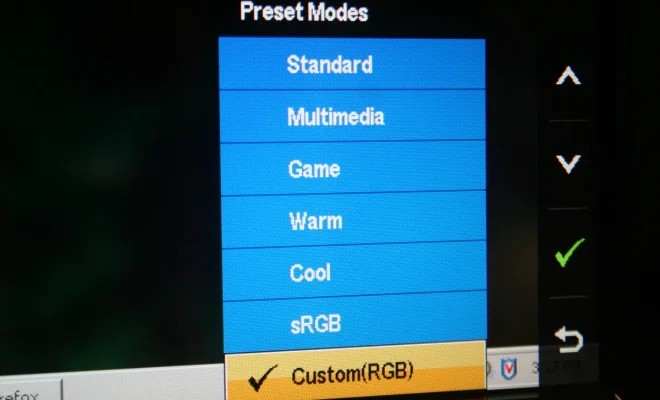
The On-Screen Display (OSD) menu on a monitor allows users to access and adjust various settings to optimize their experience. This quick guide will go over some essential ins and outs of navigating and using the OSD menu on modern monitors.

Accessing the OSD Menu

To access the OSD menu, look for the buttons located on the bottom or side edges of your monitor. These buttons typically consist of:

1. Power button

2. Menu button

3. Navigation buttons (Up/Down or Left/Right)

Press the menu button to open the OSD menu on your screen.

Common Settings in the OSD Menu

Here are some handy adjustments you can make through the OSD menu:

Brightness and Contrast

Brightness and contrast are essential settings for today’s monitors, as they directly impact image quality. Adjusting these according to your preferences can significantly affect eye comfort and overall viewing experience.

Color Temperature

The color temperature setting allows you to calibrate your monitor’s colors for a more accurate representation of images and videos. Typically, there are three main options:

1. Cool: Provides a bluish hue to the display

2. Normal: Balanced color temperature

3. Warm: Introduces a yellowish hue to the display

Some monitors offer more advanced options like RGB controls or sRGB emulation.

Input Source

If your monitor has multiple input sources (e.g., HDMI, DisplayPort, VGA), use this option to switch between them.
Aspect Ratio Scaling

This setting allows you to adjust how content is displayed on your monitor when it has a different aspect ratio than the screen itself:

1. Maintain Aspect Ratio: Content scales while preserving its original aspect ratio, resulting in possible black bars around the image.

2. Full Screen: Content stretches to fill the entire screen, potentially distorting the image.

3. 1:1 Pixel Mapping: Displays content at its native resolution without scaling, resulting in possible unused screen space.

Audio Settings (For monitors with built-in speakers)

Some monitors come equipped with built-in speakers. If your monitor is one of them, use the OSD menu to adjust volume levels or mute/unmute the sound.

Advanced Adjustments (varies by monitor)

Some monitors offer additional advanced adjustments, such as:

1. Picture-In-Picture (PIP) / Picture-By-Picture (PBP) settings

2. Game modes and overclockable refresh rates

3. Customizable profiles for quick access to preferred settings

These features will depend on your specific monitor model and manufacturer.

Exiting the OSD Menu

To exit the OSD menu, use the navigation buttons to find the “Exit” or “Back” options or press the menu button again to close the menu.

Now that you are familiar with some of the ins and outs of accessing and navigating your monitor’s OSD menu, make sure to use it to optimize your viewing experience. It’s an invaluable tool for customizing preferences, improving image quality, and unlocking your monitor’s full potential!


Previous Article

Neil deGrasse Tyson: Thor’s hammer weighs 300 ...

Next Article

Melinda Gates Opens Up About ‘Unbelievably Painful’ ...

Matthew Lynch

Related articles More from author

  • Tech Advice

    Best Ways to Read Digital Comics

    October 19, 2023
    By Matthew Lynch
  • Tech Advice

    Google Nest Cam (Wired, Indoor) Review: The Best Nest Yet

    July 9, 2023
    By Matthew Lynch
  • Tech Advice

    The Best World of Hyatt Hotels in Las Vegas

    October 20, 2023
    By Matthew Lynch
  • Tech Advice

    Invisible Braces: A Modern Solution for a Perfect Smile

    July 7, 2023
    By Matthew Lynch
  • Tech Advice

    Nothing to Watch? These Streaming Services Have Extended Trials and Free Content

    July 24, 2023
    By Matthew Lynch
  • Tech Advice

    Puffy Lux Mattress Review: A Comfortable and Supportive Sleep Solution

    July 7, 2023
    By Matthew Lynch

Search

Login & Registration

  • Log in
  • Entries feed
  • Comments feed
  • WordPress.org

Newsletter

Signup for The Tech Edvocate Newsletter and have the latest in EdTech news and opinion delivered to your email address!

About Us

Since technology is not going anywhere and does more good than harm, adapting is the best course of action. That is where The Tech Edvocate comes in. We plan to cover the PreK-12 and Higher Education EdTech sectors and provide our readers with the latest news and opinion on the subject. From time to time, I will invite other voices to weigh in on important issues in EdTech. We hope to provide a well-rounded, multi-faceted look at the past, present, the future of EdTech in the US and internationally.

We started this journey back in June 2016, and we plan to continue it for many more years to come. I hope that you will join us in this discussion of the past, present and future of EdTech and lend your own insight to the issues that are discussed.

Newsletter

Signup for The Tech Edvocate Newsletter and have the latest in EdTech news and opinion delivered to your email address!

Contact Us

The Tech Edvocate
910 Goddin Street
Richmond, VA 23231
(601) 630-5238
[email protected]

Copyright © 2026 Matthew Lynch. All rights reserved.