The Tech Edvocate

Top Menu

  • Advertisement
  • Apps
  • Home Page
  • Home Page Five (No Sidebar)
  • Home Page Four
  • Home Page Three
  • Home Page Two
  • Home Tech2
  • Icons [No Sidebar]
  • Left Sidbear Page
  • Lynch Educational Consulting
  • My Account
  • My Speaking Page
  • Newsletter Sign Up Confirmation
  • Newsletter Unsubscription
  • Our Brands
  • Page Example
  • Privacy Policy
  • Protected Content
  • Register
  • Request a Product Review
  • Shop
  • Shortcodes Examples
  • Signup
  • Start Here
    • Governance
    • Careers
    • Contact Us
  • Terms and Conditions
  • The Edvocate
  • The Tech Edvocate Product Guide
  • Topics
  • Write For Us
  • Advertise

Main Menu

  • Start Here
    • Our Brands
    • Governance
      • Lynch Educational Consulting, LLC.
      • Dr. Lynch’s Personal Website
      • Careers
    • Write For Us
    • The Tech Edvocate Product Guide
    • Contact Us
    • Books
    • Edupedia
    • Post a Job
    • The Edvocate Podcast
    • Terms and Conditions
    • Privacy Policy
  • Topics
    • Assistive Technology
    • Child Development Tech
    • Early Childhood & K-12 EdTech
    • EdTech Futures
    • EdTech News
    • EdTech Policy & Reform
    • EdTech Startups & Businesses
    • Higher Education EdTech
    • Online Learning & eLearning
    • Parent & Family Tech
    • Personalized Learning
    • Product Reviews
  • Advertise
  • Tech Edvocate Awards
  • The Edvocate
  • Pedagogue
  • School Ratings

logo

The Tech Edvocate

  • Start Here
    • Our Brands
    • Governance
      • Lynch Educational Consulting, LLC.
      • Dr. Lynch’s Personal Website
        • My Speaking Page
      • Careers
    • Write For Us
    • The Tech Edvocate Product Guide
    • Contact Us
    • Books
    • Edupedia
    • Post a Job
    • The Edvocate Podcast
    • Terms and Conditions
    • Privacy Policy
  • Topics
    • Assistive Technology
    • Child Development Tech
    • Early Childhood & K-12 EdTech
    • EdTech Futures
    • EdTech News
    • EdTech Policy & Reform
    • EdTech Startups & Businesses
    • Higher Education EdTech
    • Online Learning & eLearning
    • Parent & Family Tech
    • Personalized Learning
    • Product Reviews
  • Advertise
  • Tech Edvocate Awards
  • The Edvocate
  • Pedagogue
  • School Ratings
  • 100 Best Health Tech Apps

  • The Unseen Revolution: Why Millions Are Ditching Smartwatches for These Rings in 2026

  • The NYC Real Estate Tech Revolution: What Developers Like Boris Mizhen Are Chasing

  • The Startling Truth: Rogue AI Agents Spark Unprecedented Legal Battles

  • Your Metaverse Real Estate Investment Could Explode 1100% By 2034 – Here’s Why

  • Asmongold’s Shocking Take on Women in Video Games: The Firestorm Explained

  • TOMORROW’S WATCH October 4, 2026 Tomorrow, New York City puts the biggest AI labs on the stand.

  • The Troubling Truth About AI Companions in Education

  • Citrix’s Latest Crisis: Is Your NetScaler SAML Zero-Day Exploit a Time Bomb?

  • Shocking Car Payment Trends: Over 1 in 5 New Buyers Hit $1,000 Monthly — Here’s Why

Digital & Mobile Technology
Home›Digital & Mobile Technology›Make Nested Excel IF Statements With Multiple Conditions Work for You

Make Nested Excel IF Statements With Multiple Conditions Work for You
By Matthew Lynch
June 23, 2023
0
Spread the love

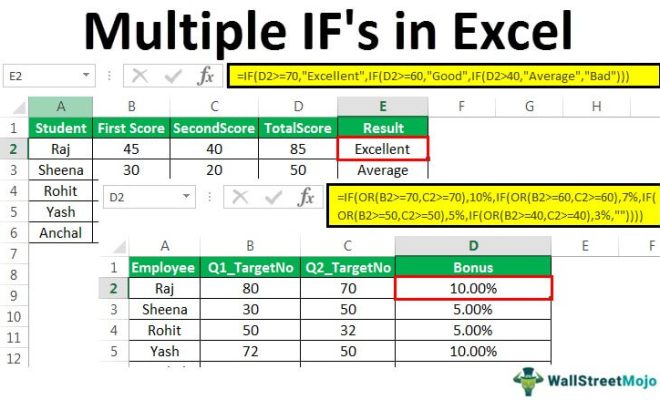
Excel is a powerful tool that can save you a lot of time and effort in analyzing data. One of its most commonly used functions is the IF statement. An IF statement tests a condition and returns one value if the condition is true and another value if it is false.

However, in some cases, you may need to nest multiple IF statements to test several conditions at once. This can make your formulas more complicated, but it is often necessary to get the results you need. Here are some tips to help you make nested Excel IF statements with multiple conditions work for you.

1. Understand the Logic of Nested IF Statements

Before you start writing nested IF statements, it is important to understand the logic behind them. Each IF statement has two possible outcomes: true or false. If the outcome is true, Excel will return the value that you specified for that condition. If it is false, Excel will move on to the next IF statement in your formula.

For example, let’s say you want to determine the grade of a student based on their score. You could use an IF statement like this:

=IF(B2>=90,”A”,IF(B2>=80,”B”,IF(B2>=70,”C”,”F”)))

This formula starts by testing whether the student’s score is greater than or equal to 90. If it is, it returns “A”. If it is not, it moves on to the next IF statement, which tests whether the score is greater than or equal to 80. If it is, it returns “B”. If it is not, it moves on to the next IF statement, which tests whether the score is greater than or equal to 70. If it is, it returns “C”. If none of the conditions are met, it returns “F”.

2. Use Parentheses to Control the Order of Operations

When you nest multiple IF statements, it is important to use parentheses to control the order of operations. This ensures that Excel evaluates the conditions in the correct order and returns the correct result.
For example, let’s say you want to determine the bonus percentage for an employee based on their performance rating and the department they work in. You could use an IF statement like this:

=IF(C2=”Sales”,IF(D2=”Excellent”,15%,IF(D2=”Good”,10%,IF(D2=”Fair”,5%,0%))),IF(C2=”Marketing”,IF(D2=”Excellent”,20%,IF(D2=”Good”,15%,IF(D2=”Fair”,10%,0%))),0%))

This formula starts by testing whether the employee works in the Sales department. If they do, it moves on to the next IF statement, which tests their performance rating. If they have an Excellent rating, it returns 15%. If they have a Good rating, it returns 10%. If they have a Fair rating, it returns 5%. If none of the conditions are met, it returns 0%.

If the employee does not work in the Sales department, it moves on to the next IF statement, which tests whether they work in the Marketing department. If they do, it moves on to the next IF statement, which tests their performance rating. If they have an Excellent rating, it returns 20%. If they have a Good rating, it returns 15%. If they have a Fair rating, it returns 10%. If none of the conditions are met, it returns 0%.

3. Break Up Complex Formulas into Smaller Parts

If you find yourself writing complex formulas with multiple nested IF statements, it can be helpful to break them up into smaller parts. This will make your formulas easier to read and troubleshoot if you run into any issues.
For example, let’s say you want to determine the shipping cost for an order based on the total weight and destination.

You could use nested IF statements like this:

=IF(B2=”USA”,IF(C2<5,5,IF(C2<10,10,IF(C2<20,20,30))),IF(B2=”Canada”,IF(C2<5,10,IF(C2<10,20,IF(C2<20,30,40))),IF(B2=”Mexico”,IF(C2<5,15,IF(C2<10,25,IF(C2<20,35,50))),0))))

This formula starts by testing whether the destination is the USA. If it is, it moves on to the next IF statement, which tests the weight of the order. If the weight is less than 5 pounds, it returns $5. If it is between 5 and 10 pounds, it returns $10. If it is between 10 and 20 pounds, it returns $20. If it is over 20 pounds, it returns $30.

If the destination is not the USA, it moves on to the next IF statement, which tests whether the destination is Canada. If it is, it moves on to the next IF statement, which tests the weight of the order. If the weight is less than 5 pounds, it returns $10. If it is between 5 and 10 pounds, it returns $20. If it is between 10 and 20 pounds, it returns $30. If it is over 20 pounds, it returns $40.

If the destination is not the USA or Canada, it moves on to the next IF statement, which tests whether the destination is Mexico. If it is, it moves on to the next IF statement, which tests the weight of the order. If the weight is less than 5 pounds, it returns $15. If it is between 5 and 10 pounds, it returns $25. If it is between 10 and 20 pounds, it returns $35. If it is over 20 pounds, it returns $50.

If none of the conditions are met, it returns 0, which means there is no shipping cost.
By breaking up the formula into smaller parts, you can see how the conditions are nested and avoid confusion.


Previous Article

Tesla Supercharger vs. Destination Charger: What’s the ...

Next Article

How to Scrobble Your Spotify Music With ...

Matthew Lynch

Related articles More from author

  • Digital & Mobile Technology

    Why There’s an Orange Dot on Your iPhone

    June 6, 2023
    By Matthew Lynch
  • Digital & Mobile Technology

    A Guide to Changing the Wi-Fi Name (SSID) on a Network Router

    July 24, 2023
    By Matthew Lynch
  • Digital & Mobile Technology

    How to Turn off HDR on Roku TV

    June 4, 2023
    By Matthew Lynch
  • Digital & Mobile Technology

    How to Turn Your PC Into a Media Server With Plex

    May 29, 2023
    By Matthew Lynch
  • Digital & Mobile Technology

    Reasons 800v Architecture Is the Future of EVs

    June 10, 2023
    By Matthew Lynch
  • Digital & Mobile Technology

    What Does Reseat Mean?

    June 11, 2023
    By Matthew Lynch

Search

Login & Registration

  • Log in
  • Entries feed
  • Comments feed
  • WordPress.org

Newsletter

Signup for The Tech Edvocate Newsletter and have the latest in EdTech news and opinion delivered to your email address!

About Us

Since technology is not going anywhere and does more good than harm, adapting is the best course of action. That is where The Tech Edvocate comes in. We plan to cover the PreK-12 and Higher Education EdTech sectors and provide our readers with the latest news and opinion on the subject. From time to time, I will invite other voices to weigh in on important issues in EdTech. We hope to provide a well-rounded, multi-faceted look at the past, present, the future of EdTech in the US and internationally.

We started this journey back in June 2016, and we plan to continue it for many more years to come. I hope that you will join us in this discussion of the past, present and future of EdTech and lend your own insight to the issues that are discussed.

Newsletter

Signup for The Tech Edvocate Newsletter and have the latest in EdTech news and opinion delivered to your email address!

Contact Us

The Tech Edvocate
910 Goddin Street
Richmond, VA 23231
(601) 630-5238
[email protected]

Copyright © 2026 Matthew Lynch. All rights reserved.