The Tech Edvocate

Top Menu

  • Advertisement
  • Apps
  • Home Page
  • Home Page Five (No Sidebar)
  • Home Page Four
  • Home Page Three
  • Home Page Two
  • Home Tech2
  • Icons [No Sidebar]
  • Left Sidbear Page
  • Lynch Educational Consulting
  • My Account
  • My Speaking Page
  • Newsletter Sign Up Confirmation
  • Newsletter Unsubscription
  • Our Brands
  • Page Example
  • Privacy Policy
  • Protected Content
  • Register
  • Request a Product Review
  • Shop
  • Shortcodes Examples
  • Signup
  • Start Here
    • Governance
    • Careers
    • Contact Us
  • Terms and Conditions
  • The Edvocate
  • The Tech Edvocate Product Guide
  • Topics
  • Write For Us
  • Advertise

Main Menu

  • Start Here
    • Our Brands
    • Governance
      • Lynch Educational Consulting, LLC.
      • Dr. Lynch’s Personal Website
      • Careers
    • Write For Us
    • The Tech Edvocate Product Guide
    • Contact Us
    • Books
    • Edupedia
    • Post a Job
    • The Edvocate Podcast
    • Terms and Conditions
    • Privacy Policy
  • Topics
    • Assistive Technology
    • Child Development Tech
    • Early Childhood & K-12 EdTech
    • EdTech Futures
    • EdTech News
    • EdTech Policy & Reform
    • EdTech Startups & Businesses
    • Higher Education EdTech
    • Online Learning & eLearning
    • Parent & Family Tech
    • Personalized Learning
    • Product Reviews
  • Advertise
  • Tech Edvocate Awards
  • The Edvocate
  • Pedagogue
  • School Ratings

logo

The Tech Edvocate

  • Start Here
    • Our Brands
    • Governance
      • Lynch Educational Consulting, LLC.
      • Dr. Lynch’s Personal Website
        • My Speaking Page
      • Careers
    • Write For Us
    • The Tech Edvocate Product Guide
    • Contact Us
    • Books
    • Edupedia
    • Post a Job
    • The Edvocate Podcast
    • Terms and Conditions
    • Privacy Policy
  • Topics
    • Assistive Technology
    • Child Development Tech
    • Early Childhood & K-12 EdTech
    • EdTech Futures
    • EdTech News
    • EdTech Policy & Reform
    • EdTech Startups & Businesses
    • Higher Education EdTech
    • Online Learning & eLearning
    • Parent & Family Tech
    • Personalized Learning
    • Product Reviews
  • Advertise
  • Tech Edvocate Awards
  • The Edvocate
  • Pedagogue
  • School Ratings
  • This One Skill Is Quietly Reshaping Every Career — And How to Master It Now

  • The Silent Threat: How AI Is Reshaping Recent College Graduates’ Job Prospects

  • This Crucial Shift in AI Will Devastate Millions of College Grads

  • The Brutal Truth: Zero-Day Exploit Analysis vs. Traditional Cybersecurity Careers — Which Path Pays $300,000?

  • The Urgent Truth: Why These Certifications Are Your Only Defense Against Zero-Day Attacks

  • The FBI Investigates a Zero-Day Attack on Your Job Applications

  • The Startling Truth About AI’s Impact on Your Coding Job by 2026

  • The Shocking Truth About Your Code: AI Is Already Rewriting Your Future

  • Is This Why Code Review Is Dead? AI’s Staggering Impact on Tech Jobs

  • The Shocking Truth About CogniBoost vs Focus Drugs: What No One Is Telling You

Online Learning & eLearning
Home›Online Learning & eLearning›How to Write In MLA Format In Google Docs

How to Write In MLA Format In Google Docs
By Matthew Lynch
March 27, 2023
0
Spread the love

Are you familiar with MLA format? It’s a common stylesheet used in academic writing, specifically in the humanities such as language, literature, and philosophy. With the growing popularity of Google Docs as a writing tool, it’s essential to know how to format your document in MLA style. Fortunately, it’s straightforward and easy to follow. Here are the steps to write in MLA format in Google Docs.

1. Set the Document Margins

First, set your document margins to 1 inch on all sides. To do this, click on File > Page Setup > Margins > Custom Margins. Then change the top, bottom, left, and right margins to 1 inch each.

2. Choose the Right Font and Size

For MLA formatting, use Times New Roman 12-point font. It’s the standard font size and is easy to read. If you don’t have Times New Roman, you can choose a similar serif font.

3. Double Space the Text

Double space the entire document, including the works cited page. This makes your text readable and easy to follow. To double space your text, click on the “Line spacing” icon on the toolbar and select “Double.”

4. Add a Header

MLA formatting requires a header with your last name and page number on all pages. To add a header, click on Insert > Page numbers > Top of page > Plain Number 3. Then type your last name followed by a space and the page number. Your header should look like this: Smith 1.

5. Title Your Essay

Center the title of your essay in the middle of the page, using title case (capitalizing the first letter of each word except for prepositions and conjunctions). Make sure it’s not underlined or italicized, and the font is the same as the rest of the document.

6. Create a Works Cited Page

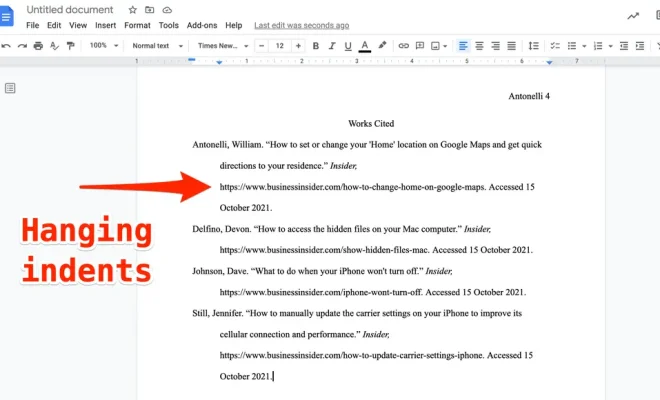
For any sources cited in your essay, create a Works Cited page at the end of your document. This page should be titled “Works Cited” and centered at the top of the page. Each entry should be double spaced, with a hanging indent (the second and subsequent lines indented 0.5 inches). Use italics for book titles and quotation marks for article titles. Keep in mind the specific format for each source, such as books, articles, websites, and more.

Following these steps can make writing in MLA format on Google Docs a breeze. With the structure in place, it’s easier to focus on the content of your essay instead of formatting. Always check and double-check your formatting to ensure that your document is in MLA style.


Previous Article

How to Work the Caller ID on ...

Next Article

How to Zip a File on Mac ...

Matthew Lynch

Related articles More from author

  • Online Learning & eLearning

    3 Reasons Why Educators Select a Blended Learning Strategy

    September 15, 2020
    By Matthew Lynch
  • Online Learning & eLearning

    What Is Quiet Hiring, and Should You Worry About It?

    August 5, 2023
    By Matthew Lynch
  • Online Learning & eLearning

    T-Mobile has merged with Sprint. Here’s what it means for your devices

    April 1, 2023
    By Matthew Lynch
  • Online Learning & eLearning

    Tip of the Day: a quick keyboard shortcut for Task Manager

    April 1, 2023
    By Matthew Lynch
  • Online Learning & eLearning

    Translating eLearning For International Audiences

    January 28, 2020
    By Matthew Lynch
  • Online Learning & eLearning

    Save 40% Off Your New MasterClass Subscription and Learn How to Meet Your 2024 Goals

    January 31, 2024
    By Matthew Lynch

Search

Login & Registration

  • Log in
  • Entries feed
  • Comments feed
  • WordPress.org

Newsletter

Signup for The Tech Edvocate Newsletter and have the latest in EdTech news and opinion delivered to your email address!

About Us

Since technology is not going anywhere and does more good than harm, adapting is the best course of action. That is where The Tech Edvocate comes in. We plan to cover the PreK-12 and Higher Education EdTech sectors and provide our readers with the latest news and opinion on the subject. From time to time, I will invite other voices to weigh in on important issues in EdTech. We hope to provide a well-rounded, multi-faceted look at the past, present, the future of EdTech in the US and internationally.

We started this journey back in June 2016, and we plan to continue it for many more years to come. I hope that you will join us in this discussion of the past, present and future of EdTech and lend your own insight to the issues that are discussed.

Newsletter

Signup for The Tech Edvocate Newsletter and have the latest in EdTech news and opinion delivered to your email address!

Contact Us

The Tech Edvocate
910 Goddin Street
Richmond, VA 23231
(601) 630-5238
[email protected]

Copyright © 2026 Matthew Lynch. All rights reserved.