Mastering VS Code on Mac: A Comprehensive Guide
“`html
Visual Studio Code (VS Code) has emerged as one of the most popular code editors among developers, and for good reason. With its rich feature set, flexibility, and extensive community support, it’s a go-to tool for both novices and experienced programmers alike. If you’re a Mac user curious about how to leverage this powerful editor, this guide will walk you through everything you need to know about using VS Code on Mac, from installation to advanced features.
1. Getting Started with VS Code on Mac
To kick things off, let’s discuss how to install VS Code on your Mac. First, visit the official VS Code website and download the installer for macOS. The installation process is straightforward; simply drag the VS Code icon into your Applications folder, and you’re all set.
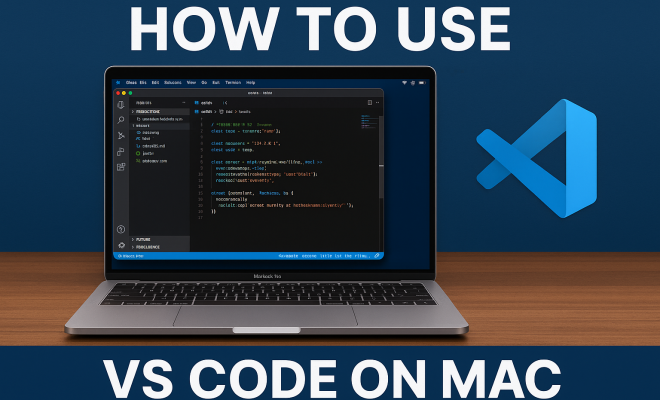
Once installed, open VS Code. The interface is clean and user-friendly, featuring a sidebar for file navigation, an editor window in the center, and a status bar at the bottom. You’ll find it easy to navigate and customize to suit your coding style. But don’t stop there! To really harness the capabilities of VS Code, you’ll want to explore its settings and extensions.
2. Customizing Your VS Code Environment
One of the standout features of VS Code is its high level of customization. You can modify settings to enhance your coding experience. To access settings, click on the gear icon in the lower left corner and select ‘Settings’ from the menu. Here, you can adjust preferences like theme, font size, and editor layout.
VS Code also supports keyboard shortcuts for a more efficient workflow. You can view the complete list by navigating to ‘Help’ and then ‘Keyboard Shortcuts.’ Customizing these shortcuts can significantly speed up your development process. For Mac users, familiarizing yourself with these shortcuts can make a world of difference in productivity.
3. Essential Extensions for VS Code on Mac
The true power of VS Code lies in its extensions. The marketplace has thousands of extensions designed to enhance functionality, improve performance, and streamline your workflow. Some popular extensions worth considering include:
- Prettier: A code formatter that helps maintain consistent code styling.
- Live Server: Launches a local development server with live reload support.
- ESLint: A linting tool for identifying and fixing problems in JavaScript code.
- GitLens: Enhances the built-in Git capabilities of VS Code, providing insights into code changes.
- Python: Adds rich support for the Python language, enabling features like IntelliSense, linting, and debugging.
Installing extensions is easy. Simply click on the Extensions icon in the sidebar or use the shortcut Cmd+Shift+X, search for the desired extension, and hit ‘Install’. With the right set of extensions, you can tailor your coding environment to fit any project or language.
4. Integrating Git with VS Code
Version control is crucial for any development project, and VS Code offers excellent integration with Git. To get started, ensure Git is installed on your Mac. You can check this by typing git --version in the terminal. top educational institutions offers useful background here.
Once you have Git set up, you can use VS Code’s built-in source control features. Clicking on the Source Control icon in the sidebar will allow you to view changes, stage files, and commit your work—all from within the editor. This integration simplifies collaboration and helps keep your projects organized.
For Mac users, the integration with Git is seamless. Not only can you view your Git history, but you can also compare branches, resolve merge conflicts, and even visualize your commit history directly in the editor. This makes it easy to maintain a clear understanding of your project’s evolution.
5. Debugging with VS Code on Mac
Debugging can be a daunting task, but VS Code makes it more manageable with its powerful debugging tools. To start debugging, set breakpoints by clicking on the gutter to the left of the line numbers in your code. When you run your application in debug mode, VS Code will pause execution at these points, allowing you to inspect variable values, evaluate expressions, and step through code.
To access the debugging panel, click on the Run icon in the sidebar. Here, you can configure your debugging environment and select the desired debugger for your programming language. Whether you’re working in JavaScript, Python, or another language, VS Code supports a variety of debugging configurations. (See: Visual Studio Code Wikipedia page.)
Additionally, you can customize your debugging experience by creating launch configurations in the launch.json file. This allows you to specify different runtime arguments, environment variables, and advanced options tailored to your project’s needs.
6. Terminal Integration in VS Code
VS Code also includes a built-in terminal, making it easy to run commands without leaving the editor. To access the terminal, go to the menu and select ‘Terminal’ followed by ‘New Terminal’, or simply use the shortcut Ctrl + `. This feature allows you to execute Git commands, run scripts, and interact with your project seamlessly.
The terminal can be customized as well. You can choose different shells (e.g., Bash, Zsh) to suit your preferences. For Mac users, this integration is particularly useful for managing local servers or running build scripts while keeping everything within the same application.
Moreover, you can split the terminal window to run multiple command-line processes simultaneously. Just right-click on the terminal tab and select ‘Split Terminal’. This feature is handy for monitoring logs from one process while interacting with another, all within the same visual context.
7. Collaborating with Live Share
Collaboration is a critical aspect of software development, and VS Code offers an innovative feature called Live Share. This extension allows you to share your coding session with teammates, enabling real-time collaboration without needing to be in the same location.
To use Live Share, install the extension from the marketplace. Once installed, you can start a collaboration session and invite others to join. Participants can edit files, chat, and even debug together. This feature is invaluable for remote teams, providing a seamless way to code together, troubleshoot issues, and conduct pair programming.
Live Share also comes with voice chat functionality, allowing team members to communicate without leaving the editor. This can improve the efficiency of collaborative tasks and make remote pair programming feel more connected.
8. Maintaining Performance in VS Code
As you start using VS Code more extensively, you may notice performance issues, especially with larger projects. To maintain optimal performance, consider disabling unused extensions, as they can slow down the editor. Regularly review your installed extensions and remove those that you no longer need.
Additionally, managing your workspace settings can help. Using the Workspace settings rather than User settings allows you to configure settings specific to your project without affecting other projects. This can help keep your development environment swift and responsive.
Another approach to boost performance is to enable the “Auto Save” feature found in the settings. This will automatically save your changes, reducing the risk of losing unsaved work and ensuring that your files are always up to date without manual intervention.
9. Current Trends and the Future of VS Code for Mac
As of 2023, VS Code continues to evolve, with frequent updates and new features being released to enhance user experience. Microsoft is committed to improving VS Code and adapting it to the needs of modern developers. From better support for remote development to advanced AI features integrated into the editor, the future looks bright for VS Code users.
For Mac users, staying current with updates is crucial, as these often include optimizations specifically for macOS. Make it a habit to check for updates regularly, and explore new features as they become available. By doing so, you can ensure that your VS Code for Mac experience remains top-notch and fully aligned with the latest trends in software development.
In addition to regular updates, the community around VS Code is continuously growing. This means more tutorials, sample projects, and forums where users can share tips and tricks, making it easier to learn and adapt to new features.
10. Advanced Features of VS Code for Mac
Beyond the basic functionalities, VS Code comes packed with advanced features that can significantly improve your coding efficiency. Here’s a look at some of these features that you might not be leveraging yet: (See: Centers for Disease Control and Prevention.)
10.1 Integrated GitHub Pull Requests
VS Code has built-in support for managing GitHub pull requests. This feature allows you to review, edit, and comment on pull requests directly within the editor. By installing the GitHub Pull Requests and Issues extension, you can keep all your GitHub activities centralized in one place. This integration means you won’t need to switch between the browser and VS Code, streamlining your workflow.
10.2 Remote Development
With the Remote Development feature, VS Code allows you to connect to remote servers, containers, or the Windows Subsystem for Linux (WSL) seamlessly. This capability is particularly useful for developers who work on cloud-based applications or need to access development environments that are different from their local setups. You can simply install the Remote Development extension pack and start working in a remote environment as if it were local.
10.3 Custom Snippets
Custom code snippets can save you time when writing repetitive code. In VS Code, you can create your own snippets by navigating to Preferences > User Snippets. Here, you can define snippets for specific languages, allowing you to insert commonly used code templates quickly. This customization can reduce typing time and help maintain consistency across your projects.
11. Best Practices for Using VS Code on Mac
To get the most out of VS Code on your Mac, here are some best practices to consider:
- Regularly Update VS Code: Keep your editor updated to benefit from the latest features, performance improvements, and security patches. Set reminders for checking updates or enable automatic updates in the settings.
- Explore the Command Palette: The Command Palette (accessible with
Cmd+Shift+P) is a powerful feature that lets you access any command just by typing. Familiarizing yourself with this tool can speed up your workflow and help you discover features you might not know about. - Create Workspace Settings: When working on multiple projects, consider using workspace settings to maintain different configurations for each project. This practice allows you to switch contexts easily without changing your global settings.
- Utilize the Integrated Debug Console: The debug console in VS Code is a great way to run quick tests or troubleshoot issues without leaving the debugging environment. Use it to evaluate expressions or inspect variables in real time.
- Backup Your Settings: Keep a backup of your settings and keybindings. This will save time if you need to reinstall VS Code or set it up on a new machine. You can easily export your settings via the command palette.
12. Common Issues and Troubleshooting
Even the best tools have their quirks. Here are some common issues Mac users might face with VS Code and tips on how to troubleshoot them:
12.1 Extensions Causing Slow Performance
If you notice that VS Code is lagging, it could be due to a problematic extension. Disable all extensions and re-enable them one by one to identify the culprit. You can do this quickly from the Extensions view by right-clicking on an extension and selecting ‘Disable’.
12.2 Incorrect File Encoding
Sometimes you may encounter issues with file encoding, especially when opening files from different sources. To ensure proper encoding, you can change the file encoding by clicking on the status bar where it says ‘UTF-8’ (or whatever encoding it currently is) and selecting the appropriate one.
12.3 Terminal Issues
If the integrated terminal isn’t working as expected, check your shell settings in the preferences. You can adjust the terminal’s default shell to one that you prefer, such as Bash or Zsh, which can resolve compatibility issues.
13. Frequently Asked Questions (FAQ)
13.1 Is VS Code free for Mac users?
Yes, Visual Studio Code is completely free and open-source, making it accessible for all developers, including Mac users.
13.2 Can I use VS Code for languages other than JavaScript?
Absolutely! VS Code supports a wide range of programming languages, including Python, Java, C++, Go, and many more through its extensions and built-in features.
13.3 Does VS Code have built-in Git support?
Yes, VS Code features built-in Git support, allowing you to perform version control operations like commits, branches, and merges directly within the editor. (See: New York Times Technology section.)
13.4 How does VS Code compare to other editors like Sublime Text or Atom?
VS Code is often preferred due to its strong community support, extensive extension marketplace, and advanced features such as debugging and integrated terminal. While Sublime Text is known for its speed, it lacks the extensive integrated development tools found in VS Code. Atom, developed by GitHub, has similar functionalities but tends to be slower than VS Code.
13.5 Is there a way to sync settings across devices?
Yes, you can sync settings, extensions, and keybindings across different devices using the Settings Sync feature in VS Code. This feature requires you to sign in with a Microsoft or GitHub account.
13.6 Can I use VS Code for mobile app development?
Yes, VS Code is quite capable for mobile app development, especially when using frameworks like React Native or Flutter. With the right extensions, you can easily set up an environment for mobile development.
14. Tips for Enhancing Your VS Code for Mac Experience
While you may already be familiar with the basics of using VS Code, there are several tips and tricks to enhance your overall experience:
14.1 Use Multiple Cursors
One of the nifty features of VS Code is the ability to use multiple cursors, which allows you to make the same edit in multiple places at once. You can create additional cursors by holding down the Option key and clicking where you want a new cursor to appear. This can save you a lot of time, especially for repetitive tasks.
14.2 Utilize the Problems Panel
The Problems panel in VS Code provides a consolidated view of errors and warnings in your code. You can quickly access this panel by clicking on the exclamation mark icon at the bottom of the sidebar. By keeping an eye on the Problems panel, you can catch issues early and make necessary adjustments to your code.
14.3 Leverage Code Formatting Options
VS Code provides built-in formatting support for various languages. You can format your code by right-clicking in the editor and selecting ‘Format Document’ or by using the shortcut Shift + Option + F. Setting up a formatter like Prettier in combination with ESLint can ensure that your code stays neat and adheres to the standards you set.
14.4 Explore the Marketplace for Themes
If you’re spending a lot of time in VS Code, personalizing your environment can make a significant difference. The marketplace offers a wide array of themes, allowing you to find one that suits your taste and reduces eye strain. Don’t hesitate to experiment with different themes until you find the perfect one for your workflow.
15. Conclusion
VS Code for Mac is an exceptional tool that offers a robust, feature-rich development environment. By taking advantage of its customization options, extensions, and advanced features, you can create an efficient workspace tailored to your needs. With ongoing updates and a thriving community, VS Code is not just a passing trend; it’s a staple in the toolkit of modern developers. Whether you’re just starting or looking to refine your skills, the capabilities of VS Code will help you succeed in your coding journey.
“`
Trending Now
Frequently Asked Questions
How do I install VS Code on a Mac?
To install VS Code on your Mac, visit the official VS Code website and download the macOS installer. Once downloaded, simply drag the VS Code icon into your Applications folder, and you can start using it right away.
What are the best features of VS Code on Mac?
VS Code offers a clean interface, extensive customization options, and a rich marketplace of extensions. It includes features like a built-in terminal, Git integration, and support for keyboard shortcuts, enhancing both productivity and coding efficiency.
How can I customize VS Code settings on Mac?
To customize VS Code settings on your Mac, click on the gear icon in the lower left corner and select 'Settings.' From there, you can adjust preferences such as theme, font size, and editor layout to suit your coding style.
What extensions should I use for VS Code on Mac?
VS Code has a vast marketplace of extensions that enhance its functionality. Essential extensions vary by project needs, but popular choices include Prettier for code formatting, ESLint for JavaScript linting, and Live Server for real-time previews.
Are there keyboard shortcuts for VS Code on Mac?
Yes, VS Code supports various keyboard shortcuts to improve workflow efficiency. You can view and customize these shortcuts by navigating to 'Help' and then 'Keyboard Shortcuts,' making it easier to speed up your coding process.
Have you experienced this yourself? We'd love to hear your story in the comments.