The Tech Edvocate

Top Menu

  • Advertisement
  • Apps
  • Home Page
  • Home Page Five (No Sidebar)
  • Home Page Four
  • Home Page Three
  • Home Page Two
  • Home Tech2
  • Icons [No Sidebar]
  • Left Sidbear Page
  • Lynch Educational Consulting
  • My Account
  • My Speaking Page
  • Newsletter Sign Up Confirmation
  • Newsletter Unsubscription
  • Our Brands
  • Page Example
  • Privacy Policy
  • Protected Content
  • Register
  • Request a Product Review
  • Shop
  • Shortcodes Examples
  • Signup
  • Start Here
    • Governance
    • Careers
    • Contact Us
  • Terms and Conditions
  • The Edvocate
  • The Tech Edvocate Product Guide
  • Topics
  • Write For Us
  • Advertise

Main Menu

  • Start Here
    • Our Brands
    • Governance
      • Lynch Educational Consulting, LLC.
      • Dr. Lynch’s Personal Website
      • Careers
    • Write For Us
    • The Tech Edvocate Product Guide
    • Contact Us
    • Books
    • Edupedia
    • Post a Job
    • The Edvocate Podcast
    • Terms and Conditions
    • Privacy Policy
  • Topics
    • Assistive Technology
    • Child Development Tech
    • Early Childhood & K-12 EdTech
    • EdTech Futures
    • EdTech News
    • EdTech Policy & Reform
    • EdTech Startups & Businesses
    • Higher Education EdTech
    • Online Learning & eLearning
    • Parent & Family Tech
    • Personalized Learning
    • Product Reviews
  • Advertise
  • Tech Edvocate Awards
  • The Edvocate
  • Pedagogue
  • School Ratings

logo

The Tech Edvocate

  • Start Here
    • Our Brands
    • Governance
      • Lynch Educational Consulting, LLC.
      • Dr. Lynch’s Personal Website
        • My Speaking Page
      • Careers
    • Write For Us
    • The Tech Edvocate Product Guide
    • Contact Us
    • Books
    • Edupedia
    • Post a Job
    • The Edvocate Podcast
    • Terms and Conditions
    • Privacy Policy
  • Topics
    • Assistive Technology
    • Child Development Tech
    • Early Childhood & K-12 EdTech
    • EdTech Futures
    • EdTech News
    • EdTech Policy & Reform
    • EdTech Startups & Businesses
    • Higher Education EdTech
    • Online Learning & eLearning
    • Parent & Family Tech
    • Personalized Learning
    • Product Reviews
  • Advertise
  • Tech Edvocate Awards
  • The Edvocate
  • Pedagogue
  • School Ratings
  • A Visitors Guide to Louisville (KY), United States

  • A Visitor’s Guide to Nashville-Davidson (TN), United States

  • A Visitors Guide to Portland (OR), United States

  • 7 Men’s Bruno Marc Shoes That Are the Perfect Christmas Gift

  • A Visitors Guide to Oklahoma City (OK), United States

  • A Visitor’s Guide to Tucson, Arizona, United States

  • A Visitor’s Guide to Hamilton, Canada

  • Beware of Fiverr: You Might Get Scammed

  • The Future of Artificial Intelligence: Navigating the Next Frontier

  • Best Home Backup Generators for 2026

Digital & Mobile Technology
Home›Digital & Mobile Technology›How to Use Terminal as a Network Utility Replacement

How to Use Terminal as a Network Utility Replacement
By Matthew Lynch
July 31, 2023
0
Spread the love

As a computer user, sometimes you may need certain tools or utilities to manage your network or troubleshoot connectivity issues that aren’t easily available in your standard operating system. However, you may already have a powerful tool that can do everything you need – the Terminal.

Most people think of Terminal as a command-line interface that only advanced users or programmers use. However, it can also serve as a versatile network utility replacement if you know how to use it. Here are some essential commands you can try out:

1. ping

The ping command is one of the most basic and useful utilities for testing network connectivity. With Terminal, you can use it to check if a website or an IP address is accessible or measure its response time. Simply type the following command:

ping [address]

For example, ping google.com or ping 8.8.8.8

2. traceroute

Sometimes, you may encounter network issues that prevent you from accessing certain websites or services. The traceroute command helps you visualize the route packets take through the internet to reach their destination. It can help you pinpoint where the connection is breaking down. Use it by typing:

traceroute [address]

For example, traceroute google.com or traceroute 8.8.8.8

3. netstat

If you want to view the status of active network connections on your system, the netstat command can provide you with a wealth of information. It shows you which ports are open, what services are using them, and the type of connection. Simply type:

netstat

You can also filter and customize the output based on your specific needs using flags like -a, -p, or -n.

4. ifconfig

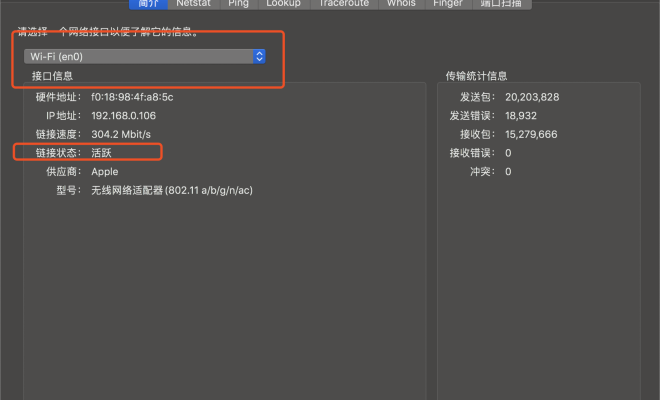
The ifconfig command lets you see and manage the network interfaces on your computer, like ethernet or Wi-Fi connections. You can use it to configure the IP address, netmask, gateway, and even set up a static IP. Type:

ifconfig

You can also use it to diagnose connection issues by checking if the interface is up or down and seeing the traffic statistics.

5. nslookup

If you want to resolve a domain name to its corresponding IP address or vice versa, the nslookup command can do that for you. This can be useful when you want to access a server by its IP address or test if the DNS server is working correctly. Just type:

nslookup [address]

For example, nslookup google.com or nslookup 8.8.8.8

In conclusion, Terminal can be an excellent tool for managing your network and troubleshooting connectivity problems. You don’t need to be a networking expert to use it, just know the basic commands and what they do. With these few tips, you can replace many network utilities and get better insights into your system’s network performance.


Previous Article

The Best iPhone 12 Pro Max Cases

Next Article

Are RAM Drives Faster Than SSDs? 5 ...

Matthew Lynch

Related articles More from author

  • Digital & Mobile Technology

    Linksys WRT3200ACM Router Review

    June 3, 2023
    By Matthew Lynch
  • Digital & Mobile Technology

    Yes, You Can Code on the Go: the Best HTML Editors for Android

    June 13, 2023
    By Matthew Lynch
  • Digital & Mobile Technology

    How to Stop Unwanted & Spam Calls on Your Cellphone or Landline

    July 14, 2023
    By Matthew Lynch
  • Digital & Mobile Technology

    How to Get a Free Trial of Photoshop

    June 4, 2023
    By Matthew Lynch
  • Digital & Mobile Technology

    What is an Internet Backbone?

    May 5, 2023
    By Matthew Lynch
  • Digital & Mobile Technology

    How to Get the Classic Start Menu Back in Windows 11

    July 4, 2023
    By Matthew Lynch

Search

Login & Registration

  • Register
  • Log in
  • Entries feed
  • Comments feed
  • WordPress.org

Newsletter

Signup for The Tech Edvocate Newsletter and have the latest in EdTech news and opinion delivered to your email address!

About Us

Since technology is not going anywhere and does more good than harm, adapting is the best course of action. That is where The Tech Edvocate comes in. We plan to cover the PreK-12 and Higher Education EdTech sectors and provide our readers with the latest news and opinion on the subject. From time to time, I will invite other voices to weigh in on important issues in EdTech. We hope to provide a well-rounded, multi-faceted look at the past, present, the future of EdTech in the US and internationally.

We started this journey back in June 2016, and we plan to continue it for many more years to come. I hope that you will join us in this discussion of the past, present and future of EdTech and lend your own insight to the issues that are discussed.

Newsletter

Signup for The Tech Edvocate Newsletter and have the latest in EdTech news and opinion delivered to your email address!

Contact Us

The Tech Edvocate
910 Goddin Street
Richmond, VA 23231
(601) 630-5238
[email protected]

Copyright © 2025 Matthew Lynch. All rights reserved.