How to use SUMIF in Excel
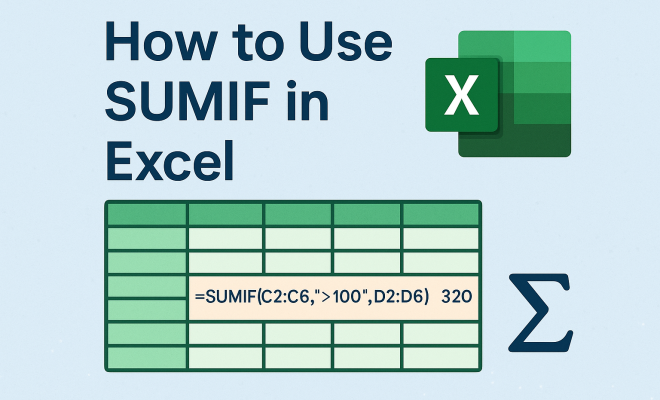
“`html
1. Introduction to SUMIF in Excel
If you’ve ever worked with large datasets in Excel, you know how challenging it can be to extract meaningful insights efficiently. One of the most powerful functions at your disposal is SUMIF in Excel. This function allows users to sum values based on specific criteria, simplifying data analysis significantly. In this article, we’ll explore the ins and outs of SUMIF — from basic usage to advanced applications — ensuring you can harness its full potential.
Understanding how to use SUMIF effectively can transform your data management skills. Whether you’re analyzing sales figures, financial data, or any other quantitative information, knowing how to employ this function will streamline your workflow and enhance your reporting capabilities.
2. What is SUMIF?
SUMIF is a conditional summation function in Excel that calculates the total of a range of values that meet specified criteria. It’s part of a suite of functions designed to perform calculations based on conditions, alongside others such as SUMIFS (for multiple criteria) and AVERAGEIF (for averaging based on conditions).
The syntax for the SUMIF function is straightforward: SUMIF(range, criteria, [sum_range]). Here’s the breakdown:
- range: The range of cells that you want to apply the criteria to.
- criteria: The condition that determines which cells to sum.
- sum_range: (Optional) The actual cells to sum if they meet the criteria.
For example, if you have a list of sales data and want to calculate the total sales for a specific product, SUMIF can do this efficiently without manually filtering your data.
3. Basic Usage of SUMIF in Excel
To understand how to use SUMIF effectively, let’s start with a simple example. Imagine you have a table listing sales representatives, their products, and the amounts sold. If you want to find the total sales for “Product A”, you would use:
=SUMIF(A2:A10, "Product A", B2:B10)
In this formula, A2:A10 is where the product names are located, “Product A” is the criteria, and B2:B10 contains the sales amounts. The function will return the total sales amount for Product A based on the entries in the specified range.
One important aspect to remember is that the criteria can be expressed in various formats. You can use text, numbers, and even logical operators. For instance, if you wanted to sum all sales greater than 100, your formula would look like this:
=SUMIF(B2:B10, ">100")
4. Advanced Applications of SUMIF in Excel
Beyond basic calculations, the SUMIF in Excel function can be applied in more complex scenarios that can greatly enhance your data analysis capabilities. For example, you might want to sum values based on multiple criteria, where SUMIF alone would not suffice. In such cases, the SUMIFS function comes into play.
However, you can also combine SUMIF with other functions for powerful data manipulation. For instance, consider using SUMIF alongside IF or VLOOKUP to generate dynamic reports. A typical scenario might involve calculating sales for different regions where the criteria depend on another factor, like the month or year. Using a combination of these functions can lead to tailored reports that cater to specific business needs.
5. Common Mistakes to Avoid
Despite its utility, many users encounter pitfalls when using SUMIF. Here are some common mistakes to watch out for: (See: Wikipedia page on SUMIF function.)
- Incorrect Range Sizes: Ensure that your range and sum_range are the same size. Mismatched ranges can lead to errors or incorrect results.
- Quotes in Criteria: When using text criteria, ensure you include quotes. Omitting them can result in Excel treating your criteria as a cell reference rather than a string.
- Data Types: Be mindful of the data type in your ranges. For instance, if your sum range contains numbers formatted as text, SUMIF may not calculate correctly.
Taking the time to double-check your formulas against these common issues can save you a lot of time and frustration in the long run.
6. Using Wildcards with SUMIF
Another powerful feature of SUMIF is its ability to use wildcards in criteria. This can be particularly helpful when dealing with partial matches. Excel recognizes two primary wildcard characters:
- ?: Represents any single character.
- *: Represents any number of characters.
For example, if you wanted to sum sales for any product that starts with “A”, you could use the following formula:
=SUMIF(A2:A10, "A*", B2:B10)
This is incredibly useful when you have a broad range of criteria and want to capture all relevant entries without listing every possible variation. Wildcards can significantly simplify your data analysis process, allowing for flexibility and efficiency.
7. The Role of SUMIF in Business Analytics
Understanding how to leverage SUMIF in business analytics can lead to more informed decision-making. For instance, businesses can analyze sales performance over different periods, product categories, or geographic locations. This function enables managers to quickly calculate key performance indicators (KPIs) and assess whether they meet their targets.
Moreover, in a world where data-driven decisions are paramount, proficiency in functions like SUMIF can distinguish between a basic understanding of data management and advanced analytic capabilities. Companies that utilize such functions effectively can respond to market changes and customer needs more adeptly, ultimately gaining a competitive edge.
8. Practical Examples to Try
To fully grasp the capabilities of SUMIF, let’s look at some practical examples that you can try on your own:
- Calculate Total Expenses: If you have a list of expenses categorized by type, use SUMIF to determine the total for a specific category, such as “Travel” or “Office Supplies”.
- Sales Analysis by Region: If you’re tracking sales by region, create a summary report that uses SUMIF to aggregate sales figures for each geographic area.
- Performance Tracking: Use SUMIF to track employee performance by summing sales figures based on employee names or departments.
By experimenting with these examples, you’ll not only improve your understanding but also discover new ways to apply SUMIF in your everyday tasks.
9. Frequently Asked Questions about SUMIF in Excel
What is the difference between SUMIF and SUMIFS?
SUMIF is designed for summing values based on a single condition, while SUMIFS allows for multiple criteria. This makes SUMIFS more versatile for complex data analysis where several conditions need to be met.
Can I use SUMIF with dates?
Absolutely! You can use SUMIF to sum values based on date criteria. For example, to sum sales made after January 1, 2023, you would write:
=SUMIF(A2:A10, ">01/01/2023", B2:B10)
Just ensure that your date format matches the settings in your Excel.
How do I use SUMIF with cells that contain formulas?
SUMIF works seamlessly with cells containing formulas. However, ensure that the formulas in the sum_range produce numerical outputs. If a formula returns text instead, SUMIF may not calculate as expected. (See: Harvard University resources on data analysis.)
Can I use cell references in the criteria?
Yes, you can use cell references in your criteria. For instance, if cell D1 contains the product name you want to sum, your formula could look like this:
=SUMIF(A2:A10, D1, B2:B10)
This makes your formulas dynamic and allows for easier updates without needing to edit the formula itself.
Does SUMIF work with text as well as numbers?
Yes, SUMIF works with both text and numbers. You can use it to sum numerical values based on text criteria. Just remember that when using text, the criteria must be enclosed in quotes.
What happens if there are no matches found for my criteria?
If no matches are found for the specified criteria, SUMIF will return a result of zero. This is useful because it helps you understand that no values met your conditions rather than generating an error.
Can I use logical operators in the SUMIF function?
Yes, you can include logical operators such as “>” or “<” in your criteria. Just ensure to include the operator within quotes as part of the criteria string.
How can I troubleshoot a SUMIF formula that isn’t working?
Start by checking the following:
- Ensure that the ranges are of equal size.
- Check your criteria for proper formatting, especially if using quotes.
- Verify the data types in your ranges; numbers formatted as text can cause issues.
- Use the Evaluate Formula tool in Excel to step through your formula and find where it might be failing.
10. In-Depth Analysis of SUMIF Functionality
To appreciate SUMIF’s capabilities, let’s look at its functionality in greater detail. The flexibility of SUMIF is one reason it’s favored across various industries, including finance, sales, and inventory management. Its straightforward syntax allows users to quickly implement it without deep technical knowledge.
For instance, in financial analysis, professionals can use SUMIF to sum expenses over a defined period or categorize them into specific types. This means that tracking spending trends becomes much easier. Similarly, in sales analytics, the ability to sum sales by product categories or sales personnel allows businesses to make informed decisions about inventory and sales strategies.
11. Comparing SUMIF and Other Functions
While SUMIF is highly useful, it’s essential to know when to use it in conjunction with other functions. For example, the SUMIFS function allows for more complex criteria, which can be beneficial when working with multi-dimensional datasets. Here’s a short comparison:
- SUMIF: Use this function for single criteria scenarios. It’s quick and effective for straightforward calculations.
- SUMIFS: When you need to sum based on multiple conditions, SUMIFS is your go-to. For example, you could sum sales that only occurred in a specific region during a specific month.
- AVERAGEIF: If you need to calculate averages instead of sums based on criteria, this function allows you to do so seamlessly.
Understanding these differences can help you choose the right function for your specific needs, ensuring optimal performance in your data analysis tasks.
12. Real-World Scenarios for SUMIF Applications
Let’s explore some real-world scenarios where SUMIF can be effectively applied:
- Retail Sales Analysis: A store manager can use SUMIF to calculate total sales for products in specific categories, helping to identify which categories perform best during different seasons.
- Event Budgeting: Event planners can sum expenses based on categories like catering, venue, and entertainment, allowing for better budget management and forecasting for future events.
- Inventory Management: Businesses can track stock levels by summing quantities based on product categories, ensuring they maintain optimal inventory levels to meet customer demand.
These examples illustrate how versatile the SUMIF function can be in everyday business operations, streamlining processes that would otherwise be cumbersome.
13. Using SUMIF in Combination with PivotTables
Another powerful way to utilize the SUMIF function is in conjunction with PivotTables. PivotTables provide a dynamic way to summarize data; however, adding SUMIF can refine your data analysis even further. For example, you can create a PivotTable that lists sales by region and then apply SUMIF to filter these results based on specific product criteria. This combination allows for not just a summary but a detailed view of data trends and patterns.
Here’s how you can do this:
- Create a PivotTable with your sales data.
- Use the PivotTable filters to segment your data based on relevant categories.
- Employ SUMIF to sum the filtered data based on additional criteria not present in the PivotTable.
This method ensures that you’re leveraging the strengths of both SUMIF and PivotTables, leading to comprehensive data analysis outcomes.
14. Future of Data Analysis with SUMIF
As data analysis continues to evolve, functions like SUMIF will remain vital as they adapt to new technologies and methodologies. With the rise of big data, businesses require tools that not only handle large datasets but also provide meaningful insights quickly. Excel continues to be a staple tool for many analysts; thus, mastering functions like SUMIF will maintain relevance in numerous industries.
Moreover, with the integration of artificial intelligence and machine learning in data analytics, the basic functionalities of Excel could be enhanced significantly. This means users will continue to find new applications for SUMIF as analytical needs grow in complexity.
15. Conclusion: Mastering SUMIF for Data Efficiency
Incorporating the SUMIF in Excel function into your data analysis toolkit can significantly enhance your efficiency and accuracy when handling large datasets. By mastering this powerful function, you’ll be able to streamline your reports, perform complex analyses, and ultimately make better business decisions.
With practice, you’ll find SUMIF to be an indispensable part of your Excel skill set. As data continues to play a crucial role in various industries, being equipped with the knowledge of how to utilize such functions will keep you ahead of the curve. So, go ahead and start applying what you’ve learned today — your future self will thank you!
“`
Trending Now
Frequently Asked Questions
What does the SUMIF function do in Excel?
The SUMIF function in Excel calculates the total of a range of values that meet specified criteria. It helps users perform conditional summation, allowing for efficient data analysis without manual filtering.
How do I use the SUMIF function?
To use the SUMIF function, you need to provide three arguments: the range of cells to evaluate, the criteria for summation, and an optional sum range. For example, =SUMIF(A2:A10, "Product A", B2:B10) sums values in B2:B10 where corresponding A2:A10 cells equal 'Product A'.
Can SUMIF handle multiple criteria?
No, the SUMIF function is designed for a single criterion. For multiple criteria, you should use SUMIFS, which allows you to sum values based on multiple conditions simultaneously.
What is the syntax for the SUMIF function?
The syntax for the SUMIF function is SUMIF(range, criteria, [sum_range]). The 'range' is the cells to evaluate, 'criteria' is the condition to meet, and 'sum_range' is the optional range of cells to sum.
When should I use SUMIF in Excel?
You should use SUMIF in Excel when you need to sum values based on specific conditions, such as calculating total sales for a particular product or analyzing financial data that meets certain criteria.
Agree or disagree? Drop a comment and tell us what you think.