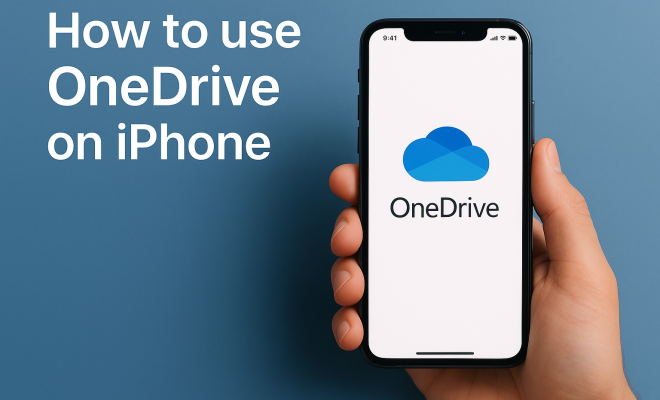
Master OneDrive on iPhone: 10 Essential Tips for 2024
“`html
For those who rely on cloud storage, OneDrive for iPhone is a powerful tool that can seamlessly integrate with your daily life. Whether you’re a student, a professional, or just someone who wants to keep their files organized, knowing how to use OneDrive effectively can greatly enhance your productivity. Let’s dive into ten essential tips that will help you make the most of OneDrive on your iPhone.
1. Getting Started with OneDrive
Before you can unleash the power of OneDrive on your iPhone, you’ll need to download the app from the App Store. Once installed, you can sign in with your Microsoft account or create a new one if you don’t have it. OneDrive offers 5GB of free storage to get you started, with options to upgrade as your storage needs increase.
Once logged in, the interface is user-friendly and straightforward. You’ll see a dashboard that displays all your files and folders. Familiarize yourself with this layout, as it will help you navigate and manage your files easily. You can upload photos, documents, and other files directly from your iPhone, making it a convenient tool for on-the-go access.
2. Organizing Your Files
One of the primary reasons to use OneDrive for iPhone is its ability to organize files efficiently. You can create folders within the app to categorize your documents, images, and videos. For instance, you might want to create separate folders for work-related files, personal images, or important documents.
To create a folder, simply tap the ‘+’ icon and select ‘Folder’. Naming your folders clearly will aid in quick retrieval later on. Moreover, you can also use the search function at the top of the screen to find your files quickly, which is especially handy if you have a significant amount of data stored.
3. Uploading Files Effortlessly
Uploading files to OneDrive from your iPhone is a breeze. You can upload photos directly from your camera roll or documents from various apps. To do this, open the OneDrive app, tap the ‘+’ button, and choose ‘Upload’. Then, select the files you want to add. This feature is particularly useful if you’re transitioning from physical documents to digital storage.
Additionally, you can enable automatic uploads for your camera roll, ensuring that your photos are always backed up without any manual effort. This can be done in the app settings under ‘Camera Upload’. Just remember that this feature may consume data if you’re not connected to Wi-Fi, so adjust your settings accordingly to avoid unexpected charges.
4. Sharing Files and Collaborating
OneDrive makes it simple to share files with others, which is particularly useful for collaboration on projects. To share a file, tap on the file you want to share, select the ‘Share’ option, and choose how you’d like to share it—be it via email, link, or through other apps.
When sharing, you can control permissions by allowing others to either view or edit the file. This flexibility ensures that you maintain control over your documents while also fostering collaboration. This feature is invaluable in professional settings, where document revisions may occur frequently.
5. Using OneDrive with Other Apps
Integration with other apps is one of the standout features of OneDrive for iPhone. You can easily access your OneDrive files from apps like Word, Excel, and PowerPoint. This seamless integration allows you to edit your documents directly in these applications without needing to download them to your device.
To open a file in another app, select the file in OneDrive, then choose ‘Open in’ and select the desired application. This interconnectedness streamlines your workflow, making it easier to manage and edit your files across different platforms without the hassle of switching between applications.
6. Offline Access to Your Files
Being able to access your files offline is crucial, especially if you’re traveling or in areas with poor internet connectivity. OneDrive allows you to mark files or folders for offline access, ensuring you can view them when you don’t have an internet connection. (See: Learn more about OneDrive features.)
To enable offline access, go to the file or folder you want to make available offline, tap on the three dots for more options, and select ‘Make Available Offline’. This feature is a lifesaver for business travelers or students who may find themselves in situations without reliable internet access.
7. Version History for Important Documents
OneDrive keeps a version history of your files, which is particularly beneficial if you’re collaborating with others or frequently updating important documents. This feature allows you to view and restore previous versions of a document, providing peace of mind if changes need to be reverted.
To access version history, select the file, tap on the three dots, and choose ‘Version History’. You’ll be able to see a list of all the saved versions and can restore any previous version with a few simple taps. This functionality can save you from potential disasters if a recent edit didn’t go as planned.
8. Security Features to Protect Your Data
With increasing concerns about data security, OneDrive provides several features to help protect your files. For starters, OneDrive uses encryption both at rest and in transit, ensuring that your data remains secure. You can also enable two-factor authentication on your Microsoft account for an extra layer of protection.
Additionally, OneDrive offers personal vault functionality, which provides a secure area within your OneDrive account for sensitive documents. To set this up, go to the app settings and follow the prompts to secure your vault. This feature is particularly useful for storing important documents like passports, IDs, or financial statements.
9. Utilizing Microsoft 365 Integration
If you’re a Microsoft 365 subscriber, you’ll enjoy additional benefits from using OneDrive. Integration with Microsoft 365 means you get more storage and additional tools designed to improve your productivity. You can edit documents directly from OneDrive in apps like Word, Excel, and PowerPoint, and the changes will sync automatically.
This integration is especially powerful for teams that rely on Microsoft tools for collaboration. With shared access to documents and the ability to edit in real time, teams can work more effectively, reducing the friction often associated with file sharing and collaboration.
10. Staying Updated with OneDrive Features
Finally, it’s crucial to stay informed about new features and updates to OneDrive for iPhone. Microsoft frequently rolls out updates that can enhance functionality and improve user experience. To keep your app up to date, regularly check the App Store for updates, and subscribe to Microsoft’s blog or their social media channels for announcements regarding new features.
Regular updates often include performance improvements and new capabilities that can further streamline your workflow. Taking the time to stay informed will ensure you’re always making the most of what OneDrive has to offer.
11. Advanced Search Features
Finding specific files in a sea of documents can be a daunting task. Fortunately, OneDrive offers advanced search capabilities that make locating your files straightforward. You can search by file name, type, or even keywords found within documents. This can be a huge time-saver, especially if you’ve uploaded a lot of content. (teaching tips for iPhone)
Additionally, OneDrive uses artificial intelligence to improve search results. For instance, if you often look for certain documents, OneDrive will begin to suggest them based on your usage patterns. This predictive feature makes accessing your most important files easier than ever.
12. Managing Storage Space
While OneDrive starts with 5GB of free storage, you might find yourself running low on space as you upload more files. It’s essential to keep an eye on your storage usage. To check how much space you’re using, go to the OneDrive app settings and look under the ‘Storage’ section.
If you notice you’re approaching your limit, consider cleaning out files you no longer need or moving them to an external hard drive. OneDrive also offers various subscription plans with additional storage options, so upgrading could be a practical choice if you find the free tier limiting. (See: Impact of technology on productivity.) There’s a fuller look at best classroom apps.
13. Integrating OneDrive with Automation Tools
For those looking to streamline their workflow even further, consider integrating OneDrive with automation tools. Services like Zapier and IFTTT allow you to create custom workflows that can automate repetitive tasks. For example, you can set an automation that saves email attachments directly to your OneDrive account, saving you the hassle of manually downloading and uploading files.
This integration can save you time and help ensure that your important files are always backed up in the cloud without any extra work on your part. Exploring these tools might help you find unique ways to enhance your productivity.
14. OneDrive’s Mobile Features
Using OneDrive for iPhone comes with unique mobile features designed for users on the go. One of these is the ability to scan documents using your phone’s camera. This feature allows you to take a picture of a physical document and convert it to a PDF, which can then be uploaded directly to your OneDrive account.
This is particularly useful for students or professionals who find themselves needing to digitize receipts, business cards, or important papers quickly. Just tap the ‘+’ button, choose ‘Scan’, and follow the prompts. The app automatically enhances the image, making it look professional and ready for sharing.
15. Understanding OneDrive’s Sync Features
Syncing files between your iPhone and other devices is one of the biggest advantages of using OneDrive. When you make changes to a file on your iPhone, those changes will be reflected on any device where you access OneDrive, whether it’s a computer or another smartphone. This real-time syncing ensures that you always have the latest version of your files, regardless of where you are.
Understanding syncing is particularly important if you’re working on collaborative projects. You can be confident that everyone involved is looking at the most up-to-date information, which reduces the chances of miscommunication or errors.
16. Exploring OneDrive’s Business Features
If you’re using OneDrive in a business context, you’ll find several features tailored for teams and organizations. OneDrive for Business, part of the Office 365 suite, provides advanced tools for collaboration, including integration with Microsoft Teams. This means you can easily share files during meetings or group chats, making teamwork smooth and efficient.
Additionally, with OneDrive for Business, your organization can set policies regarding data retention and sharing, giving you peace of mind that sensitive documents are managed properly. Whether you’re sharing a large presentation with your team or managing project files, OneDrive’s business features can significantly enhance your workflow.
17. OneDrive’s AI Features
Microsoft has integrated artificial intelligence into OneDrive to enhance user experience. For example, the “Suggested” feature recommends files based on your work habits, which can help you find what you need without even searching. If you frequently share a specific file with colleagues, OneDrive may suggest it when you start a new email or chat, saving you time.
This AI-based functionality also extends to photo management. OneDrive can recognize faces in your images and organize them accordingly, making it easier to find pictures from past events. This can be especially beneficial for families and users who store a significant number of photos in the cloud.
18. Comparing OneDrive to Other Cloud Storage Options
When it comes to cloud storage, OneDrive isn’t the only player in the game. Services like Google Drive, Dropbox, and iCloud offer similar functionalities. However, each comes with its unique advantages. For instance, Google Drive is known for its collaboration features, particularly with Google Docs. Dropbox excels in file sharing and version control, while iCloud is deeply integrated with Apple’s ecosystem.
OneDrive stands out with its seamless integration with Microsoft Office applications and its emphasis on productivity tools. For existing Microsoft users, choosing OneDrive can enhance their overall workflow by keeping everything in one ecosystem. Additionally, if you’re looking for a cloud storage solution that offers strong security features and a robust set of productivity tools, OneDrive is certainly worth considering. (See: Cloud storage options and benefits.)
19. Frequently Asked Questions (FAQ)
What is OneDrive for iPhone?
OneDrive for iPhone is a cloud storage service provided by Microsoft that allows users to store files online and access them from various devices, including their iPhones. It offers features such as file sharing, collaboration, and integration with Microsoft Office apps.
How much free storage do I get with OneDrive?
When you sign up for OneDrive, you receive 5GB of free storage. If you need more space, you have the option to upgrade to a paid plan for additional storage.
Can I use OneDrive without an internet connection?
Yes! You can mark specific files or folders for offline access, allowing you to view and edit them even without an internet connection. Just remember to enable this feature before you go offline!
Is my data safe with OneDrive?
OneDrive uses encryption both during data transmission and while stored on its servers, making it a secure option for cloud storage. You can also enable two-factor authentication for added security.
Can I share files with people who don’t have OneDrive?
Absolutely! You can share files via a link that anyone can access, regardless of whether they have a OneDrive account. You can also set permissions to control whether the recipient can view or edit the file.
How do I delete files from OneDrive?
To delete files, simply tap on the file you wish to remove, select the ‘Delete’ option, and confirm your choice. Deleted files go to the Recycle Bin, where you can recover them if needed within a specified time frame before permanent deletion.
What happens if I exceed my storage limit?
If you exceed your storage limit, you won’t be able to upload more files until you either delete some existing files, move them to another storage solution, or upgrade your OneDrive subscription for more space.
In summary, mastering OneDrive for iPhone can significantly enhance your productivity and file management. By utilizing these tips, you can ensure that you’re making the most of this powerful tool, whether you’re working on collaborative projects or simply trying to keep your personal files organized. Embrace the cloud, and take full advantage of what OneDrive offers to simplify your digital life.
“`
Trending Now
Frequently Asked Questions
How do I get started with OneDrive on my iPhone?
To get started with OneDrive on your iPhone, download the app from the App Store. After installation, sign in with your Microsoft account or create a new one. You'll receive 5GB of free storage, allowing you to upload and manage your files easily.
Can I organize files in OneDrive on my iPhone?
Yes, you can organize files in OneDrive by creating folders within the app. Simply tap the '+' icon, select 'Folder', and name it clearly. This helps you categorize documents, images, and videos for easy retrieval later.
How do I upload files to OneDrive from my iPhone?
Uploading files to OneDrive from your iPhone is simple. You can upload photos directly from your camera roll or documents from other apps by accessing the OneDrive app and selecting the files you wish to upload.
Is OneDrive free to use on iPhone?
Yes, OneDrive offers 5GB of free storage when you sign up on your iPhone. If you need more storage, you can upgrade your plan to accommodate your additional storage needs.
How can I search for files in OneDrive on my iPhone?
To search for files in OneDrive on your iPhone, use the search function located at the top of the screen. This feature allows you to quickly find documents, images, or videos, especially if you have a large amount of data stored.
Agree or disagree? Drop a comment and tell us what you think.