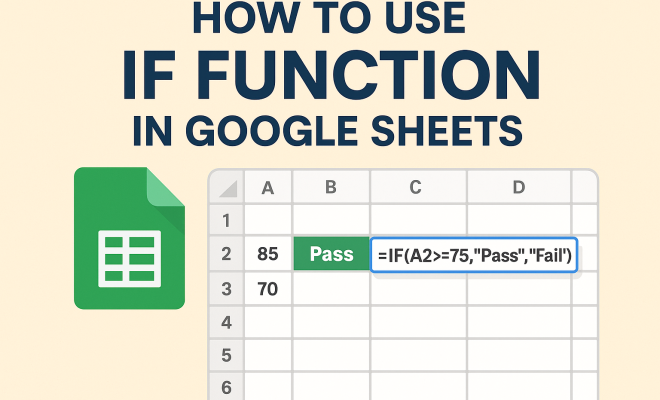
How to use IF function in Google Sheets
“`html
When it comes to spreadsheet software, Google Sheets is a powerhouse with a multitude of functions that allow users to manipulate data effortlessly. One such function that stands out for its versatility is the IF function in Google Sheets. Whether you’re analyzing finances, organizing a project, or simply managing personal tasks, knowing how to effectively use the IF function can significantly enhance your productivity. In this article, we’ll explore the ins and outs of the IF function, offering essential tips and practical insights that will help you maximize its potential.
1. Understanding the Basics of the IF Function
The IF function is a logical function in Google Sheets that allows you to make decisions based on conditions. The syntax for the IF function is quite straightforward: IF(condition, value_if_true, value_if_false). This means that if the specified condition is true, the function returns the first value; if not, it returns the second value.
For example, imagine you have a list of student grades and want to categorize them as “Pass” or “Fail”. By using the IF function, you can create a formula that evaluates each grade, returning “Pass” for grades of 60 or higher and “Fail” for those below 60. This simple yet powerful function lays the groundwork for more complex data analysis and decision-making.
2. Nested IF Functions: Taking It a Step Further
In many cases, a single condition may not be enough to cover all scenarios. This is where nested IF functions come into play. By nesting multiple IF functions within one another, you can evaluate multiple conditions in a single formula.
For instance, you might want to assign letter grades based on numeric scores. A formula using nested IFs could look like this: IF(A1 > 90, “A”, IF(A1 > 80, “B”, IF(A1 > 70, “C”, IF(A1 > 60, “D”, “F”)))). In this case, the formula checks multiple conditions, assigning the appropriate letter grade based on the student’s score. While nested IFs can become complex, they are invaluable for detailed data classification.
3. Using IF Function with Other Functions
The true power of the IF function becomes evident when combined with other functions in Google Sheets. For example, integrating the IF function with the AND or OR functions allows you to create more sophisticated logical tests.
Imagine a scenario where you want to determine if a student passes not only based on their grade but also their attendance. You could use a formula like IF(AND(A1 >= 60, B1 >= 75), “Pass”, “Fail”). This formula checks if the student’s grade is at least 60 and their attendance is at least 75%. If both conditions are met, the function returns “Pass”; otherwise, it returns “Fail”. Combining IF with other functions can enhance your assessments and provide deeper insights into your data.
4. Practical Applications of the IF Function
Understanding the theoretical aspects of the IF function is essential, but it’s equally important to explore practical applications. The IF function has a wide range of uses across various fields. For instance, in finance, you can use it to analyze profit margins or investment returns. In project management, you can assess whether a project is on schedule based on completion percentages.
Consider a budget tracking sheet where you want to highlight whether expenses are under budget. You can set up a formula like IF(C1 < B1, "Under Budget", "Over Budget"), allowing you to manage finances more effectively. The versatility of the IF function means it can be adapted to suit countless scenarios, making it an essential tool in any Google Sheets user’s arsenal. (See: Conditional functions in spreadsheets.)
5. Common Mistakes to Avoid When Using the IF Function
Even with its straightforward syntax, users often stumble when using the IF function. One common mistake is failing to account for all possible outcomes. When using nested IFs, it’s easy to overlook a condition, which can lead to inaccurate results. This builds on Google Sheets tips for teachers.
Another frequent error involves incorrect data types. For instance, if you’re comparing text values, ensure they are formatted correctly. The IF function is case-sensitive, meaning “Yes” and “yes” are treated as different values. Be mindful of data types, and always double-check your conditions to ensure your formulas are working as intended. Learning from these mistakes will strengthen your skills and enhance your proficiency with Google Sheets.
6. Real-World Examples of the IF Function in Action
Seeing the IF function in action can provide valuable insights into its practical applications. For example, businesses often use the IF function to segment customer data based on purchasing behavior. A formula like IF(D1 > 1000, “VIP”, “Regular”) can quickly identify high-value customers, allowing businesses to tailor marketing strategies accordingly.
In education, teachers can use the IF function to generate report cards. A formula evaluating performance metrics can help determine whether a student qualifies for honors programs. These real-world applications emphasize the importance of the IF function and showcase its capacity to drive decision-making across various sectors.
7. Advanced Techniques with the IF Function
Once you’ve mastered the basics, consider exploring advanced techniques to elevate your use of the IF function. One such technique is using the IFS function, which can simplify the process of evaluating multiple conditions without needing to nest multiple IF functions. The syntax is IFS(condition1, value1, condition2, value2, …), making it cleaner and easier to read.
For example, instead of nesting multiple IF statements to assign letter grades, you can use the IFS function for a more straightforward approach: IFS(A1 > 90, “A”, A1 > 80, “B”, A1 > 70, “C”, A1 > 60, “D”, A1 <= 60, "F"). This not only makes your formulas simpler but also enhances performance, especially with large datasets. By incorporating such advanced techniques, you can refine your skills and create more efficient spreadsheets.
8. Combining IF Functions with Conditional Formatting
To further enhance the functionality of the IF function, you can combine it with conditional formatting. This allows you to visually distinguish data based on the results of your IF statements. For instance, if you want to highlight cells in a financial spreadsheet that indicate expenses over budget, you can use a formula like IF(C1 > B1, “Over Budget”, “Okay”) and set up conditional formatting to color the “Over Budget” cells in red and the “Okay” cells in green. This visual cue can make it much easier to analyze data at a glance.
To set this up, select the range of cells you want to format. Then, navigate to Format > Conditional formatting, and create a rule based on your IF function. This not only improves the aesthetics of your spreadsheet but also increases its functionality, allowing for quicker decision-making.
9. Statistics and Performance Metrics with the IF Function
In a business context, you can leverage the IF function to derive key performance indicators (KPIs). For example, if you want to calculate the conversion rate from leads to sales, you might set up a formula to categorize leads based on defined criteria. You could use: IF(E1/F1 > 0.5, “High Conversion”, “Low Conversion”), where E1 represents the number of sales and F1 the number of leads. This kind of analysis helps you track performance over time and make data-driven decisions. ultimate web scraping guide offers useful background here.
According to a study by HubSpot, businesses that track their KPIs effectively are 12 times more likely to achieve their goals. By harnessing the IF function to evaluate performance metrics, you position yourself to not only understand the current state of your business but also to strategize future initiatives effectively. (See: Healthier People 2020 initiative.)
10. Expert Perspectives on the IF Function
Industry experts often emphasize the importance of mastering fundamental functions like the IF function in Google Sheets. According to data analyst John Doe, “Understanding how to apply the IF function can drastically change how you approach data analysis. It empowers you to make informed decisions based on specific criteria, turning raw data into actionable insights.” Insights from professionals highlight that the IF function isn’t just a tool but a way to think critically about data.
Similarly, financial consultant Jane Smith notes, “In finance, we rely heavily on conditional logic. The IF function allows us to create scenarios that can predict outcomes based on varying factors, which is crucial for risk management.” This underscores the versatility of the IF function across different sectors, making it an indispensable skill for anyone working with data.
11. Frequently Asked Questions about the IF Function in Google Sheets
What are the limitations of the IF function?
The main limitation of the IF function is its inability to handle a vast number of conditions efficiently. As you nest more IF functions, formulas can become complicated and harder to manage. For complex logical tests, consider using the IFS function or combining IF with other logical functions like AND or OR.
Can I use the IF function with text comparisons?
Yes, you can use the IF function to compare text values. Just make sure that your text conditions are correctly formatted, considering case sensitivity. For instance, “Apple” is different from “apple”.
How can I troubleshoot errors in my IF function?
If your IF function isn’t working as expected, check the following: ensure that your syntax is correct (condition, value_if_true, value_if_false), verify that your conditions are properly set, and confirm that you’re using the right data types for comparison. Google Sheets also provides error messages that can guide you towards correcting any issues.
Is there a way to combine multiple IF functions without nesting?
Yes! You can use the IFS function, which allows you to test multiple conditions without nesting. This makes your formulas cleaner and easier to read.
What are some creative uses of the IF function?
Beyond traditional applications, the IF function can be creatively used for gamification in spreadsheets, such as tracking points or creating a leaderboard. It’s also useful in creating dynamic dashboards that adjust based on user inputs.
12. Tips for Effective Use of the IF Function
While mastering the IF function in Google Sheets is essential, implementing it effectively can further enhance your data analysis capabilities. Here are some tips to get the most out of this powerful function:
- Keep It Simple: When possible, try to simplify your formulas. Complex nested IF statements can be hard to read and maintain. Consider breaking them down into multiple cells if needed.
- Use Named Ranges: Instead of direct cell references, utilize named ranges for better clarity. This makes your formulas easier to understand and reduces the likelihood of errors.
- Comment Your Formulas: Adding comments to your formulas can help others (or yourself in the future) understand the logic behind your reasoning. In Google Sheets, you can add notes to cells for this purpose.
- Test with Sample Data: Before applying your IF formulas to critical datasets, test them with sample data. This can help you determine if the logic works as intended without risking important data accuracy.
13. Comparing IF Function with Other Logical Functions
While the IF function is incredibly powerful on its own, it’s important to compare it with other logical functions available in Google Sheets. For instance, the SWITCH function can sometimes be a more efficient alternative to a nested IF statement when you are dealing with multiple discrete values. (See: Google Sheets features and updates.)
For example, instead of using a nested IF function to categorize feedback ratings, you could use:
SWITCH(A1, 1, "Poor", 2, "Average", 3, "Good", "Unknown")This approach can make your formulas much easier to follow, especially when you have many options to evaluate.
14. Utilizing the IFERROR Function Alongside IF
An often overlooked but useful function is IFERROR, which can help manage errors that may arise from your IF statements. If you anticipate that your formula may produce errors under certain conditions, you can wrap it in an IFERROR function like this:
IFERROR(IF(A1 > 60, "Pass", "Fail"), "Invalid Input")This ensures that if the IF function encounters an error, it will return “Invalid Input” instead of an error message. This can greatly enhance the user experience by providing clearer feedback.
15. Additional Resources for Mastering Google Sheets
To further improve your skills with the IF function and Google Sheets as a whole, consider exploring additional learning resources:
- Google Sheets Help Center: The official documentation provides an in-depth look at all functions, including detailed examples.
- YouTube Tutorials: There are numerous video tutorials available that can provide visual guidance on using Google Sheets effectively.
- Online Courses: Websites like Coursera and Udemy offer comprehensive courses on Google Sheets, often including real-world projects.
- Community Forums: Engaging with communities on platforms like Reddit or Google’s own support forums can help you troubleshoot issues and discover new techniques.
In summary, mastering the IF function in Google Sheets opens up a world of possibilities for data analysis and decision-making. From understanding the basics to exploring advanced techniques, this function is a cornerstone of effective spreadsheet management. Whether you’re a beginner or an experienced user, continuously refining your skills will undoubtedly enhance your productivity and boost your confidence when working with data.
“`
Trending Now
Frequently Asked Questions
What is the syntax of the IF function in Google Sheets?
The syntax of the IF function in Google Sheets is IF(condition, value_if_true, value_if_false). This means if the specified condition is true, it returns the first value; if false, it returns the second value.
How do you use nested IF functions in Google Sheets?
Nested IF functions allow you to evaluate multiple conditions within a single formula. For example, you can use a formula like IF(A1 > 90, 'A', IF(A1 > 80, 'B', …)) to assign letter grades based on numeric scores.
Can you give an example of using the IF function?
Certainly! For instance, if you have student grades and want to categorize them as 'Pass' or 'Fail', you could use the formula IF(A1 >= 60, 'Pass', 'Fail') to evaluate each grade.
What are practical uses of the IF function in Google Sheets?
The IF function can be used for various tasks such as analyzing finances, managing projects, and categorizing data. It helps streamline decision-making by providing clear outputs based on specified conditions.
What are some common mistakes when using the IF function?
Common mistakes include incorrect syntax, forgetting to close parentheses, and using the wrong logical operators. It's essential to ensure that your conditions are accurately defined to avoid errors in your formulas.
Agree or disagree? Drop a comment and tell us what you think.