The Tech Edvocate

Top Menu

  • Advertisement
  • Apps
  • Home Page
  • Home Page Five (No Sidebar)
  • Home Page Four
  • Home Page Three
  • Home Page Two
  • Home Tech2
  • Icons [No Sidebar]
  • Left Sidbear Page
  • Lynch Educational Consulting
  • My Account
  • My Speaking Page
  • Newsletter Sign Up Confirmation
  • Newsletter Unsubscription
  • Our Brands
  • Page Example
  • Privacy Policy
  • Protected Content
  • Register
  • Request a Product Review
  • Shop
  • Shortcodes Examples
  • Signup
  • Start Here
    • Governance
    • Careers
    • Contact Us
  • Terms and Conditions
  • The Edvocate
  • The Tech Edvocate Product Guide
  • Topics
  • Write For Us
  • Advertise

Main Menu

  • Start Here
    • Our Brands
    • Governance
      • Lynch Educational Consulting, LLC.
      • Dr. Lynch’s Personal Website
      • Careers
    • Write For Us
    • The Tech Edvocate Product Guide
    • Contact Us
    • Books
    • Edupedia
    • Post a Job
    • The Edvocate Podcast
    • Terms and Conditions
    • Privacy Policy
  • Topics
    • Assistive Technology
    • Child Development Tech
    • Early Childhood & K-12 EdTech
    • EdTech Futures
    • EdTech News
    • EdTech Policy & Reform
    • EdTech Startups & Businesses
    • Higher Education EdTech
    • Online Learning & eLearning
    • Parent & Family Tech
    • Personalized Learning
    • Product Reviews
  • Advertise
  • Tech Edvocate Awards
  • The Edvocate
  • Pedagogue
  • School Ratings

logo

The Tech Edvocate

  • Start Here
    • Our Brands
    • Governance
      • Lynch Educational Consulting, LLC.
      • Dr. Lynch’s Personal Website
        • My Speaking Page
      • Careers
    • Write For Us
    • The Tech Edvocate Product Guide
    • Contact Us
    • Books
    • Edupedia
    • Post a Job
    • The Edvocate Podcast
    • Terms and Conditions
    • Privacy Policy
  • Topics
    • Assistive Technology
    • Child Development Tech
    • Early Childhood & K-12 EdTech
    • EdTech Futures
    • EdTech News
    • EdTech Policy & Reform
    • EdTech Startups & Businesses
    • Higher Education EdTech
    • Online Learning & eLearning
    • Parent & Family Tech
    • Personalized Learning
    • Product Reviews
  • Advertise
  • Tech Edvocate Awards
  • The Edvocate
  • Pedagogue
  • School Ratings
  • How to use ClickUp goals feature

  • Trello for Business

  • Can Smartsheet do automation

  • How to use Microsoft Planner boards

  • How many transactions in Kashoo

  • Sage

  • Is Sage worth it for accountants

  • How to use Smartsheet templates

  • How many users in Zoho Books free plan

  • Can Wrike integrate with Adobe Creative Cloud

Digital & Mobile Technology
Home›Digital & Mobile Technology›How to Use Google’s ‘I’m Feeling Lucky’ Button

How to Use Google’s ‘I’m Feeling Lucky’ Button
By Matthew Lynch
May 31, 2023
0
Spread the love

Google is one of the most popular search engines worldwide, with millions of users relying on its services every day. Its advanced algorithms, vast database, and user-friendly interface make it the ideal choice for finding information on the web. However, what many people do not know is that Google has a special feature that could bring joy and excitement to your searches: the “I’m Feeling Lucky” button. In this article, we’ll tell you how to use this feature and explore the benefits it can bring to your search experience.

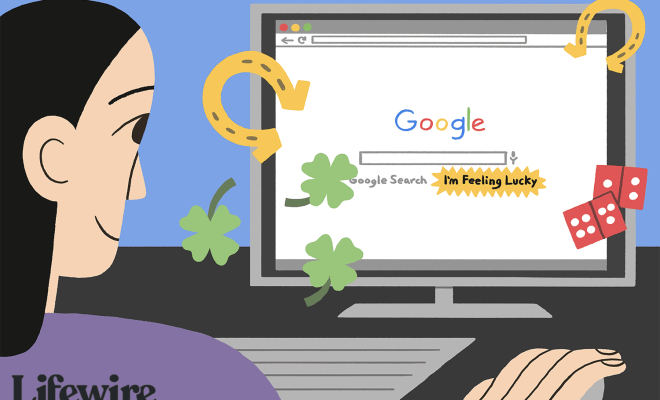
The “I’m Feeling Lucky” feature was introduced by Google in 1999. It is a button that sits next to the “Google Search” button on the search page. When clicked, it takes the user directly to the top-ranked page for the entered search term, without showing the search results page. This feature was designed to save time and promote efficiency, as it eliminates the need for browsing through multiple search results to find the desired information. However, the button has evolved into something much more than just a time-saver. It has become a source of fun, entertainment, and inspiration for users worldwide.

So, how do you use the “I’m Feeling Lucky” button? It’s very simple. Follow these steps:

Step 1: Open Google.com on your web browser.

Step 2: Type in your search term in the search box.

Step 3: Click on the “I’m Feeling Lucky” button instead of the “Google Search” button.

Step 4: If your search term is clear and accurate, you will be taken directly to the top-ranked page for that term.

Step 5: If the page is not what you were looking for, simply go back to the search page and try again.

Now that you know how to use the “I’m Feeling Lucky” button let’s take a look at some of the benefits it can provide.

Firstly, the feature is perfect for those who know exactly what they are looking for and want to save time. For instance, if you’re searching for the website of a particular company, clicking on the “I’m Feeling Lucky” button will take you directly to their homepage, without having to sift through multiple search results.

Secondly, the feature can be a source of amusement and entertainment, as it can lead you to unexpected and exciting pages. For example, if you type in “Google Gravity” and click on the “I’m Feeling Lucky” button, you will be taken to a page that simulates the gravitational pull on the Google search bar and other elements on the page.

Thirdly, the “I’m Feeling Lucky” button can be a great tool for inspiration and creativity. If you’re facing writer’s block or struggling with a project, try typing in random phrases, clicking the “I’m Feeling Lucky” button, and seeing where it takes you. You might be surprised by how much it can spark your imagination.

In conclusion, the “I’m Feeling Lucky” button is a fun and useful feature that adds a new dimension to the Google search experience. It’s simple to use, saves time, and can provide entertainment and inspiration. So, next time you’re on Google, give it a try and see where it takes you.  

Previous Article

Ways to Find Your Roku IP Address ...

Next Article

How to Mirror an iPhone to a ...

Matthew Lynch

Related articles More from author

  • Digital & Mobile Technology

    The Free Mtalk App Is a Landline in Your Pocket

    June 10, 2023
    By Matthew Lynch
  • Digital & Mobile Technology

    What Is Activity Monitor? The Mac Equivalent of Task Manager

    June 23, 2023
    By Matthew Lynch
  • Digital & Mobile Technology

    What the Red Light on a Motherboard Means

    June 2, 2023
    By Matthew Lynch
  • Digital & Mobile Technology

    Why Don’t Smartphones Have 4K Screens Yet?

    May 29, 2023
    By Matthew Lynch
  • Digital & Mobile Technology

    How to Change Administrator on Windows 11

    May 20, 2023
    By Matthew Lynch
  • Digital & Mobile Technology

    How to Reset a Voicemail Password in Android

    May 30, 2023
    By Matthew Lynch

Search

Login & Registration

  • Log in
  • Entries feed
  • Comments feed
  • WordPress.org

Newsletter

Signup for The Tech Edvocate Newsletter and have the latest in EdTech news and opinion delivered to your email address!

About Us

Since technology is not going anywhere and does more good than harm, adapting is the best course of action. That is where The Tech Edvocate comes in. We plan to cover the PreK-12 and Higher Education EdTech sectors and provide our readers with the latest news and opinion on the subject. From time to time, I will invite other voices to weigh in on important issues in EdTech. We hope to provide a well-rounded, multi-faceted look at the past, present, the future of EdTech in the US and internationally.

We started this journey back in June 2016, and we plan to continue it for many more years to come. I hope that you will join us in this discussion of the past, present and future of EdTech and lend your own insight to the issues that are discussed.

Newsletter

Signup for The Tech Edvocate Newsletter and have the latest in EdTech news and opinion delivered to your email address!

Contact Us

The Tech Edvocate
910 Goddin Street
Richmond, VA 23231
(601) 630-5238
[email protected]

Copyright © 2026 Matthew Lynch. All rights reserved.