The Tech Edvocate

Top Menu

  • Advertisement
  • Apps
  • Home Page
  • Home Page Five (No Sidebar)
  • Home Page Four
  • Home Page Three
  • Home Page Two
  • Home Tech2
  • Icons [No Sidebar]
  • Left Sidbear Page
  • Lynch Educational Consulting
  • My Account
  • My Speaking Page
  • Newsletter Sign Up Confirmation
  • Newsletter Unsubscription
  • Our Brands
  • Page Example
  • Privacy Policy
  • Protected Content
  • Register
  • Request a Product Review
  • Shop
  • Shortcodes Examples
  • Signup
  • Start Here
    • Governance
    • Careers
    • Contact Us
  • Terms and Conditions
  • The Edvocate
  • The Tech Edvocate Product Guide
  • Topics
  • Write For Us
  • Advertise

Main Menu

  • Start Here
    • Our Brands
    • Governance
      • Lynch Educational Consulting, LLC.
      • Dr. Lynch’s Personal Website
      • Careers
    • Write For Us
    • The Tech Edvocate Product Guide
    • Contact Us
    • Books
    • Edupedia
    • Post a Job
    • The Edvocate Podcast
    • Terms and Conditions
    • Privacy Policy
  • Topics
    • Assistive Technology
    • Child Development Tech
    • Early Childhood & K-12 EdTech
    • EdTech Futures
    • EdTech News
    • EdTech Policy & Reform
    • EdTech Startups & Businesses
    • Higher Education EdTech
    • Online Learning & eLearning
    • Parent & Family Tech
    • Personalized Learning
    • Product Reviews
  • Advertise
  • Tech Edvocate Awards
  • The Edvocate
  • Pedagogue
  • School Ratings

logo

The Tech Edvocate

  • Start Here
    • Our Brands
    • Governance
      • Lynch Educational Consulting, LLC.
      • Dr. Lynch’s Personal Website
        • My Speaking Page
      • Careers
    • Write For Us
    • The Tech Edvocate Product Guide
    • Contact Us
    • Books
    • Edupedia
    • Post a Job
    • The Edvocate Podcast
    • Terms and Conditions
    • Privacy Policy
  • Topics
    • Assistive Technology
    • Child Development Tech
    • Early Childhood & K-12 EdTech
    • EdTech Futures
    • EdTech News
    • EdTech Policy & Reform
    • EdTech Startups & Businesses
    • Higher Education EdTech
    • Online Learning & eLearning
    • Parent & Family Tech
    • Personalized Learning
    • Product Reviews
  • Advertise
  • Tech Edvocate Awards
  • The Edvocate
  • Pedagogue
  • School Ratings
  • 100 Best Airtable Extensions

  • This New Weight Loss Drug Delivers Astonishing Results — But There’s a Catch

  • This Crucial Cybersecurity Blind Spot Is Leaving You Exposed

  • This Japanese AI Startup Just Blew Open Medical Records – Here’s Why It Matters

  • This One Toxic Trend Is Killing Gaming: Aion 2’s Monetization Mess Is Just The Latest Victim

  • Does AI have a soul? Pope Leo and Anthropic clash.

  • Your Mac’s Dirty Little AI Secret: Apple’s Urgent New Privacy Shield

  • The Staggering Truth About AI Education in Colleges You Aren’t Being Told

  • CAZ Investments Data Breach: Your Money, Exposed? Why This Is a Critical Alert

  • Unbelievable: 16-Year-Old Suspected of Masterminding Global KillSec Ransomware Group

Assistive Technology
Home›Assistive Technology›How to Use External Controllers on Steam Deck

How to Use External Controllers on Steam Deck
By Matthew Lynch
June 8, 2023
0
Spread the love

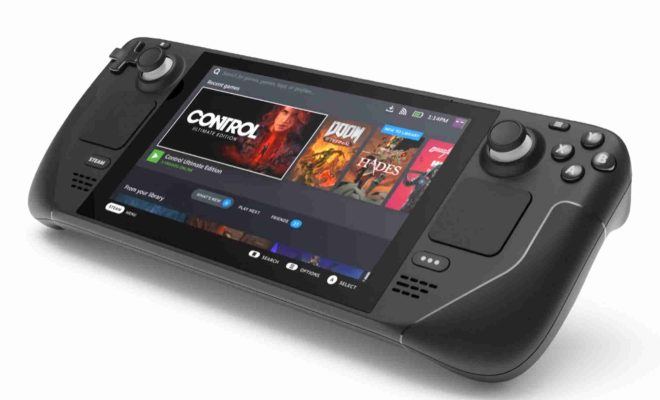
The Steam Deck is a new handheld gaming device from Valve that allows you to play your favorite PC games on the go. It comes with built-in controllers, but you can also use external controllers to enhance your gaming experience. In this article, we will show you how to use external controllers on Steam Deck.

Step 1: Connect Your Controller

The first step is to connect your controller to your Steam Deck. There are a few different ways to do this depending on the type of controller you have.

For Bluetooth controllers, go to Settings > Bluetooth > Add Devices. Put your controller into pairing mode, then select it from the list of available devices.

For USB controllers, simply plug them into the USB port on the Steam Deck.

Step 2: Configure Your Controller

Once your controller is connected, you need to configure it to work with the Steam Deck. Go to Settings > Controllers > Add/Test Controllers. From here, you can select your controller and configure its buttons and settings to work with Steam Deck.

Step 3: Launch Your Game

After you have configured your controller, you can launch your game of choice from your Steam Library. Your controller should now be recognized by the game and you can begin playing.

Step 4: Adjust Game Settings

If you need to adjust the settings for your game to work with your external controller, go to the in-game Options menu. Look for a section titled “Input” or “Controller” and adjust the settings accordingly.

Step 5: Enjoy Your Gaming Experience

With your external controller connected and configured, you are ready to enjoy your PC games on the go with the Steam Deck. Whether you prefer the traditional gamepad experience or something more customized, the Steam Deck has you covered.

In Conclusion

Using external controllers on the Steam Deck is easy, and it allows you to customize your gaming experience to suit your preferences. By following the steps outlined in this article, you can easily connect and configure your external controller and start playing your favorite games on the go. Happy gaming!


Previous Article

How to Check if a Computer Can ...

Next Article

How to Create a Follow Button on ...

Matthew Lynch

Related articles More from author

  • Assistive Technology

    How to Edit a PDF Document in Word

    June 15, 2023
    By Matthew Lynch
  • Assistive Technology

    How to Fix It When Your Fitbit Won’t Turn On

    June 8, 2023
    By Matthew Lynch
  • Assistive Technology

    How to Wrap Text in Excel

    June 15, 2023
    By Matthew Lynch
  • Assistive Technology

    How to Secure Your Portable Wi-Fi Hotspot

    June 14, 2023
    By Matthew Lynch
  • Assistive Technology

    How to Burn a Music CD in Windows

    June 8, 2023
    By Matthew Lynch
  • Assistive Technology

    How to Turn Alexa Into Santa Claus This Christmas

    September 7, 2023
    By Matthew Lynch

Search

Login & Registration

  • Log in
  • Entries feed
  • Comments feed
  • WordPress.org

Newsletter

Signup for The Tech Edvocate Newsletter and have the latest in EdTech news and opinion delivered to your email address!

About Us

Since technology is not going anywhere and does more good than harm, adapting is the best course of action. That is where The Tech Edvocate comes in. We plan to cover the PreK-12 and Higher Education EdTech sectors and provide our readers with the latest news and opinion on the subject. From time to time, I will invite other voices to weigh in on important issues in EdTech. We hope to provide a well-rounded, multi-faceted look at the past, present, the future of EdTech in the US and internationally.

We started this journey back in June 2016, and we plan to continue it for many more years to come. I hope that you will join us in this discussion of the past, present and future of EdTech and lend your own insight to the issues that are discussed.

Newsletter

Signup for The Tech Edvocate Newsletter and have the latest in EdTech news and opinion delivered to your email address!

Contact Us

The Tech Edvocate
910 Goddin Street
Richmond, VA 23231
(601) 630-5238
[email protected]

Copyright © 2026 Matthew Lynch. All rights reserved.