Unlock Your Creativity: A Beginner’s Guide to Canva
“`html
In today’s visually-driven landscape, knowing how to use Canva is akin to having a superpower. Whether you’re a business owner, a student, or simply someone looking to spruce up your social media feeds, Canva offers a user-friendly platform that democratizes design. But what exactly makes Canva so popular, and how can you leverage its features to create stunning graphics? Read on as we explore the ins and outs of Canva, providing you with the tools you need to transform your ideas into captivating visuals.
1. Understanding Canva: A Brief Overview
Canva was launched in 2013 by Melanie Perkins, Cliff Obrecht, and Cameron Adams. The platform originated from the desire to simplify graphic design, allowing users of all skill levels to create professional-quality visuals easily. Today, it boasts over 60 million users worldwide, making it a staple in both personal and professional design contexts.
One of the key aspects of Canva’s success lies in its accessibility. Unlike traditional graphic design software, which often requires extensive training, Canva allows users to drag and drop elements into place, making design intuitive and straightforward. The platform offers a plethora of templates, stock images, fonts, and illustrations, enabling users to create everything from social media posts to presentations and marketing materials.
2. Getting Started: Setting Up Your Canva Account
To begin your journey on how to use Canva, you first need to create an account. You can sign up using your email, Google account, or Facebook profile. Canva offers a free tier that includes a wide range of features, but for those looking for more advanced tools, the Pro and Enterprise versions unlock additional functionalities.
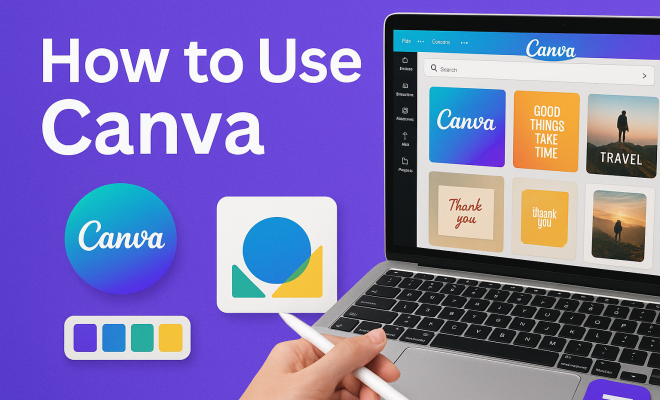
Once you’ve registered, familiarize yourself with the dashboard. The interface is clean and user-friendly, with a navigation bar on the left featuring options for templates, uploads, photos, and more. Spending a few moments exploring these features will make your design process smoother.
3. Exploring Templates: The Heart of Canva
One of the most valuable aspects of Canva is its extensive library of templates. Whether you’re designing a brochure, flyer, social media graphic, or infographic, there’s a starting point for you. To find templates, simply click on the ‘Templates’ tab in the navigation bar, where you can search or scroll through various categories.
Templates are customizable, allowing you to change colors, fonts, images, and more to fit your brand or personal style. This flexibility not only saves time but ensures that even novice designers can create polished products. For example, if you’re launching a new product, you could select a marketing flyer template and adjust the elements to convey your message effectively.
4. Diving into Design Elements: Text, Images, and More
When learning how to use Canva, understanding design elements is crucial. Canva makes it easy to incorporate various design components, such as text, images, icons, and shapes. To add text, simply click on the ‘Text’ tab and choose from various styles, or create your own using the text box feature.
Images can be uploaded from your computer or chosen from Canva’s extensive library of free and premium stock images. You can even access thousands of icons and illustrations, which can add a unique flair to your designs. It’s also worth noting that Canva enables you to use the ‘Background’ feature to apply colors or patterns that enhance your design’s visual appeal.
5. Collaborating in Canva: A Shared Design Experience
Collaboration is a significant feature of Canva, especially for businesses and teams. By inviting others to work on a project, multiple people can edit the design in real time. This is particularly useful for marketing teams working on a campaign or educators creating materials for a class.
To collaborate, click on the ‘Share’ button in the top right corner of your canvas. You can invite people via email or generate a shareable link. Collaborators can leave comments and suggestions directly on the design, streamlining the feedback process and reducing the need for lengthy email threads.
6. Exporting and Sharing Your Designs
Once you’ve perfected your design, the next step is sharing it with the world. Canva allows you to export your work in various formats, including PNG, JPEG, PDF, and more. Depending on your intended use—whether it’s for print or digital distribution—you can select the appropriate file type and quality settings. (See: Wikipedia page on Canva.)
Canva also provides direct options to share your designs on social media platforms like Facebook, Twitter, and Instagram. You can post directly from Canva, eliminating the need to download and upload separately. This feature can save you time and effort, especially if you’re managing multiple accounts.
7. Utilizing Canva’s Advanced Features
If you’re looking to elevate your design game, it’s time to explore some of Canva’s advanced features. With Canva Pro, you gain access to additional tools such as the Brand Kit, which allows you to upload brand assets like logos and custom colors for easy access.
Another fascinating feature is the Animation tool, which lets you bring your designs to life by adding motion effects. This can be particularly engaging for social media posts or presentations. Additionally, the Magic Resize option in Canva Pro helps save time by quickly adapting your design to fit various formats, ensuring consistency across different platforms.
8. Learning and Growing: Canva’s Educational Resources
For anyone eager to master how to use Canva, the platform offers a wealth of educational resources. Canva Design School provides tutorials, tips, and design courses that can help you enhance your skills. Whether you’re a beginner or seeking advanced techniques, these resources are invaluable.
Moreover, Canva’s blog features design inspiration, marketing strategies, and industry trends, helping you stay up-to-date. Engaging with these educational tools not only improves your design skills but also increases your confidence when creating visual content.
9. Getting Creative: Ideas and Inspirations for Designing with Canva
When it comes to using Canva, inspiration is key. There’s no shortage of ideas when you tap into the vast creative resources available. Think about the types of visuals you see that resonate with you. It could be stunning infographics, highly shareable social media posts, or eye-catching presentations. One idea is to create a mood board that captures your vision for a project, incorporating colors, fonts, and styles that inspire you.
For instance, if you’re working on a wedding invitation, you might look for templates that reflect a romantic theme. This could lead you to explore floral designs or elegant typography that sets the right tone. Using Canva’s search feature, you can find exactly what you’re looking for, or even create something completely unique by combining different elements.
10. Statistics and Trends: Canva in the Graphic Design Landscape
Understanding the impact of Canva in the graphic design landscape can provide insights into its effectiveness. According to recent statistics, over 85% of users report that Canva has significantly improved their design process. This statistic is telling of how user-friendly and versatile the platform is, making it accessible for individuals and teams alike.
Another noteworthy trend is the rise of video content. With Canva’s introduction of video editing features, users are now able to create engaging video content easily. Statistics show that video content is expected to make up 82% of all consumer internet traffic by 2022. This means integrating video capabilities into your designs can enhance engagement and reach.
11. FAQs About Using Canva
Q: Is Canva free to use?
A: Yes, Canva offers a free version that includes a wide range of features. However, there are paid options (Pro and Enterprise) that unlock additional functionalities.
Q: Can I use my own images in Canva?
A: Absolutely! You can upload your own images and elements to incorporate into your designs, making your projects truly unique. (See: CDC graphic design tips.)
Q: Does Canva support team collaboration?
A: Yes, Canva allows team collaboration where multiple users can work on a design simultaneously, making it easy to share ideas and feedback.
Q: What file formats can I export my designs in?
A: You can export designs in various formats, including PNG, JPEG, PDF, and even MP4 for videos, depending on your needs.
Q: Are there templates for specific industries?
A: Yes, Canva offers a variety of industry-specific templates, so whether you’re in education, marketing, or real estate, you’ll find designs tailored for your needs.
Q: Can I use Canva for commercial purposes?
A: Yes, but be sure to check the licensing agreements for any images or elements you use to ensure compliance with commercial use requirements.
12. Case Studies: Successful Brands Using Canva
Many brands have embraced Canva to elevate their design game. Take, for instance, the social media strategy of a small local bakery. By using Canva to create visually appealing posts featuring their baked goods, they saw a 30% increase in engagement and follower count within just a few months. The templates and customization options allowed them to maintain a consistent brand image, ultimately translating to higher sales.
Another example is a nonprofit organization that utilized Canva for fundraising campaigns. They created compelling graphics that conveyed their mission and impact, which helped them raise over $100,000 in a single campaign. This clearly illustrates how effective design can influence audience perception and drive action.
13. Why Small Businesses Should Consider Canva
For small businesses, marketing budgets can be tight. Canva provides an affordable alternative to hiring professional designers, allowing entrepreneurs to create eye-catching visuals that look professionally made without breaking the bank. With the vast array of templates, small business owners can produce marketing materials like flyers, social media graphics, and promotional videos in a fraction of the time it would take to create them from scratch. (See: New York Times article on Canva.)
Additionally, Canva’s user-friendly interface means that business owners don’t need to be tech-savvy to create high-quality designs. This accessibility is a game-changer for small businesses that want to maintain a strong online presence but lack the resources for extensive design training or hiring outside help.
14. How Canva Supports Social Media Marketing
Social media platforms thrive on visual content. Canva recognizes this need and provides businesses with the tools to create tailored graphics for various social media channels. Whether it’s a Facebook post, Instagram story, or a LinkedIn banner, you’ll find appropriate templates designed specifically for each platform’s dimensions.
Statistics reveal that posts with images are 94% more likely to be shared on social media than text-only posts. Using Canva to design visually appealing images can significantly increase your reach and engagement. Plus, the ability to quickly adjust designs using the Magic Resize feature allows you to maintain a consistent brand image across platforms without tedious rework.
15. Customizing Your Designs for Different Audiences
One of the strengths of using Canva is its ability to cater to different audiences. You can easily customize your designs based on demographic data or user preferences. For instance, if you’re targeting younger audiences, you might choose vibrant colors and trendy fonts. Conversely, for a more corporate audience, opting for conservative colors and professional fonts would be more appropriate.
By understanding your audience’s preferences, you can tailor your designs to resonate with them. This strategic approach can lead to higher engagement rates and better overall results in your marketing efforts.
16. Tips for Effective Design in Canva
To get the most out of Canva, consider these effective design tips:
- Keep it Simple: Don’t overcrowd your designs. White space can enhance readability and focus attention on your message.
- Limit Your Fonts: Stick to two or three fonts to maintain a cohesive look throughout your designs. This helps to avoid visual clutter.
- Use High-Quality Images: Always choose high-resolution images for your projects. Canva offers a range of high-quality stock photos, so take advantage of them.
- Be Consistent: Use the same color palette and style across all your designs to foster brand recognition.
- Focus on Alignment: Use Canva’s alignment tools to create a balanced layout. This can help guide the viewer’s eye through the design.
17. Final Thoughts: Why Mastering Canva Is Worth It
Mastering how to use Canva can open countless doors for personal and professional growth. It’s not just about creating pretty graphics; it’s about communicating effectively, telling your story, and engaging your audience. Whether you’re promoting a business, sharing your art, or connecting with your community, mastering Canva gives you the tools to express your vision clearly and creatively.
So whether you’re just starting or looking to refine your skills, dive into the vast resources available on Canva and let your creativity flow. With practice, you’ll not only learn how to use Canva but also how to harness its power to captivate and inspire.
“`
Trending Now
Frequently Asked Questions
What is Canva and how does it work?
Canva is a user-friendly graphic design platform that allows anyone, regardless of skill level, to create professional-quality visuals. Users can easily drag and drop design elements, choose from a wide range of templates, stock images, and fonts, making it ideal for creating everything from social media posts to marketing materials.
How do I create a Canva account?
To create a Canva account, visit the Canva website and sign up using your email, Google account, or Facebook profile. After registering, you can start using the free version or explore the Pro and Enterprise tiers for more advanced features.
Is Canva free to use?
Yes, Canva offers a free tier that includes a variety of features suitable for basic design needs. However, for access to more advanced tools and resources, users can opt for the Pro or Enterprise versions, which come with additional functionalities.
What types of designs can I create with Canva?
Canva allows users to create a wide range of designs, including social media posts, presentations, infographics, posters, and marketing materials. With its extensive library of templates and design elements, users can easily customize their projects to suit their needs.
How do I navigate the Canva interface?
The Canva interface is designed to be intuitive and user-friendly. Upon logging in, you'll find a clean dashboard with a navigation bar on the left. This bar provides access to templates, uploads, photos, and other design tools, making it easy to find what you need for your projects.
What did we miss? Let us know in the comments and join the conversation.