Mastering Canva Fonts: Elevate Your Designs Today
“`html
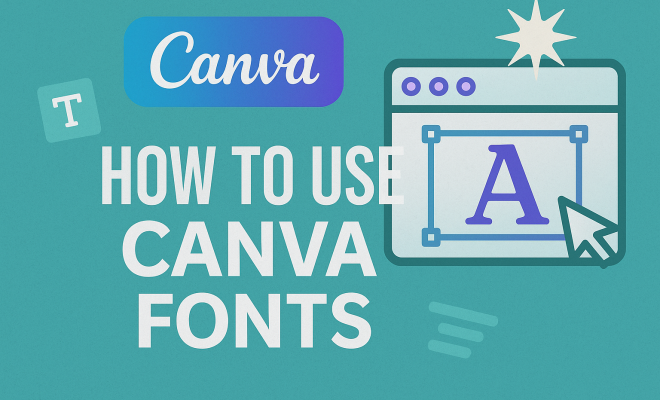
Canva, the beloved graphic design platform used by millions, provides an easy way to create stunning visuals without needing advanced design skills. A crucial aspect of this platform is its extensive library of fonts that can transform your designs from ordinary to eye-catching. Understanding how to utilize Canva fonts effectively can enhance your projects and ensure they resonate with your audience. This article will explore the ins and outs of using Canva fonts, offering insightful tips, practical applications, and best practices.
1. The Importance of Choosing the Right Font
Fonts play a pivotal role in communicating your message. They influence how your audience perceives your brand and can evoke specific emotions or reactions. Selecting the right font is not merely an aesthetic choice; it can significantly affect readability and overall design impact. In the realm of Canva, understanding the attributes of various fonts will help you make informed decisions.
For instance, sans-serif fonts tend to convey a modern and clean feel, making them suitable for tech or contemporary brands. In contrast, serif fonts often evoke a sense of tradition and reliability, making them ideal for brands that want to convey trustworthiness. By grasping the psychological influence of fonts, you can tailor your design strategy accordingly.
2. Navigating Canva’s Font Library
Canva boasts a vast library of over 600 fonts, ranging from classical to quirky styles. To access this resource, simply click on the text box in your design, and you’ll see a dropdown menu showcasing different font options. You can also filter fonts by categories like Serif, Sans Serif, Script, and Display, making it easier to find the perfect match for your design.
Searching for specific fonts is straightforward; just type the font name into the search bar. Additionally, you can explore Canva’s recommendations based on current design trends, which can be incredibly useful if you’re looking to keep your projects fresh and modern.
3. Customizing Fonts in Canva
Once you’ve chosen a font, customization options in Canva allow you to fine-tune its appearance to fit your design vision. You can easily adjust size, color, spacing, and alignment. To modify text size, click on the text box and drag the corner handle or input a specific size in the toolbar. Color adjustments are just as simple; select the text, click the color icon, and choose or input your desired color code.
Furthermore, line height and letter spacing can be altered in the toolbar, enabling you to enhance readability and aesthetic appeal. These adjustments help you create a design that not only looks professional but also resonates with your target audience.
4. Combining Fonts for Maximum Impact
One of the most effective methods to enhance your design is by combining different fonts. But it’s essential to strike a balance; using too many different styles can lead to chaos rather than cohesiveness. A common practice is to pair a bold header font with a more understated body font. For example, using a decorative script for headers and a clean sans-serif font for body text can create a stunning contrast that draws attention.
When combining fonts, stick to a maximum of two or three fonts to maintain a clean look. Canva provides font pairing suggestions within its platform, helping you make informed choices without overwhelming your design.
5. Utilizing Text Effects and Styles
Canva offers various text effects to help your fonts stand out. From shadows and outlines to glows and curves, these effects can add depth and dimension to your text. To apply text effects, select your text and navigate to the “Effects” button in the toolbar—experiment with different styles to see what fits your design.
For instance, a subtle shadow can create a 3D effect, making your text pop against the background, while an outline might help your text stand out in a busy design. Keep in mind that while these effects can enhance your design, overusing them can detract from your message. (See: Understanding typefaces and fonts.)
6. Text Alignment and Hierarchy
Proper alignment and hierarchy in your design help guide the viewer’s eye and enhance overall readability. Canva allows you to align text left, center, or right, giving you the flexibility to position your text according to your design needs. Additionally, establishing a hierarchy through size and weight helps emphasize key messages within your design.
For example, a large, bold title followed by smaller subheadings and body text allows the viewer to quickly understand the structure of your content. By using headings, subheadings, and body text effectively, you can create a seamless flow that captures the audience’s attention.
7. Staying Consistent with Brand Fonts
For businesses and brands, consistency is key. Using the same fonts across all marketing materials helps establish a recognizable brand identity. Canva allows you to create a brand kit where you can save your brand’s fonts, colors, and logos. This feature ensures that your designs maintain a cohesive look.
By setting brand fonts within Canva, you can easily apply them to any design, saving time and maintaining uniformity. This consistency enhances professionalism and helps in building brand recognition over time. fonts aiding dyslexia offers useful background here.
8. Exporting and Sharing Your Designs
Once you’ve perfected your design using Canva fonts, exporting it properly is crucial to ensure the best quality. Canva allows you to download designs in various formats, including PNG, JPG, PDF, and more. Depending on your needs, you can choose the appropriate file type that maintains the quality of your fonts and overall design.
For digital use, PNG and JPG formats are common, whereas PDF is often preferred for prints. Make sure to check the resolution settings before exporting to ensure your text appears crisp and clear, especially when printing. Additionally, Canva makes it easy to share your designs directly to social media or collaborate with teammates, allowing for seamless creativity.
9. Current Trends in Typography
Typography trends are continually evolving, and staying informed can help you keep your designs relevant. Currently, oversized typography, bold fonts, and playful lettering are gaining popularity. Utilizing these trends within Canva can enhance the visual appeal of your projects.
Another trend is the use of mixed typography, where different styles are combined in a single design—think contrasting serif and sans-serif fonts working together. Being aware of and adopting these trends can elevate your design, making it more appealing and engaging to your audience.
10. Accessibility and Font Choices
When selecting fonts in Canva, considering accessibility is essential. Readability should cater to all audience members, including those with visual impairments. Fonts that are too decorative or have intricate details may be challenging for some users to read. Aim for clear, legible fonts, especially for body text.
Using high-contrast color combinations between your text and background can further enhance readability. For example, white text on a dark background or black text on a light background works best for visibility. Canva offers tools that allow you to check contrast ratios, ensuring your designs are accessible to a broader audience.
11. Pairing Fonts with Imagery
Your choice of fonts should complement your imagery. When combining text with photos or graphics in Canva, consider the visual weight of both elements. Light fonts may get lost against busy or dark backgrounds, while overly bold fonts can clash with subtle imagery.
For instance, if you have a vibrant photo, a simple sans-serif font might work best, whereas a more complex design could pair well with a more assertive serif font. Testing different combinations can help you find the perfect balance between typography and imagery, ensuring your message is both clear and visually appealing. (See: Choosing fonts for effective communication.)
12. Exploring Canva’s Font Features
Canva continuously updates its features, and keeping an eye on new additions related to fonts can enhance your design capabilities. If you’re a Canva Pro user, you have access to even more advanced features, including the ability to upload custom fonts, which can be a game-changer for brands that want a unique touch.
Custom fonts can help a brand stand out, particularly in a crowded marketplace. It’s worth noting that Canva also expands its library of fonts regularly. Recent additions often include trendy or culturally significant typefaces that reflect current design movements. This means you can always find something fresh to use in your projects.
13. FAQs about Canva Fonts
What types of fonts are available in Canva?
Canva offers a wide variety of fonts, including serif, sans-serif, script, and display fonts. Each category has its own unique style, catering to different design needs and aesthetics.
Can I upload my own fonts to Canva?
Yes, if you have a Canva Pro account, you can upload your own fonts. This allows you to maintain brand consistency by using custom fonts that are not available in Canva’s library.
How do I know if a font is free to use?
Canva clearly labels fonts as free or Pro within the font selection menu. Free fonts can be used in any design, while Pro fonts require a subscription to Canva Pro for access.
What should I consider when combining fonts?
When combining fonts, aim for contrast while maintaining harmony. Typically, pairing a decorative font with a simpler one works well. Limit yourself to two or three fonts to maintain cohesion in your design.
Are there best practices for using fonts in print designs?
Yes, for print designs, ensure that your font size is large enough to be legible, and use high-resolution images to prevent pixelation. Stick to fonts that are known for readability at smaller sizes, especially for body text.
Can I change the color of fonts in Canva?
Absolutely! You can change the color of your text easily by selecting your text and then choosing a color from the color picker in the toolbar. You can also input specific hex codes for precise color matching.
What is font hierarchy, and why is it important?
Font hierarchy refers to the arrangement of text in varying sizes and styles to indicate the importance of information. It’s crucial because it helps guide the reader’s eye, making it easier to process and understand the content.
How often does Canva update its font library?
Canva adds new fonts regularly, often in response to design trends and user feedback. Checking their library periodically can help you discover fresh options to keep your designs current. (See: The role of fonts in design.)
14. Font Licensing and Usage Rights
Understanding font licensing is crucial when using Canva fonts. While Canva provides a robust selection of fonts, not all are free for commercial use. Many fonts come with specific licensing terms that dictate how you can use them, so it’s essential to read and understand these terms before incorporating them into your designs.
For instance, some fonts may be free for personal use but require a commercial license if you’re using them in marketing materials. Always verify the font’s licensing information directly in Canva to avoid any legal complications. This is particularly important for businesses looking to create promotional content, as using a font without the proper rights can lead to serious consequences.
15. Tips for Effective Font Pairing
Pairing fonts effectively can elevate your design. Here are some tips to help you achieve harmonious combinations:
- Contrast is Key: Choose fonts that differ in style or weight to create interest. For example, a bold, modern sans-serif font can pair well with an elegant serif font.
- Limit Your Choices: Stick to two or three fonts to maintain clarity and cohesion in your design. Too many fonts can create confusion.
- Consider the Mood: Think about the emotional tone you want to convey. A playful font may not be suitable for a formal business presentation.
- Test Readability: Ensure that your chosen fonts are legible at various sizes. What looks good on screen may not translate well to print or smaller formats.
16. Advanced Typography Techniques
For those who want to take their Canva designs to the next level, exploring advanced typography techniques can be beneficial:
- Kerning: Adjust the spacing between individual characters for a more polished look. Tightening or loosening kerning can dramatically change the vibe of your typography.
- Leading: Experiment with line spacing to improve readability, especially in paragraphs of text. Increased leading can make text easier to read by providing more breathing room.
- Text Overlays: Use text overlays on images with varying opacity to create depth. This technique can make your text stand out while still allowing the background to be visible.
- Layering Text: Consider layering different text elements to create a dynamic design. For example, placing a colorfully styled quote over a muted image can create visual interest.
17. Using Canva Fonts for Social Media
Social media graphics require quick, impactful designs, and the right font choice can make all the difference. Canva’s extensive font library allows for creativity while maintaining readability across different platforms. Here are some strategies to effectively use Canva fonts on social media: There’s a fuller look at check readability scores.
- Highlight Key Information: Use bold or larger fonts for headlines and essential points to catch viewers’ eyes as they scroll.
- Branding: Stick to your brand’s font to develop consistency across all social media platforms, making your posts easily recognizable.
- Responsive Design: Remember that fonts may appear differently on various devices. Test your designs on mobile and desktop to ensure legibility.
- Engagement: Use playful or unique fonts for call-to-action statements to encourage interaction with your audience.
18. How to Stay Inspired
Keeping your designs fresh and exciting can be challenging. Here are some tips to stay inspired while working with Canva fonts:
- Follow Design Trends: Keep an eye on popular design blogs, social media influencers, and platforms like Pinterest for emerging typography trends.
- Visit Canva’s Design School: Canva’s resources, including tutorials and design challenges, can inspire new ideas and help you refine your skills.
- Engage with the Community: Join forums, social media groups, or online communities where designers share their projects. Feedback and ideas from peers can provide new perspectives.
- Experiment: Don’t hesitate to try unusual font combinations or styles. Sometimes, the most innovative designs come from taking risks.
19. Final Thoughts on Canva Fonts
Mastering Canva fonts is a valuable skill that can elevate your design capabilities. By understanding the significance of font choice, exploring innovative pairing strategies, and staying updated on current trends, you can create compelling visuals that capture attention and communicate your message effectively. Whether you’re designing for personal projects, marketing materials, or social media, the right fonts can make all the difference. Happy designing!
“`
Trending Now
Frequently Asked Questions
How do I choose the right font in Canva?
Choosing the right font in Canva involves understanding the message you want to convey. Consider the emotional impact of different font styles; for example, sans-serif fonts offer a modern look, while serif fonts evoke tradition. By aligning your font choice with your brand's identity, you can enhance readability and overall design effectiveness.
What types of fonts are available in Canva?
Canva offers an extensive library of over 600 fonts, including categories like Serif, Sans Serif, Script, and Display. You can easily access these fonts by clicking on a text box in your design and exploring the dropdown menu. This variety allows you to find the perfect font to match your design's theme.
How can I filter fonts in Canva?
To filter fonts in Canva, click on the text box in your design, and a dropdown menu will appear. From there, you can select specific categories such as Serif, Sans Serif, Script, or Display to narrow down your options, making it easier to find the ideal font for your project.
Can I search for specific fonts in Canva?
Yes, you can search for specific fonts in Canva by typing the font name into the search bar within the font dropdown menu. This feature allows you to quickly locate your desired font, streamlining your design process.
What are the best practices for using fonts in Canva?
Best practices for using fonts in Canva include selecting fonts that align with your brand's message, ensuring readability, and maintaining a balance between font styles. It’s also beneficial to limit the number of different fonts used in a single design to create a cohesive look.
Have you experienced this yourself? We'd love to hear your story in the comments.