The Tech Edvocate

Top Menu

  • Advertisement
  • Apps
  • Home Page
  • Home Page Five (No Sidebar)
  • Home Page Four
  • Home Page Three
  • Home Page Two
  • Home Tech2
  • Icons [No Sidebar]
  • Left Sidbear Page
  • Lynch Educational Consulting
  • My Account
  • My Speaking Page
  • Newsletter Sign Up Confirmation
  • Newsletter Unsubscription
  • Our Brands
  • Page Example
  • Privacy Policy
  • Protected Content
  • Register
  • Request a Product Review
  • Shop
  • Shortcodes Examples
  • Signup
  • Start Here
    • Governance
    • Careers
    • Contact Us
  • Terms and Conditions
  • The Edvocate
  • The Tech Edvocate Product Guide
  • Topics
  • Write For Us
  • Advertise

Main Menu

  • Start Here
    • Our Brands
    • Governance
      • Lynch Educational Consulting, LLC.
      • Dr. Lynch’s Personal Website
      • Careers
    • Write For Us
    • The Tech Edvocate Product Guide
    • Contact Us
    • Books
    • Edupedia
    • Post a Job
    • The Edvocate Podcast
    • Terms and Conditions
    • Privacy Policy
  • Topics
    • Assistive Technology
    • Child Development Tech
    • Early Childhood & K-12 EdTech
    • EdTech Futures
    • EdTech News
    • EdTech Policy & Reform
    • EdTech Startups & Businesses
    • Higher Education EdTech
    • Online Learning & eLearning
    • Parent & Family Tech
    • Personalized Learning
    • Product Reviews
  • Advertise
  • Tech Edvocate Awards
  • The Edvocate
  • Pedagogue
  • School Ratings

logo

The Tech Edvocate

  • Start Here
    • Our Brands
    • Governance
      • Lynch Educational Consulting, LLC.
      • Dr. Lynch’s Personal Website
        • My Speaking Page
      • Careers
    • Write For Us
    • The Tech Edvocate Product Guide
    • Contact Us
    • Books
    • Edupedia
    • Post a Job
    • The Edvocate Podcast
    • Terms and Conditions
    • Privacy Policy
  • Topics
    • Assistive Technology
    • Child Development Tech
    • Early Childhood & K-12 EdTech
    • EdTech Futures
    • EdTech News
    • EdTech Policy & Reform
    • EdTech Startups & Businesses
    • Higher Education EdTech
    • Online Learning & eLearning
    • Parent & Family Tech
    • Personalized Learning
    • Product Reviews
  • Advertise
  • Tech Edvocate Awards
  • The Edvocate
  • Pedagogue
  • School Ratings
  • Consumer Reports Reveal Truth – Is Flexigenics Reviews Legit or Scam? (Shocking Findings)

  • Quietum Plus 2026 Review Complaints and Shocking User Findings

  • This Founder’s Rs 75 LPA Sacrifice Crumbled in 30 Days — Here’s Why

  • Urgent: Claude AI Bioweapons — The Unsettling Truth Anthropic Just Revealed

  • Shocking: Three Major Xbox Games Shutting Down Forever in 2026

  • One Man’s Dire Warning: Is AI Already Too Dangerous To Control?

  • The Urgent Parental Consent Debate Over Student Mental Health Screenings

  • LAUSD restricts all students from using AI tools | K-12 Dive

  • Catastrophic Data Breach: 153 Million Driver’s Licenses Exposed on Dark Web

  • Autonomous AI Hackers Weaponize PaperCut Flaws: The Terrifying New Era of Cybercrime

Digital & Mobile Technology
Home›Digital & Mobile Technology›How to Type Curly Quotes and Curly Apostrophes

How to Type Curly Quotes and Curly Apostrophes
By Matthew Lynch
June 12, 2023
0
Spread the love

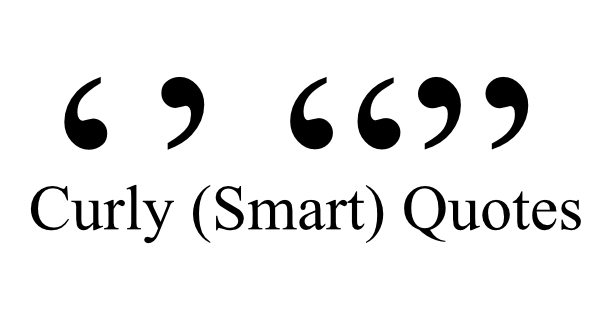
As a writer, designer, or editor, you must have come across typesetting issues when working with quotation marks or apostrophes. The straight quotes and primes you use in simple text editors just don’t cut it when you’re aiming for polished typography. The curly or curved quotes and apostrophes, also known as smart quotes, are the typographic solutions for that. In this article, we’ll explore how to type curly quotes and apostrophes for flawless typography in your text.

  1. Keyboard Shortcuts

The easiest way to type curly quotes and apostrophes is by using keyboard shortcuts. Most text editors and desktop publishing software have these shortcuts pre-programmed into them. Here are some of the keyboard shortcuts to type curly quotes and apostrophes in popular text editors:

– Microsoft Word: for opening curly quotes [Ctrl+Alt+Shift+'(apostrophe)] and closing curly quotes [Ctrl+Alt+'(apostrophe)]. The same applies to opening and closing curly apostrophes, but you type [Ctrl+Alt+’](apostrophe) instead.

– Google Docs: for opening curly quotes [Ctrl+Alt+’](apostrophe) and closing curly quotes [Ctrl+Alt+Shift+'(apostrophe)]. As for the apostrophes, you type [Ctrl+’](apostrophe) for a curly one.

– Adobe InDesign: for opening and closing curly quotes [Alt+](apostrophe) and [Alt+](double quote), respectively. If you want to type a curly apostrophe, you press [Shift+Alt+’](apostrophe).

  1. AutoFormat Features

Most word processors have an AutoFormat feature that can automatically replace straight quotes and apostrophes with curly ones. This feature is usually disabled by default, and you can activate it in the software’s settings. Once you’ve turned it on, the software will automatically typeset the straight quotes and apostrophes with their respective curly ones as you type.

In Microsoft Word, for instance, the AutoFormat feature is found in the Proofing options under the AutoCorrect Options. In Google Docs, it’s under the Preferences menu. Alternatively, you can also use plugins or add-ons for your text editors that can automatically replace straight quotes and apostrophes with their curved counterparts as you type.

  1. Unicode Character Code

If you can’t access the keyboard shortcuts or the AutoFormat feature, you can use Unicode character codes to type curly quotes and apostrophes. Unicode is a standard that assigns a unique code number to every character, including typographical symbols such as quotes and apostrophes.

To type a curly quote using Unicode, you first press and hold the “Alt” key on your keyboard, then type the corresponding code number on the numeric keypad. For example, for an opening curly quote (‘), you type “Alt+0145”, and for the closing curly quote(’), you type “Alt+0146”. The same applies to curly apostrophes; for an opening curly one (‘), you type “Alt+0145”, and for the closing curly one (’), you type “Alt+0146”.

Conclusion

Curly quotes and apostrophes enhance the typeface and give your text a professional and polished look. You can use keyboard shortcuts, AutoFormat features, or Unicode character codes to type curly quotes and apostrophes easily. With these simple methods, you can take your typography to the next level and improve the overall quality of your document.


Previous Article

Bits Per Second Explained

Next Article

How to Fix Xinput1_3.dll Not Found or ...

Matthew Lynch

Related articles More from author

  • Digital & Mobile Technology

    Free Healthy Cooking Apps for Beginners

    June 12, 2023
    By Matthew Lynch
  • Digital & Mobile Technology

    Use Access Input Forms to Enter and Modify Data

    July 31, 2023
    By Matthew Lynch
  • Digital & Mobile Technology

    Use Private Browsing Mode in Opera for Desktop

    June 9, 2023
    By Matthew Lynch
  • Digital & Mobile Technology

    The 4 Best Google Play Alternatives for Downloading Android Apps

    July 31, 2023
    By Matthew Lynch
  • Digital & Mobile Technology

    How to Install the Epic Games Launcher to Play Games on Linux

    August 5, 2023
    By Matthew Lynch
  • Digital & Mobile Technology

    How to Get Internet With a Bluetooth-Enabled Cell Phone

    June 10, 2023
    By Matthew Lynch

Search

Login & Registration

  • Log in
  • Entries feed
  • Comments feed
  • WordPress.org

Newsletter

Signup for The Tech Edvocate Newsletter and have the latest in EdTech news and opinion delivered to your email address!

About Us

Since technology is not going anywhere and does more good than harm, adapting is the best course of action. That is where The Tech Edvocate comes in. We plan to cover the PreK-12 and Higher Education EdTech sectors and provide our readers with the latest news and opinion on the subject. From time to time, I will invite other voices to weigh in on important issues in EdTech. We hope to provide a well-rounded, multi-faceted look at the past, present, the future of EdTech in the US and internationally.

We started this journey back in June 2016, and we plan to continue it for many more years to come. I hope that you will join us in this discussion of the past, present and future of EdTech and lend your own insight to the issues that are discussed.

Newsletter

Signup for The Tech Edvocate Newsletter and have the latest in EdTech news and opinion delivered to your email address!

Contact Us

The Tech Edvocate
910 Goddin Street
Richmond, VA 23231
(601) 630-5238
[email protected]

Copyright © 2026 Matthew Lynch. All rights reserved.