How to troubleshoot Buffer posting errors Android
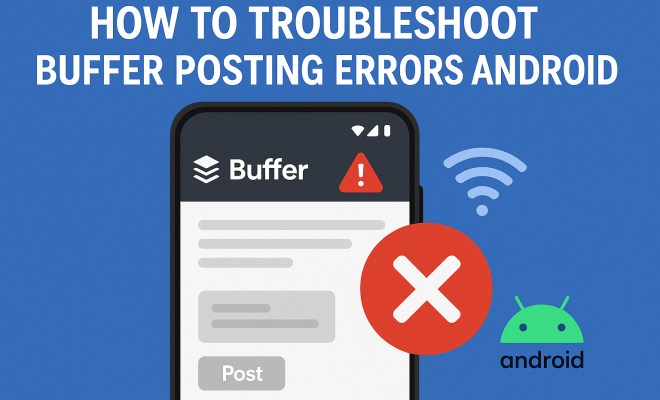
You’ve meticulously crafted your social media content, scheduled it in Buffer, and you’re ready for it to go live, only to be met with that frustrating notification: a posting error on your Android device. It’s a common headache for social media managers, small business owners, and content creators who rely on Buffer to maintain a consistent online presence. When your carefully planned content fails to publish, it doesn’t just disrupt your schedule; it can impact engagement, reach, and ultimately, your brand’s visibility. Understanding why these Buffer posting errors on Android happen and, more importantly, how to fix them, is crucial for anyone using the platform.
Buffer is an incredibly powerful tool for streamlining social media management, allowing you to schedule posts across multiple platforms like Facebook, Instagram, X (formerly Twitter), LinkedIn, and Pinterest, all from one dashboard. Its Android app is designed for convenience, letting you manage your queues and respond on the go. However, the complex interplay between the Buffer app, your Android operating system, various social network APIs, and your device’s network connection creates numerous potential points of failure. From expired tokens to network glitches, and even platform-specific quirks, these errors can be perplexing. Don’t worry, though; we’re going to break down the most common culprits and arm you with actionable troubleshooting steps to get your content flowing smoothly again. fix device compatibility issues offers useful background here.
1. Reconnecting Your Social Accounts: The First Line of Defense Against Buffer Posting Errors Android
One of the most frequent reasons for Buffer posting errors on Android, or any platform for that matter, is an expired or revoked connection between Buffer and your social media accounts. Think of it like this: when you first connect a social media profile to Buffer, you grant Buffer permission to post on your behalf. This permission often comes with an expiry date, or it can be revoked if you change your password on the social platform, or if the social network itself updates its security protocols. When this ‘token’ expires or is invalidated, Buffer can no longer access your account to publish content, leading to a failed post.
The solution here is usually straightforward: you need to re-authenticate the connection. Open the Buffer app on your Android device, navigate to the ‘Accounts’ section, and look for any accounts flagged with an error or a prompt to reconnect. Tap on the problematic account, and Buffer will typically guide you through the process of logging back into that specific social network (e.g., Facebook, Instagram, X). You’ll be asked to grant permissions again. Make sure you accept all necessary permissions, as denying them can lead to further issues. This simple reconnection often resolves a majority of Buffer posting errors Android users encounter, especially after a password change or a period of inactivity.
2. Clearing App Cache and Data: A Digital Refresh for Your Buffer App
Just like any other app on your Android phone, Buffer accumulates cache data over time. This cache is designed to speed up performance by storing temporary files, but sometimes, these files can become corrupted or outdated. When this happens, it can interfere with the app’s normal operation, leading to unexpected behavior, including persistent Buffer posting errors Android users might experience. Clearing the cache can often resolve these types of software glitches without affecting your saved content or login information within the app.
If clearing the cache doesn’t do the trick, the next step is to clear the app’s data. Be aware that clearing data is a more drastic measure: it will essentially reset the Buffer app to its factory state, meaning you’ll lose any custom settings, and you’ll have to log back into your Buffer account and potentially re-add your social profiles within the app itself. To do this, go to your Android device’s ‘Settings’ > ‘Apps’ or ‘Applications’ > find ‘Buffer’ in the list > ‘Storage’ > then you’ll see options for ‘Clear Cache’ and ‘Clear Data’. Start with ‘Clear Cache’ and test. If the issue persists, then try ‘Clear Data’. This clean slate often resolves deeper software conflicts that might be causing your Buffer posting errors on Android.
3. Checking Your Network Connection: The Invisible Barrier to Posting Success
It sounds obvious, but a shaky or non-existent internet connection is a surprisingly common culprit behind Buffer posting errors on Android. Buffer, like all cloud-based services, needs a stable connection to send your posts to its servers, which then dispatch them to the various social networks. If your Wi-Fi is spotty, your mobile data is weak, or you’ve accidentally switched off your data, your posts simply won’t go through.
Always verify your internet connection. Try loading a website in your browser or opening another internet-dependent app to ensure you have a solid connection. If you’re on Wi-Fi, try switching to mobile data (if available and you have a good signal), or vice-versa. Sometimes, a quick toggle of airplane mode on and off can reset your network connection and clear up minor glitches. While this won’t fix specific API errors, it’s a fundamental check that can save you a lot of headache if the problem is simply a lack of connectivity.
4. Updating the Buffer App and Android OS: Staying Current to Avoid Common Glitches
Software developers constantly release updates to fix bugs, improve performance, and ensure compatibility with ever-changing operating systems and third-party APIs. An outdated Buffer app might have known bugs that have since been patched, or it might struggle to communicate correctly with the latest versions of social media platforms. Similarly, if your Android operating system is significantly out of date, it could create compatibility issues with the Buffer app, leading to Buffer posting errors on Android that seem inexplicable. (See: Social media management overview.)
Regularly check for updates. For the Buffer app, head to the Google Play Store, search for ‘Buffer’, and see if an ‘Update’ button is available. For your Android OS, go to ‘Settings’ > ‘System’ > ‘System update’ (the exact path might vary slightly depending on your device manufacturer). Keeping both your apps and your operating system up-to-date is a basic but incredibly effective preventative measure against a wide array of software problems, including those pesky posting errors. Developers often address specific social network API changes in their updates, so a current app version is your best bet for smooth operation. There’s a fuller look at troubleshoot call problems.
5. Reviewing Platform-Specific Requirements and Restrictions: Instagram’s Unique Challenges and Buffer Posting Errors Android
Each social media platform has its own set of rules, API limitations, and content requirements, and these can frequently be the root cause of Buffer posting errors on Android. Instagram, in particular, is notorious for having more stringent rules for third-party posting. For instance, direct video posting through third-party apps was historically limited, and carousel posts have specific requirements that, if not met, will cause a post to fail.
If you’re seeing errors primarily with one specific social network, delve into its particular requirements. For Instagram, check if your account is a Business or Creator account, as personal accounts have more restrictions for third-party tools. Ensure your image aspect ratios and video lengths comply with Instagram’s guidelines. Facebook sometimes flags content for perceived violations of community standards, even if you believe it’s benign. X has character limits and rules about media attachments. Always double-check that your content adheres to the platform’s native specifications. Buffer usually provides error messages that give clues, like ‘Instagram API Error: Media not supported.’ Pay close attention to these details, as they pinpoint exactly where the problem lies, allowing you to adjust your content accordingly.
6. Checking Buffer’s Status Page and Social Network Outages: Is It You, or Is It Them?
Sometimes, the problem isn’t on your end at all. Buffer, like any complex software service, can experience temporary outages or performance issues. Similarly, the social media networks themselves (Facebook, Instagram, X, etc.) occasionally have widespread downtime or API problems that prevent third-party apps from posting. Trying to troubleshoot frantically when the issue is a global one can be incredibly frustrating.
Before you dive deep into clearing caches or reconnecting accounts, take a moment to check for broader issues. Buffer maintains a status page where they report any ongoing incidents or scheduled maintenance. It’s a good habit to bookmark this page. You can also quickly check a site like DownDetector or even search X for widespread reports of issues with Facebook, Instagram, or the specific platform you’re having trouble with. If Buffer or the social network is experiencing an outage, all you can do is wait for them to resolve it. This simple check can save you a significant amount of troubleshooting time and unnecessary worry.
7. Contacting Buffer Support: When All Else Fails, Ask the Experts
You’ve tried all the basic and intermediate troubleshooting steps, meticulously gone through each recommendation, and you’re still encountering Buffer posting errors on Android. At this point, it’s time to leverage Buffer’s dedicated support team. They have access to logs and diagnostic tools that can pinpoint issues far beyond what you can see on your end, whether it’s a specific API error, an account-level anomaly, or a rare bug within the app itself.
When you contact Buffer support, be prepared with as much detail as possible. Provide screenshots of the error messages you’re seeing, note the specific social account and post that failed, include the exact date and time of the failed post, and list all the troubleshooting steps you’ve already attempted. The more information you give them, the faster and more accurately they can diagnose and resolve your issue. You can usually find the support contact option within the Buffer app or on their website. Don’t hesitate to reach out; their job is to help you get back to seamless social media scheduling.
Proactive Steps to Minimize Buffer Posting Errors Android
While troubleshooting is essential when things go wrong, a proactive approach can significantly reduce the frequency of encountering Buffer posting errors on your Android device. One key strategy is to periodically check your social media connections within Buffer. A quick glance at the ‘Accounts’ section once a month can help you spot impending disconnections before they impact your scheduled posts. If you change a password on a social network, make it a habit to immediately reconnect that account in Buffer.
Another crucial tip is to always preview your posts. Buffer offers excellent preview functionality that lets you see how your content will look on each platform. This isn’t just for aesthetics; it can also help you catch content that might exceed character limits, use unsupported media formats, or appear broken on a specific network. Catching these issues before the post is scheduled can prevent a failed publication and save you the hassle of troubleshooting later.
Understanding the Interplay of Systems
It’s important to remember that Buffer isn’t an island. It’s a sophisticated bridge between your content and various social media ecosystems. When a Buffer posting error on Android occurs, it’s rarely a simple, singular cause. It’s often a breakdown in communication at one of many points along this bridge: your Android device’s local environment, your network connection, the Buffer app itself, Buffer’s own servers, the API of the target social media platform, or even the social media platform’s internal systems. Identifying where that breakdown occurs is the art of troubleshooting. (See: Using social media effectively.)
For example, you might have a perfectly stable network connection, an updated Buffer app, and a properly connected Instagram account. Yet, your Instagram video post fails. The error message might indicate a ‘media upload failed.’ This could point to a temporary glitch on Instagram’s side, an unsupported video codec, or even a file size that’s too large for the Instagram API to handle at that moment. Understanding this multi-layered interaction helps you approach troubleshooting systematically, rather than just randomly trying solutions.
The Future of Social Media Scheduling and Error Prevention
As social media platforms continue to evolve, so too will the challenges of third-party scheduling. Platforms are constantly updating their APIs, introducing new features, and tightening security. This means that tools like Buffer must continually adapt, and users must stay informed. The trend is towards more stringent permissions and potentially more complex authentication methods, all aimed at enhancing user security and data privacy. While this is good for users, it can occasionally introduce new friction points for scheduling tools.
For Android users of Buffer, staying on top of app updates, understanding platform-specific nuances, and maintaining strong, active connections will remain paramount. The good news is that Buffer, as a leading social media management tool, is committed to providing a robust and reliable service. By following these expert hacks and maintaining a proactive stance, you can significantly reduce the incidence of Buffer posting errors on Android and ensure your content strategy remains uninterrupted and effective.
8. Time Zone Discrepancies: A Subtle Cause of Posting Errors
Sometimes, a Buffer posting error on Android isn’t about connection or permissions, but a simple misunderstanding of time. If your Android device’s time zone settings don’t match the time zone set in your Buffer account, or if there’s a discrepancy with the social media platform’s server time, your scheduled posts might fail or publish at unexpected times. This is especially true for platforms that are very time-sensitive, where a post intended for “now” might appear to be in the past or future from a server’s perspective.
To fix this, first, check your Android device’s time and date settings. Make sure “Automatic date & time” and “Automatic time zone” are enabled. This ensures your device is always in sync with network time. Next, log into your Buffer account (you might need to do this from a web browser for full settings access) and verify your time zone settings there. Ensure they align with where you’re operating from. Even a slight mismatch, like being off by an hour due to daylight saving not being correctly accounted for, can cause scheduled posts to get stuck in limbo or fail to publish at their intended moment, triggering an error. This is less common than other issues but can be incredibly perplexing when it does happen because everything else seems to be working perfectly.
9. Image and Video File Issues: Beyond Aspect Ratios
We touched on platform-specific requirements for media, but it’s worth diving deeper into other common image and video file issues that cause Buffer posting errors on Android. It’s not just about aspect ratios; file size, file type, and even metadata can play a role. For example, some social networks have strict limits on video file size and duration. If you’re trying to upload a large 4K video or a very long clip, it might fail even if your connection is perfect. (resolve verification code issues)
Beyond that, certain file types, while generally supported, might occasionally cause issues. While JPEG and PNG are standard for images, and MP4 for video, sometimes a particular codec or compression method within these files can be problematic. If you’re consistently seeing errors with media uploads, try optimizing your files. Compress large images and videos using a dedicated tool, or convert them to a slightly different format (e.g., re-exporting a video from your editing software with different settings). Strip unnecessary metadata from images, as sometimes embedded location data or other info can be flagged by social platforms. A good rule of thumb is to keep media files as small and as standard as possible without sacrificing quality for social media use. This reduces the chances of server timeouts during upload and compatibility issues with the social network’s API, which are common underlying causes of these types of Buffer posting errors Android users encounter.
10. Account Suspensions or Restrictions: A More Serious Underlying Problem
In some unfortunate cases, Buffer posting errors on Android might not be a technical glitch at all, but a symptom of a deeper problem with your social media account itself. If a social network has temporarily suspended your account, placed restrictions on your posting ability, or flagged your content for community guideline violations, Buffer won’t be able to post on your behalf. The error message you receive from Buffer might be generic, or it might directly relay a message from the social platform about a restriction. (See: Impact of social media engagement.)
If you’ve tried all the other troubleshooting steps and still face persistent errors, especially on a single platform, it’s wise to log directly into that social media account (e.g., through their official app or website) and check for notifications or warnings. Facebook, Instagram, and X are known for flagging accounts for spammy behavior, excessive posting, or content that violates their terms of service. If your account is restricted, you’ll need to resolve that directly with the social media platform before Buffer can successfully post again. Buffer is simply acting as an intermediary; if the destination won’t accept the post, it can’t complete the task.
FAQ: Common Questions About Buffer Posting Errors on Android
Q1: Why do my Buffer posts sometimes fail on Android but work perfectly on desktop?
There can be a few reasons for this. Your Android device’s specific network connection might be weaker or more intermittent than your desktop’s. The Buffer Android app itself could have a temporary glitch or be outdated (see Solution 4). Or, it might be related to local app data corruption (see Solution 2). Desktop browsers often have more robust caching and network handling, which can mask minor issues that surface on a mobile app. Always check your mobile data/Wi-Fi connection first, then consider app-specific troubleshooting.
Q2: I changed my Instagram password, and now Buffer posts are failing. What do I do?
This is a classic case of an expired or revoked connection token (see Solution 1). When you change your password on a social network, it typically invalidates any active third-party connections for security reasons. You’ll need to go into the Buffer app’s ‘Accounts’ section, find your Instagram account, and follow the prompts to reconnect and re-authenticate by logging in with your new password. This should resolve the issue quickly.
Q3: Buffer says “Media Not Supported” for my video. I’m sure it’s an MP4. What’s wrong?
Even if it’s an MP4, there could be underlying issues. File size is a common culprit – social networks have strict limits (see Solution 9). Also, the specific video codec (how the video is encoded) or resolution might not be fully compatible with the social network’s API, even if your phone can play it. Try reducing the video’s resolution, compressing its file size, or re-exporting it from editing software with more common, standardized settings. Sometimes, a very high bitrate can also cause problems.
Q4: My posts are failing on Facebook but not Instagram. Is it a Buffer issue or a Facebook issue?
If the problem is isolated to one platform, it usually points to a platform-specific issue or a connection problem with that particular account. First, try reconnecting your Facebook account in Buffer (Solution 1). If that doesn’t work, check Facebook’s own status or your personal Facebook account for any notifications about policy violations or restrictions (Solution 10). Facebook is known for flagging content or accounts more strictly than some other platforms. It’s less likely to be a general Buffer app problem if other platforms are working fine. This builds on notification sound troubleshooting tips.
Q5: Is there a way to automatically fix Buffer posting errors on Android?
Unfortunately, no. While Buffer tries its best to prevent errors and provide clear messages, the underlying causes are too varied for a single “auto-fix” button. The best “automatic” solution is proactive maintenance: keep your Buffer app and Android OS updated, regularly check your account connections, and adhere to social media platform content guidelines. This minimizes the chances of errors occurring in the first place, reducing your need for manual troubleshooting.
Trending Now
Frequently Asked Questions
Why is my Buffer posting error happening on Android?
Buffer posting errors on Android can occur due to various reasons, including expired tokens, revoked permissions, network issues, or platform-specific glitches. These factors can disrupt the connection between Buffer and your social media accounts, preventing scheduled posts from going live.
How do I fix Buffer posting errors on my Android device?
To troubleshoot Buffer posting errors on Android, start by reconnecting your social media accounts within the app. Ensure your network connection is stable, check for app updates, and consider clearing the app's cache to resolve any underlying issues.
What should I do if Buffer fails to post on social media?
If Buffer fails to post, first verify that your social media accounts are properly connected and that permissions are granted. Check for any error messages in the app, and ensure your device's internet connection is stable. Reconnecting accounts often resolves the issue.
Can expired tokens cause Buffer posting errors?
Yes, expired tokens can lead to posting errors in Buffer. When a token expires or is revoked, Buffer loses the ability to post on your behalf. Reconnecting your social media accounts typically refreshes these tokens and restores functionality.
What are common causes of Buffer errors on Android?
Common causes of Buffer errors on Android include expired social media tokens, revoked account permissions, unstable network connections, and compatibility issues with the Android operating system. Identifying these factors is key to resolving posting errors.
What's your take on this? Share your thoughts in the comments below — we read every one.