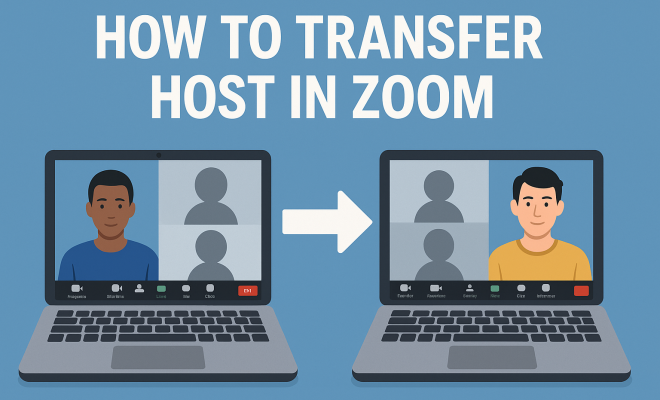
How to transfer host in Zoom
“`html
1. Understanding Host Roles in Zoom
When you join a Zoom meeting, the host plays a pivotal role in facilitating the session. As the primary organizer, the host has control over various features, such as muting participants, sharing screens, and managing breakout rooms. This capability is essential for maintaining order and engagement during meetings, particularly in professional settings where the stakes can be high.
In addition to these controls, the host can also appoint co-hosts to share some responsibilities. However, there are scenarios where you might need to transfer the host role to another participant. Understanding the host’s responsibilities and the importance of transferring this role smoothly can significantly enhance your Zoom experience.
2. Why You Might Need to Transfer Host in Zoom
There are several reasons why you might need to transfer the host in Zoom. Perhaps the original host has to leave the meeting early, or maybe a co-host needs to take over to manage specific tasks. Transferring the host role ensures that the meeting continues without disruption, allowing for a seamless experience for all participants.
This is particularly crucial in long meetings or webinars where maintaining momentum is essential. Losing the host unexpectedly can lead to confusion or even technical difficulties, making it vital for teams to be prepared for such changes. Knowing how to transfer host in Zoom can save you time and alleviate any stress in these situations.
3. Prerequisites for Transferring Host in Zoom
Before you can transfer the host role, there are a few prerequisites to keep in mind. The first and foremost is ensuring that the participant you wish to transfer hosting to is already a participant in the meeting. They must either be in the meeting at the time of the transfer or be a designated co-host, as the host cannot transfer their role to someone who isn’t already present.
Additionally, you’ll want to ensure that you are using a Zoom account that has the right permissions. If your account is a free version, the capabilities might be limited compared to a pro or business account. Familiarizing yourself with your account’s restrictions ahead of time can prevent any last-minute surprises.
4. Step-by-Step Guide to Transfer Host in Zoom
Now let’s get to the heart of the matter: how to transfer host in Zoom. The process is relatively straightforward, and with the right guidance, you’ll be able to do it in just a few clicks. Here’s how:
- Open the Participant List: During your meeting, click on the ‘Participants’ button at the bottom of the Zoom window.
- Select the Participant: Find the name of the participant you want to make the new host. Click on their name to highlight it.
- Transfer Host Role: Click on ‘More’ next to their name, and you’ll see an option that says ‘Make Host.’ Click that, and Zoom will ask you to confirm the action.
- Confirm the Transfer: After you confirm, the selected participant will receive a notification that they have been made the new host.
This process takes only a few moments, ensuring that the meeting continues smoothly without downtime.
5. What Happens After You Transfer Host in Zoom
Once you transfer the host role to another participant, several things happen. The new host gains full control over the meeting features, including the ability to mute participants, manage breakout rooms, and even end the meeting. It’s important to communicate clearly to the new host about their responsibilities, especially if they are not familiar with all the features available to them.
As the original host, you will still remain in the meeting, but your controls will be limited to those of a regular participant. This means you won’t have the ability to make changes to the meeting settings or roles. If you need to make adjustments, you can always request the new host to make those changes on your behalf. (See: Understanding video conferencing technology.)
6. Common Issues When Transferring Host in Zoom
While the process of transferring the host in Zoom is designed to be seamless, issues can sometimes arise. One common problem is that the participant you want to promote to host may not be visible in the participant list. This can happen if they joined the meeting via a different method or device.
If you encounter this issue, double-check that the participant is in the meeting and consider having them leave and rejoin. It also helps to communicate with the participant beforehand to ensure they’re prepared to take over the role. Another common issue is failing to confirm the transfer, which can lead to misunderstandings in the meeting. Always ensure that both parties understand the transition has occurred.
7. Best Practices for Transferring Host in Zoom
To ensure a smooth transition when you need to transfer host in Zoom, consider these best practices:
- Communicate Clearly: Before the meeting, identify potential new hosts and discuss their roles. Make sure they are comfortable taking on these responsibilities if needed.
- Practice the Process: If you frequently host meetings, practice transferring the host role with a colleague. This rehearsal can help eliminate confusion during the actual meeting.
- Keep Backup Plans: Always have a backup plan in place in case the original host needs to leave unexpectedly. This might include designating a co-host ahead of time.
- Notify All Participants: Once the host transfer is complete, notify all participants that the role has shifted to ensure everyone is on the same page regarding meeting management.
8. Using Co-Hosts to Simplify Host Transfers
One alternative to transferring the host in Zoom is utilizing co-hosts. If you anticipate that the primary host may need to step away, appointing a co-host can be an effective strategy. Co-hosts have most of the same functionalities as the main host, allowing them to manage participants, share screens, and even create breakout rooms.
The benefit of having a co-host while still being able to transfer host responsibilities is that you reduce the risk of losing control of the meeting. This way, if the main host has to leave, the flow of the session remains unbroken. It’s a practical solution that many experienced Zoom users implement to ensure smooth meetings.
9. Special Considerations for Webinars
Transferring hosts in a webinar setting comes with its own set of considerations. Unlike regular meetings, webinars often feature a larger audience and require more stringent control measures. In such cases, it’s advisable to transfer the host role only when absolutely necessary. This minimizes disruptions during the presentation.
Additionally, if you’re dealing with a panel of speakers, coordinating the transfer of host duties becomes crucial. It may be helpful to assign roles in advance and communicate these responsibilities to all parties beforehand. This level of organization can make a significant difference in how smoothly the webinar runs.
10. Staying Updated with Zoom Features
Finally, as Zoom continues to evolve, staying updated on its features and functionalities will help you manage meetings more effectively. Zoom frequently rolls out updates that can change how host transfers and other features work.
Regularly check the Zoom blog and help center for the latest information and tutorials. Engaging with community forums can also provide insights and tips from other users who have navigated similar challenges. By keeping yourself informed, you can enhance your Zoom experience and ensure you’re well-prepared to handle host transfers and other meeting dynamics.
11. Effective Communication During Host Transfer
Communication is key during a host transfer in Zoom. Consider implementing a standardized message that you can share with participants before and after the transfer occurs. This message should clarify who the new host is and what changes they can expect in meeting management. (See: Guidelines for virtual meetings.)
For example, a simple message like, “Attention everyone, I will now be transferring hosting duties to [Participant’s Name]. They will take over all controls, and feel free to reach out to them for any questions or concerns,” can help participants feel reassured about the transition. Engaging your audience can reduce any confusion that might arise during the process.
12. Examples of When to Transfer Host in Zoom
There are many scenarios where transferring the host would be beneficial. Here are a few examples:
- Panel Discussions: In a panel setting, where multiple speakers are involved, the need to transfer hosting can help keep the dialogue flowing without interruption. Each speaker can be made host during their segment to manage audience questions effectively.
- Team Meetings: If the primary host is running late to a team meeting, transferring the host role to a team member ensures discussions can begin on time without waiting for the original host.
- Training Sessions: In training sessions, if the main presenter needs to demonstrate a feature and requires another participant to facilitate questions, transferring host responsibilities makes the transition smoother.
13. Statistics on Zoom Usage
To understand the importance of mastering host transfers, it helps to look at some statistics regarding Zoom usage. According to recent data, Zoom has grown exponentially, particularly during the pandemic. As of 2023, Zoom reported over 300 million daily meeting participants. With such a vast number of users, effective meeting management—including seamless host transfers—becomes even more critical.
Additionally, surveys indicate that 70% of users believe that the ability to transfer hosts significantly improves the efficiency of their meetings. This statistic highlights the value organizations place on smooth transitions in meeting management.
14. Expert Perspectives on Host Management
Industry experts emphasize that effective host management is crucial for maximizing participant engagement in virtual meetings. According to Dr. Anna Schmidt, a virtual communication specialist, “The role of the host is not just about managing technical aspects but also about creating a welcoming environment. The ability to transfer host duties effectively helps maintain that environment.” This perspective underscores the importance of being prepared for host transfers as part of a broader strategy for engaging participants.
15. FAQs about Transferring Host in Zoom
Q1: Can I transfer the host role without the new host being present?
A1: No, the participant must be present in the meeting to transfer the host role to them. You can only transfer to participants who are currently in the meeting.
Q2: What happens if I forget to transfer the host role before leaving?
A2: If the original host leaves without transferring the role, the meeting will not have a host. This can lead to challenges in managing the session. It’s always best to designate a co-host or transfer the role before stepping away.
Q3: Can I regain the host role after transferring it?
A3: No, once you transfer the host role, you cannot regain it unless the new host transfers it back to you. Communication between both parties is essential here.
Q4: Are there any limitations on host transfers for free Zoom accounts?
A4: Free Zoom accounts have limitations, but transferring the host role is generally available. However, keep in mind that some advanced features may require a paid account. (See: Harvard University resources on technology.)
Q5: How do I know if the transfer was successful?
A5: After you transfer the host role, the new host will receive a notification confirming their new status. Additionally, you can check if they have access to host controls and features.
16. Advanced Tips for Managing Host Transfers
If you frequently host meetings, mastering the transfer of host roles can significantly enhance your efficiency. Here are some advanced tips:
- Use Zoom’s Features Wisely: Familiarize yourself with features like “Waiting Room” and “Breakout Rooms.” Understanding these can help you delegate tasks effectively during host transfers.
- Document Responsibilities: Create a checklist or documentation outlining the specific responsibilities of the host and co-host. This will serve as a handy reference during meetings, ensuring everyone knows their tasks.
- Feedback Loop: After a meeting where you’ve transferred the host role, gather feedback from participants about how the transition went. This can help you refine the process for future meetings.
17. Understanding Meeting Etiquette During Host Transfers
Meeting etiquette is essential, especially during a host transfer. Here are some etiquette recommendations:
- Be Transparent: Inform participants ahead of time when a host transfer will take place. This transparency helps to avoid confusion.
- Minimize Disruption: If possible, try to transfer the host role during a natural pause in the conversation, such as after a presentation or during a Q&A session.
- Appreciate the New Host: Take a moment to acknowledge the new host’s responsibilities and contributions. A simple thank you can go a long way in fostering respect and cooperation among team members.
18. Real-World Case Studies of Effective Host Transfers
Examining real-world cases can provide valuable insights into effective host transfers. For example, a tech company conducted a series of collaborative meetings where the main host would rotate among team leads. Each lead was trained on the necessary Zoom features and prepared for their role, allowing for smooth transitions and improved team engagement.
In another instance, a non-profit organization held virtual fundraising webinars where the host role was transferred between moderators skilled in participant engagement. This setup not only kept the sessions lively but also provided diverse perspectives, making the fundraising efforts more effective.
19. Tips for International Meetings
When hosting international meetings, the stakes can feel even higher. Here are tips specifically for transferring the host role in these situations:
- Consider Time Zones: Be mindful of time differences when scheduling meetings and transferring the host role. This is especially crucial for global teams.
- Cultural Sensitivity: Different cultures have varied communication styles. It’s wise to discuss how host transitions will be communicated based on cultural norms.
- Language Barriers: If there are language differences, provide instructions in advance and make sure the new host is comfortable with the language of the meeting.
20. Final Thoughts on Zoom Host Transfers
Transferring the host role in Zoom is an essential skill that can enhance meeting efficiency and participant engagement. Whether you’re managing a casual team check-in or a formal webinar, knowing how to transfer host roles can keep your meetings running smoothly. By understanding the nuances, best practices, and advanced strategies associated with host transfers, you can ensure that you and your team are always prepared to tackle any challenge that comes your way.
“`
Trending Now
Frequently Asked Questions
How do I transfer the host in a Zoom meeting?
To transfer the host role in a Zoom meeting, the current host must click on the 'Participants' button, hover over the participant's name, click 'More', and then select 'Make Host'. The new host must already be a participant or a co-host in the meeting.
What happens if the host leaves a Zoom meeting?
If the host leaves a Zoom meeting without transferring the host role, the meeting will continue, but some features may become limited. It's essential to transfer the host role to another participant to ensure a seamless experience.
Can a co-host become the host in Zoom?
Yes, a co-host can become the host in Zoom by having the current host transfer the host role to them. This ensures that the meeting continues smoothly, especially if the original host needs to leave.
Do participants need to be present to become the host in Zoom?
Yes, the participant designated to become the host must be present in the meeting at the time of the transfer. The current host cannot transfer the role to someone who is not in the meeting.
Why is it important to transfer the host role in Zoom?
Transferring the host role in Zoom is crucial to maintain order and engagement during meetings. It ensures that the meeting continues without disruption, which is particularly important in professional settings or long webinars.
What did we miss? Let us know in the comments and join the conversation.