The Tech Edvocate

Top Menu

  • Advertisement
  • Apps
  • Home Page
  • Home Page Five (No Sidebar)
  • Home Page Four
  • Home Page Three
  • Home Page Two
  • Home Tech2
  • Icons [No Sidebar]
  • Left Sidbear Page
  • Lynch Educational Consulting
  • My Account
  • My Speaking Page
  • Newsletter Sign Up Confirmation
  • Newsletter Unsubscription
  • Our Brands
  • Page Example
  • Privacy Policy
  • Protected Content
  • Register
  • Request a Product Review
  • Shop
  • Shortcodes Examples
  • Signup
  • Start Here
    • Governance
    • Careers
    • Contact Us
  • Terms and Conditions
  • The Edvocate
  • The Tech Edvocate Product Guide
  • Topics
  • Write For Us
  • Advertise

Main Menu

  • Start Here
    • Our Brands
    • Governance
      • Lynch Educational Consulting, LLC.
      • Dr. Lynch’s Personal Website
      • Careers
    • Write For Us
    • The Tech Edvocate Product Guide
    • Contact Us
    • Books
    • Edupedia
    • Post a Job
    • The Edvocate Podcast
    • Terms and Conditions
    • Privacy Policy
  • Topics
    • Assistive Technology
    • Child Development Tech
    • Early Childhood & K-12 EdTech
    • EdTech Futures
    • EdTech News
    • EdTech Policy & Reform
    • EdTech Startups & Businesses
    • Higher Education EdTech
    • Online Learning & eLearning
    • Parent & Family Tech
    • Personalized Learning
    • Product Reviews
  • Advertise
  • Tech Edvocate Awards
  • The Edvocate
  • Pedagogue
  • School Ratings

logo

The Tech Edvocate

  • Start Here
    • Our Brands
    • Governance
      • Lynch Educational Consulting, LLC.
      • Dr. Lynch’s Personal Website
        • My Speaking Page
      • Careers
    • Write For Us
    • The Tech Edvocate Product Guide
    • Contact Us
    • Books
    • Edupedia
    • Post a Job
    • The Edvocate Podcast
    • Terms and Conditions
    • Privacy Policy
  • Topics
    • Assistive Technology
    • Child Development Tech
    • Early Childhood & K-12 EdTech
    • EdTech Futures
    • EdTech News
    • EdTech Policy & Reform
    • EdTech Startups & Businesses
    • Higher Education EdTech
    • Online Learning & eLearning
    • Parent & Family Tech
    • Personalized Learning
    • Product Reviews
  • Advertise
  • Tech Edvocate Awards
  • The Edvocate
  • Pedagogue
  • School Ratings
  • A Visitors Guide to Oklahoma City (OK), United States

  • A Visitor’s Guide to Tucson, Arizona, United States

  • A Visitor’s Guide to Hamilton, Canada

  • Beware of Fiverr: You Might Get Scammed

  • The Future of Artificial Intelligence: Navigating the Next Frontier

  • Best Home Backup Generators for 2026

  • Online Learning Platforms: Transforming Education in the Digital Age

  • Fastest Growing Sectors of the EdTech Market: Exploring Emerging Trends

  • The Best Video Games of All Time

  • What is the Best Gaming Platform on the Market?

Digital & Mobile Technology
Home›Digital & Mobile Technology›How to Track Changes in Google Docs

How to Track Changes in Google Docs
By Matthew Lynch
June 10, 2023
0
Spread the love

Google Docs is a powerful online productivity tool that makes it easy for teams to collaborate on documents in real-time. One of the great features of Google Docs is the ability to track changes made to a document. This feature is incredibly useful when working on a document with multiple collaborators or when you want to keep a record of changes made to the document.

In this article, we will take a closer look at how to track changes in Google Docs.

Enabling Track Changes

The first step to tracking changes in Google Docs is to enable the Track Changes feature. To do this, simply follow these steps:

1. Open the document you want to track changes on.
2. Click on “Tools” in the top menu.
3. Select “Preferences” from the dropdown menu.
4. Check the box next to “Suggesting.”
5. Click “OK.”

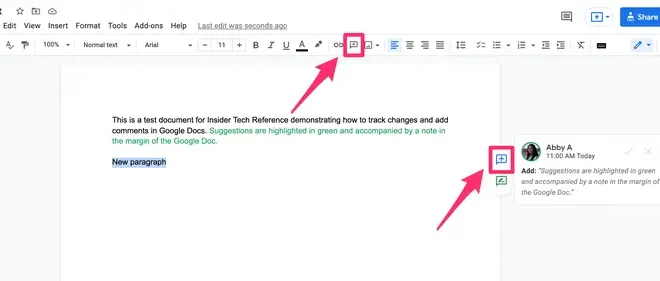
Once you have enabled the “Suggesting” feature, any changes made to the document will be highlighted in a different color, and you will be able to see who made each change.

Making Changes

To make changes to the document while the “Suggesting” feature is enabled, follow these steps:

1. Open the document.
2. Make changes to the document as normal.
3. Google Docs will automatically track your changes and highlight them in a different color.

If you’re working on a document with other collaborators, you can see who made each change by hovering over the highlighted text. This will display the name of the person who made the change, along with the date and time it was made.

Accepting and Rejecting Changes

Once you have made changes to the document, you can choose to accept or reject each change individually. To do this, follow these steps:

1. Open the document.
2. Locate the highlighted text that you want to accept or reject.
3. Hover over the highlighted text and click on the comment icon that appears.
4. Select “Accept” or “Reject” from the dropdown menu.

If you choose to accept a change, it will be incorporated into the document. If you choose to reject a change, it will be removed, and the document will revert to its previous state.

Final Thoughts

Tracking changes in Google Docs is a straightforward process that can be incredibly helpful when working on a document with multiple collaborators. By enabling the “Suggesting” feature, you can easily keep track of changes made to the document, and accept or reject changes as needed. With these tools at your disposal, you can be sure that your document is accurate and up-to-date at all times.

Previous Article

How to Add Error Bars in Excel

Next Article

The 7 Best Mobile Search Engines

Matthew Lynch

Related articles More from author

  • Digital & Mobile Technology

    What Is a Memory Leak and How Do They Happen?

    August 5, 2023
    By Matthew Lynch
  • Digital & Mobile Technology

    What is Windows Hardware Quality Labs (WHQL)?

    May 15, 2023
    By Matthew Lynch
  • Digital & Mobile Technology

    How Many People Can Watch Netflix at One Time Per Account?

    June 8, 2023
    By Matthew Lynch
  • Digital & Mobile Technology

    Who Owns Twitter? A Brief History of the Company

    June 7, 2023
    By Matthew Lynch
  • Digital & Mobile TechnologyGoogle Classroom Tips

    Google’s “Unusual Traffic” Error: What It Means and How to Fix It

    June 22, 2023
    By Matthew Lynch
  • Digital & Mobile Technology

    From Car Cigarette Lighter to 12v Accessory Socket

    June 12, 2023
    By Matthew Lynch

Search

Login & Registration

  • Register
  • Log in
  • Entries feed
  • Comments feed
  • WordPress.org

Newsletter

Signup for The Tech Edvocate Newsletter and have the latest in EdTech news and opinion delivered to your email address!

About Us

Since technology is not going anywhere and does more good than harm, adapting is the best course of action. That is where The Tech Edvocate comes in. We plan to cover the PreK-12 and Higher Education EdTech sectors and provide our readers with the latest news and opinion on the subject. From time to time, I will invite other voices to weigh in on important issues in EdTech. We hope to provide a well-rounded, multi-faceted look at the past, present, the future of EdTech in the US and internationally.

We started this journey back in June 2016, and we plan to continue it for many more years to come. I hope that you will join us in this discussion of the past, present and future of EdTech and lend your own insight to the issues that are discussed.

Newsletter

Signup for The Tech Edvocate Newsletter and have the latest in EdTech news and opinion delivered to your email address!

Contact Us

The Tech Edvocate
910 Goddin Street
Richmond, VA 23231
(601) 630-5238
[email protected]

Copyright © 2025 Matthew Lynch. All rights reserved.