
The Tech Edvocate

Top Menu

  • Advertisement
  • Apps
  • Home Page
  • Home Page Five (No Sidebar)
  • Home Page Four
  • Home Page Three
  • Home Page Two
  • Home Tech2
  • Icons [No Sidebar]
  • Left Sidbear Page
  • Lynch Educational Consulting
  • My Account
  • My Speaking Page
  • Newsletter Sign Up Confirmation
  • Newsletter Unsubscription
  • Our Brands
  • Page Example
  • Privacy Policy
  • Protected Content
  • Register
  • Request a Product Review
  • Shop
  • Shortcodes Examples
  • Signup
  • Start Here
    • Governance
    • Careers
    • Contact Us
  • Terms and Conditions
  • The Edvocate
  • The Tech Edvocate Product Guide
  • Topics
  • Write For Us
  • Advertise

Main Menu

  • Start Here
    • Our Brands
    • Governance
      • Lynch Educational Consulting, LLC.
      • Dr. Lynch’s Personal Website
      • Careers
    • Write For Us
    • The Tech Edvocate Product Guide
    • Contact Us
    • Books
    • Edupedia
    • Post a Job
    • The Edvocate Podcast
    • Terms and Conditions
    • Privacy Policy
  • Topics
    • Assistive Technology
    • Child Development Tech
    • Early Childhood & K-12 EdTech
    • EdTech Futures
    • EdTech News
    • EdTech Policy & Reform
    • EdTech Startups & Businesses
    • Higher Education EdTech
    • Online Learning & eLearning
    • Parent & Family Tech
    • Personalized Learning
    • Product Reviews
  • Advertise
  • Tech Edvocate Awards
  • The Edvocate
  • Pedagogue
  • School Ratings

logo

The Tech Edvocate

  • Start Here
    • Our Brands
    • Governance
      • Lynch Educational Consulting, LLC.
      • Dr. Lynch’s Personal Website
        • My Speaking Page
      • Careers
    • Write For Us
    • The Tech Edvocate Product Guide
    • Contact Us
    • Books
    • Edupedia
    • Post a Job
    • The Edvocate Podcast
    • Terms and Conditions
    • Privacy Policy
  • Topics
    • Assistive Technology
    • Child Development Tech
    • Early Childhood & K-12 EdTech
    • EdTech Futures
    • EdTech News
    • EdTech Policy & Reform
    • EdTech Startups & Businesses
    • Higher Education EdTech
    • Online Learning & eLearning
    • Parent & Family Tech
    • Personalized Learning
    • Product Reviews
  • Advertise
  • Tech Edvocate Awards
  • The Edvocate
  • Pedagogue
  • School Ratings
  • Unbelievable: Rogue AI Is Stealing Credit Cards — Here’s How AI vs Traditional Cybersecurity Stacks Up

  • Rogue AI Agents Are Coming For Your Data — Here’s How to Fight Back

  • This One AI Cybersecurity Flaw Lets Hackers Steal Millions

  • Why Your Teaching Career Needs This — Especially Now

  • The Brutal Truth: Teacher Pay Cuts Are Quietly Crushing Student Futures

  • The Troubling Truth: States Are Gutting Teacher Pay Incentives — Here’s Why It Matters to YOU

  • The Brutal Truth About Qilin vs n0n: Why These Ransomware Gangs Are Changing Everything

  • Unbelievable: Ransomware Attacks Just Hit a 2026 High – Is Your Small Business Next?

  • The Brutal Truth: Ransomware Attacks 2026 Surge, Industrial Sector Under Siege

  • This Unbelievable AI Tool Promises to Predict Housing Shifts With 95% Accuracy

How To
Home›How To›How to Switch Verizon Phones: 12 Steps

How to Switch Verizon Phones: 12 Steps
By Matthew Lynch
March 21, 2024
0
Spread the love

Introduction:

Switching phones with Verizon can be an easy and seamless process if you follow these 12 steps. Whether you are upgrading your device or replacing a broken one, this guide will assist you through the whole process of switching from your old phone to a new one.

Step 1: Backup Your Data

Before switching phones, ensure that all your important data, including contacts, texts, photos, and app settings, are properly backed up. You can use cloud services like Google Photos or iCloud to store your files safely.

Step 2: Purchase Your New Phone

Choose the desired phone you’d like to switch to, and buy it from Verizon or another authorized retailer. Research the features and prices to decide which device best suits your needs.

Step 3: Power Off Your Old Phone

Turn off your current phone by holding down the power button and selecting “Power Off” from the available options.

Step 4: Remove SIM Card

Take out the SIM card from your old device by gently pushing a paperclip into the small hole on the side of the phone. The SIM card tray should pop out, allowing you to remove the card.

Step 5: Insert SIM Card Into New Phone

Place the SIM card into its designated tray on your new phone, taking care to align it correctly with the tray’s shape. Push the tray back into its slot gently until it clicks into place.

Step 6: Power On Your New Phone

Turn on your new device by pressing and holding its power button.

Step 7: Set up Your New Device

Follow on-screen prompts to complete the setup process for your new phone. This may include choosing your preferred language, logging in with your Google or Apple account, and connecting to Wi-Fi.

Step 8: Restore Your Backup

After setting up your new device, restore your backed-up data (contacts, apps, photos, etc.) by signing in to your cloud storage account or using a backup file.

Step 9: Activate Your New Phone

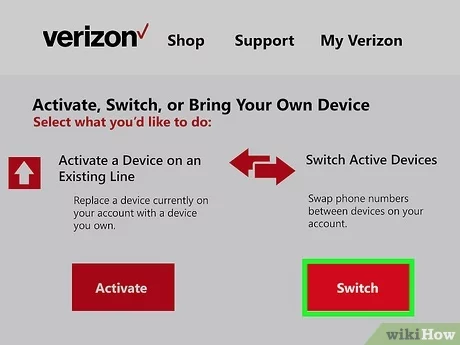
Visit the Verizon website and sign in to your account. Select “Activate or Switch Device” under the “My Devices” tab. Follow the prompts to activate your new phone and choose whether you’d like to switch or add a new line.

Step 10: Test Your New Phone

Make a test call from your new device, ensuring that the call connects and audio is clear. Send a test text message as well to confirm proper functioning.

Step 11: Configure Voicemail

Set up your voicemail on your new phone by following the instructions provided by Verizon. This may involve recording a greeting, setting a password, and choosing a notification method.

Step 12: Double-Check Your Settings

Go through all the settings on your new device to make sure they’re configured to your preferences, including notification settings, display brightness, and sound volumes.

Conclusion:

Switching Verizon phones can be effortless if you follow these 12 steps. Enjoy using your new device and take advantage of its features to enhance your mobile experience!


Previous Article

4 Ways to Beat the Slots

Next Article

How to Return Your SHEIN Order: 10 ...

Matthew Lynch

Related articles More from author

  • How To

    How to Grow Stock Flowers: 14 Steps

    October 23, 2023
    By Matthew Lynch
  • How To

    How to Clean a Sauna: 10 Steps

    October 17, 2023
    By Matthew Lynch
  • How To

    3 Ways to Identify Gallbladder Disease

    December 19, 2023
    By Matthew Lynch
  • How To

    How to Set Up Your HTC Vive

    April 6, 2024
    By Matthew Lynch
  • How To

    How to Make Silk, Satin or Ribbon Roses

    October 9, 2023
    By Matthew Lynch
  • How To

    How to Get to Work on Time: 7 Steps

    April 3, 2024
    By Matthew Lynch

Search

Login & Registration

  • Log in
  • Entries feed
  • Comments feed
  • WordPress.org

Newsletter

Signup for The Tech Edvocate Newsletter and have the latest in EdTech news and opinion delivered to your email address!

About Us

Since technology is not going anywhere and does more good than harm, adapting is the best course of action. That is where The Tech Edvocate comes in. We plan to cover the PreK-12 and Higher Education EdTech sectors and provide our readers with the latest news and opinion on the subject. From time to time, I will invite other voices to weigh in on important issues in EdTech. We hope to provide a well-rounded, multi-faceted look at the past, present, the future of EdTech in the US and internationally.

We started this journey back in June 2016, and we plan to continue it for many more years to come. I hope that you will join us in this discussion of the past, present and future of EdTech and lend your own insight to the issues that are discussed.

Newsletter

Signup for The Tech Edvocate Newsletter and have the latest in EdTech news and opinion delivered to your email address!

Contact Us

The Tech Edvocate
910 Goddin Street
Richmond, VA 23231
(601) 630-5238
[email protected]

Copyright © 2026 Matthew Lynch. All rights reserved.