How to show file extensions Windows
“`html
For many people, file extensions are like the hidden secrets of a computer. They hold the key to knowing what type of file you’re dealing with, whether it’s a document, a photo, or an executable program. Learning how to show file extensions Windows is essential for effective file management, enhancing your ability to understand and control your computer better.
1. Understanding File Extensions
File extensions are suffixes at the end of a file name, which usually consist of three or four letters following a dot (e.g., .txt, .jpg, .exe). They inform the operating system and users about the format of the file. For example, a .docx file is typically a Microsoft Word document, while a .mp3 file represents an audio file. Understanding these extensions is crucial—knowing what type of file you’re working with can prevent accidental opening in the wrong application or even potential security risks.
In addition to identifying file types, extensions can impact how files are handled by software and the operating system. For instance, executable files (.exe) can run programs, while other types like .zip or .rar are compressed formats that require extraction before use. By being aware of the extensions, you can make informed decisions about how to interact with your files.
2. Why You Should Show File Extensions in Windows
Many users keep file extensions hidden by default, which can lead to confusion and mistakes. For instance, a file named “report.docx” visually appears as just “report,” making it easy to misidentify its format. This can particularly be an issue when downloading files from the internet, where malicious software can disguise itself using misleading file names. By learning to show file extensions Windows, you greatly reduce the chances of opening harmful files.
Additionally, showing file extensions can enhance your productivity. If you frequently work with different file types, being able to see the extensions at a glance helps streamline your workflow. You’ll save time searching for the right application to open a file, as you’ll instantly know its format. Ultimately, this knowledge allows for smoother interactions with your files.
3. Steps to Show File Extensions in Windows 10
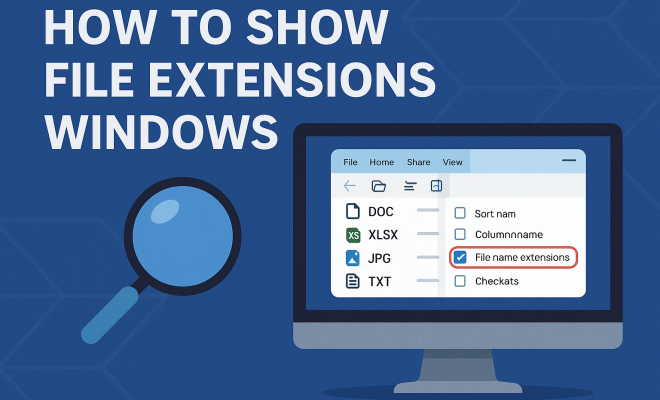
Let’s get practical! If you’re running Windows 10, here’s how to modify the settings to view file extensions. Start by opening File Explorer, which you can do by clicking its icon on the taskbar or pressing Windows + E on your keyboard.
- In the File Explorer menu, click on the “View” tab at the top.
- Look for the checkbox labeled “File name extensions” in the ribbon. Click this box to enable the visibility of file extensions.
- Once checked, you’ll see the extensions immediately appear beside all your files.
This simple process takes only a minute, and it’s a change that can have a significant impact on your file management practices.
4. Steps to Show File Extensions in Windows 11
If you’ve upgraded to Windows 11, don’t worry—the process to show file extensions remains straightforward. Start by opening File Explorer. You can do this with the same method as in Windows 10—just click the icon or use the shortcut. (See: Understanding filename extensions.)
- Click on the three horizontal dots located at the top right corner of the File Explorer window.
- Select “Options” from the dropdown menu.
- In the Folder Options dialog, navigate to the “View” tab.
- Under Advanced settings, find and uncheck the box next to “Hide extensions for known file types.”
- Click “Apply” and then “OK” to save your changes.
After this, you will be able to see file extensions for all files, just like in Windows 10, making your file management easier and safer.
5. Using Windows Registry to Show File Extensions
For advanced users, another method to display file extensions is through the Windows Registry. This approach is less common but can be useful if you encounter issues with the previous methods. Before you proceed, it’s crucial to back up your registry, as incorrect changes can affect system functionality.
- Press Windows + R to open the Run dialog. Type “regedit” and hit Enter.
- Navigate to the following path: HKEY_CURRENT_USER\Software\Microsoft\Windows\CurrentVersion\Explorer\Advanced.
- Find the entry named Hidden and double-click it. Set its value to 0.
- Close the Registry Editor and restart your PC to see the changes take effect.
Using the Windows Registry should be approached with caution, but it indeed provides another method to show file extensions in Windows if needed.
6. Common File Extensions and Their Uses
It’s helpful to familiarize yourself with common file extensions and what they mean. Here’s a brief rundown of some frequently encountered types:
- .docx: Microsoft Word document, commonly used for text documents.
- .xlsx: Microsoft Excel document, used for spreadsheets.
- .pptx: Microsoft PowerPoint presentation file.
- .jpg/.jpeg: A popular format for images, particularly photographs.
- .png: An image format that supports transparency.
- .mp3: The standard format for audio files, widely used for music.
- .mp4: A common video format that is compatible with most devices.
- .zip: A compressed archive file that can contain multiple files.
- .exe: An executable file used to install programs.
Having a solid understanding of these extensions can assist you in recognizing file types at a glance, which is especially useful when files are shared or downloaded.
7. Best Practices for Managing Files with Extensions
Now that you know how to show file extensions in Windows, it’s essential to adopt some best practices for file management. Here are a few tips:
- Be Cautious with Unknown Files: If you come across a file with an unusual or unknown extension, research it before opening. This precaution can save you from malware or other issues.
- Rename with Care: If you decide to rename files, be cautious not to change or remove the file extension. Doing so can render the file unusable.
- Organize Your Files: Use folders to categorize files based on their type or purpose. This organization helps reduce clutter and makes files easier to find.
- Regular Backups: Always keep backups of important files, and be sure to include their extensions in case of recovery.
- Educate Others: If you collaborate with others, educate them on the importance of file extensions and how to recognize them.
By implementing these best practices, you can enhance your experience in managing files and understanding their formats, which leads to a more effective digital workflow.
8. Using Third-Party Software for Advanced File Management
For users who require more advanced file management features, consider exploring third-party software. Applications like File Explorer++ or XYplorer offer more functionality than the default Windows File Explorer, including customizable file views and tabbed browsing.
Some of these applications also allow for batch renaming files, providing options to change extensions easily. This can be particularly useful when converting files from one format to another or when organizing large collections of files. However, always download software from reputable sources and keep your antivirus software updated. (See: File extensions and their importance.)
9. Common Mistakes When Handling File Extensions
Even seasoned users can make mistakes when dealing with file extensions. Here are some common pitfalls:
- Ignoring File Extensions: Failing to pay attention to file extensions can lead to opening files with the wrong applications, resulting in corrupted files or loss of data.
- Renaming Files Incorrectly: When renaming files, many users mistakenly alter the extension by deleting it or changing it to something that doesn’t match the file type. This can lead to confusion and file access issues.
- Assuming All Files Are Safe: Just because a file has a common extension doesn’t mean it’s safe. Always scan files before opening, especially those downloaded from the internet.
Awareness of these mistakes can help you manage your files more effectively and avoid frustrating issues down the line.
10. File Extensions and Security Risks
File extensions play a critical role in computer security. Many malware threats disguise themselves with familiar file extensions to trick users into executing them. For example, a malicious file might be named “document.pdf.exe,” but if file extensions are hidden, the user might think it’s a safe PDF file.
Understanding the difference between executable files and regular file types is crucial. Malware, such as ransomware or trojans, often comes in executable formats. A study conducted by the Cybersecurity & Infrastructure Security Agency (CISA) revealed that over 90% of malware infections start with a user opening an email attachment that looks harmless but has a dangerous file extension.
By showing file extensions in Windows, you can quickly identify potentially harmful files. Always be skeptical of any file that doesn’t match the expected extension of its content. If you see a file that looks suspicious, take the time to verify its format.
11. Frequently Asked Questions
1. How do I know if a file type is safe?
Before opening a file, research its extension to see if it’s a known file type. Use antivirus software to scan files if you’re unsure of their safety.
2. Can I change a file’s extension?
Yes, you can change a file’s extension, but be cautious. If the new extension doesn’t match the file’s actual format, it may become unusable.
3. What should I do if I accidentally hide file extensions again?
Follow the steps in the sections above for your specific Windows version to re-enable file extensions. It’s a quick process that should only take a minute. (See: Harvard's resources on file management.)
4. Are there any file types I should avoid?
File types like .exe, .bat, and .cmd are executable files that can run programs on your computer. Be cautious with them, especially if you’re unsure of their origin.
5. Why do some files have double extensions?
Files may have double extensions (e.g., .jpg.exe) as a tactic used by malware to disguise itself. Always ensure you can see the full extension to identify such threats.
12. Additional Tips for Managing File Extensions
Now that you’re aware of the importance of file extensions, here are some extra tips to help you manage them effectively:
- Learn File Associations: Understanding which applications are associated with specific file extensions can help you manage your files more efficiently. If you frequently use a particular file type, it may be beneficial to ensure that it’s linked to the application you prefer.
- Use a File Extension Checker: Online tools and software can help you accurately identify file extensions and their respective types. This can be particularly useful if you receive files from others and aren’t familiar with the formats.
- Secure File Types: Certain file types are more secure than others. For instance, document formats like PDF tend to be safer than executable files. Whenever possible, opt for these formats when sharing files, especially in professional settings.
- Regularly Update Your Software: Keeping your operating system and applications up to date can fix vulnerabilities associated with file handling. Ensure that your antivirus software is also up to date to provide the best protection against malware.
- Educate Yourself on New File Types: As technology evolves, new file types emerge. Stay informed about new formats and their uses to enhance your adaptability and file management skills.
13. File Extension Management on Different Operating Systems
While the focus here has been on Windows, it’s worth noting that other operating systems handle file extensions differently. Here’s a quick comparison:
- macOS: Similar to Windows, macOS also uses file extensions to identify files. To show extensions in Finder, go to Finder Preferences, click on Advanced, and check the box that says “Show all filename extensions.”
- Linux: Linux systems typically do not rely on file extensions as heavily as Windows does. Instead, they use file metadata to determine file types. However, many Linux distributions allow users to rename files with extensions for compatibility with applications that require them.
- Mobile Operating Systems: On mobile platforms like Android and iOS, file management is often simplified. Users may have limited access to file extensions unless using specific file management apps that allow viewing or changing extensions.
14. Conclusion
Being able to show file extensions Windows is more than just a technical skill; it’s a fundamental aspect of effective file management. Whether you are a casual user or a tech aficionado, understanding file extensions allows you to work more efficiently, avoid potential security risks, and enhance your overall digital experience. So go ahead, take a moment to enable file extensions on your Windows device and empower yourself with the knowledge of what’s really behind your files.
“`
Trending Now
Frequently Asked Questions
How do I show file extensions in Windows 10?
To show file extensions in Windows 10, open File Explorer, click on the 'View' tab, and check the box labeled 'File name extensions.' This will display the extensions for all files, helping you identify their types easily.
Why are file extensions hidden by default in Windows?
File extensions are hidden by default in Windows to simplify the user interface and reduce confusion for non-technical users. However, this can lead to mistakes, such as misidentifying file types and increasing security risks.
What are file extensions and why are they important?
File extensions are suffixes at the end of file names that indicate the file type, such as .docx for documents or .jpg for images. They are important for identifying how files should be opened and used, helping to prevent errors and security issues.
Can showing file extensions improve security?
Yes, showing file extensions can improve security by helping users identify potentially harmful files. When extensions are visible, users can be more cautious about opening files that may appear misleading or suspicious.
How can I change file extension visibility in Windows?
To change file extension visibility in Windows, open File Explorer, go to the 'View' tab, and select 'Options.' In the Folder Options window, click on the 'View' tab and uncheck 'Hide extensions for known file types' to make all file extensions visible.
What did we miss? Let us know in the comments and join the conversation.