How to share SmartThings access
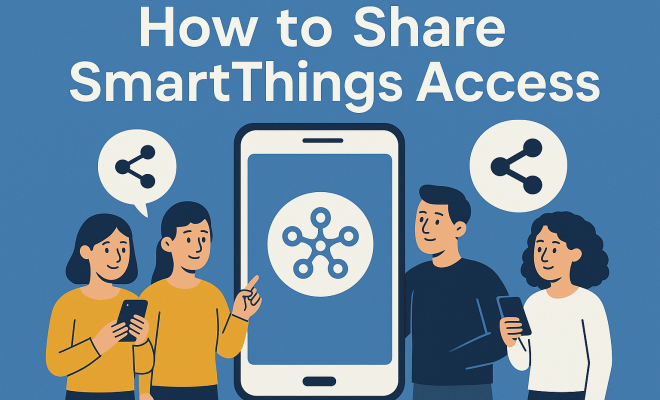
Smart home technology, once the stuff of science fiction, has become an integral part of our daily lives. From automating your lighting to securing your front door, platforms like Samsung SmartThings offer a powerful hub for controlling a myriad of devices. But what happens when you’re not the only one living in your smart home? Or when you need a trusted friend or family member to look after things while you’re away? That’s where the ability to share SmartThings access becomes incredibly important, and also where many people inadvertently make crucial mistakes.
Sharing access isn’t just about convenience; it’s about security, privacy, and ensuring your smart home functions smoothly for everyone who needs it. When you share SmartThings access, you’re essentially handing over the keys to your digital kingdom. Understanding the nuances of how to do this correctly, and more importantly, how to avoid common pitfalls, is absolutely essential. We’ll explore the various ways to grant access, the different levels of control you can impart, and the critical considerations that often get overlooked, ensuring your smart home remains both smart and secure.
1. Not Understanding the ‘Member’ Role vs. ‘Location Owner’: The Foundation of Sharing
One of the most fundamental errors people make when they go to share SmartThings access is conflating the ‘Member’ role with the ‘Location Owner.’ On the surface, both allow someone to control devices, but their underlying permissions and implications are vastly different. The ‘Location Owner’ is the primary administrator of the SmartThings location. This individual has complete control over everything: adding and removing devices, setting up automations, managing other members, and even deleting the entire location. Think of them as the landlord of your smart home – they hold all the ultimate power.
A ‘Member,’ on the other hand, is more akin to a tenant. They can control devices, view the status of sensors, and interact with existing automations. What they can’t do, crucially, is add new devices, delete existing ones, or manage other users. They also can’t delete the location itself. SmartThings is designed with this hierarchy for a reason: to provide a clear chain of command and prevent unauthorized or accidental changes to your home’s setup. Giving someone ‘Location Owner’ status should be reserved for only the most trusted individuals, like a spouse or a very close family member who genuinely needs full administrative control.
2. Overlooking the Importance of Samsung Accounts: The Gateway to Control
To effectively share SmartThings access, every individual you wish to grant permissions to must have their own Samsung account. This might seem like a minor detail, but it’s a critical prerequisite that often gets overlooked. SmartThings doesn’t operate on generic guest access or shared login credentials; it’s built around individual user identities tied to specific Samsung accounts. Without one, they simply won’t be able to join your SmartThings ‘Location’ and control your devices.
The process is straightforward: the person you’re inviting needs to download the SmartThings app and either log in with an existing Samsung account or create a new one. This ensures that their access is uniquely identifiable, making it easier to manage permissions and track activity if necessary. Attempting to share your personal Samsung account login is a major security blunder we’ll discuss later, so establishing separate, individual accounts is non-negotiable for secure and manageable smart home sharing.
3. Forgetting to Send Invitations (or Sending Them Incorrectly): The Entry Point
You can’t just wave a magic wand and expect someone to gain access to your SmartThings setup. The official way to share SmartThings access is through an invitation system within the app. Many users stumble here by not understanding where to find this feature or how to correctly send the invitation. The process typically involves navigating to your SmartThings ‘Location,’ tapping the three-dot menu (or similar settings icon), and then selecting ‘Manage members’ or ‘Invite member.’
Once you initiate an invitation, you’ll usually be prompted to enter the email address associated with the invitee’s Samsung account. It’s crucial to double-check this email address for accuracy. A typo could send the invitation into the ether or, worse, to the wrong person. The invitee then receives a notification, either within their SmartThings app or via email, which they must accept to gain access. If they don’t accept, or if the invitation expires (some invitations have a time limit), their access won’t be granted. Always confirm with the invitee that they’ve received and accepted the invitation. Getcosmiq's security overview offers useful background here.
4. Not Customizing Access for Specific Needs: The Granular Control You’re Missing
While the ‘Member’ role offers a baseline level of control, SmartThings provides more granular options that many users fail to utilize. This often leads to either over-sharing capabilities or under-sharing, frustrating the invitee. For instance, you might not want your dog walker to have access to your smart thermostat, but you definitely want them to be able to unlock the door.
Depending on the SmartThings device and its capabilities, you can often customize what specific devices or routines a member can interact with. For example, some smart locks integrate directly with SmartThings and allow you to create unique codes for different users, with specific time-based restrictions. Exploring these device-specific settings and SmartThings ‘Scenes’ or ‘Automations’ can help you create a tailored access experience. Don’t just invite someone as a generic member; think about their specific needs and what devices they genuinely require access to, then fine-tune permissions accordingly. This minimizes security risks and improves user experience.
5. Sharing Your Own Samsung Account Credentials: The Cardinal Sin of Smart Home Security
This is arguably the most egregious mistake you can make when attempting to share SmartThings access. Handing over your personal Samsung account login details – your email and password – to another person is a massive security breach waiting to happen. Your Samsung account isn’t just for SmartThings; it’s tied to your phone, your payment information, your photos, and potentially a host of other personal data and services. Giving someone else access to it is like giving them the master key to your entire digital life. (See: Smart home technology overview.)
Beyond the obvious privacy implications, it also creates a mess for accountability. If something goes wrong, who made the change? If you ever need to revoke access, changing your password affects *your* ability to log in, not just theirs. Always, always, insist that anyone needing access creates their own Samsung account and then invite them as a ‘Member’ to your SmartThings location. There is never a legitimate reason to share your personal login credentials for SmartThings access.
6. Forgetting to Revoke Access When It’s No Longer Needed: The Lingering Threat
Just as important as granting access is knowing when and how to revoke it. This is a crucial security step that’s often overlooked once a temporary need has passed. Did you invite a friend to house-sit for a week? Did a cleaner need temporary access to your smart lock? Once their purpose for access has concluded, it’s absolutely vital to remove them from your SmartThings ‘Location.’ Leaving old, unused access active is an unnecessary security risk.
Revoking access is straightforward: go back to the ‘Manage members’ section within your SmartThings app, locate the user you wish to remove, and select the option to delete or remove them. This immediately severs their connection to your smart home devices. Make it a habit to audit your SmartThings members periodically, perhaps once every few months, to ensure only those who truly need access still have it. This proactive approach significantly enhances your smart home’s security posture.
7. Neglecting to Communicate Expectations and Usage Guidelines: The Human Element
Technology is only as good as the people using it, and smart homes are no exception. A common mistake is simply granting access without a clear conversation about how the smart home is intended to be used. For example, if you have specific automations set up – like lights turning off at a certain time or the thermostat adjusting based on presence – a new member might inadvertently disrupt these by manually overriding settings without understanding the broader system.
Before you share SmartThings access, take a few minutes to walk the new member through the basics. Explain what devices they have access to, which automations are in place, and what the general ‘rules’ of the smart home are. “Please don’t manually turn off the living room lights; they’re set to a schedule,” or “If you adjust the thermostat, remember to set it back to X when you leave.” This simple step can prevent frustration, maintain the efficiency of your smart home, and ensure everyone coexists harmoniously with your connected devices. A little communication goes a long way in preventing smart home headaches.
Understanding the SmartThings ‘Location’ Concept
Before you can even think about sharing, it’s essential to grasp the core concept of a ‘Location’ in SmartThings. A ‘Location’ typically represents a physical place, like your home, an office, or a vacation property. All your SmartThings devices (lights, sensors, locks, cameras, etc.) are associated with a specific ‘Location.’ When you initially set up SmartThings, you create your first ‘Location,’ often named ‘Home.’
This ‘Location’ acts as a container for all your smart devices and automations. When you share SmartThings access, you’re not sharing individual devices, but rather access to an entire ‘Location’ (or parts of it, depending on your granular settings). This means anyone you invite will see and be able to interact with most, if not all, devices within that specific ‘Location.’ Understanding this structure is key to managing who sees what and how they interact with your connected environment.
Step-by-Step Guide to Sharing SmartThings Access Correctly
Let’s break down the correct way to share SmartThings access, minimizing the mistakes we’ve just discussed:
- Ensure the Invitee Has a Samsung Account: Verify that the person you’re inviting has a Samsung account. If not, guide them to create one through the SmartThings app or Samsung’s website.
- Open the SmartThings App: Launch the SmartThings app on your smartphone.
- Navigate to Your ‘Location’: Make sure you’re on the dashboard for the specific ‘Location’ you want to share (e.g., ‘Home’). If you have multiple locations, select the correct one from the dropdown menu.
- Access ‘Manage Members’: Tap the ‘Menu’ icon (usually three horizontal lines or dots) in the top left or right corner, then select ‘Settings’ (gear icon). Look for ‘Manage members’ or ‘Members’ within the settings menu.
- Invite a New Member: Tap ‘Add member’ or ‘Invite member.’ You’ll likely be prompted to enter the email address associated with the invitee’s Samsung account.
- Confirm Invitation: Double-check the email address for accuracy and send the invitation.
- Invitee Accepts the Invitation: The invitee will receive a notification (either in their SmartThings app or via email). They must accept this invitation. Once accepted, they will appear in your ‘Manage members’ list with ‘Member’ status.
- Communicate Expectations: Briefly discuss with the new member how they should interact with your smart home devices and automations to avoid conflicts.
- Review and Revoke as Needed: Periodically review your list of members. If someone no longer needs access, remove them promptly from the ‘Manage members’ section.
Following these steps will help you securely and effectively share SmartThings access, maintaining control over your smart home while providing necessary convenience to others.
The Practicalities of Guest Access and Temporary Users
While inviting a full ‘Member’ is suitable for long-term residents, what about temporary users like a house sitter, a cleaner, or a short-term rental guest? Here, the ‘Member’ role might still be appropriate, but it emphasizes the critical need for step #7: revoking access promptly. You wouldn’t give a house sitter your spare physical key and never ask for it back, would you? The same principle applies digitally.
For even more temporary or limited access, consider leveraging device-specific features that integrate with SmartThings. Many smart locks, for instance, allow you to create temporary, time-restricted, or single-use access codes directly from their own apps, which then sync with SmartThings. This provides an extra layer of control beyond just the general SmartThings ‘Member’ role. For example, you could create a unique code for a delivery driver that only works for a 15-minute window on a specific day. These specialized features are often overlooked but offer a powerful way to manage guest access without granting broader SmartThings permissions.
SmartThings and Shared Responsibility: A Philosophy
Ultimately, sharing SmartThings access isn’t just a technical task; it’s about establishing a shared responsibility for your smart home’s functionality and security. When multiple people interact with a connected environment, understanding boundaries, respecting automations, and communicating changes become paramount. It’s a miniature ecosystem where each user plays a role in its smooth operation. (See: Smart home health considerations.)
Failing to address the human element – the communication, the expectations, the understanding of how the smart home is designed to work – is just as detrimental as making technical errors. By being proactive, clear, and diligent in managing access, you can ensure your SmartThings setup remains a convenience, not a source of frustration or a security vulnerability for everyone involved.
8. Ignoring Geofencing and Presence Sensing Implications: When Your Home Thinks You’re Alone
SmartThings excels at making your home reactive to who’s there. This is often achieved through geofencing and presence sensing, where the system knows if you, or other designated members, are home or away based on your phone’s location. When you share SmartThings access, especially with someone who lives in the home, it’s easy to forget about how their presence (or lack thereof) will affect your automations.
For example, if your ‘Goodnight’ automation turns off all lights and locks doors when “everyone is away,” and you invite a new housemate but don’t add their device to the presence sensing group, your home might mistakenly think everyone has left and activate away-mode automations while they’re still inside. Or, if your “Welcome Home” scene only triggers when *your* phone arrives, your partner might walk into a dark house. Always review your automations, particularly those tied to presence, after adding a new member. You’ll likely need to update them to include or exclude the new member’s device as a factor. This ensures your smart home’s intelligence works for everyone, not just the original owner. We covered insights on privacy in more detail.
9. Underestimating the Impact of Shared Routines and Scenes: Harmony or Chaos?
SmartThings ‘Routines’ (now often called ‘Scenes’ and ‘Automations’) are the heart of an efficient smart home. They dictate when lights turn on, doors lock, or thermostats adjust. When you share access, members can typically activate existing scenes and automations. What some don’t realize is that these actions, especially if manually triggered, can sometimes conflict or create confusion if not properly understood.
Imagine you have a ‘Movie Night’ scene that dims the lights and turns on the TV. A new member might trigger this scene without realizing it also turns off the kitchen light where someone else is cooking. Or, if you have an automation that sets the temperature to 72°F when motion is detected in the living room, and a new member manually sets it to 68°F, the automation might override their setting moments later, leading to frustration. It’s crucial to explain the purpose of key scenes and automations to new members. Perhaps even label them clearly (e.g., “Owner’s Morning Routine”) or create specific ‘Guest’ scenes that only affect certain devices, avoiding conflicts with core home functions. Clarity around shared routines helps maintain domestic peace.
10. Forgetting About Device-Specific App Integrations: Beyond the SmartThings Hub
While SmartThings is a powerful central hub, many smart devices also have their own dedicated apps. Think about your smart camera, smart lock, or even some smart lighting systems. Often, these devices offer more granular control or unique features within their native apps than are exposed through SmartThings. When you share SmartThings access, you’re sharing control through the SmartThings interface, but not necessarily direct access to the device’s native app.
For example, you might grant a dog walker SmartThings access to unlock your smart lock. They can use SmartThings for that. But if you want them to be able to view the camera feed from the smart doorbell, they might need a separate invite or login for the doorbell’s native app (e.g., Ring, Arlo, etc.). It’s important to distinguish between what SmartThings controls and what still requires separate app access. Don’t assume that granting SmartThings access automatically gives someone full functionality across all your smart home’s components. You might need to provide additional instructions or separate invitations for specific device apps.
Expert Perspectives: The Evolving Landscape of Smart Home Security
The conversation around sharing SmartThings access isn’t static; it evolves with technology. Cybersecurity experts consistently highlight the “human element” as the weakest link in any security chain. In a smart home context, this often translates to improper access management. According to a recent survey by Statista, over 30% of smart home users express concerns about privacy and security, a number that underscores the importance of careful sharing practices.
IoT (Internet of Things) security specialists, like those at the IoT Security Foundation, advocate for the principle of “least privilege” – meaning users should only be granted the minimum level of access necessary to perform their tasks. This directly applies to SmartThings: if a temporary guest only needs to unlock the front door, don’t make them a full ‘Member’ with control over your thermostat and security cameras. Leverage device-specific temporary codes or highly restricted scenes whenever possible. They also stress the importance of multi-factor authentication (MFA) on all accounts, especially your primary Samsung account, as an added layer of defense against unauthorized access, even if your login details are compromised.
Comparing SmartThings Sharing to Other Platforms
It’s helpful to see how SmartThings’ approach to sharing stacks up against other popular smart home ecosystems, as this can highlight its strengths and areas to be mindful of: (See: Smart home security concerns.)
- Google Home: Google Home uses a “Home” structure similar to SmartThings’ “Location.” You can invite “Members” to your Google Home, granting them access to all devices and routines within that home. Like SmartThings, each member needs their own Google account. Google offers less granular control over individual devices for members compared to some SmartThings device integrations, making the ‘least privilege’ approach a bit harder to implement for specific devices.
- Apple HomeKit: HomeKit also operates with a “Home” concept. You can invite people to your Home, giving them control over all accessories. HomeKit allows for “Remote Access” and “Edit Access,” which are somewhat analogous to SmartThings’ Member and Owner roles, respectively. Apple emphasizes end-to-end encryption for security, providing a strong privacy foundation. However, granular control over specific devices for non-owners can also be limited, often requiring users to toggle device permissions on or off for the entire home, rather than per device per user.
- Amazon Alexa: Alexa’s sharing capabilities are a bit different, often relying on “Household Profiles” or simply sharing access to specific devices through their native apps. While you can add family members to an Alexa Household, it primarily shares purchasing habits and content, rather than direct device control in the same way SmartThings does. For device control, you often need to share the Wi-Fi network or enable specific skills, which can be less centralized than SmartThings.
SmartThings generally strikes a good balance, offering a centralized ‘Location’ for management while providing increasingly granular controls, especially through integrated devices. However, the onus remains on the owner to understand and utilize these features effectively for secure sharing.
Frequently Asked Questions About Sharing SmartThings Access
Q1: Can I share access to just one specific device, like a smart light, instead of my whole SmartThings ‘Location’?
A1: Directly through the core SmartThings app, when you invite a ‘Member,’ they typically get access to most devices in that ‘Location.’ However, you can achieve a form of single-device sharing by creating a ‘Scene’ or ‘Automation’ that only controls that specific light and then communicating to the member that they should only activate that particular scene. For true single-device access, you might need to use the device’s native app (e.g., a Philips Hue app for a Hue light) and invite them there, bypassing SmartThings for that specific control.
Q2: What if the person I’m inviting doesn’t have a Samsung phone? Can they still use SmartThings?
A2: Absolutely! The SmartThings app is available on both Android (Google Play Store) and iOS (Apple App Store). As long as they have a compatible smartphone and can create or log in with a Samsung account, their phone brand doesn’t matter. They’ll have full functionality as a SmartThings member.
Q3: My invitation expired. What do I do?
A3: No problem. Simply go back into the ‘Manage members’ section of your SmartThings app and send a new invitation. Make sure the invitee accepts it promptly. It’s a good idea to remind them to check their email (including spam folders) or the SmartThings app notifications.
Q4: Can I see a history of what a specific member has done in my SmartThings home?
A4: SmartThings does keep an ‘Activity History’ log within the app (usually found in the ‘Life’ tab or similar section) that shows device events and automation triggers. While it doesn’t always explicitly state *who* initiated a manual action from their personal device, it will show the event. For highly sensitive devices like smart locks, the device’s native app might offer a more detailed user-specific activity log. This is another reason why individual Samsung accounts are critical – it ties actions to a unique ID.
Q5: Is there a limit to how many members I can invite to my SmartThings ‘Location’?
A5: While Samsung doesn’t publish a hard, small number like “5 members only,” there’s a practical limit. SmartThings is primarily designed for residential use. If you’re looking to manage a very large number of users (e.g., for a commercial property), you might find the ‘Member’ management cumbersome, and a more robust commercial smart building management system would be more appropriate. For typical home use, inviting a handful of family members or trusted friends is well within its capabilities.
Q6: If I remove a member, do their personal SmartThings settings or automations they created also get removed?
A6: When you remove a member, their access to your ‘Location’ is immediately revoked. Any personal settings on their *own* SmartThings app related to *your* location will no longer function. However, as a ‘Member,’ they shouldn’t have been able to create or modify core automations for the entire location. Automations are tied to the ‘Location Owner’ or those with administrative permissions. So, removing a ‘Member’ won’t delete your existing automations or scenes; it just removes their ability to interact with them.
Trending Now
Frequently Asked Questions
How do I share access to my SmartThings?
To share access in SmartThings, open the app, go to 'Settings', select 'Users', and then 'Invite User'. Enter the email of the person you want to share access with and choose their role, either 'Member' or 'Location Owner', depending on the level of control you want them to have.
What is the difference between a Member and a Location Owner in SmartThings?
A 'Location Owner' has full administrative rights, including adding or removing devices and managing other users. A 'Member', however, has limited control, allowing them to operate devices without the ability to make significant changes to the SmartThings setup.
Can I revoke access to my SmartThings after sharing?
Yes, you can revoke access at any time. Simply go to 'Settings' in the SmartThings app, select 'Users', choose the user you want to remove, and select 'Remove User'. This will immediately revoke their access to your SmartThings location.
Is it safe to share my SmartThings access?
Sharing SmartThings access can be safe if done correctly. Always ensure you trust the person you are sharing with, and choose the appropriate role (Member or Location Owner) based on how much control you want to give them to maintain your smart home's security.
What should I consider before sharing SmartThings access?
Before sharing access, consider the level of trust you have in the individual, the permissions they will have, and how it may impact your smart home's functionality. Ensure you understand the differences between Member and Location Owner roles to make informed decisions.
What's your take on this? Share your thoughts in the comments below — we read every one.