How to screen share on Discord
“`html
Screen sharing on Discord has transformed how users communicate, collaborate, and share experiences online. Whether you’re gaming with friends, holding a team meeting, or teaching a skill, knowing how to effectively screen share can make all the difference. In this comprehensive guide, we’ll explore the ins and outs of screen sharing on Discord, including preparation, features, troubleshooting tips, and advanced techniques to enhance your experience.
1. Understanding Discord’s Screen Share Feature
Before diving into the how-to’s, it’s essential to understand what screen sharing on Discord entails. Discord is a voice, video, and text chat platform primarily used by gamers, but it has expanded to serve various communities and even businesses. One of its standout features is the ability to share your screen in real-time, allowing users to broadcast their desktop or specific applications to others in a voice or video call.
Screen sharing is particularly useful for virtual meetings, collaborative projects, and online gaming sessions. With Discord’s intuitive interface, users can quickly switch between voice and video chats, making it easy to communicate while sharing visual content. Moreover, Discord’s screen share supports various resolutions and frame rates, delivering a smooth experience to viewers.
2. Getting Started: Enabling Screen Share
To start screen sharing on Discord, you must first ensure that you have the necessary permissions. Here’s how to enable the feature:
- Launch Discord: Open the Discord application on your device or use the web version.
- Select a Server or Direct Message: Choose the server or start a direct message where you want to share your screen.
- Join a Voice Channel: If you’re in a server, enter a voice channel by clicking on it. This is necessary for the screen sharing feature to be available.
- Start a Call: If you’re using direct messages, initiate a voice or video call with the person or group.
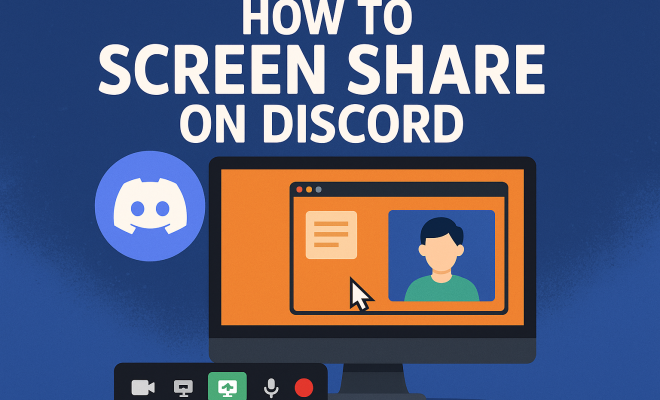
Once you’re in a voice chat, look for the screen share icon, typically represented by a monitor icon with an arrow. Clicking this will prompt you to select what you want to share — your entire screen or a specific application window.
3. Choosing What to Share
Discord allows you to share your entire screen or a specific application, giving you flexibility based on your needs. Here’s what to consider when selecting what to share:
- Entire Screen: This option displays everything happening on your screen. It’s perfect for presentations, where you might need to switch between multiple applications or windows.
- Application Window: If you only want to share a specific program, select this option. This keeps viewers focused and prevents them from seeing any private information or notifications that may pop up.
- Browser Tabs: For those who frequently share content from the web, consider sharing specific browser tabs. This can provide a more streamlined experience for viewers, especially during demonstrations.
Choosing wisely between these options can enhance your presentation and keep your audience engaged.
4. Optimizing Your Screen Share Settings
Once you’ve chosen what to share, you should optimize your screen share settings for the best experience. Here are some key settings to consider:
- Resolution: Discord allows you to adjust the resolution of your stream. Higher resolutions will provide clearer visuals but may require more bandwidth. Consider the capabilities of both your internet connection and your viewers’ devices.
- Frame Rate: You can also adjust the frame rate of your stream. A higher frame rate (like 60 FPS) is ideal for fast-paced activities like gaming, while a lower rate may suffice for static presentations.
- Audio Sharing: If you’re sharing a video or any content with sound, make sure to check the box that allows audio sharing. This ensures that your viewers will hear the audio alongside the visuals.
By fine-tuning these settings, you can ensure a smooth and professional screen sharing experience.
5. How to Screen Share on Discord Mobile
Screen sharing isn’t just limited to desktop use; you can also screen share on Discord’s mobile app. Here’s how to do it:
- Open the Discord App: Launch the app on your mobile device and navigate to the server or direct message.
- Join a Voice Channel or Call: Similar to desktop, join a voice channel or start a voice call to access screen sharing options.
- Access Screen Share: Tap on the screen share icon. Depending on your device, you may need to grant the app permission to access your screen.
Remember that mobile screen sharing is particularly useful for on-the-go presentations or when collaborating with friends and colleagues while away from your computer. (See: Learn more about Discord software.)
6. Common Use Cases for Screen Sharing on Discord
Understanding how to screen share on Discord opens up several practical applications. Here are some common scenarios:
- Gaming: Many gamers use screen sharing to showcase gameplay, strategies, or collaborative sessions. It’s a fantastic way to involve friends and get real-time feedback.
- Education: Teachers and tutors can share their screens to conduct lessons or tutorials. This allows for interactive learning experiences, especially when demonstrating software or presenting slides.
- Team Collaboration: In professional settings, screen sharing can facilitate remote work by allowing team members to present ideas, share documents, or conduct brainstorming sessions.
- Events and Webinars: Content creators and hosts can use Discord for live events, allowing them to share presentations or engage with their audience simultaneously.
These use cases highlight the versatility of the screen sharing feature and its relevance across various contexts.
7. Troubleshooting Screen Share Issues
Even the most seasoned users can encounter issues while screen sharing on Discord. Here are some common problems and their solutions:
- Performance Issues: If your screen share is lagging or freezing, check your internet connection. A wired connection typically provides better stability than Wi-Fi. Additionally, close unnecessary applications to free up system resources.
- Audio Not Working: If viewers can’t hear the audio, ensure that the audio sharing option is checked before starting the share. If you encounter persistent audio issues, consider using a different browser or the desktop app.
- Permission Errors: If you receive an error about permissions, make sure Discord has access to share your screen in your device’s settings. This is particularly common on mobile devices.
By being proactive in troubleshooting, users can minimize disruptions and maintain a smooth screen-sharing experience.
8. Advanced Tips for Effective Screen Sharing
To truly elevate your screen sharing game on Discord, consider these advanced tips:
- Practice Ahead of Time: Before any important meeting, practice your presentation to ensure you’re comfortable with the flow and the software. This can help reduce anxiety and technical hiccups on the big day.
- Engage Your Audience: Don’t just share your screen and go silent. Engage your audience by asking questions, inviting feedback, and encouraging discussion throughout your session.
- Utilize Discord Bots: Explore the use of bots that can enhance your screen sharing experience. Some bots can help manage your server, facilitate polls, or even add fun elements to your presentation.
These strategies can help you create a more engaging and interactive experience for your viewers.
9. Future of Screen Sharing on Discord
As technology evolves, so too does Discord. The platform’s developers continuously roll out updates to improve user experience, including screen sharing capabilities. Future enhancements may include better integration with third-party applications, improved audio and video quality, and even advanced interactive features that allow for more dynamic presentations.
Moreover, as remote work becomes increasingly common, the demand for effective communication tools like Discord is likely to grow. The platform will need to adapt to these changing needs, which could lead to new features that enhance screen sharing capabilities even further.
In conclusion, knowing how to screen share on Discord effectively can significantly improve your online interactions, whether for personal or professional use. By understanding the features available, optimizing your settings, and employing engaging strategies, you can create memorable experiences for everyone involved. So gear up, share that screen, and let your creativity shine!
10. Screen Share on Discord: A Comparison with Other Platforms
While Discord offers a robust screen sharing feature, it’s essential to understand how it stacks up against other platforms. Let’s take a closer look at how Discord compares with Zoom, Microsoft Teams, and Google Meet in terms of screen sharing functionality.
10.1. Discord vs. Zoom
Zoom is widely recognized for its video conferencing capabilities. When it comes to screen sharing, both platforms allow users to share their entire screen or specific windows. However, Zoom offers additional features like the ability to annotate shared screens and includes a built-in whiteboard feature. In contrast, Discord is more focused on real-time communication and gaming, making it more suitable for casual use.
10.2. Discord vs. Microsoft Teams
Microsoft Teams is designed primarily for business and enterprise environments. It offers extensive collaboration features like file sharing, integrated Office 365 applications, and task management tools. While Teams also supports screen sharing, Discord’s simplicity and gaming focus make it easier for casual users. If your goal is gaming or informal gatherings, Discord is likely the better choice. (See: CDC guidelines on screen sharing.)
10.3. Discord vs. Google Meet
Google Meet is another powerful tool for video conferencing. Similar to Zoom, it allows users to share their screens easily. One significant advantage of Google Meet is its seamless integration with other Google Workspace tools, making it ideal for business users. On the other hand, Discord’s community-driven approach and features tailored for gamers make it more appealing for casual users and communities.
11. FAQ: Common Questions About Screen Share on Discord
11.1. Can I screen share on Discord without a server?
Yes, you can screen share with friends via direct messages. Just start a voice or video call, and you’ll have the option to share your screen.
11.2. Do I need a Discord account to screen share?
Yes, you need to have a Discord account to access the screen sharing feature. Fortunately, creating an account is free and straightforward.
11.3. Can I share my screen with multiple people?
Absolutely! You can share your screen with anyone in a voice channel or during a direct call. The number of viewers may depend on your server settings.
11.4. Is there a time limit for screen sharing on Discord?
No, there is no specific time limit for screen sharing on Discord. You can share your screen for as long as your call remains active.
11.5. Can I use Discord’s screen share feature for presentations?
Yes, many users effectively utilize Discord’s screen sharing for presentations, whether in educational settings or business meetings. The key is to optimize your settings and engage with your audience.
11.6. What can I do if my screen share is choppy or lagging?
If you experience lagging during screen sharing, check your internet connection, close bandwidth-intensive applications, and adjust your screen sharing settings to lower the resolution or frame rate.
11.7. Can I share audio while screen sharing on Discord?
Yes, you can share audio by selecting the audio option that appears when you click the screen share button. This is particularly useful for sharing videos or games with sound.
12. Best Practices for Screen Sharing on Discord
To maximize your screen sharing experience on Discord, consider these best practices:
- Enable Do Not Disturb: To avoid notifications popping up during your screen share, enable the Do Not Disturb mode on Discord. This helps maintain a professional appearance.
- Prepare Your Content: Organize your content in advance. Whether it’s a presentation, a demo, or a gaming session, having everything ready can help you create a smooth flow.
- Communicate Clearly: Before you begin, let your viewers know what to expect. Brief them about the content you’ll be sharing and how long the session will last.
- Record Your Session: If the content is significant, consider recording your session. Discord doesn’t have a built-in recording feature, but you can use third-party tools to capture your screen sharing for later reference.
By implementing these best practices, you can ensure an engaging and productive screen sharing experience. (See: New York Times article on Discord.)
13. Incorporating Screen Share into Your Workflow
For many individuals and teams, incorporating screen sharing into daily workflows can lead to enhanced collaboration and efficiency. Whether you’re working on projects, conducting training sessions, or just catching up with colleagues, screen sharing can make a substantial difference.
Consider creating a routine where screen sharing is a standard part of your meetings, allowing team members to visualize ideas and concepts clearly. This can be particularly beneficial in creative fields, where visual representation is key to understanding.
14. Screen Share on Discord: Integrating with Other Tools
Thinking about how to enhance your screen sharing experience? Consider integrating Discord with other tools you might already be using. For instance, you can use Trello for project management during your screen share, allowing team members to see updates in real-time. This kind of integration can streamline workflows and improve productivity.
Additionally, consider using streaming software like OBS (Open Broadcaster Software) if you want to broadcast your screen share beyond Discord. This could be useful for gaming streams or webinars where you want to reach a larger audience. OBS allows for advanced features like overlays and scene transitions, which can make your presentations more engaging.
15. Potential Limitations of Screen Sharing on Discord
While the screen sharing feature is robust, it does come with certain limitations. For instance, the quality of the screen share can heavily depend on your internet bandwidth. Users on slower connections may experience lower quality or lag, making it less effective.
Additionally, Discord has some restrictions when it comes to the number of viewers for a screen share session. In a large server, if the number of users exceeds a certain limit, some might be unable to view the screen share. This is important to consider when planning larger meetings or presentations.
16. Conclusion: Mastering Screen Share on Discord
By taking the time to understand and master screen sharing on Discord, you can significantly enhance your online interactions. Whether you’re gaming, collaborating on work projects, or engaging in educational activities, utilizing this feature can lead to more productive and enjoyable experiences. Remember to explore the various options available, optimize your settings, troubleshoot any issues, and implement best practices to make the most of your screen sharing endeavors. Happy sharing!
“`
Trending Now
Frequently Asked Questions
How do I start screen sharing on Discord?
To start screen sharing on Discord, open the app or web version, select a server or direct message, join a voice channel, and then initiate a voice or video call. Once in the call, you can select the screen or application you want to share.
Can I share my screen on Discord without a voice channel?
No, you cannot share your screen on Discord without being in a voice channel or a video call. Screen sharing requires you to be in an active voice or video call to access the feature.
What are the requirements for screen sharing on Discord?
To use screen sharing on Discord, you need to have the latest version of the app, be in a voice channel or video call, and have the necessary permissions to share your screen. Ensure your internet connection is stable for the best experience.
Can I choose what to share on Discord?
Yes, Discord allows you to choose whether to share your entire screen or just a specific application window. This option appears once you click the screen share button during a call, providing flexibility in what you want to show to others.
What should I do if screen sharing is not working on Discord?
If screen sharing isn't working on Discord, check your permissions, ensure you are in a voice channel, and verify that your app is updated. Additionally, restarting Discord or your device may resolve technical issues.
Have you experienced this yourself? We’d love to hear your story in the comments.