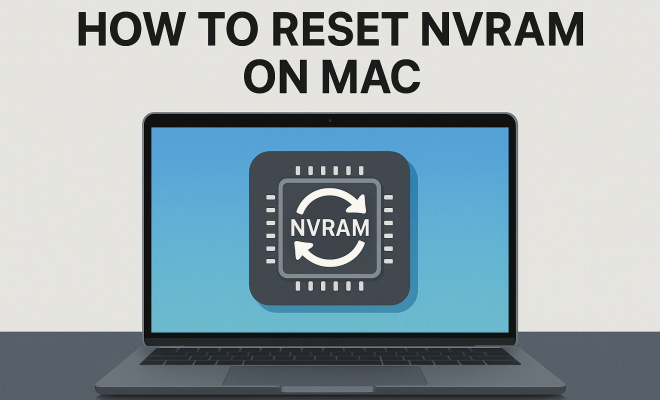
How to reset NVRAM on Mac
“`html
Whether you’re a seasoned Mac user or just starting out, understanding how to reset NVRAM on Mac can significantly improve your experience. NVRAM, or Non-Volatile Random Access Memory, is a small amount of memory that your Mac uses to store specific settings. These settings can include speaker volume, screen resolution, and startup disk selection. If you’re experiencing issues with these parameters, resetting your NVRAM might be the solution you need. In this comprehensive guide, we’ll explore what NVRAM is, why you might want to reset it, and how to do it step-by-step.
1. What is NVRAM?
NVRAM stands for Non-Volatile Random Access Memory. Unlike regular RAM, which loses its data when the power is turned off, NVRAM retains information even when your Mac is powered down. This makes it particularly useful for storing settings that the system needs to access quickly during startup.
The specific types of settings stored in NVRAM can vary by model, but generally, it includes:
- Volume settings
- Screen resolution
- Startup disk selection
- Recent kernel panic information
- Time zone settings
By retaining this information, NVRAM allows your Mac to boot up with the correct preferences in place, enhancing user experience significantly.
2. Why Reset NVRAM on Your Mac?
Resetting NVRAM can be an effective troubleshooting step for a variety of issues. If you’ve recently upgraded your operating system or changed hardware, you may notice that your settings are not functioning as expected. Here are some common scenarios where resetting NVRAM can help:
- Audio problems: If you’re having trouble with sound output or volume adjustments, resetting NVRAM can restore proper audio preferences.
- Display issues: Problems related to screen resolution or external display settings can often be resolved through a NVRAM reset.
- Boot problems: If your Mac isn’t starting up correctly or is stuck on the Apple logo, resetting NVRAM can often get it back on track.
- Time zone issues: Incorrect time and date settings can sometimes be rectified by resetting NVRAM.
Overall, if you’re experiencing any quirks or bugs tied to your Mac’s system settings, it’s worth trying a NVRAM reset as a first step.
3. When Should You Consider Resetting NVRAM?
There are several situations where resetting NVRAM can be beneficial:
- If you’ve recently installed a new OS update and your Mac is acting strangely.
- After adding new hardware components like RAM or an external drive.
- If you notice any issues with sound settings, display options, or boot sequences.
- When relocating your Mac to a different environment, as new regional settings might be required.
In general, it’s recommended to consider resetting NVRAM anytime you notice odd behavior with your Mac’s settings. Just remember that this process will revert your preferences back to their default settings, so be prepared to reconfigure them afterward.
4. How to Reset NVRAM on Mac: Step-by-Step Instructions
Resetting NVRAM is a straightforward process, but it does require a specific sequence of actions. Follow these steps to perform a reset on your Mac:
- Shut down your Mac completely.
- Turn on your Mac and immediately press and hold the Option, Command, P, and R keys simultaneously.
- Keep holding those keys for about 20 seconds. During this time, your Mac may appear to restart.
- Release the keys and allow your Mac to boot up normally.
After following these steps, you’ll have successfully reset NVRAM on your Mac. Remember, you may need to adjust some of your system settings afterward to customize your preferences.
5. Troubleshooting NVRAM Reset Issues
Even though resetting NVRAM is typically a smooth process, issues can arise. Here are some common troubleshooting tips: (See: Wikipedia article on NVRAM.)
- Mac Doesn’t Boot: If your Mac doesn’t respond to the key combination, ensure you’re pressing the keys immediately after powering on. If it still doesn’t work, try using another keyboard, as compatibility issues may arise.
- Settings Not Restored: If certain settings don’t appear to have reverted after the reset, double-check your configurations. Some settings may require manual adjustment.
- Persistent Problems: If issues persist even after resetting NVRAM, consider looking into other troubleshooting methods, such as resetting the System Management Controller (SMC).
Being prepared with these solutions can save you time and frustration if you encounter problems while resetting NVRAM.
6. Understanding NVRAM vs. PRAM
You might hear the terms NVRAM and PRAM (Parameter RAM) used interchangeably, but they do have distinctions. PRAM is a type of NVRAM, and it was primarily used in older Macs to store similar settings. Modern Macs utilize NVRAM to achieve the same purpose, but with enhanced performance and reliability.
The main takeaway? If you’re working with newer Mac models, focus on NVRAM. While PRAM may still show up in documentation, its function has largely been replaced by NVRAM in contemporary systems.
7. Advanced Troubleshooting with NVRAM
For users who find themselves facing complex issues, diving deeper into NVRAM settings may be beneficial. Here are a few advanced troubleshooting tactics:
- Identifying Hardware Issues: If you continue to experience issues after resetting NVRAM, there may be underlying hardware problems, such as a failing hard drive or malfunctioning peripherals.
- Monitoring Kernel Panics: If you’re encountering frequent kernel panics, the information stored in NVRAM can provide clues. After resetting NVRAM, check logs for kernel panic reports that can guide further troubleshooting.
- Consulting Apple Support: If all else fails, don’t hesitate to seek help from Apple Support or a certified technician, especially if your device is under warranty.
Taking a methodical approach to diagnose and resolve problems can help you maintain your Mac’s performance in the long run.
8. Keeping Your Mac Healthy: Regular Maintenance Tips
Resetting NVRAM is just one tool in your maintenance toolkit. To keep your Mac running smoothly, consider these additional tips:
- Regular Software Updates: Ensure your operating system and apps are up to date to mitigate bugs and security vulnerabilities.
- Disk Utility: Use the built-in Disk Utility to periodically check and repair disk permissions and errors.
- Backup Your Data: Always keep backups of your important files using Time Machine or another backup solution. This won’t directly affect NVRAM, but it ensures your data is safe during troubleshooting.
By taking regular care of your Mac, you can prevent many issues before they arise, making the need to reset NVRAM less frequent.
9. When to Seek Professional Help
Though resetting NVRAM can solve many annoyances, there are times when professional assistance is warranted. If you’re uncomfortable performing resets or troubleshooting on your own, consider reaching out to a professional. Here are a few scenarios where this might be necessary:
- Persistent Issues: If resetting NVRAM doesn’t resolve ongoing problems, it may be time to consult with a technician.
- Hardware Upgrades: If you’re considering significant hardware changes, like replacing your hard drive, a professional can ensure the process is done safely.
- Warranty Concerns: If your Mac is still under warranty or covered by AppleCare, it’s often safer to consult with Apple before attempting repairs or resets yourself.
Recognizing when to seek help can save you time, stress, and potentially costly mistakes.
10. Final Thoughts on Resetting NVRAM
Resetting NVRAM on your Mac is a simple yet powerful way to troubleshoot various system issues. Whether you’re dealing with audio problems, display issues, or boot concerns, knowing how to reset NVRAM can restore your settings to their optimal state. Remember, you should always be cautious when performing system resets and keep your data backed up to avoid loss.
As you become more familiar with this process, you’ll find that troubleshooting your Mac becomes a much simpler task. So, don’t hesitate to embrace this skill—you never know when it might come in handy!
11. Common Myths About NVRAM Reset
There are several myths surrounding the concept of resetting NVRAM on a Mac. Understanding what’s true and what’s not can help you make informed decisions. Let’s explore a few of these misconceptions:
- Myth 1: NVRAM Reset Will Delete My Files: Many users fear that resetting NVRAM will erase personal files or applications. This is incorrect. NVRAM only affects system preferences, not your documents, apps, or media.
- Myth 2: It’s Only Necessary After Upgrading: While many find it useful after an OS upgrade, resetting NVRAM can be beneficial anytime you encounter irregular settings behavior, irrespective of upgrades.
- Myth 3: You Should Reset NVRAM Regularly: Resetting NVRAM is a troubleshooting step, not a routine maintenance task. Doing it too often can lead to unnecessary reconfiguration of settings.
Debunking these myths can alleviate anxiety and lead to a better understanding of when and how to reset NVRAM effectively.
12. Real-World Examples of NVRAM Issues
Real-life experiences can provide insight into how diverse NVRAM-related issues can manifest:
- Case 1: Audio Distortion: A user reported intermittent audio distortion that seemed to appear after a system update. After resetting NVRAM, the issue was resolved, restoring normal sound quality.
- Case 2: External Display Problems: Another user faced issues with an external monitor not displaying correctly. Following the reset, the monitor was recognized immediately, and settings were adjusted as needed.
- Case 3: Boot Failure: A Mac that repeatedly failed to boot after an operating system update was brought in for repair. The technician reset the NVRAM, resolving the boot issues and allowing the user to access their files again.
These examples illustrate how resetting NVRAM can sometimes be the simplest solution to seemingly complex problems, reaffirming its usefulness as a troubleshooting step.
13. Frequently Asked Questions (FAQ) about Resetting NVRAM
If you’re still unsure about resetting NVRAM, check out these frequently asked questions:
What happens to my settings after I reset NVRAM?
After resetting NVRAM, your system settings will revert to their default values. You’ll need to reconfigure settings such as your startup disk, display resolution, and time zone preferences.
Is resetting NVRAM safe for my Mac?
Yes, resetting NVRAM is a safe operation and is designed to help resolve specific issues. It doesn’t affect your files or applications.
How often should I reset NVRAM?
There’s no need to reset NVRAM regularly. Only consider this option if you’re experiencing issues with your Mac’s settings that a reset might resolve.
Can I reset NVRAM on any Mac model?
Most Mac models from 2016 and later use NVRAM, and the reset method described applies to these versions. Older models might require different procedures. Always check your model’s documentation if you’re unsure.
Will I need to perform this reset again in the future?
It depends on your experience with your Mac. Some users find they need to reset NVRAM occasionally, especially after significant updates or hardware changes. However, many Mac users may never need to reset it once they establish stable settings.
14. Keeping Your NVRAM Healthy
Just as you maintain your Mac’s physical components, consider the health of your NVRAM. Here are a few tips to keep it functioning optimally:
- Avoid Frequent Power Loss: Sudden power outages can corrupt NVRAM. Use a surge protector or uninterruptible power supply (UPS) to minimize risks.
- Regularly Update Software: Ensure your operating system is up to date, as updates often fix bugs that could affect NVRAM functionality.
- Monitor Your Mac’s Performance: Keep an eye on how your Mac is performing. If you notice frequent issues, it may be time to reset NVRAM or seek professional assistance.
By following these tips, you can help maintain the performance of your Mac and minimize future NVRAM-related issues.
15. Understanding the Impact of NVRAM on System Performance
NVRAM plays a crucial role in the overall system performance of your Mac. The settings stored in NVRAM can directly influence how well your system operates. For instance, incorrect display settings can lead to suboptimal graphics performance, while audio settings that aren’t configured properly might degrade sound quality.
Some studies show that users who reset their NVRAM report a noticeable improvement in their Mac’s responsiveness and boot time. According to a survey conducted among Mac users, over 60% reported that resetting NVRAM resolved their audio and display issues, leading to smoother operations post-reset. These statistics underscore the importance of NVRAM in maintaining an efficient workflow.
Additionally, if you frequently switch between different external displays or audio output devices, ensuring that your NVRAM is set correctly can save you time. For instance, an external monitor with a higher resolution can require different settings, which NVRAM will remember for you.
16. Exploring the Relationship Between NVRAM and macOS Updates
Each time Apple releases a macOS update, there’s potential for NVRAM-related issues to arise. Updates can sometimes change how your Mac interacts with hardware, leading to inconsistencies in settings. For example, an update might alter the way your Mac recognizes external devices or how it manages power settings.
A case in point occurred during the transition to macOS Monterey, where many users experienced display resolution problems after the update was installed. In many instances, resetting NVRAM resolved these issues, allowing users to regain their preferred settings without additional troubleshooting.
Staying informed regarding macOS updates and their potential impact on NVRAM functionality can help you prepare for possible adjustments. It’s beneficial to monitor Apple’s release notes for updates that specifically mention NVRAM-related changes or improvements.
17. Tips for New Mac Users
If you’re new to the Mac ecosystem, understanding NVRAM and its functions can seem daunting, but it doesn’t have to be! Here are a few straightforward tips to help you navigate NVRAM:
- Learn the Basics: Familiarize yourself with what NVRAM stores and why it matters. This understanding will empower you to make informed decisions when troubleshooting.
- Document Your Settings: Before resetting NVRAM, write down your current settings, especially if they are customized. This way, you can easily restore them post-reset.
- Practice Makes Perfect: Don’t hesitate to practice the reset procedure a couple of times in a controlled environment. The more comfortable you feel with the reset process, the less anxious you’ll be when issues arise.
Embracing these tips can help new Mac users become more adept at managing their systems, leading to a more satisfying user experience.
18. Conclusion: The Importance of NVRAM
In summary, understanding how to reset NVRAM on your Mac is an essential skill that can significantly improve your experience. By keeping your NVRAM healthy and being aware of its impacts on system performance, you can ensure that your Mac runs smoothly. Whether you’re troubleshooting problems or maintaining optimal performance, knowing when and how to reset NVRAM is invaluable. So, the next time you encounter a pesky issue, don’t forget this handy trick!
“`
Trending Now
Frequently Asked Questions
What does resetting NVRAM do on a Mac?
Resetting NVRAM on a Mac clears and restores settings related to speaker volume, screen resolution, startup disk selection, and more. This can resolve various issues such as audio problems, display settings, and boot issues, enhancing your Mac's overall performance.
How do I reset NVRAM on my Mac?
To reset NVRAM, shut down your Mac and then turn it on while holding down the Option, Command, P, and R keys simultaneously. Keep holding the keys for about 20 seconds, then release them. Your Mac will restart, and the NVRAM will be reset to default settings.
When should I reset NVRAM on my Mac?
You should consider resetting NVRAM if you experience issues with sound output, display settings, or your Mac fails to boot correctly. It's particularly helpful after upgrading your operating system or changing hardware components.
What settings are stored in NVRAM?
NVRAM stores essential settings such as speaker volume, screen resolution, startup disk selection, recent kernel panic information, and time zone settings. This allows your Mac to boot with the correct preferences.
Is resetting NVRAM safe for my Mac?
Yes, resetting NVRAM is a safe procedure for your Mac. It only clears specific settings without affecting your files or applications. It's a common troubleshooting step for resolving various system issues.
Agree or disagree? Drop a comment and tell us what you think.